
1 Overview
Design responsive HTML email templates using AI for Magento 2 stores.
Ewebecommerce_AiEmailDesigner provides a powerful solution for creating responsive HTML email templates with ease. Utilizing advanced AI models from providers like Anthropic, OpenAI, and Google, this extension streamlines the email design process for Magento 2. Admins can generate, test, and deploy captivating email templates directly from the configuration panel.
Integration features such as automated brand detection, manual customizations, and sophisticated A/B testing tools allow for a tailored email marketing approach. This comprehensive tool supports robust email communications across marketing, transactional, and customer engagement use cases, ensuring consistent, high-quality messaging from your Magento store.
At a Glance
- AI-driven email template creation
- Supports Anthropic, OpenAI, Google APIs
- Responsive design with drag-drop builder
- Automated brand color and logo detection
- Configurable A/B testing for optimization
- Email spam analysis and testing integration
- Dynamic content personalization features
- Compatible with Magento 2.4.4+
| Module | Ewebecommerce_AiEmailDesigner |
|---|---|
| Composer | ewebecommerce/module-ai-email-designer |
| Version | 1.0.0 |
| PHP | >=8.1 |
| Compatibility | Magento Framework >=103.0 |
| Hyva | Luma only |
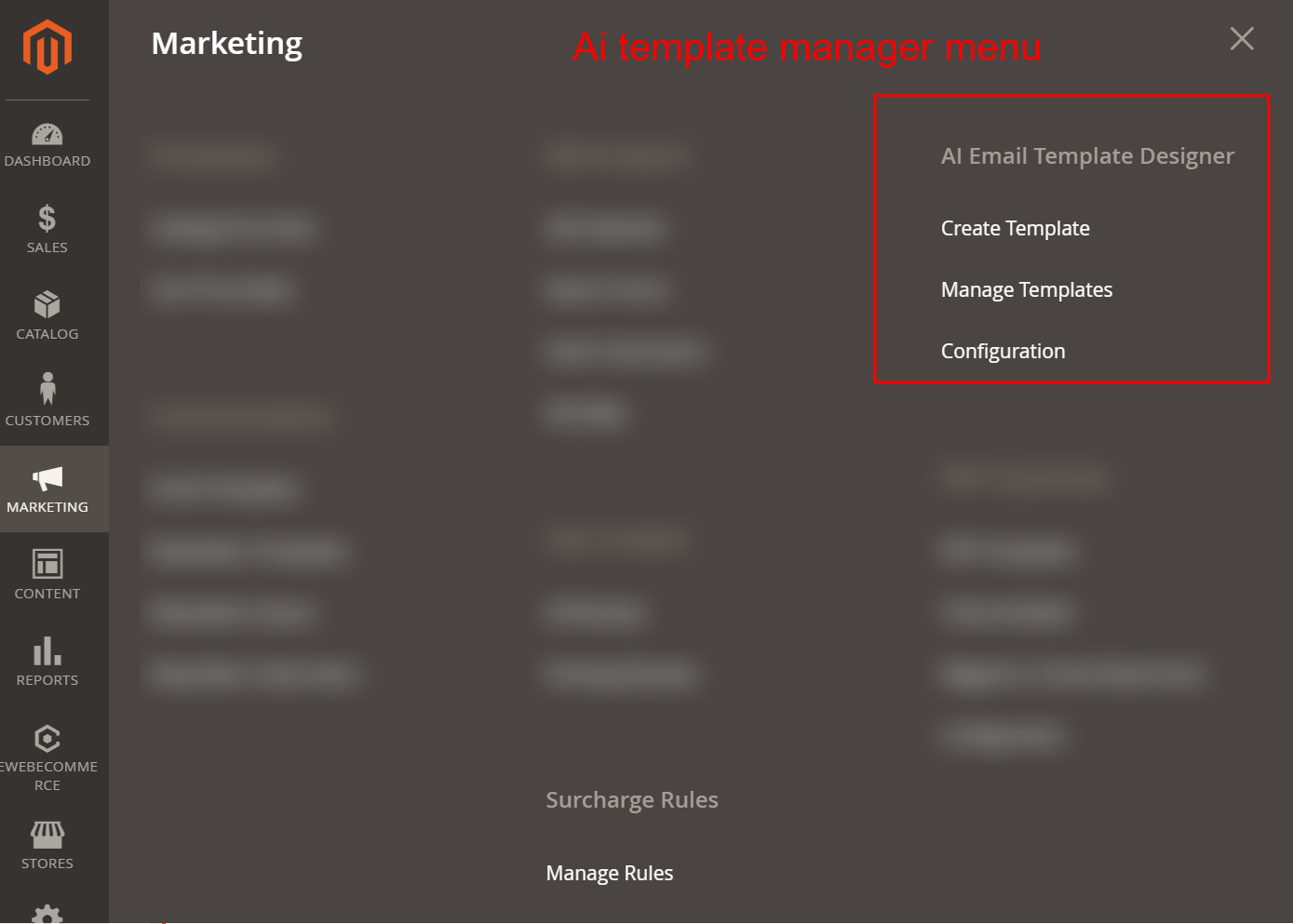
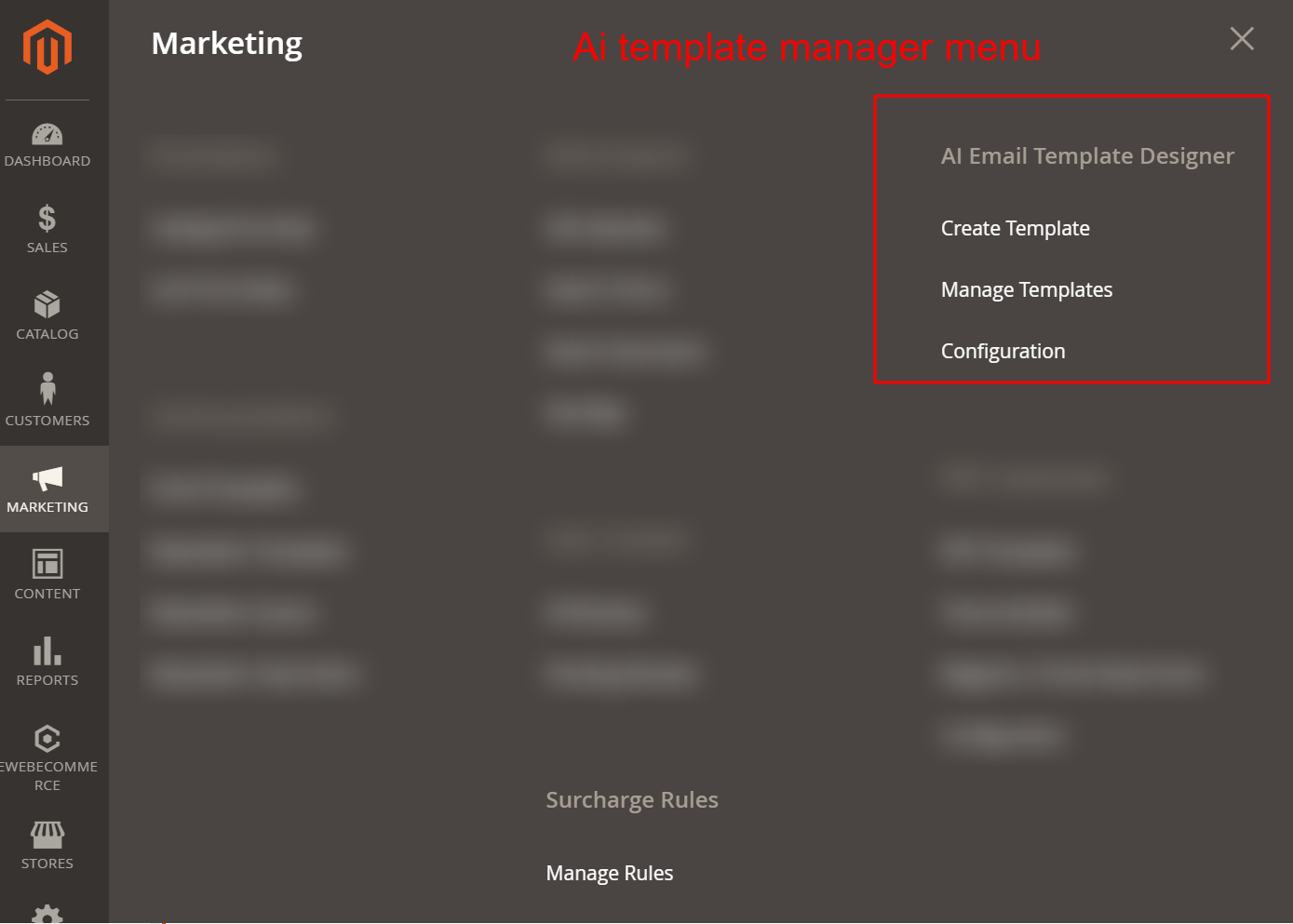
Access the AI Email Template Designer through the Marketing section, where you can create new email templates, manage existing ones, or configure global settings. This entry point is crucial for leveraging AI capabilities in email design.
2 Features
Select AI provider and model
Enter AI API keys securely
Configure tokens and temperature
Integrated AI template generator
Responsive design capabilities
Apply predefined style presets
Generate multiple variants for testing
Automatic email formatting checks
Dynamic language processing
View and manage all email templates
Create with drag-and-drop builder
Utilize 28 prebuilt templates
Generate with AI or manual options
Adjustments for branding and styling
Preview and test live email design
Custom header and footer HTML
Manage templates by type
Store-specific template variations
Configure general and advanced settings
Set provider API credentials
Brand auto-detection for logos/colors
Manual color and logo overrides
Email-safe font family selection
Enable/disable A/B testing
Design and behavioral customizations
Custom CSS and HTML usage
Dynamic template personalization
Send test emails with sample data
Live design preview in desktops/mobile
A/B testing for engagement analysis
Utilize external render testing services
Evaluate spam protection scores
Dark mode email display settings
Real-time HTML code inspection
Feedback on template activation status
Analyzed test results to guide revisions
Reusable block component library
Advanced block components
Conditional and dynamic data usage
Integrate order data variables
Setup specific seasonal templates
Invoice and refund detail options
Personalize with customer variables
Leverage built-in styling variations
Assign templates to email roles
AI Email Generation
Customize and generate email templates using AI models from leading providers.
- Select AI provider and model
- Enter AI API keys securely
- Configure tokens and temperature
- Integrated AI template generator
- Responsive design capabilities
- Apply predefined style presets
- Generate multiple variants for testing
- Automatic email formatting checks
- Dynamic language processing
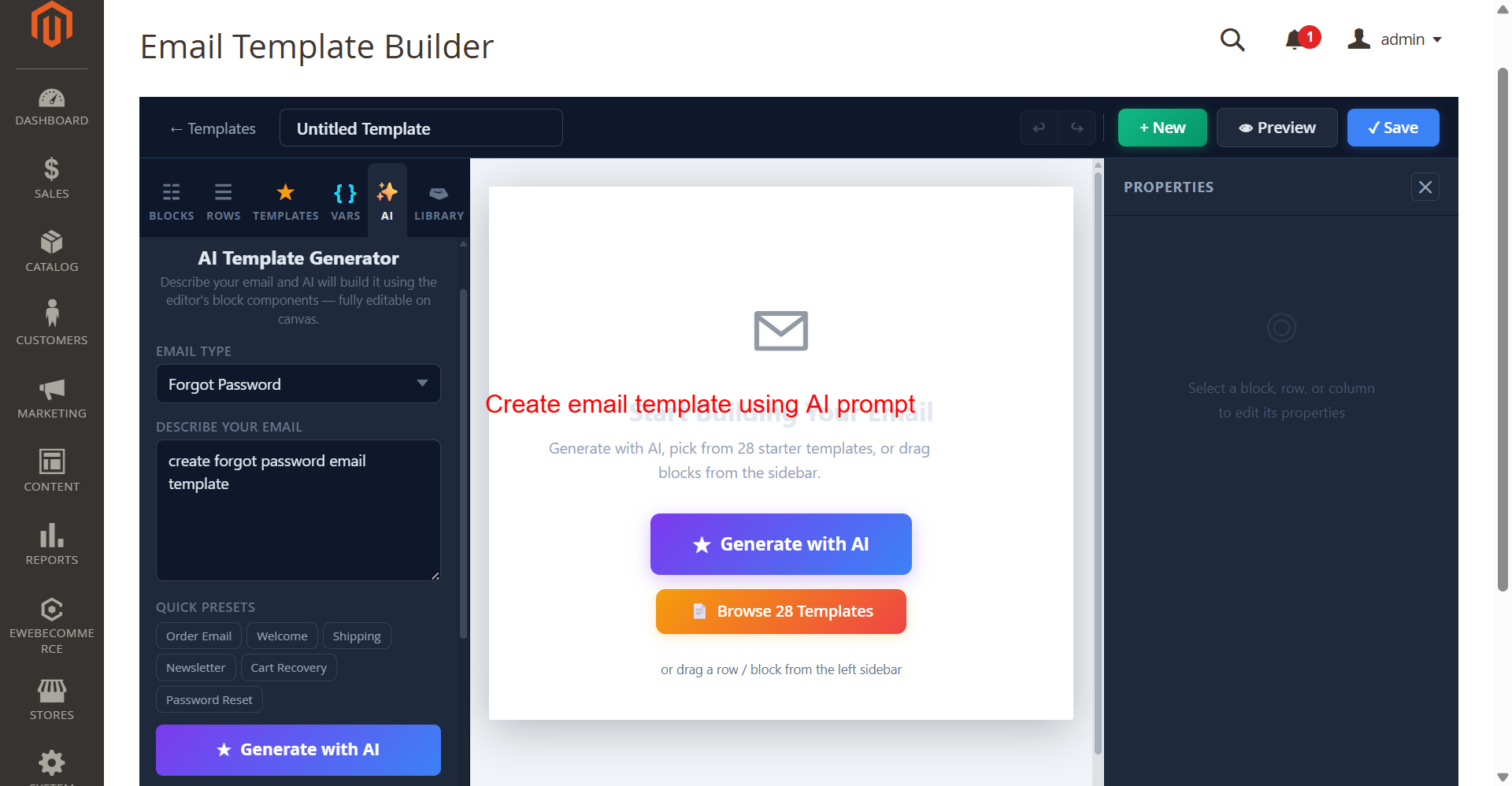
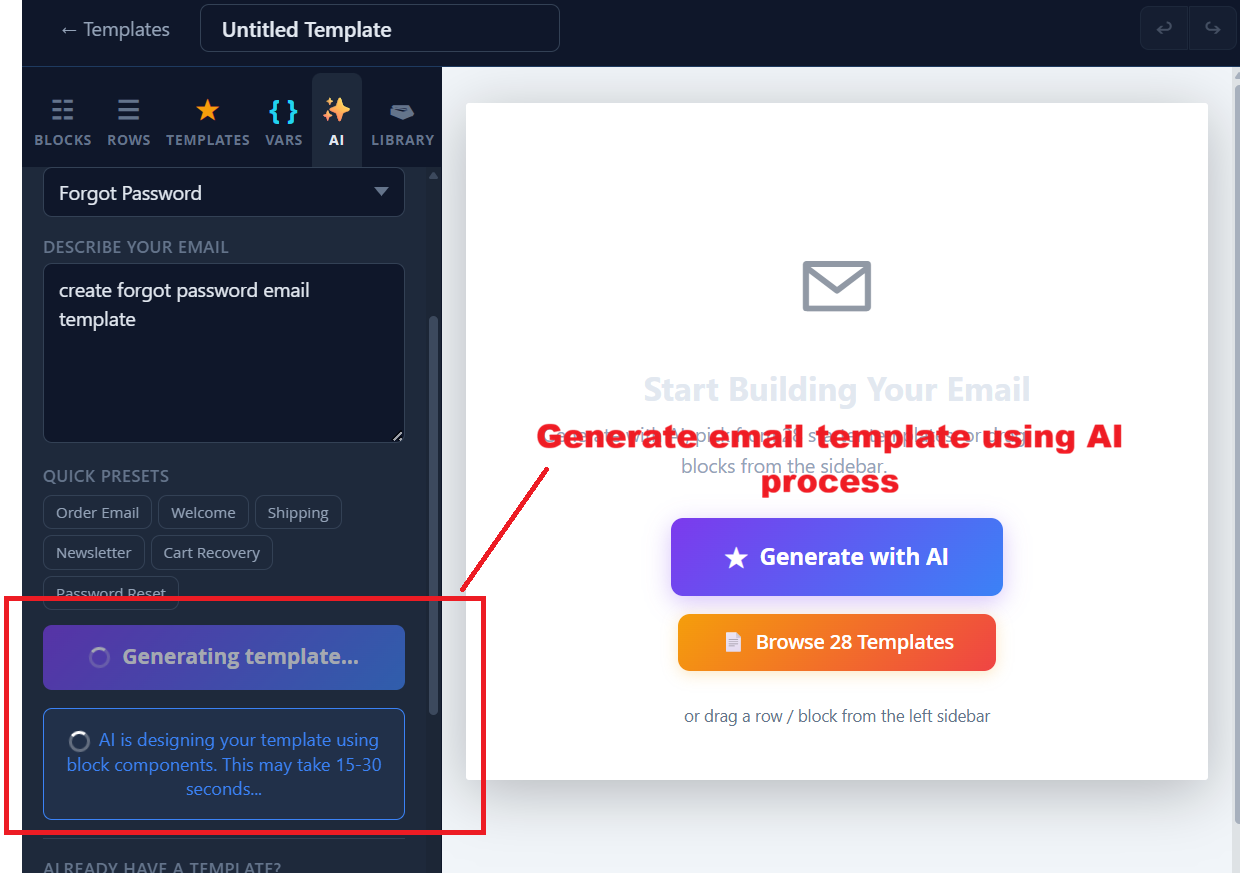
In this interface, admins can utilize the AI Template Generator to effortlessly create new email templates by specifying the type of email and providing a prompt. The process optimizes email creation by leveraging AI to interpret the description and build a responsive template, enhancing productivity.
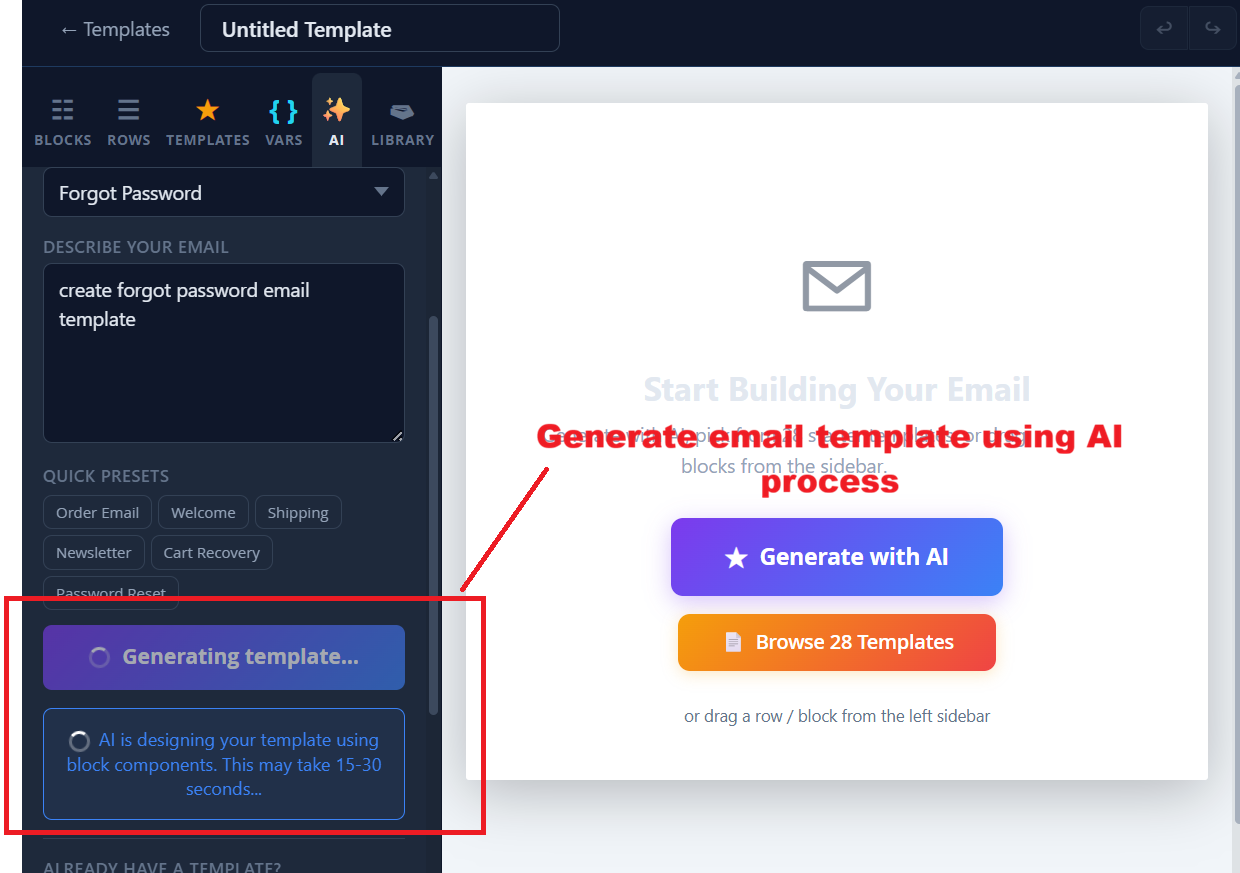
While AI processes the template, admins are notified about the progress, ensuring transparency and allowing them to multitask. This screen provides confidence that the template generation is underway, with an estimated waiting time.
Template Management
Manage existing email templates and create new ones using a visual builder.
- View and manage all email templates
- Create with drag-and-drop builder
- Utilize 28 prebuilt templates
- Generate with AI or manual options
- Adjustments for branding and styling
- Preview and test live email design
- Custom header and footer HTML
- Manage templates by type
- Store-specific template variations
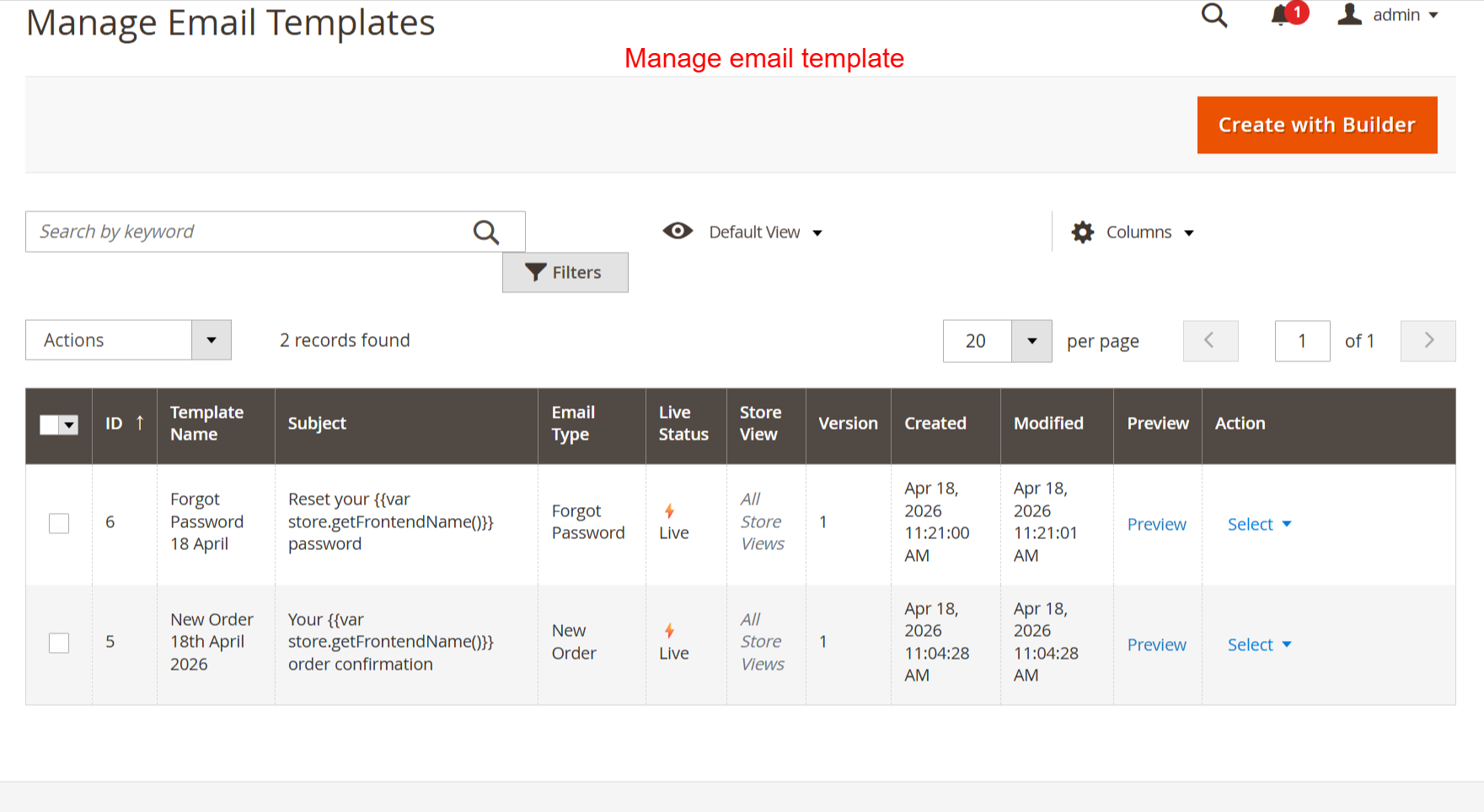
In this view, manage your email templates, review details, or create new ones using the builder tool. It's essential for organizing and maintaining control over active email campaigns to ensure strategic communication output.
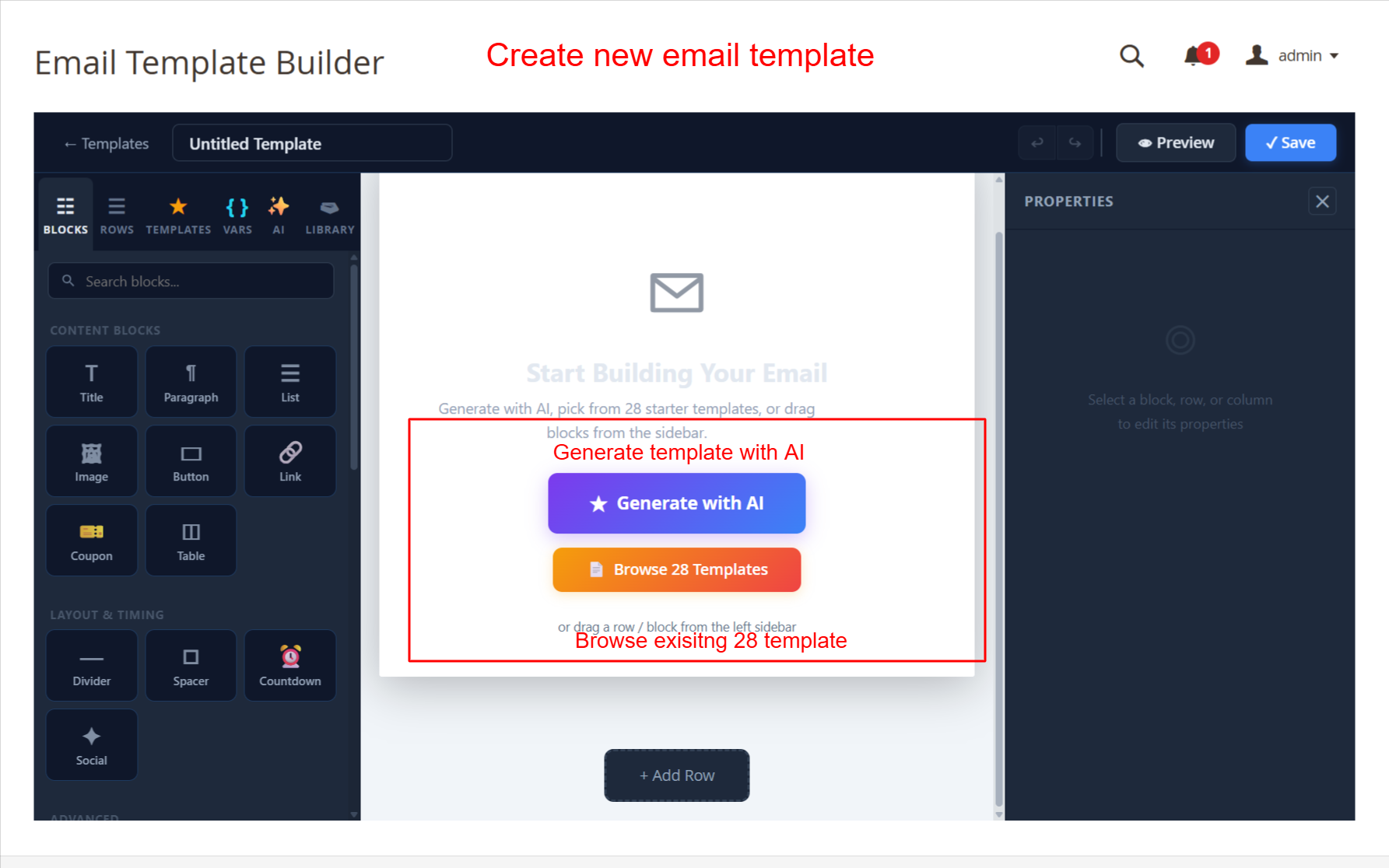
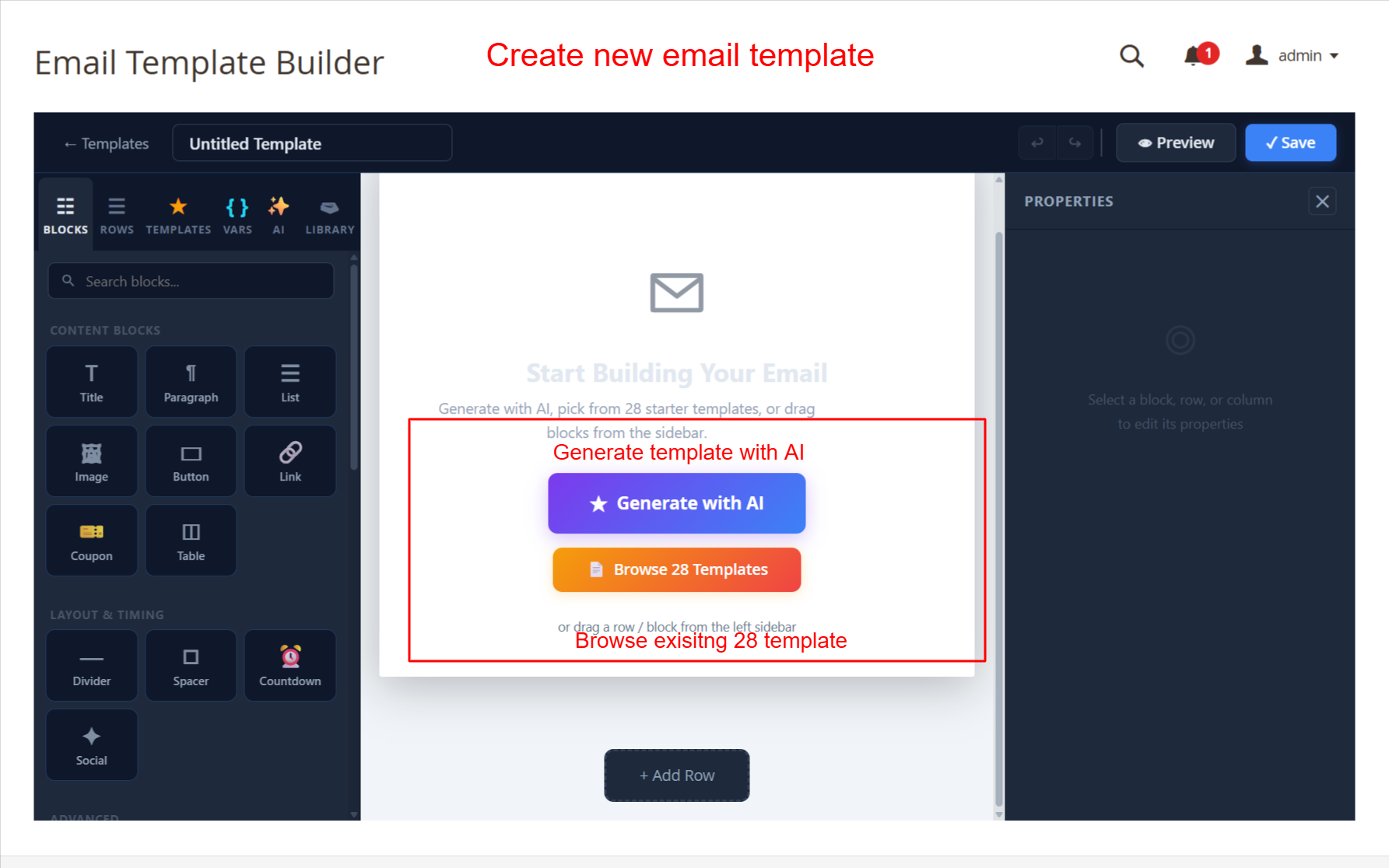
This screen allows admins to start building a new email template using the AI-powered generator or by choosing from 28 prebuilt templates. The drag-and-drop interface makes it simple to add various content blocks such as images and buttons, allowing for a highly customizable and responsive email design. This functionality is key for creating visually appealing emails that can enhance customer engagement.
Configuration and Customization
Configure AI Email Designer settings and customize template designs.
- Configure general and advanced settings
- Set provider API credentials
- Brand auto-detection for logos/colors
- Manual color and logo overrides
- Email-safe font family selection
- Enable/disable A/B testing
- Design and behavioral customizations
- Custom CSS and HTML usage
- Dynamic template personalization
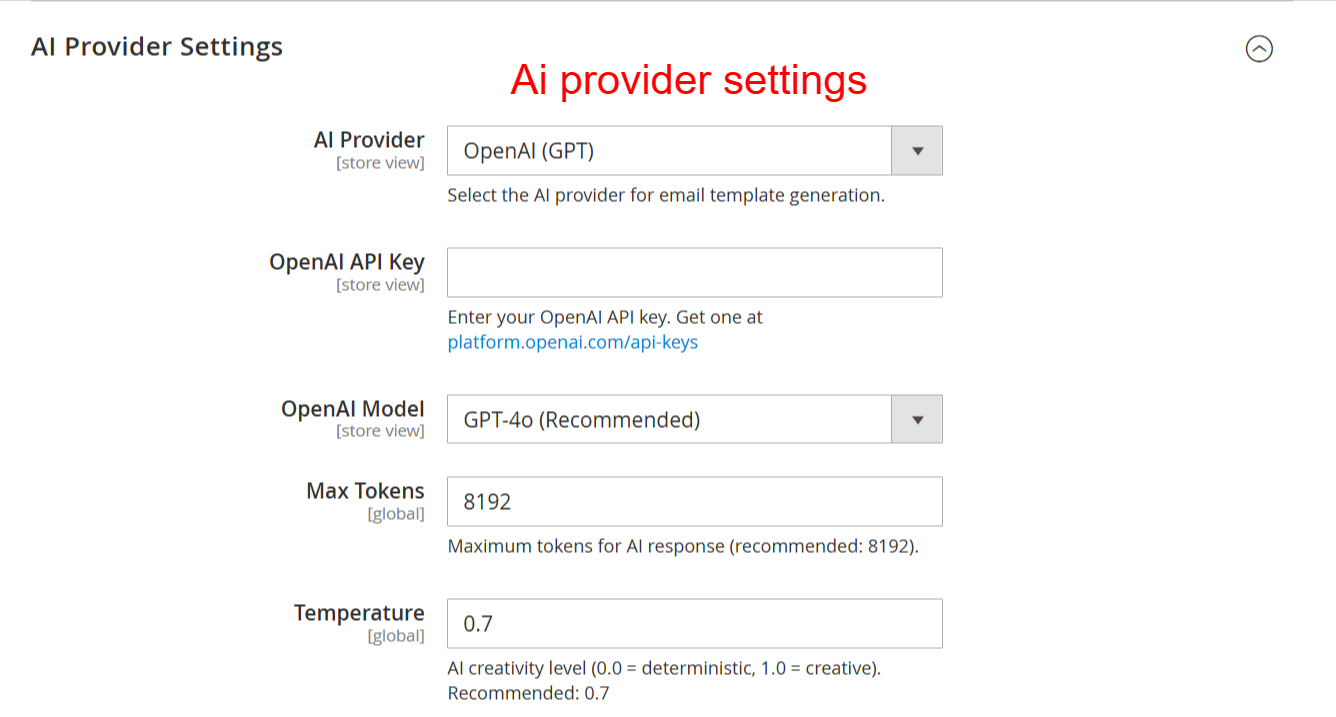
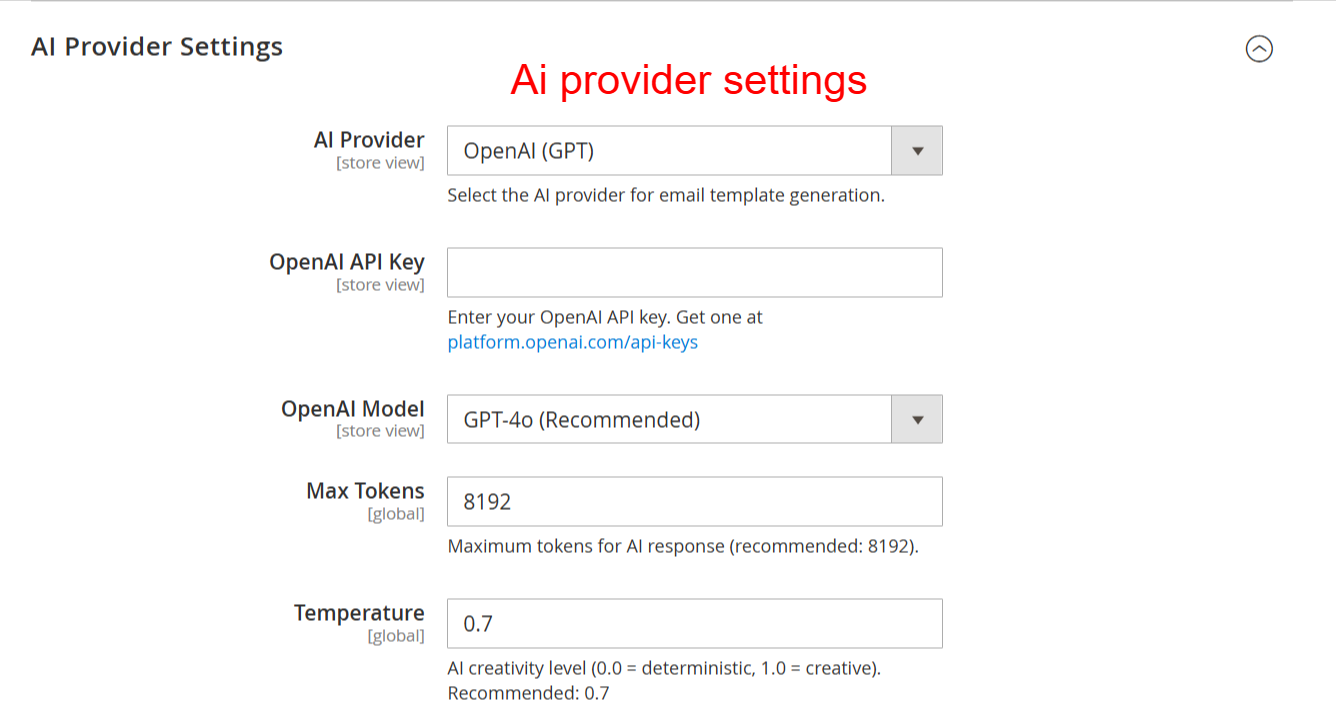
Configure your AI provider settings to connect the email designer with the chosen AI model. Enter your API key and customize model parameters like tokens and temperature to optimize email generation outputs.
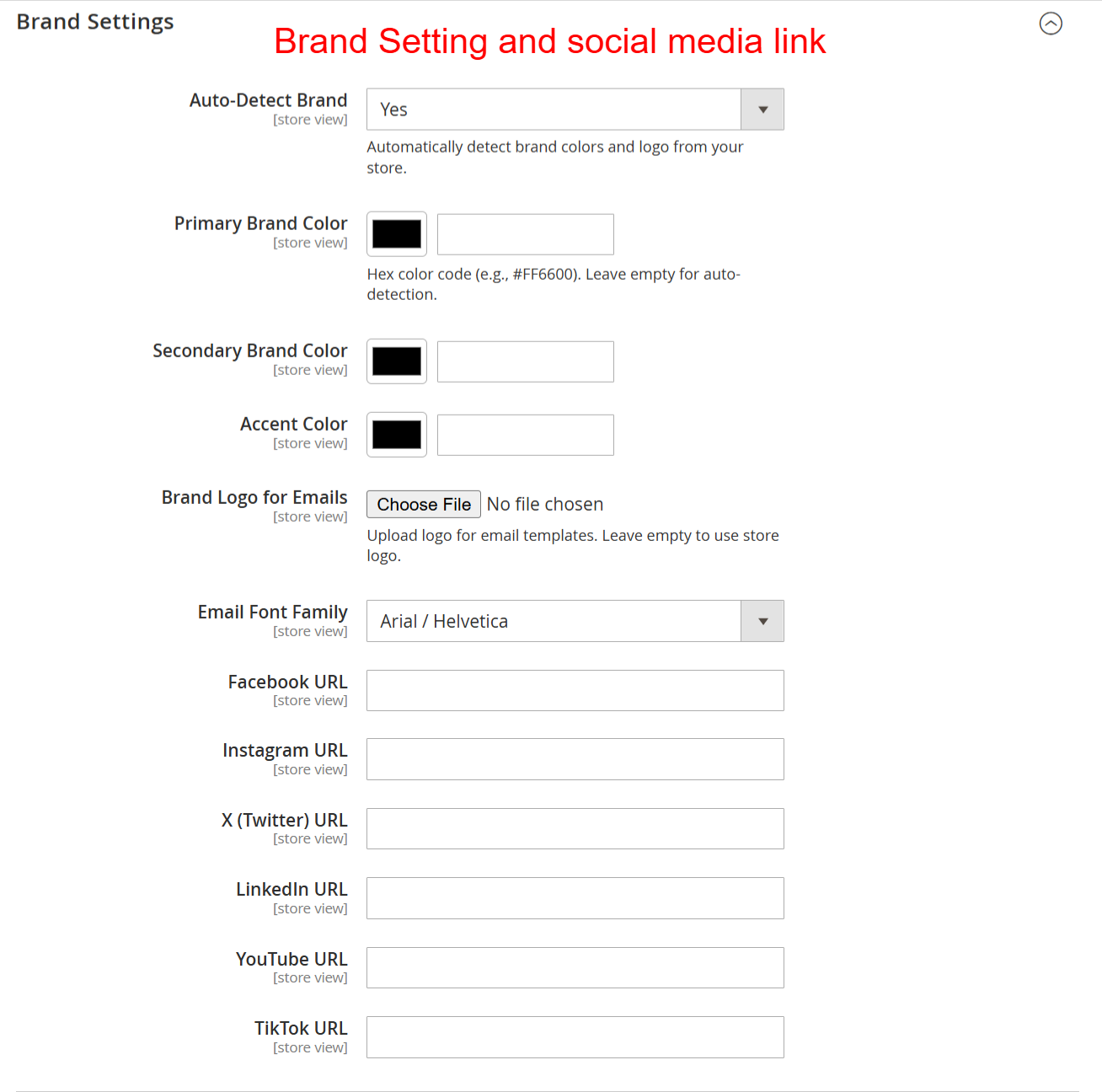
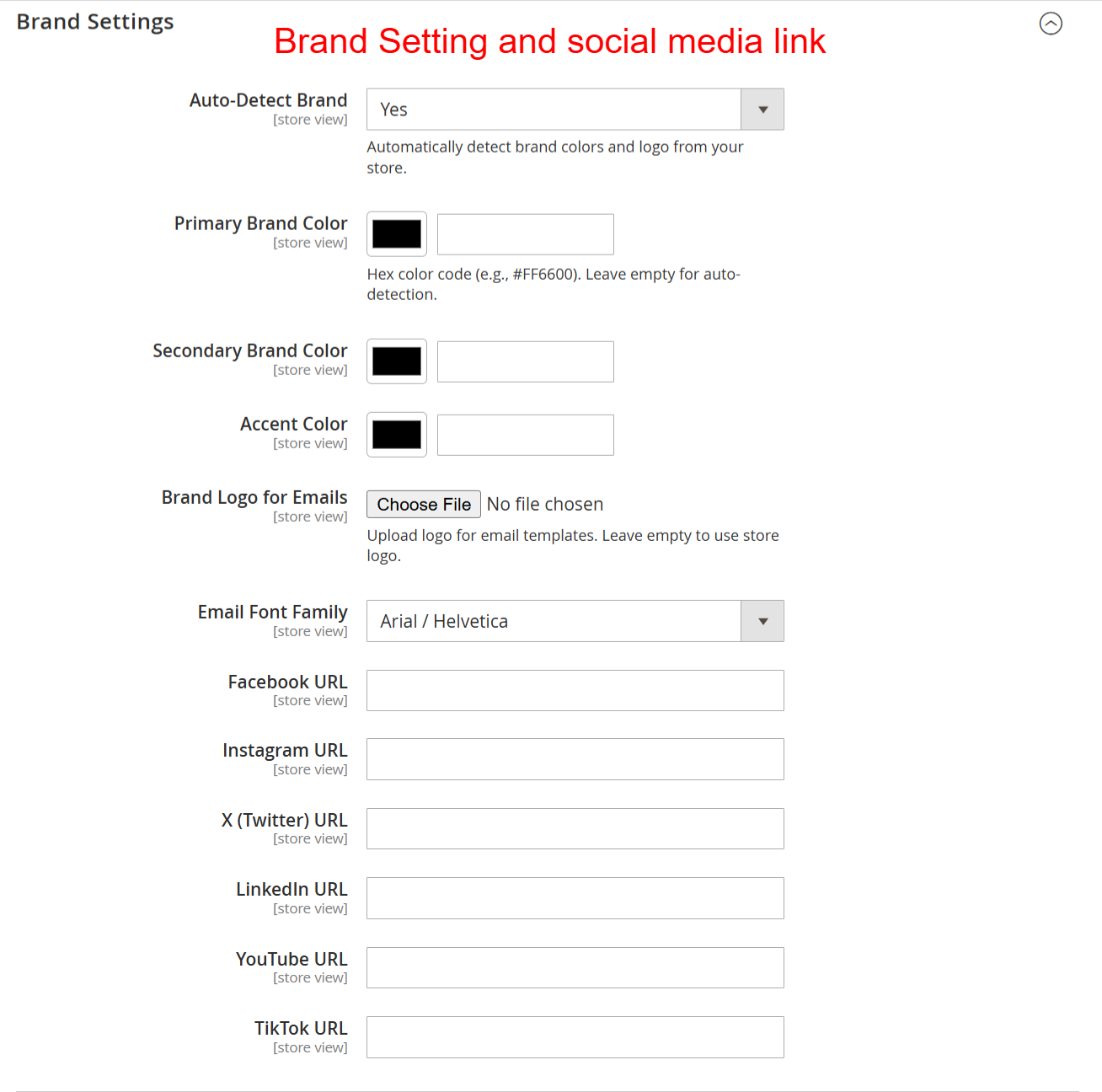
Set up your brand identity by specifying colors, fonts, and logos to ensure emails are consistently branded. Provide social media links to enhance connectivity and engagement through your email communications.
Interactive Testing Tools
Evaluate and optimize emails before deployment with robust testing features.
- Send test emails with sample data
- Live design preview in desktops/mobile
- A/B testing for engagement analysis
- Utilize external render testing services
- Evaluate spam protection scores
- Dark mode email display settings
- Real-time HTML code inspection
- Feedback on template activation status
- Analyzed test results to guide revisions
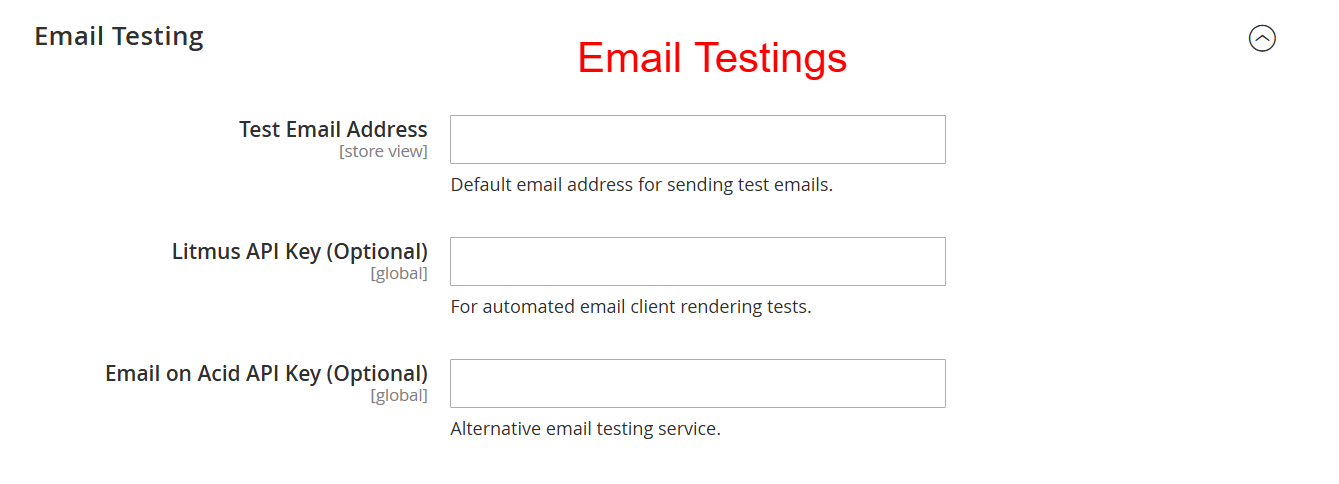
Define a default email address for sending test emails and integrate external testing services like Litmus and Email on Acid for evaluating email appearance across various clients. Ensures high quality of email renders before public distribution.
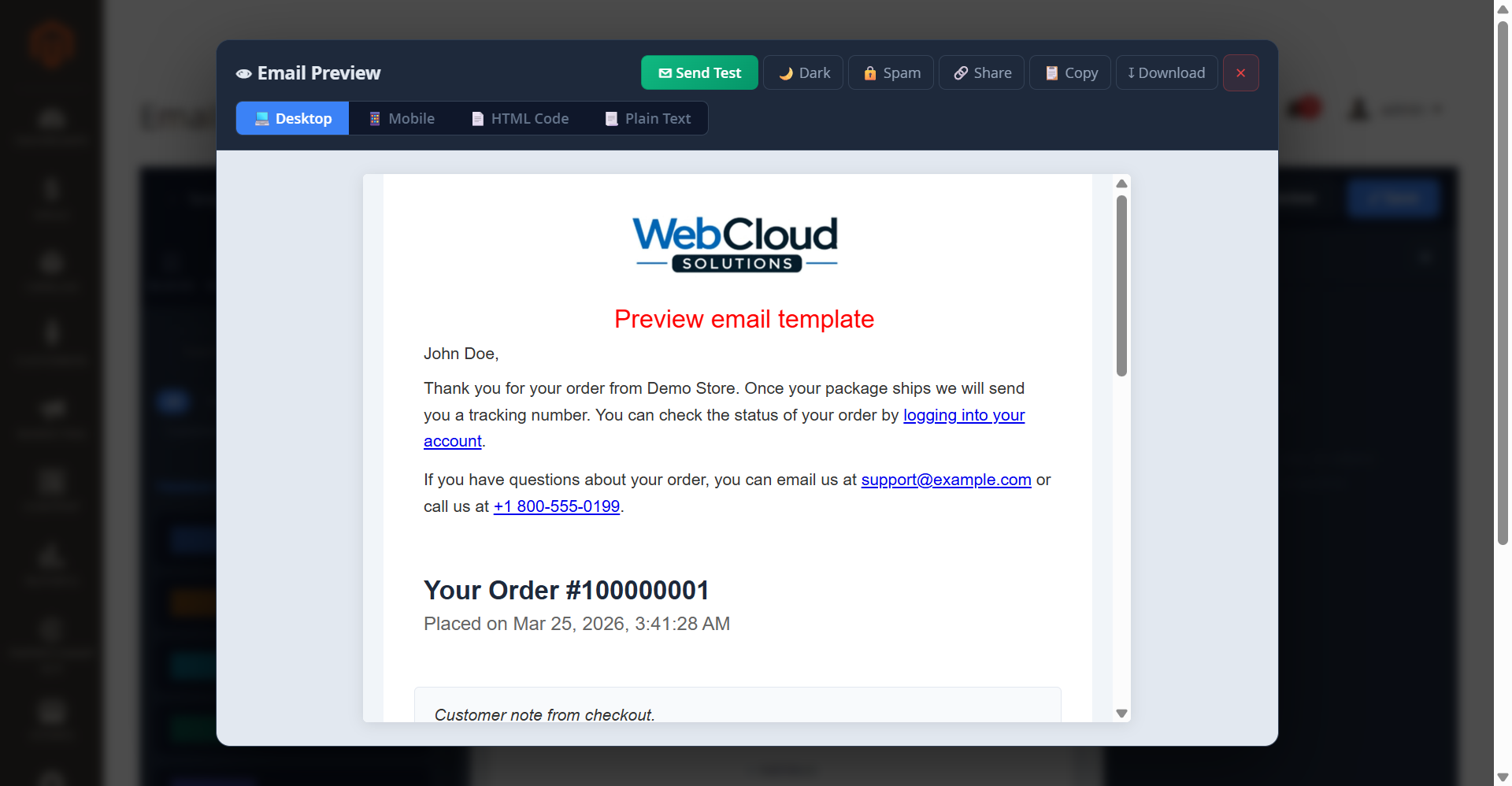
This screen is crucial for admins to ensure their templates appear as intended across devices. The ability to send test emails and preview in desktop and mobile modes guarantees the final product meets quality standards prior to distribution.
Utility and Extensions
Enhance email capabilities with modular components and saved configurations.
- Reusable block component library
- Advanced block components
- Conditional and dynamic data usage
- Integrate order data variables
- Setup specific seasonal templates
- Invoice and refund detail options
- Personalize with customer variables
- Leverage built-in styling variations
- Assign templates to email roles
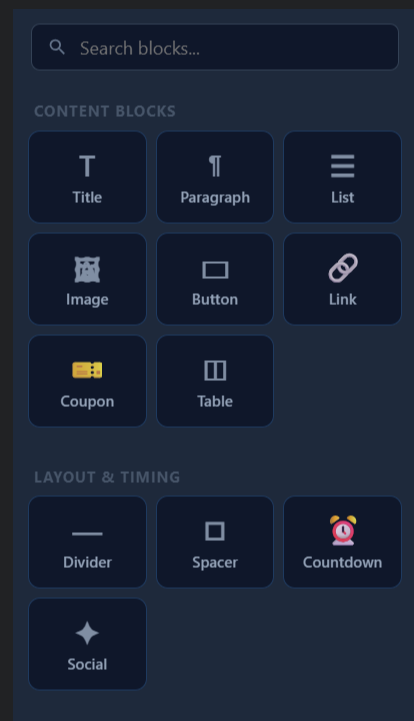
This builder interface provides the tools necessary for admins to customize their email templates using various content blocks. The selection enables a flexible design methodology, vital for crafting responsive and visually appealing emails that cater to different branding needs in Ewebecommerce_AiEmailDesigner.
3 Configuration Walkthrough
Navigate to Stores → Configuration in Magento Admin and follow these steps:
Enable the Module
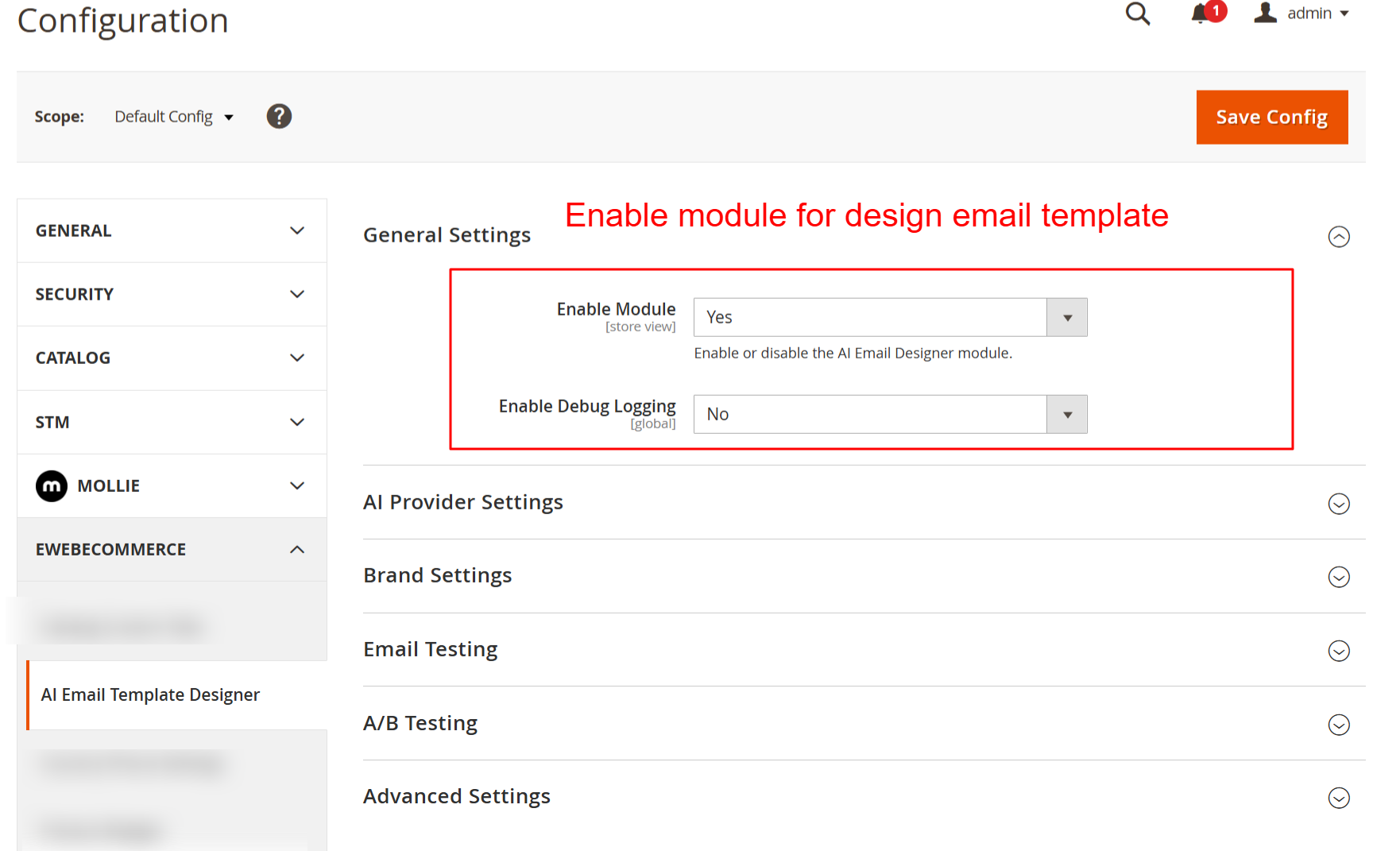
To start utilizing the AI Email Designer, navigate to Stores → Configuration → EWB E-Commerce → AI Email Designer. In the General Settings section, toggle the Enable Module setting. This enables the module's functionalities in your Magento store. Remember to save configurations by clicking the Save Config button after making changes.
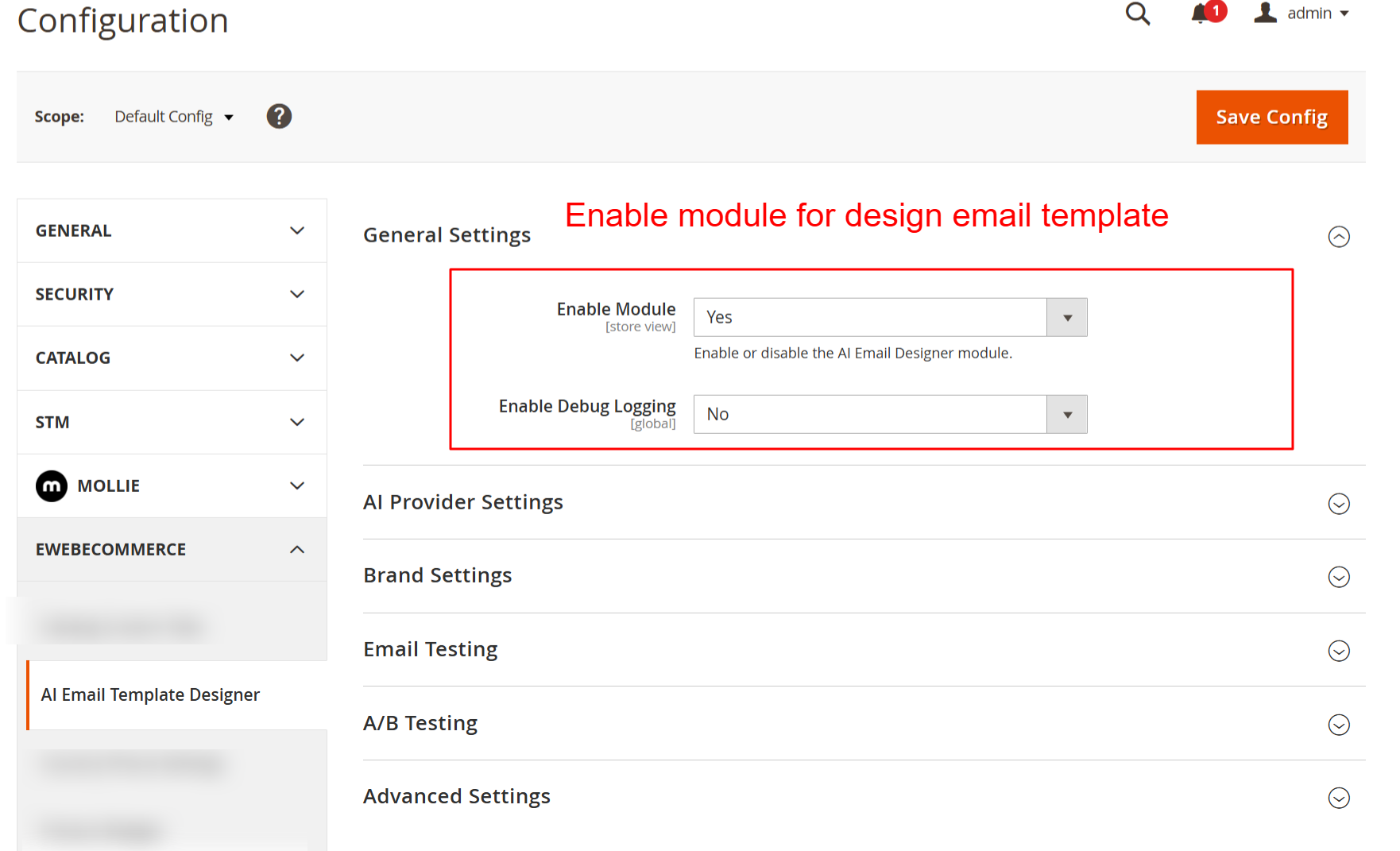
Here, you enable or disable the AI Email Designer module, a necessary step to activate the plugin’s functionalities in your store. You can also toggle debug logging for troubleshooting purposes.
Configure Provider Settings
Under the AI Provider Settings, choose your preferred AI provider from Anthropic, OpenAI, or Google. Enter the associated API key (keep it secure). Select the model you'd like to utilize, adjusting settings such as Max Tokens and Temperature to fine-tune how AI formulates the template designs.
Configure your AI provider settings to connect the email designer with the chosen AI model. Enter your API key and customize model parameters like tokens and temperature to optimize email generation outputs.
Set Up Brand and Social Media
Customize branding aspects by specifying Primary and Secondary Brand Colors, and uploading your Brand Logo. Enable automatic brand detection if desired. Enter URLs for various social media platforms to enhance integration within email templates.
Set up your brand identity by specifying colors, fonts, and logos to ensure emails are consistently branded. Provide social media links to enhance connectivity and engagement through your email communications.
Implement A/B Testing
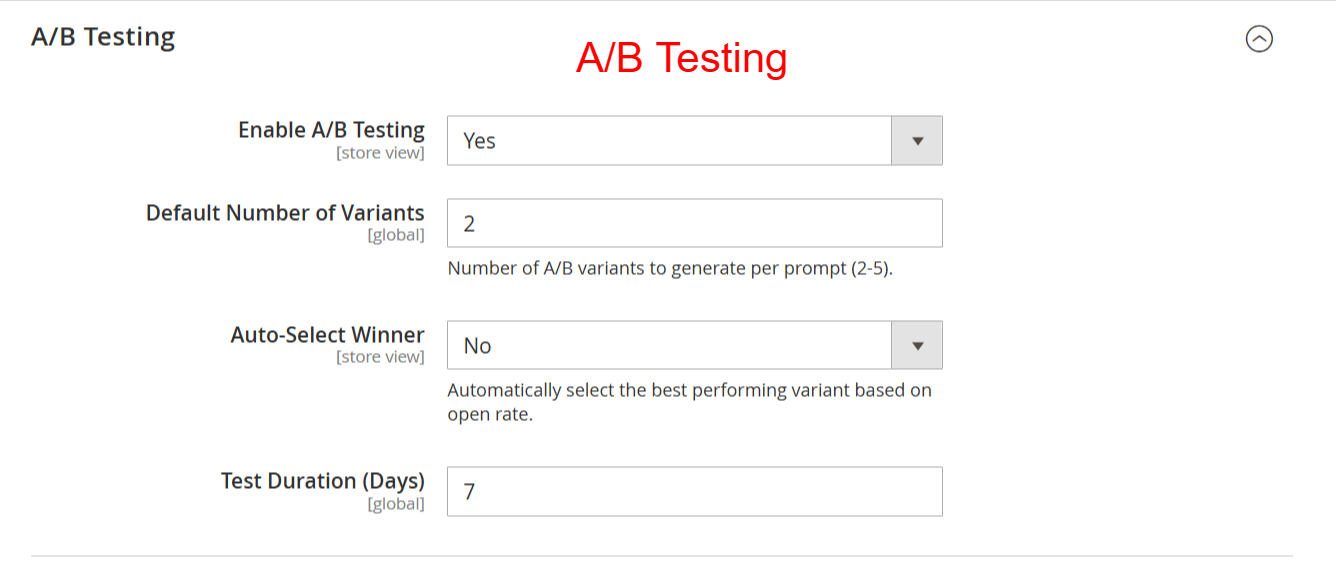
Navigate to the A/B Testing settings to activate and configure your email variants. Define the Default Number of Variants that AI should produce and set a Test Duration for determining the most effective email version. Use the Auto-Select Winner feature to streamline optimization.
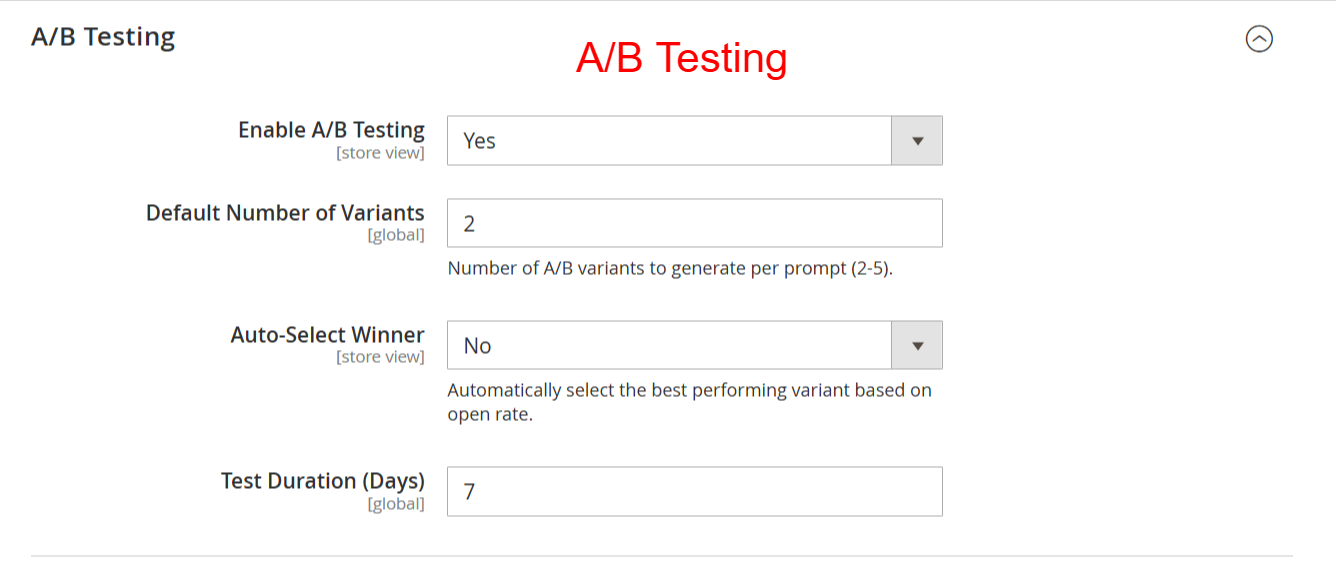
Enable A/B testing to compare different email variants. Control the number of variants and set testing parameters to automatically select the best-performing email, thereby optimizing email engagement and effectiveness.
Enhance With Advanced Settings
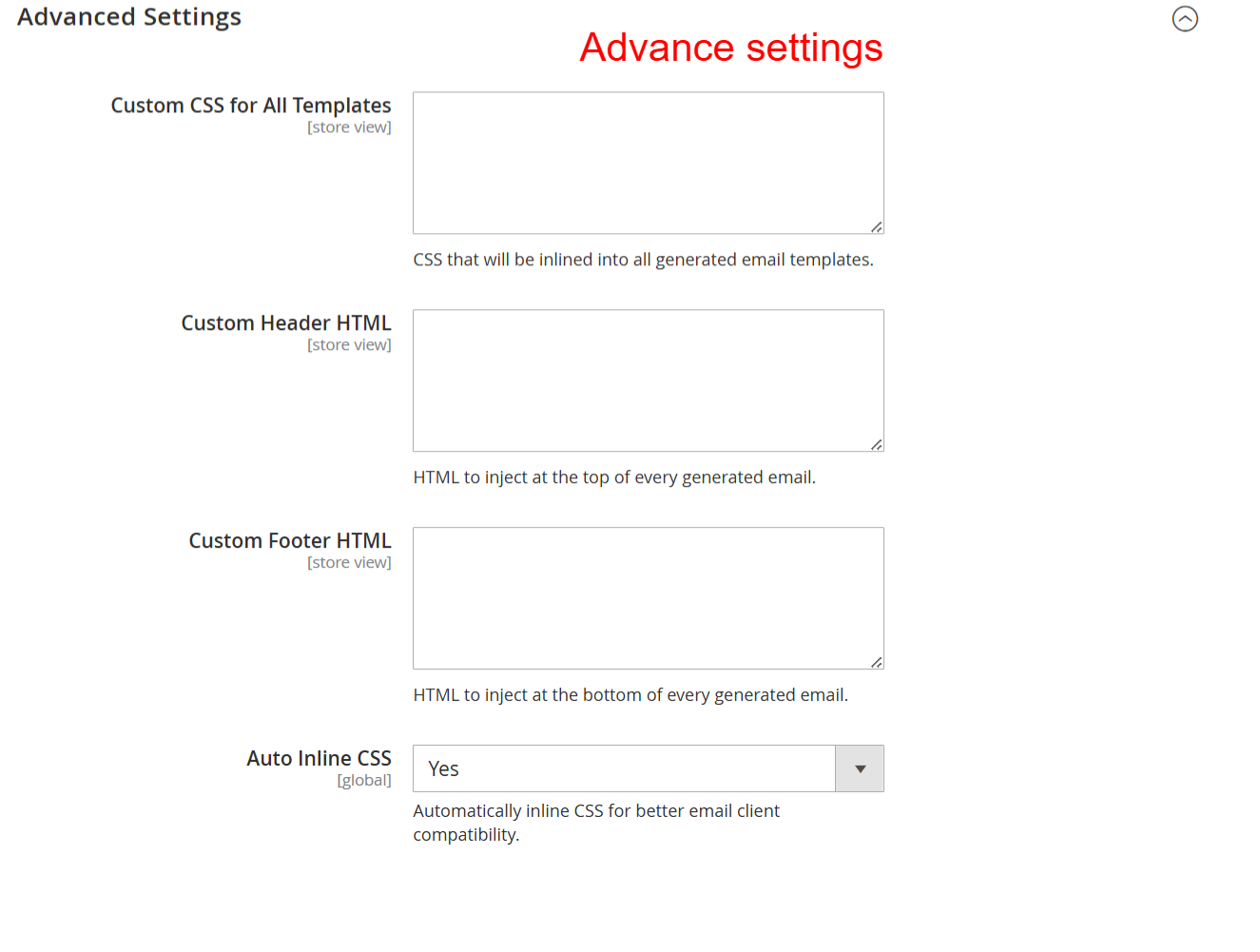
To refine the email output, use Advanced Settings for inserting Custom CSS and HTML into templates. Enabling Auto Inline CSS further ensures emails are displayed correctly across different clients, bolstering compatibility.
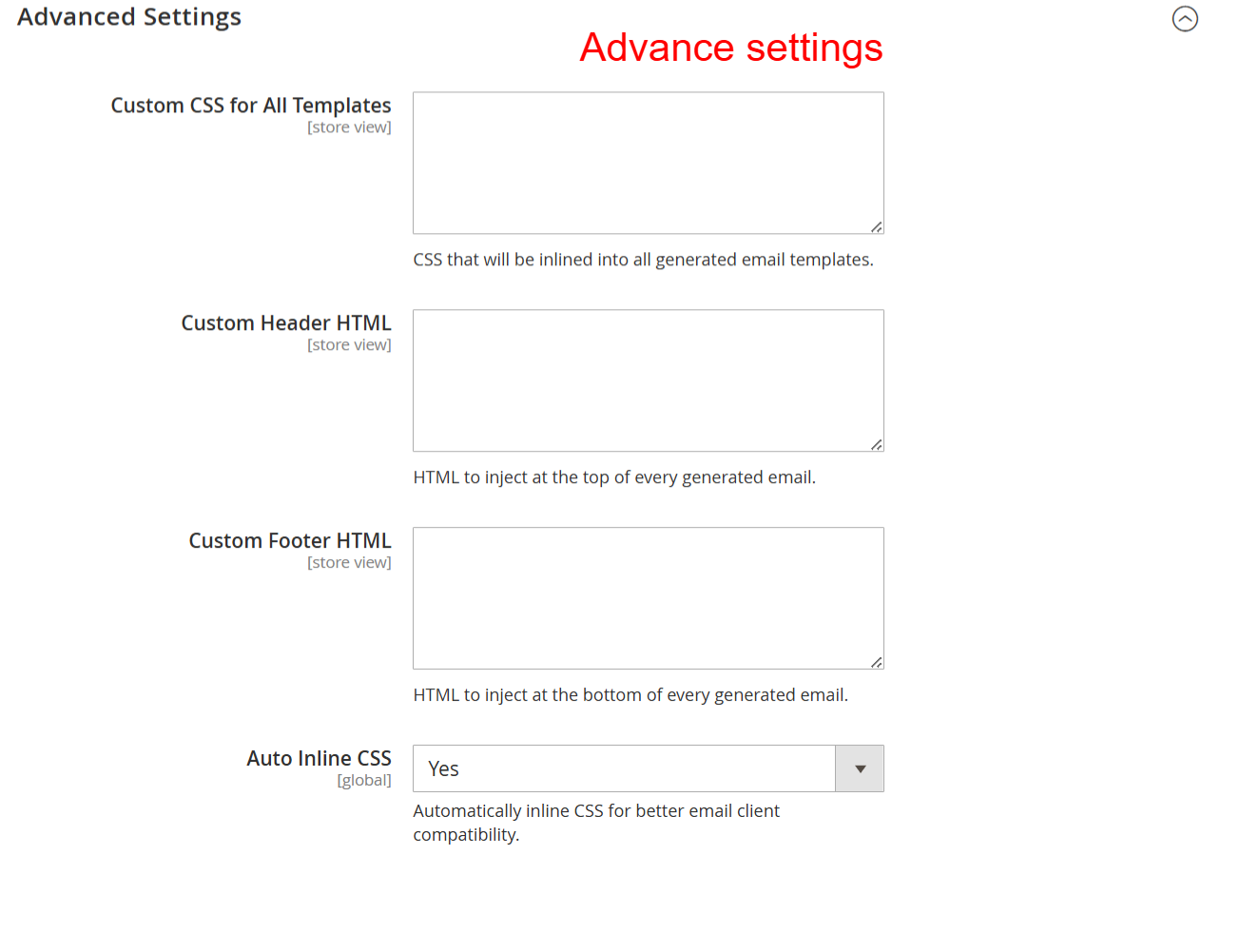
Here you can enhance email designs by applying custom CSS and HTML to templates. Manage inline CSS for better compatibility across email clients, refining overall presentation and consistency.
Manage Email Templates
Utilize the 'Manage Email Templates' section in the admin to view and control all existing templates. Create new emails using the Builder, or choose from the available pre-built options tailored to different occurrences.
In this view, manage your email templates, review details, or create new ones using the builder tool. It's essential for organizing and maintaining control over active email campaigns to ensure strategic communication output.
4 User Journey
Access Template Designer
Navigate to the AI Email Template Designer from the Marketing section in the Admin panel. Easily manage or create templates using this centralized hub to enhance communication strategies with AI-driven designs.
Access the AI Email Template Designer through the Marketing section, where you can create new email templates, manage existing ones, or configure global settings. This entry point is crucial for leveraging AI capabilities in email design.
Edit Forgot Password Template
Ensure brand consistency by editing the 'Forgot Password' template. Customize text and styling to align with the brand tone. Adjustments can enhance the password recovery process and establish trustworthiness in security communications.
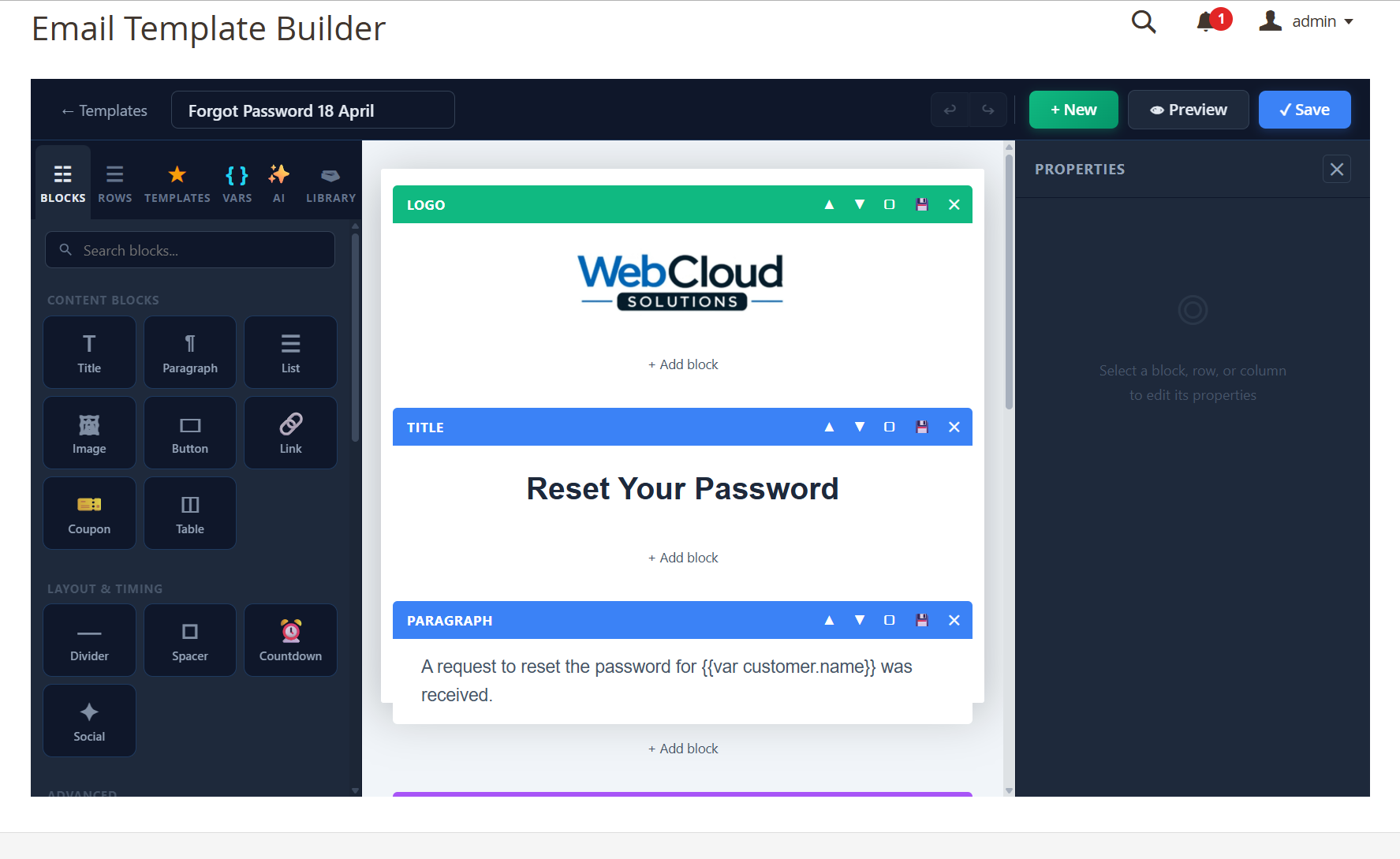
This functionality allows admins to customize the forget password email template, ensuring it aligns with their brand's voice and compliance requirements. Users can change text and images easily, which is critical for maintaining consistency in communication and branding. This feature helps in providing a secure and branded password recovery process for users.
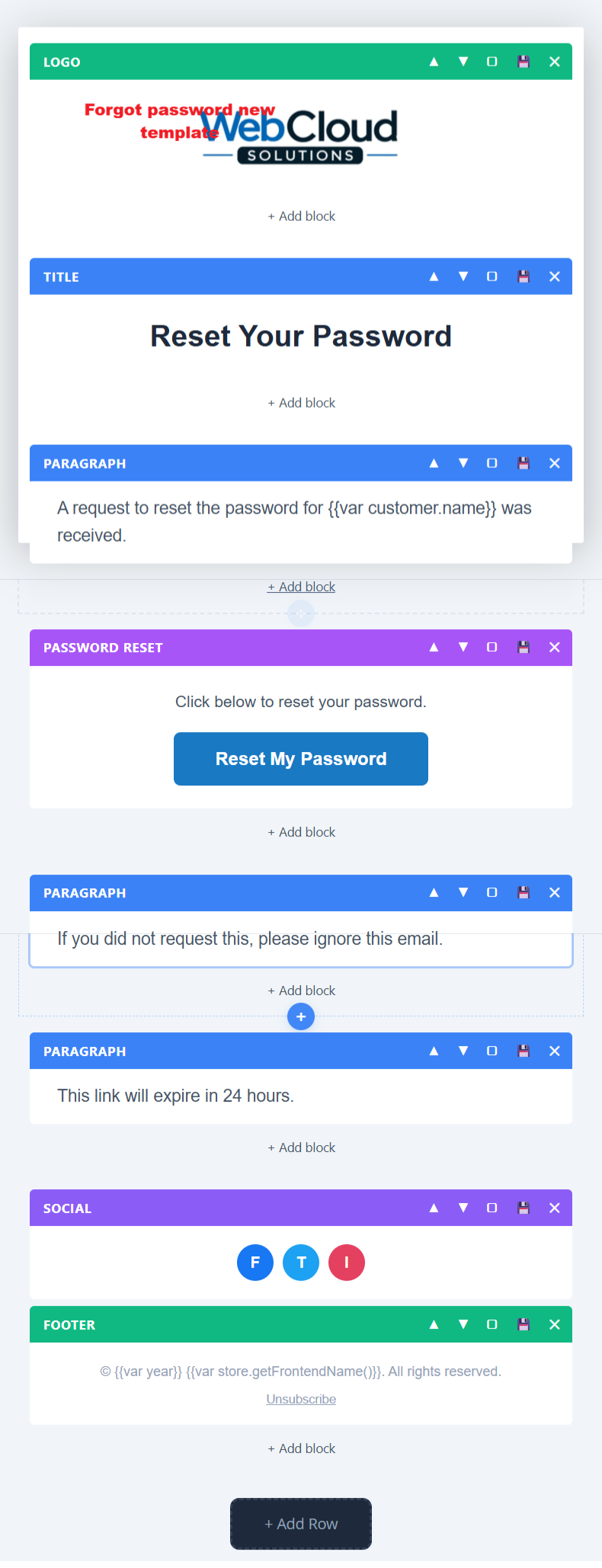
Preview Forgot Password Template
Before finalizing, preview the Forgot Password Template including all essential blocks like logo, title, and social media links to ensure brand alignment and effective communication.
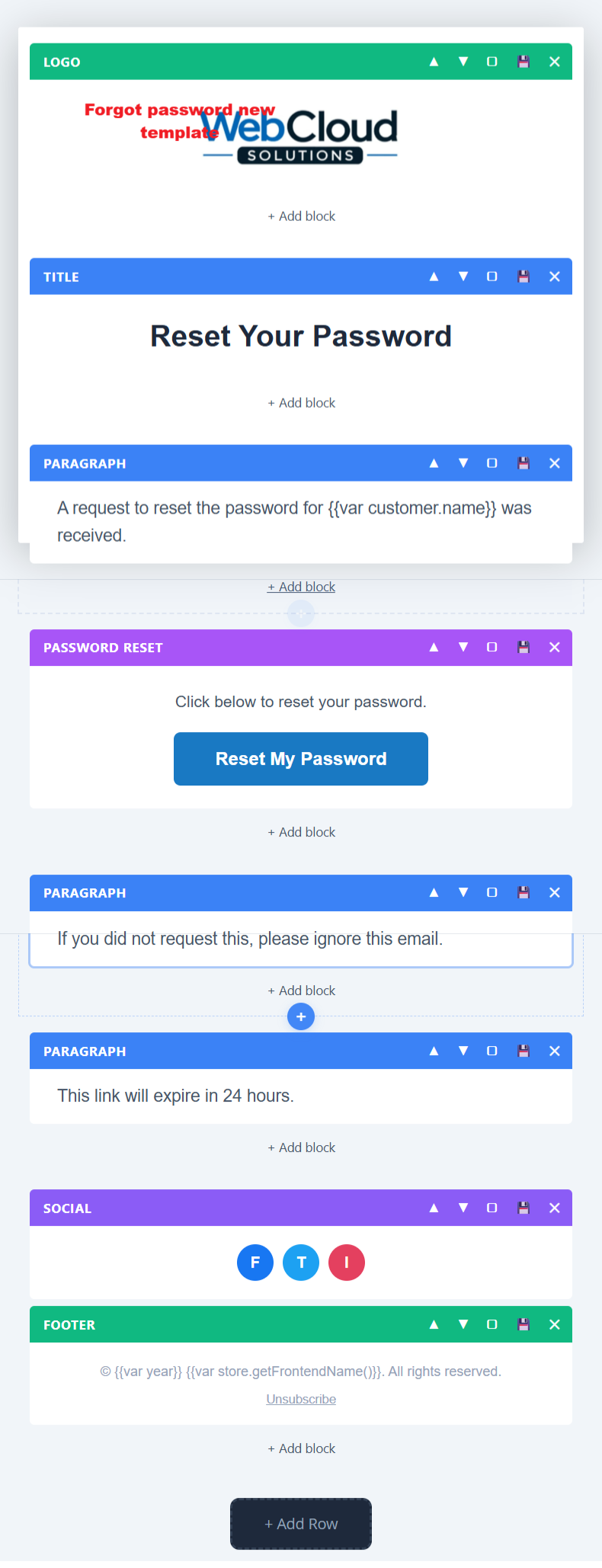
This preview allows admins to view and edit different sections of a 'Forgot Password' email template. Each block, like the logo and paragraph sections, can be rearranged or customized to fit brand specifications, ensuring consistent communication style.
5 Use Cases
Transactional Emails
Create and customize templates for order confirmations, invoices, and shipping notices. Automatically include transaction data and customize per brand standards for consistent communication.
Customer Engagement
Design customer-facing emails like welcome messages and account updates. Personalize content to cater to individual customer preferences, enhancing user satisfaction and retention.
Marketing Campaigns
Use the AI-powered builder to design promotional emails that align with specific marketing campaigns. Choose from existing templates or generate new ones that capture seasonal or event-driven themes.
Security Communications
Build and maintain security-oriented email templates, such as password recovery requests, ensuring compliance with security standards and reinforcing customer trust in your brand.
Feedback and Surveys
Create engaging survey emails to collect customer feedback. These templates can assist in understanding customer satisfaction and areas for improvement in products or services.
6 Installation Guide
-
Via Composer, run:
composer require ewebecommerce/module-ai-email-designer -
Enable the module:
bin/magento module:enable Ewebecommerce_AiEmailDesigner -
Update your Magento store with:
bin/magento setup:upgrade -
Compile the necessary DI:
bin/magento setup:di:compile -
Ensure your cache is cleaned:
bin/magento cache:clean
7 Database Schema (3 Tables)
ewb_ai_email_templates
| Column | Type | Nullable |
|---|---|---|
template_id |
false | |
name |
false | |
identifier |
false | |
email_type |
false | |
magento_template_code |
true | |
prompt |
false | |
html_content |
false | |
original_html |
true | |
plain_text_content |
true | |
styles |
true | |
subject |
true | |
variant_group |
true | |
variant_label |
true | |
is_active_variant |
false | |
variant_sends |
false | |
variant_opens |
false | |
variant_clicks |
false | |
variant_open_rate |
false | |
variant_click_rate |
false | |
brand_primary_color |
true | |
brand_secondary_color |
true | |
brand_accent_color |
true | |
brand_font |
true | |
brand_logo_url |
true | |
social_links |
true | |
ai_provider |
true | |
ai_model |
true | |
ai_tokens_used |
true | |
ai_generation_time |
true | |
is_responsive |
false | |
is_active |
false | |
is_assigned |
false | |
store_id |
false | |
test_results |
true | |
screenshot_source |
true | |
editor_state |
true | |
tags |
true | |
version |
false | |
created_at |
false | |
updated_at |
false |
ewb_ai_email_template_versions
| Column | Type | Nullable |
|---|---|---|
version_id |
false | |
template_id |
false | |
version |
false | |
html_content |
false | |
prompt |
true | |
change_description |
true | |
created_by |
true | |
created_at |
false |
ewb_ai_email_prompt_presets
| Column | Type | Nullable |
|---|---|---|
preset_id |
false | |
name |
false | |
email_type |
false | |
prompt_template |
false | |
category |
true | |
style |
true | |
preview_image |
true | |
is_system |
false | |
is_active |
false | |
sort_order |
false | |
created_at |
false |
8 Architecture
Event Observers
| Event | Observer | Area |
|---|---|---|
email_order_set_template_vars_before |
EmailSendObserver |
global |
Plugin Interceptors
| Target | Plugin |
|---|---|
Template |
EmailTemplatePlugin |
BackendTemplate |
EmailTemplatePlugin |
10 Tips & Tricks
- Utilize AI model recommendations for optimal email design outputs.
- Always test new templates with sample data before public distribution.
- Incorporate social media links to increase engagement directly from emails.
- Use saved blocks to maintain design consistency across email campaigns.
- Take advantage of dark mode previews to ensure readability for all users.
- Regularly update API keys and provider settings for secure integration.
- Leverage order and customer variables for dynamic email personalization.
11 Step-by-Step Screenshot Reference
Every captured screen in setup order. Click any image to open the full-size version in a new tab.
Admin: Marketing > AI Email Template Designer
What this shows: This screen shows the admin marketing menu with options for 'AI Email Template Designer' including 'Create Template', 'Manage Templates', and 'Configuration'.
Access the AI Email Template Designer through the Marketing section, where you can create new email templates, manage existing ones, or configure global settings. This entry point is crucial for leveraging AI capabilities in email design.
Configuration: Enable AI Email Designer Module
What this shows: This screen presents the 'General Settings' section, with toggles for 'Enable Module' and 'Enable Debug Logging', along with a 'Save Config' button.
Here, you enable or disable the AI Email Designer module, a necessary step to activate the plugin’s functionalities in your store. You can also toggle debug logging for troubleshooting purposes.
Configuration: AI Provider Settings
What this shows: Displays options for selecting the 'AI Provider', 'OpenAI API Key', the 'OpenAI Model', 'Max Tokens', and 'Temperature' settings.
Configure your AI provider settings to connect the email designer with the chosen AI model. Enter your API key and customize model parameters like tokens and temperature to optimize email generation outputs.
Configuration: Brand and Social Media Settings
What this shows: This form contains fields for 'Auto-Detect Brand', 'Primary Brand Color', 'Secondary Brand Color', 'Accent Color', 'Brand Logo', 'Email Font Family', and various social media links.
Set up your brand identity by specifying colors, fonts, and logos to ensure emails are consistently branded. Provide social media links to enhance connectivity and engagement through your email communications.
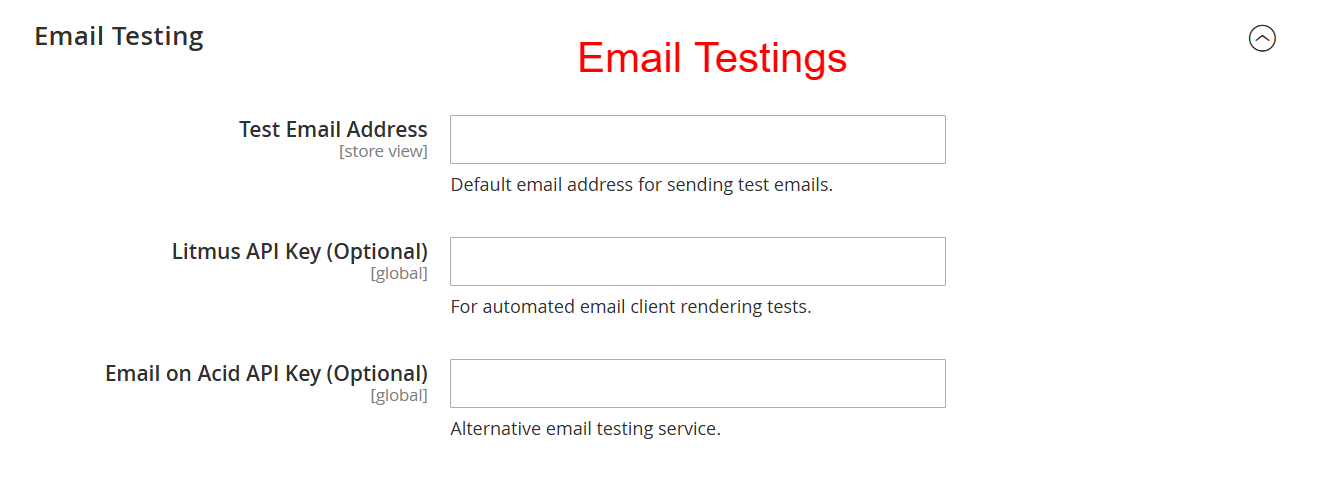
Configuration: Email Testing Settings
What this shows: Contains fields for 'Test Email Address', 'Litmus API Key', and 'Email on Acid API Key' for testing purposes.
Define a default email address for sending test emails and integrate external testing services like Litmus and Email on Acid for evaluating email appearance across various clients. Ensures high quality of email renders before public distribution.
Configuration: A/B Testing Settings
What this shows: Includes settings for 'Enable A/B Testing', 'Default Number of Variants', 'Auto-Select Winner', and 'Test Duration'.
Enable A/B testing to compare different email variants. Control the number of variants and set testing parameters to automatically select the best-performing email, thereby optimizing email engagement and effectiveness.
Configuration: Advanced Email Settings
What this shows: Fields include 'Custom CSS for All Templates', 'Custom Header HTML', 'Custom Footer HTML', and 'Auto Inline CSS'.
Here you can enhance email designs by applying custom CSS and HTML to templates. Manage inline CSS for better compatibility across email clients, refining overall presentation and consistency.
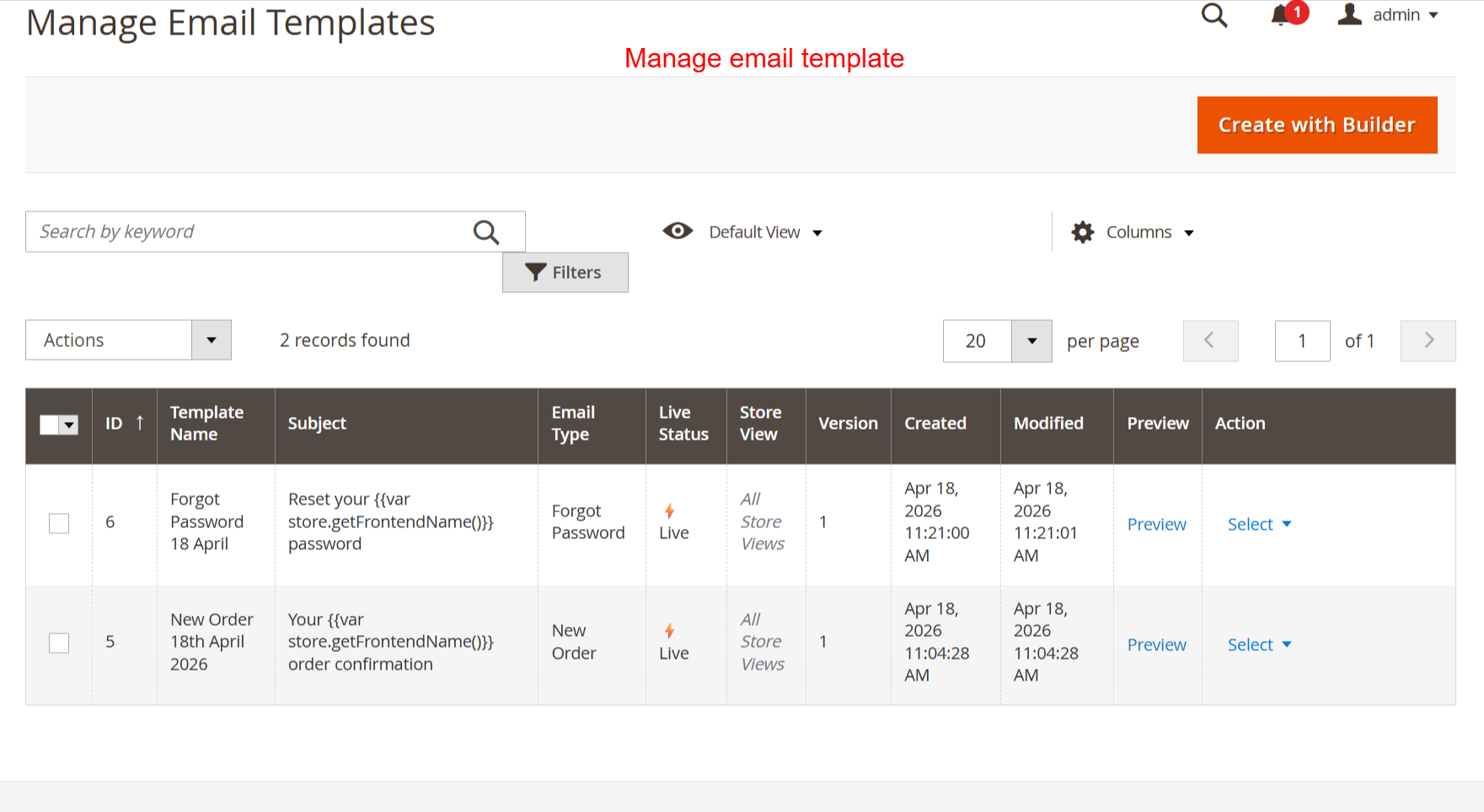
Admin: Manage Email Templates
What this shows: Displays a table with columns for ID, Template Name, Subject, Email Type, Live Status, Store View, Version, Created, and Modified, plus ‘Create with Builder’ button.
In this view, manage your email templates, review details, or create new ones using the builder tool. It's essential for organizing and maintaining control over active email campaigns to ensure strategic communication output.
Email Template Builder: Create New Email Template
What this shows: The screen displays the Email Template Builder with options to 'Generate with AI' or 'Browse 28 Templates'. Content blocks like Title, Paragraph, and Image are on the left panel.
This screen allows admins to start building a new email template using the AI-powered generator or by choosing from 28 prebuilt templates. The drag-and-drop interface makes it simple to add various content blocks such as images and buttons, allowing for a highly customizable and responsive email design. This functionality is key for creating visually appealing emails that can enhance customer engagement.
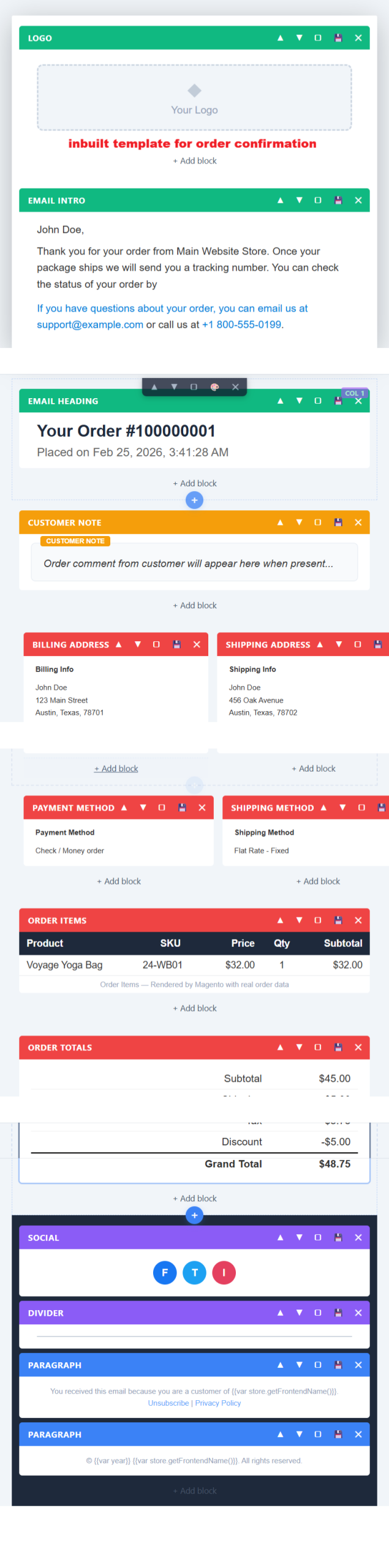
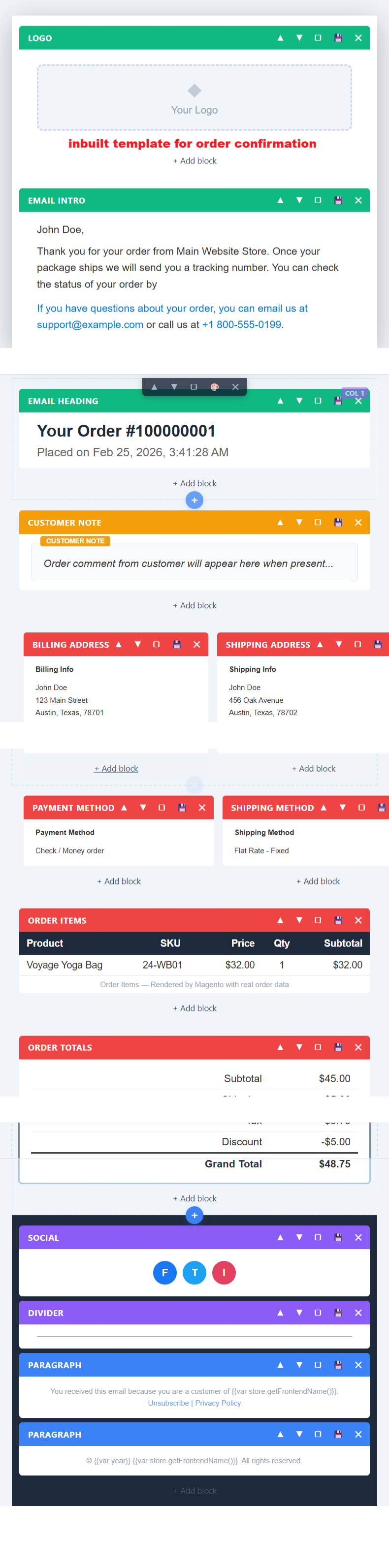
Prebuilt Order Confirmation Email Template
What this shows: A prebuilt order confirmation template is displayed, showing blocks like Logo, Email Intro, and Customer Note. It includes example customer information and order details.
This screen presents an example of an order confirmation email template. The template includes structured content blocks for logo, customer notes, and order information, which can be edited to suit specific transactional needs. Admins can add, remove, or modify blocks to better fit their brand's messaging. Such templates are essential for efficient communication with customers regarding their orders.
Email Template Builder: Edit Forgot Password Template
What this shows: The builder screen shows a template called 'Forgot Password 18 April' with blocks for logo and title. The content is editable within the visual builder interface.
This functionality allows admins to customize the forget password email template, ensuring it aligns with their brand's voice and compliance requirements. Users can change text and images easily, which is critical for maintaining consistency in communication and branding. This feature helps in providing a secure and branded password recovery process for users.
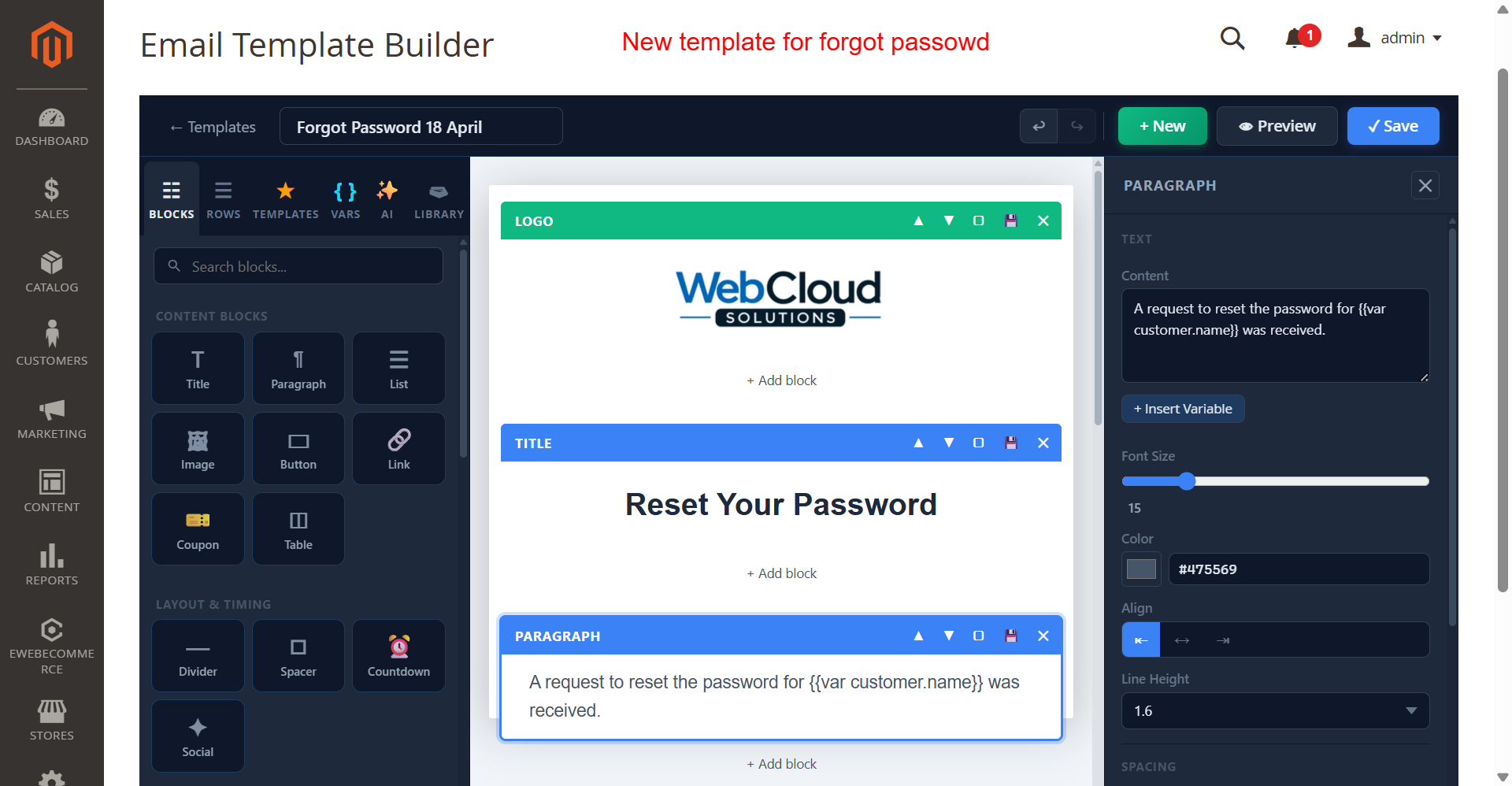
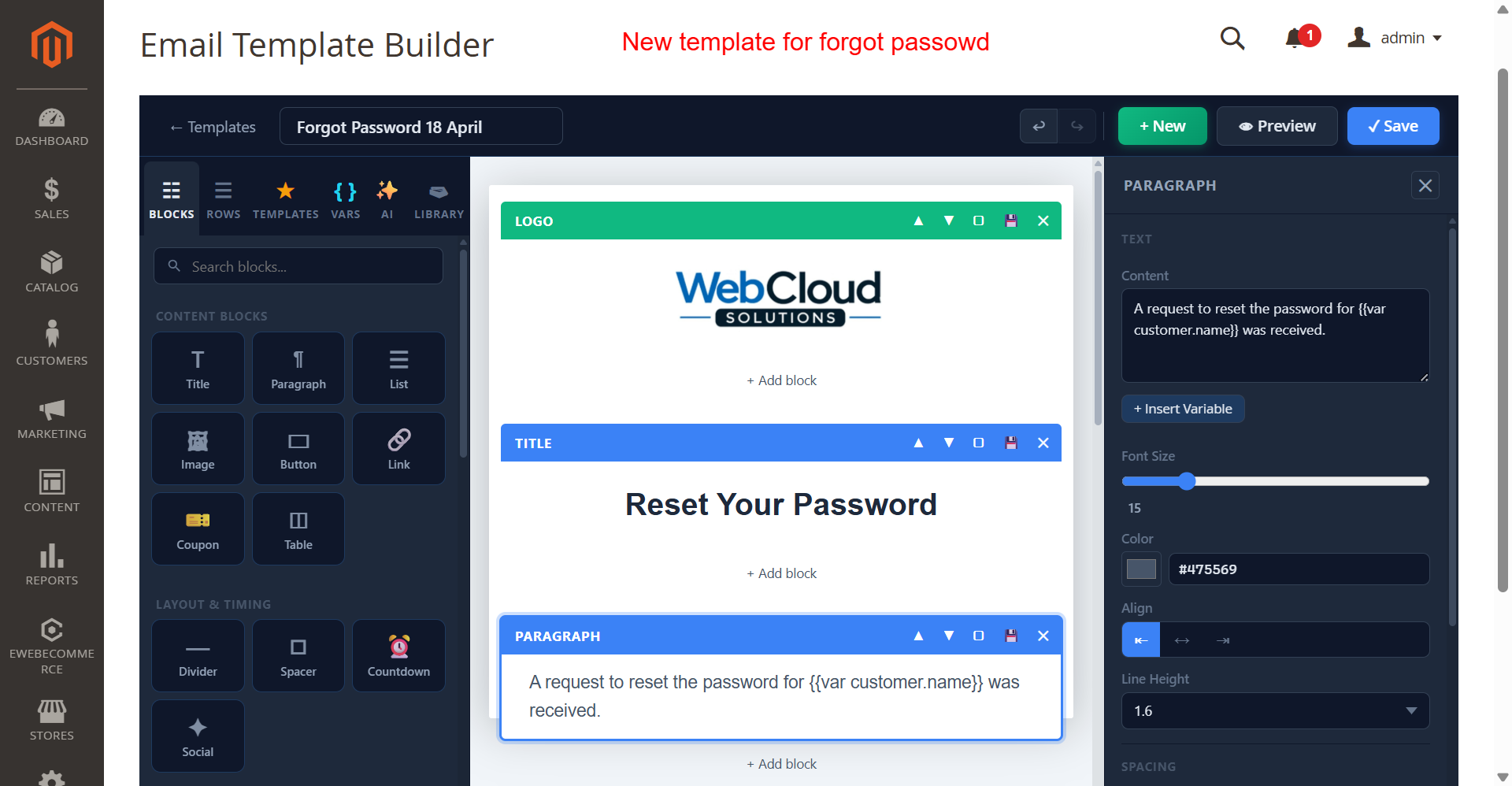
Email Template Builder: Forgot Password with Properties
What this shows: Shows editing options for the 'Forgot Password 18 April' template including content blocks and properties for paragraphs. A properties pane on the right allows text and style adjustments.
Admins can personalize the forgot password template efficiently using the properties panel. Here, users can adjust variables, font size, color, and alignment, enhancing the message's clarity and visual appeal. This flexibility is important in crafting emails that cater to user needs while maintaining brand integrity.
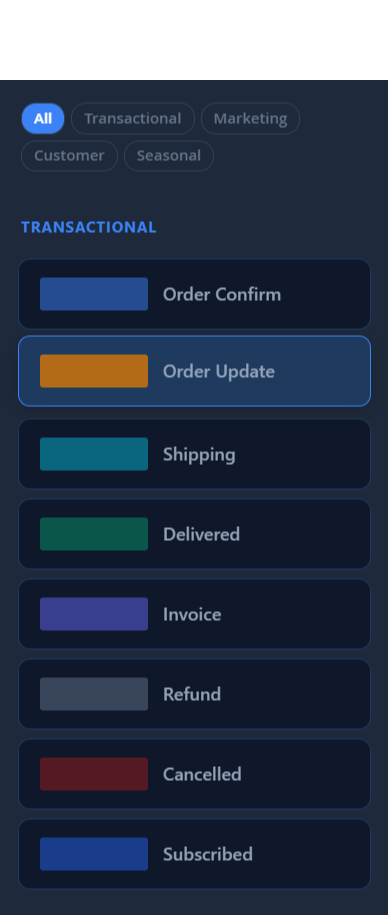
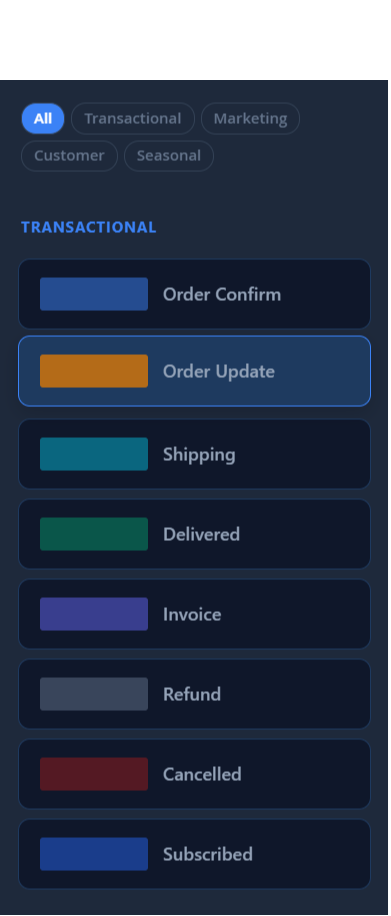
Select Transactional Email Template
What this shows: A menu displaying various transactional email templates such as 'Order Confirm', 'Shipping', and 'Invoice'.
The transactional templates menu provides a quick way to select specific types of transactional emails to edit or deploy. Using these pre-configured templates, admins can streamline communication related to transactions, saving time and ensuring a consistent customer experience.
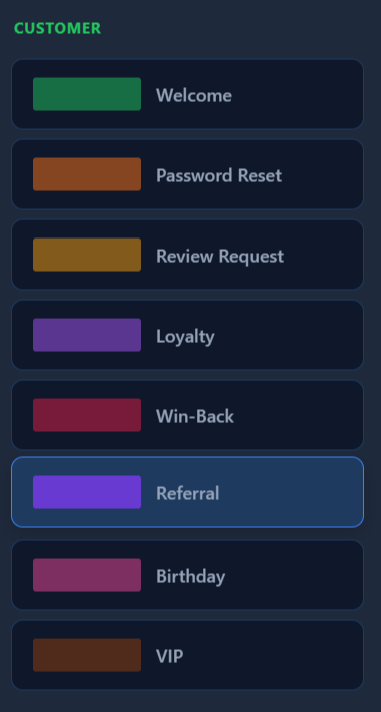
Select Customer Email Template
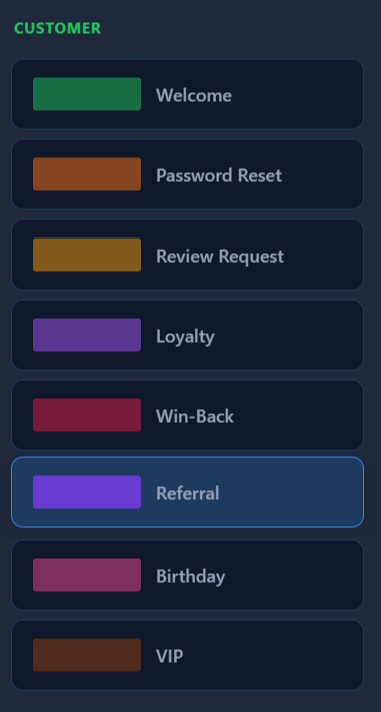
What this shows: A list of customer-related email templates like 'Welcome', 'Password Reset', and 'Referral'.
Through the customer templates interface, admins can efficiently choose and edit templates focused on customer interactions such as welcome messages or loyalty programs. These templates help nurture customer relationships and promote retention through personalized and timely communication.
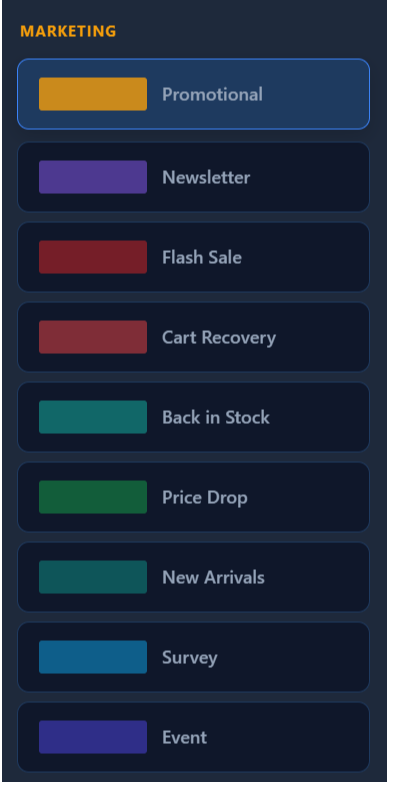
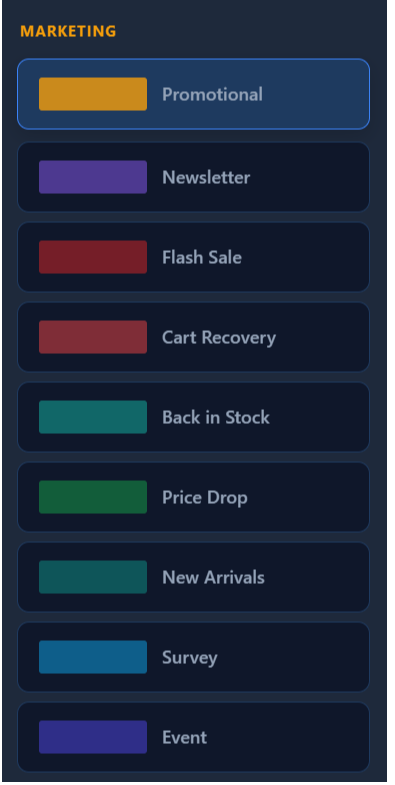
Select Marketing Email Template
What this shows: A menu with marketing-related email templates including 'Promotional', 'Flash Sale', and 'Survey'.
This section allows admins to select from a range of marketing templates designed to boost engagement and drive sales. Tailoring these templates to specific campaigns ensures that communication resonates with recipients, enhancing the effectiveness of email marketing strategies.
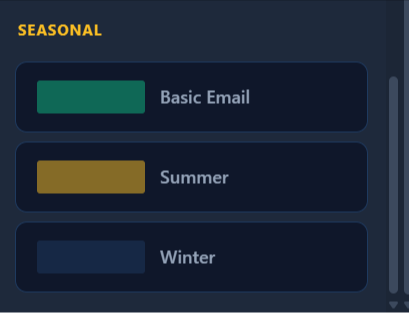
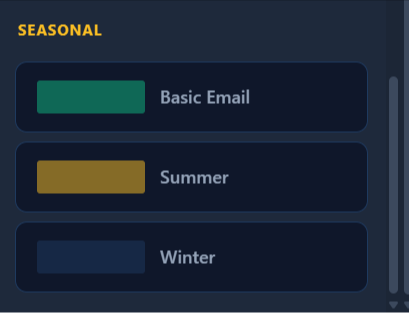
Select Seasonal Email Template
What this shows: Includes options for seasonal templates such as 'Basic Email', 'Summer', and 'Winter'.
Admins can leverage seasonal templates to align their communication with specific times of the year. These templates provide a timely way to capitalize on seasonal trends and promotions, thereby fostering a sense of relevance and timeliness in customer interactions.
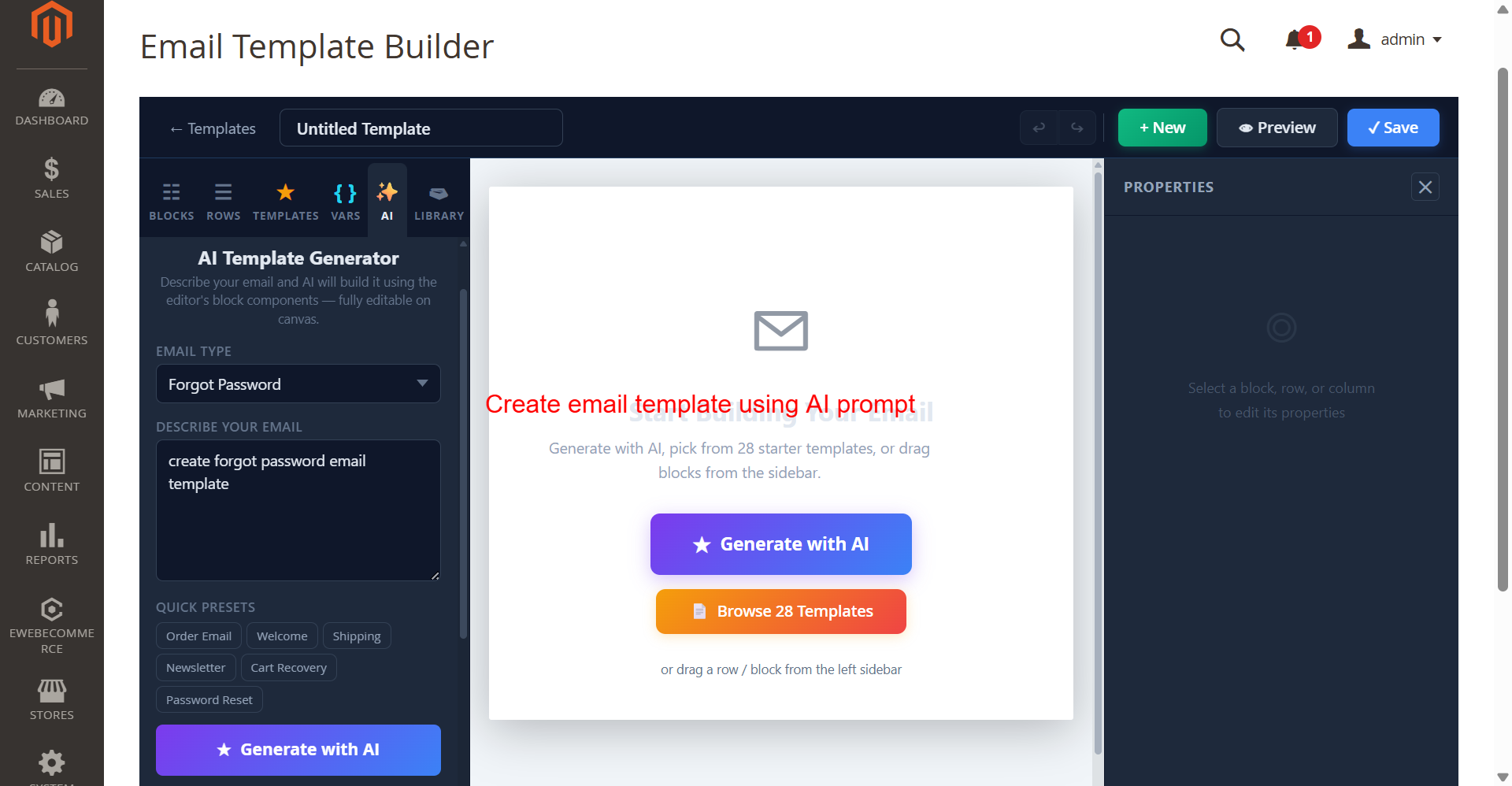
Admin: Generate Email Template with AI
What this shows: The screen displays an 'AI Template Generator' panel with options to select 'Email Type' and describe the email. Buttons for 'Generate with AI' and 'Browse 28 Templates' are visible.
In this interface, admins can utilize the AI Template Generator to effortlessly create new email templates by specifying the type of email and providing a prompt. The process optimizes email creation by leveraging AI to interpret the description and build a responsive template, enhancing productivity.
Admin: AI Forgot Password Template Preview
What this shows: A preview of a 'Forgot Password' email template is shown, featuring sections like Logo, Title, Paragraphs, and Social Media links.
This preview allows admins to view and edit different sections of a 'Forgot Password' email template. Each block, like the logo and paragraph sections, can be rearranged or customized to fit brand specifications, ensuring consistent communication style.
Admin: AI Template Generation in Progress
What this shows: A message in the sidebar indicates 'Generating template...' with details about the AI's progress.
While AI processes the template, admins are notified about the progress, ensuring transparency and allowing them to multitask. This screen provides confidence that the template generation is underway, with an estimated waiting time.
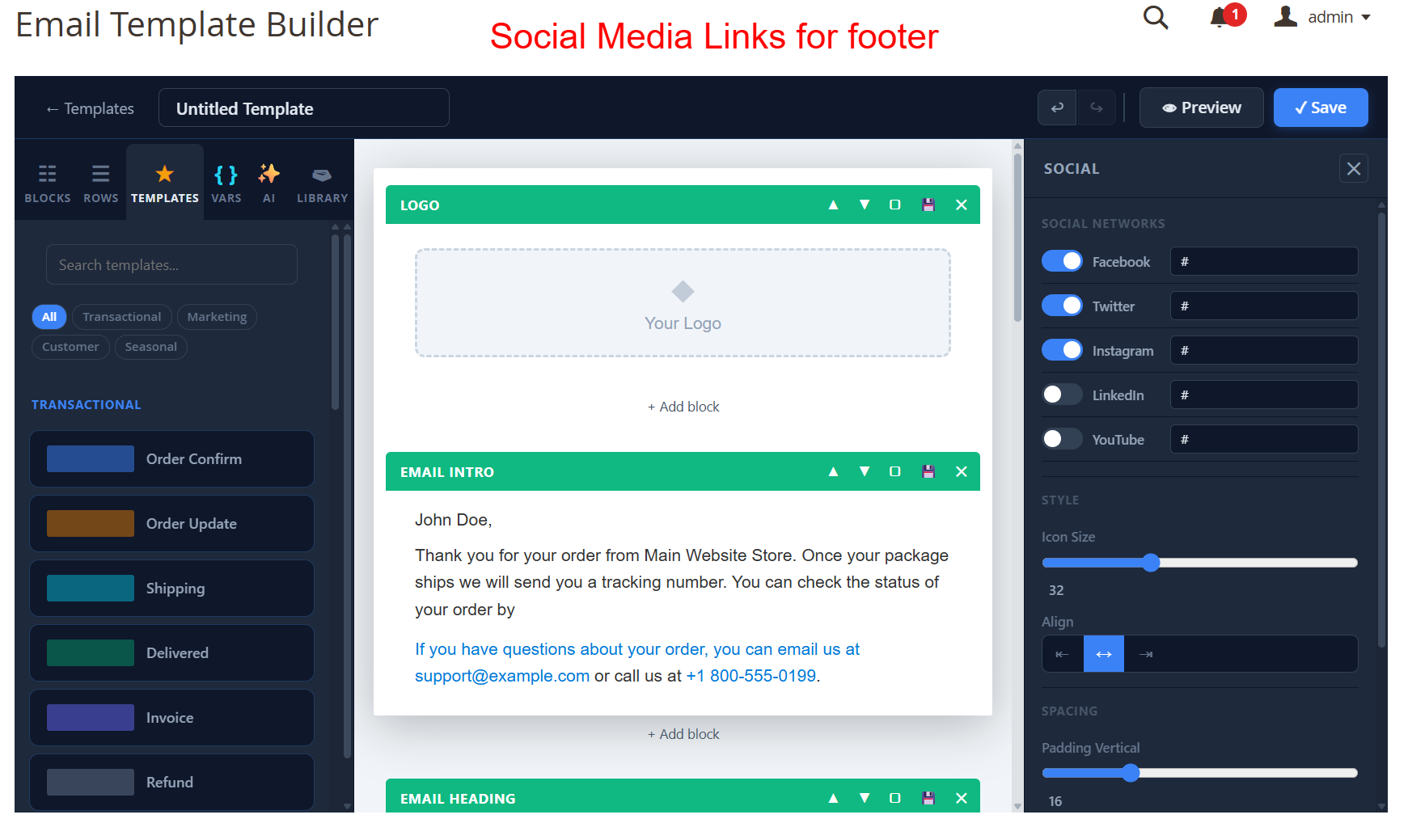
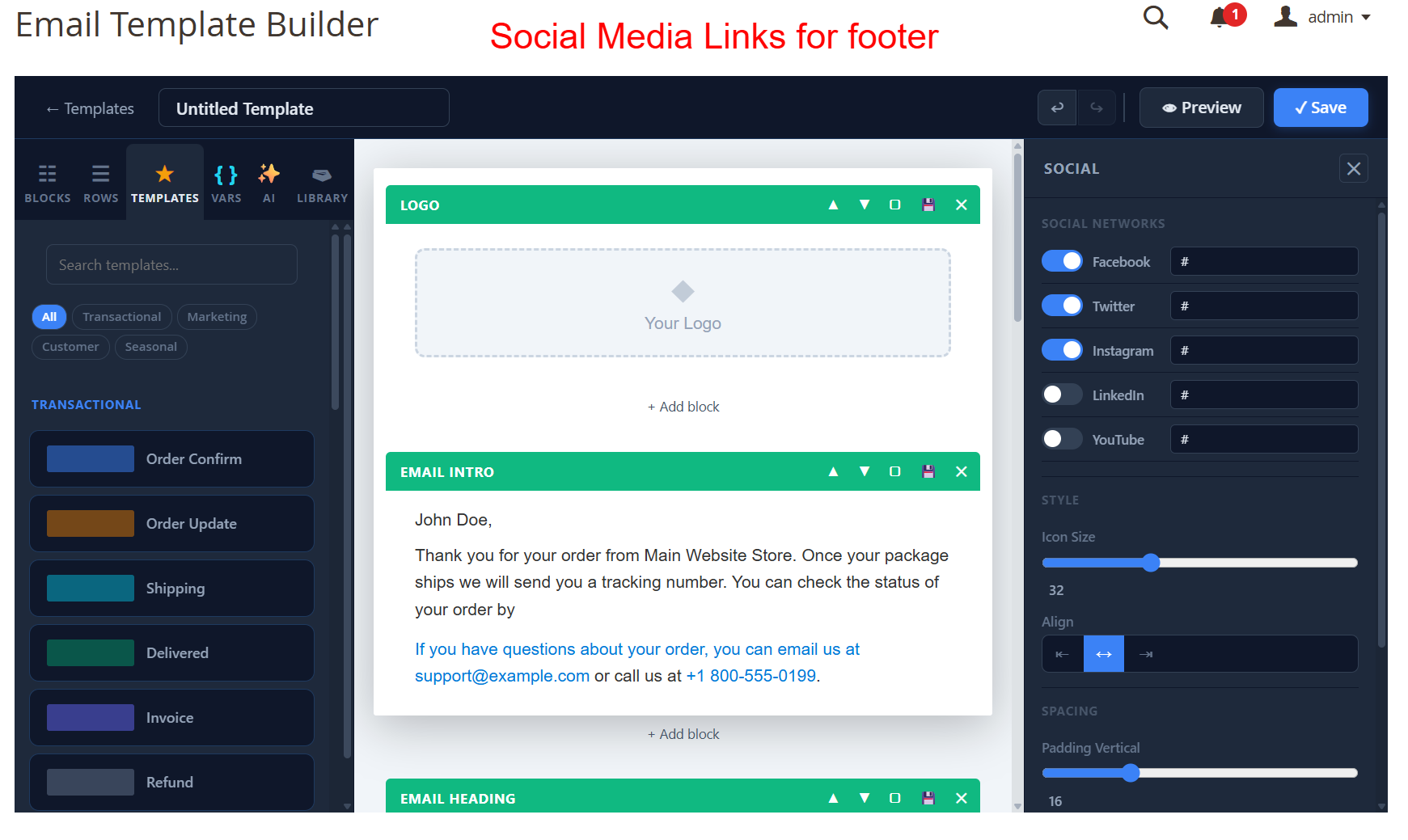
Admin: Social Media Links Customization
What this shows: Options to enable or disable social media links like Facebook, Twitter, Instagram, with slider controls for icon size and alignment.
Admins can easily customize social media links included in email templates, adjusting settings to match branding needs. This feature allows integration of social media outreach, enhancing engagement across platforms directly from email communication.
Admin: Live Email Template Preview
What this shows: A real-time preview of an email with options to switch display modes, send test emails, and check spam score.
This screen is crucial for admins to ensure their templates appear as intended across devices. The ability to send test emails and preview in desktop and mobile modes guarantees the final product meets quality standards prior to distribution.
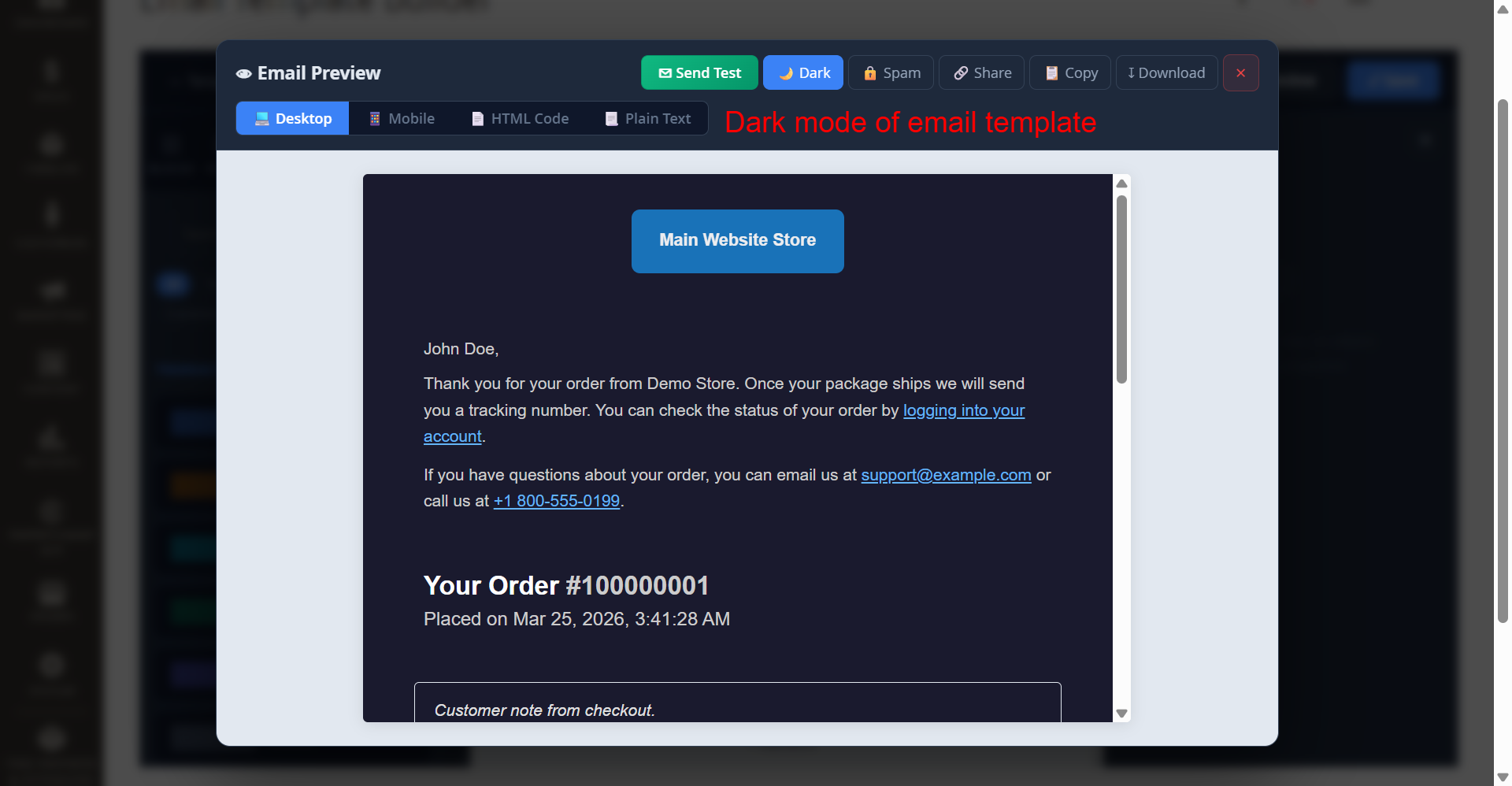
Admin: Dark Mode Email Template Preview
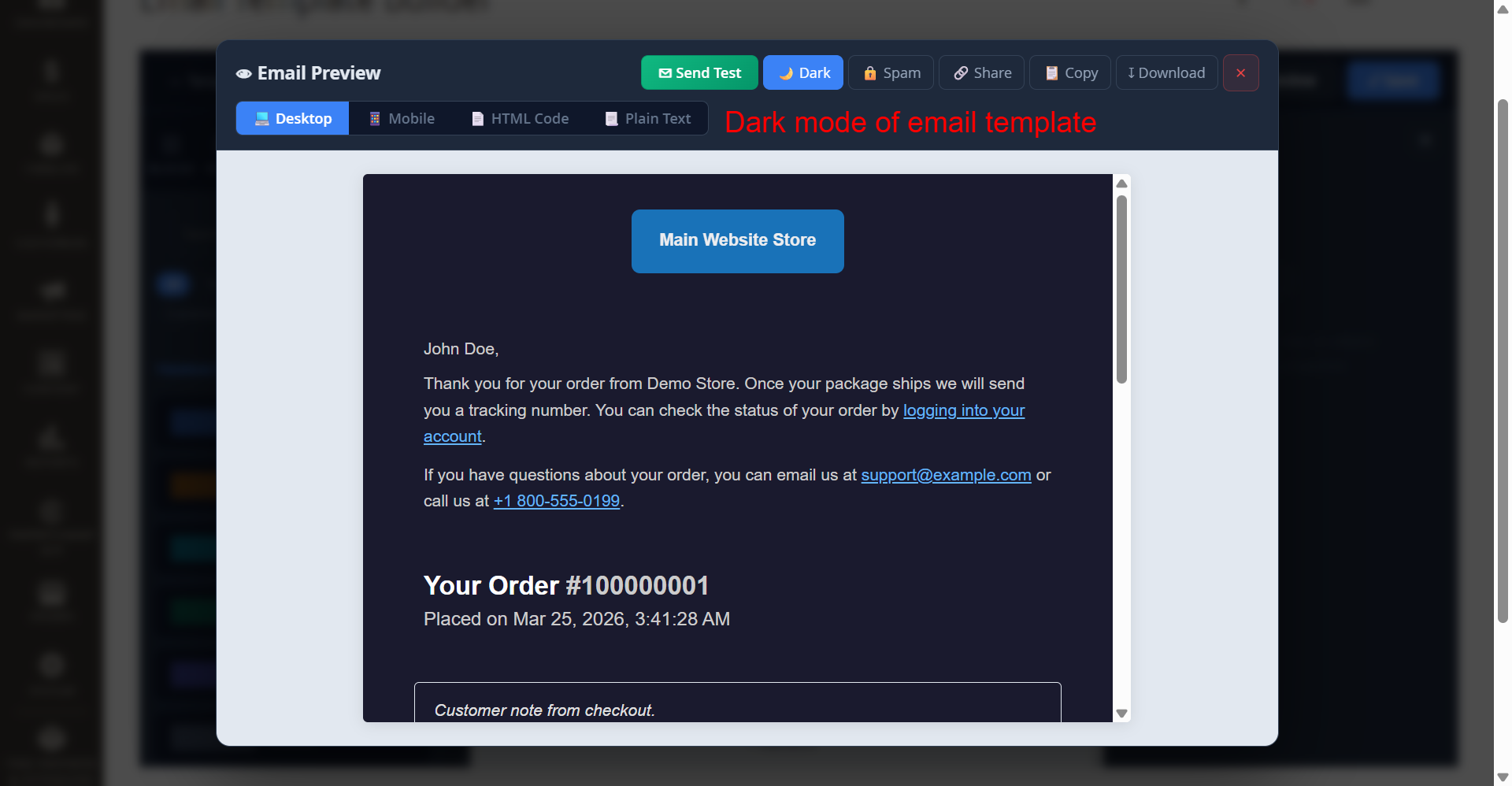
What this shows: An email preview in dark mode, featuring tools to test, check spam, and save the template.
Dark mode previews enable admins to see how emails will render on devices with this setting, ensuring optimal readability and aesthetic. This feature highlights the consideration for user accessibility and interface personalization.
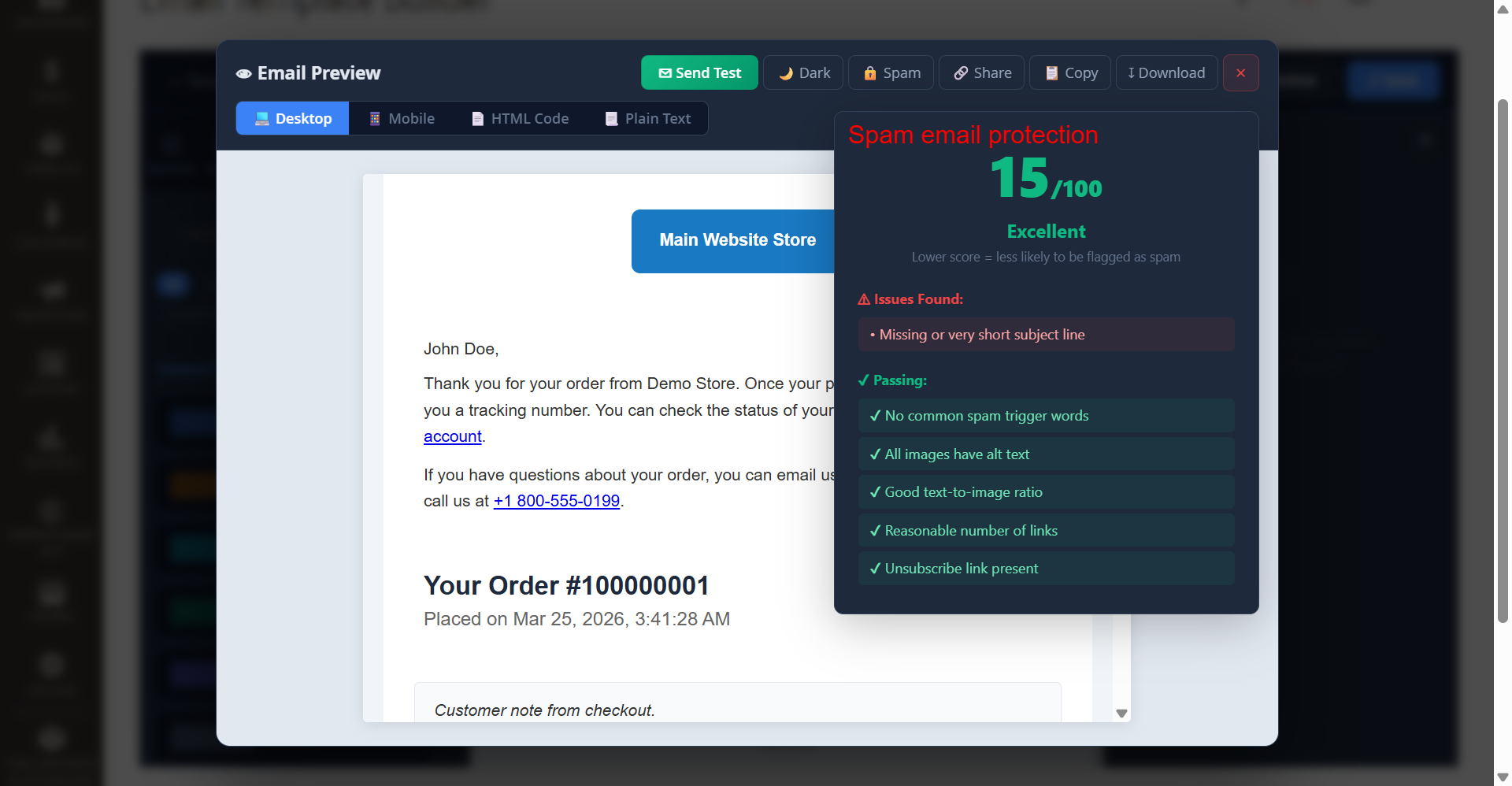
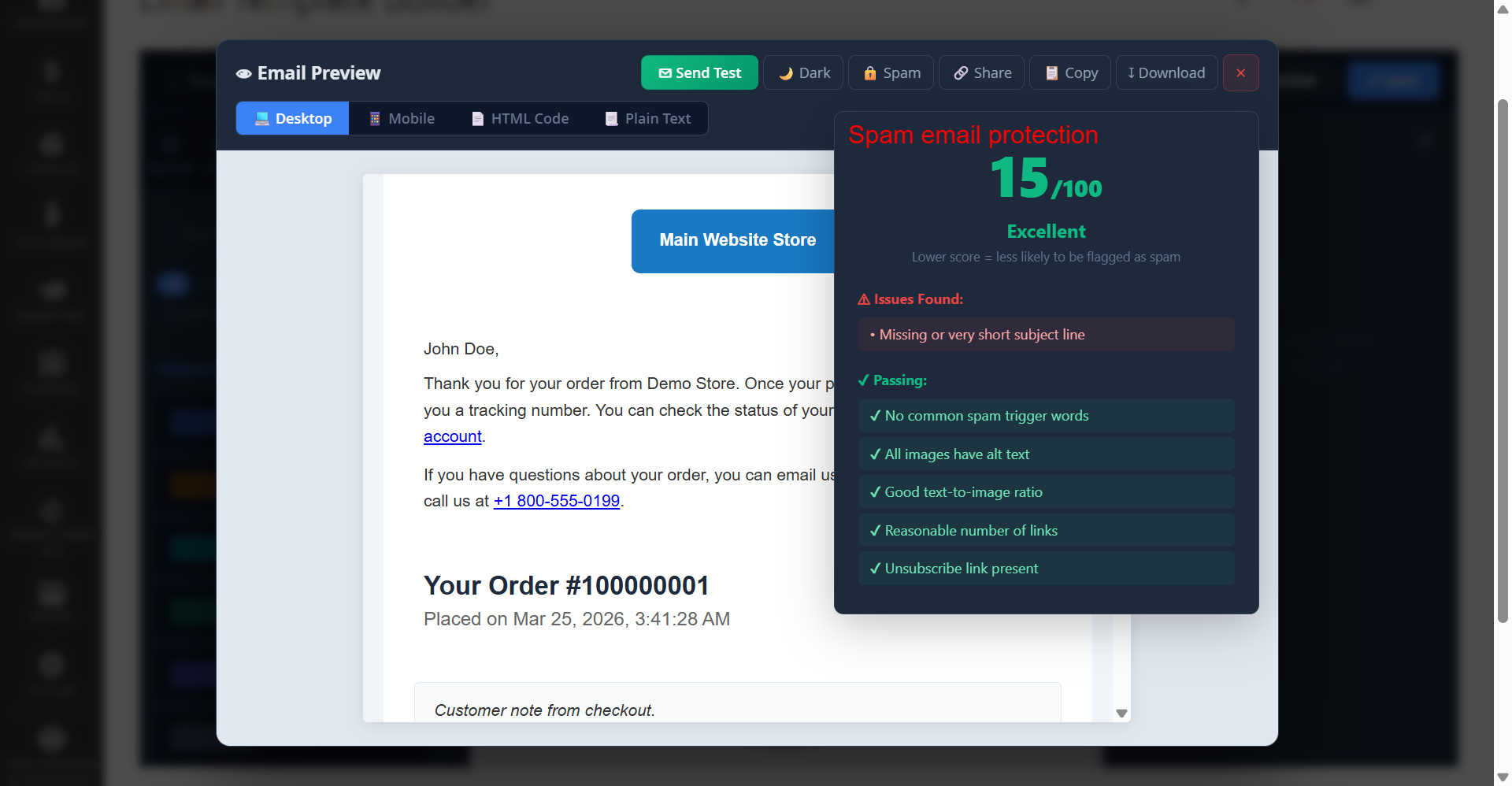
Admin: Email Spam Protection Analysis
What this shows: A pop-up showing a spam protection score with details on issues found and elements passing the filter.
Admins can assess their email's likelihood of being flagged as spam, thanks to a detailed analysis of spam indicators. This tool helps fine-tune content to enhance delivery rates and prevent loss of engagement due to spam filters.
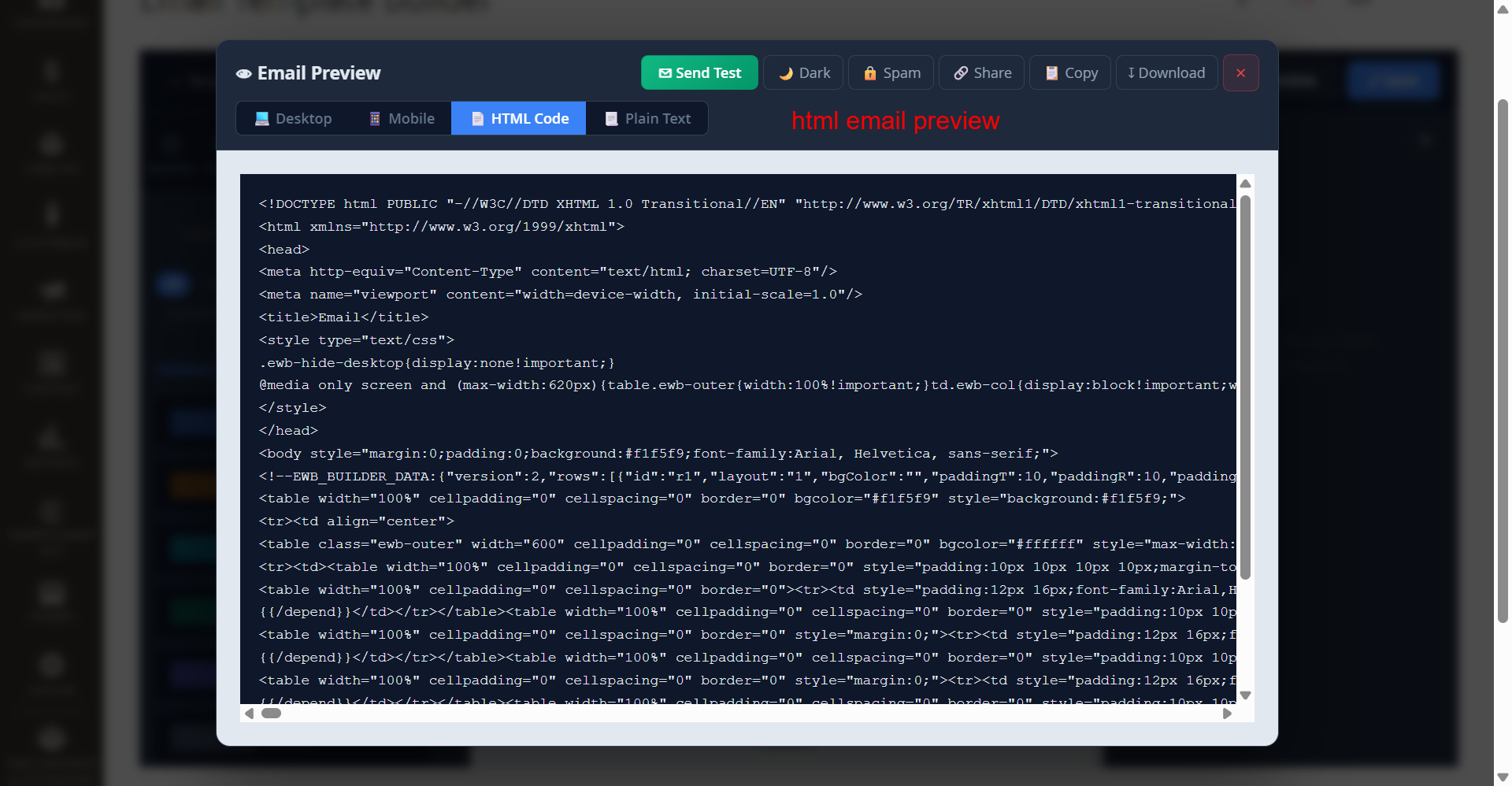
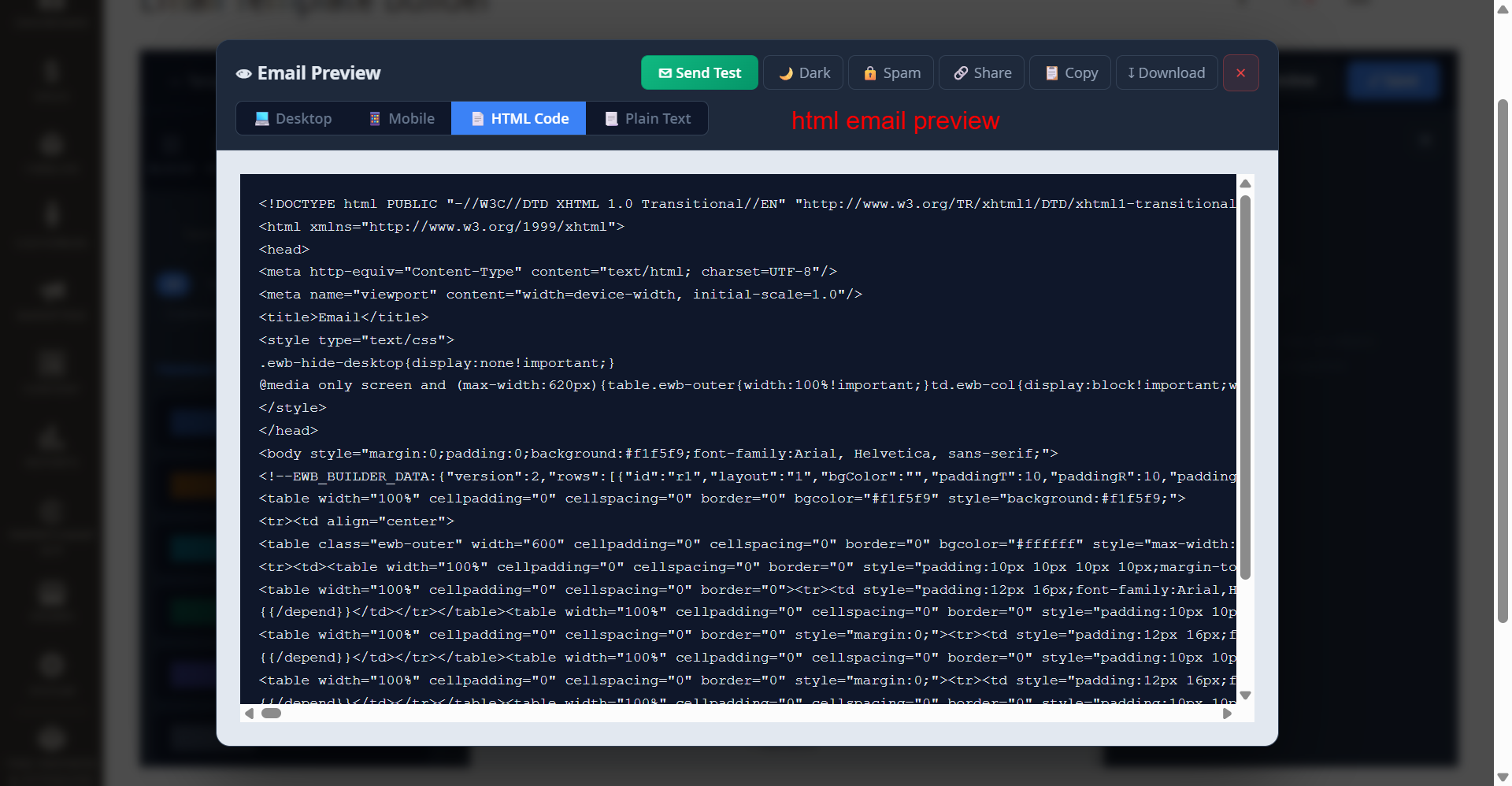
Admin: HTML Code Email Preview
What this shows: A live HTML code view of the email template, allowing advanced modifications and direct code inspection.
Providing an HTML view of the email template equips admins to make intricate customizations at the code level. This feature is tailored for advanced users who require detailed control over the email structure and styling.
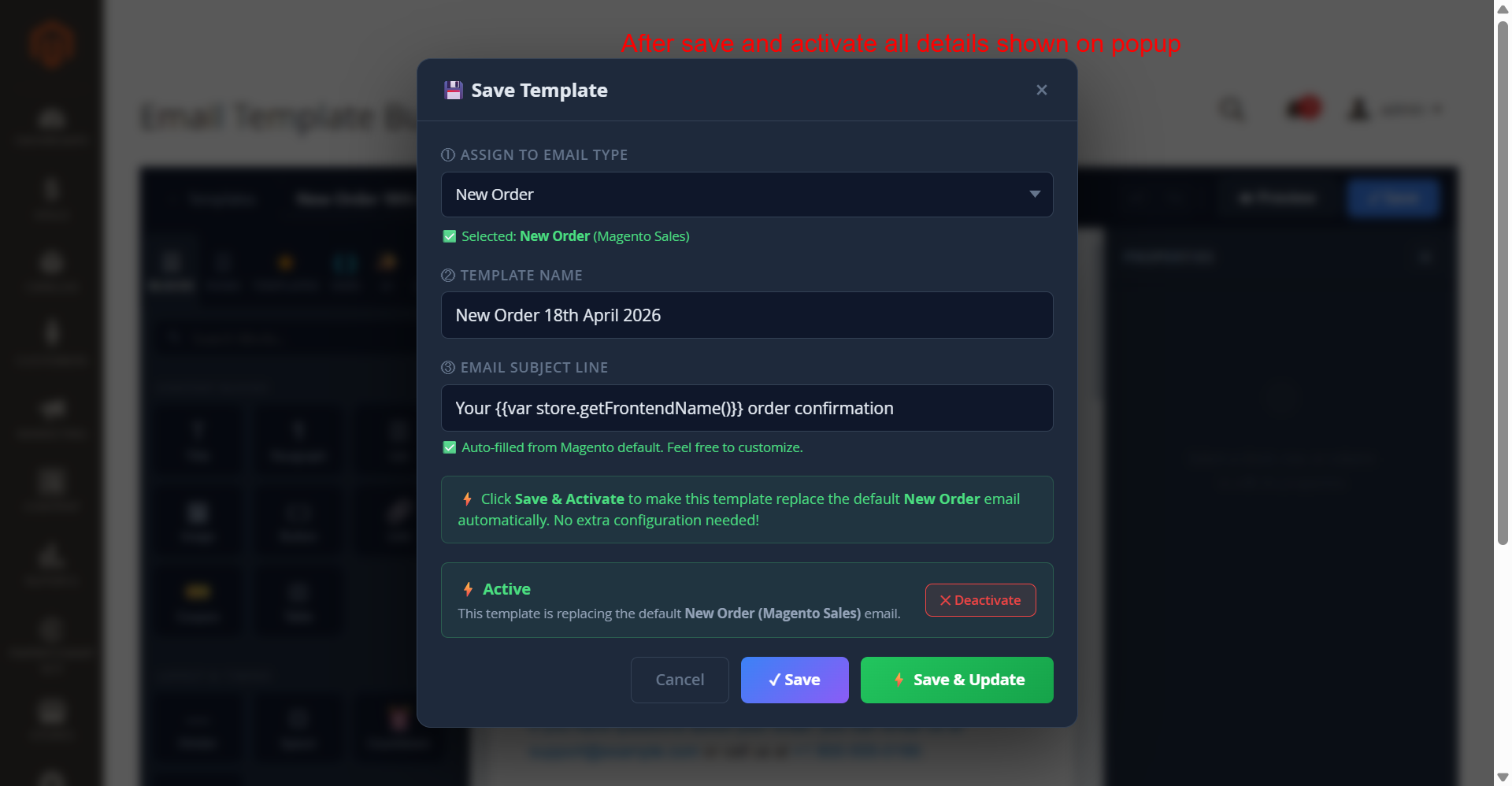
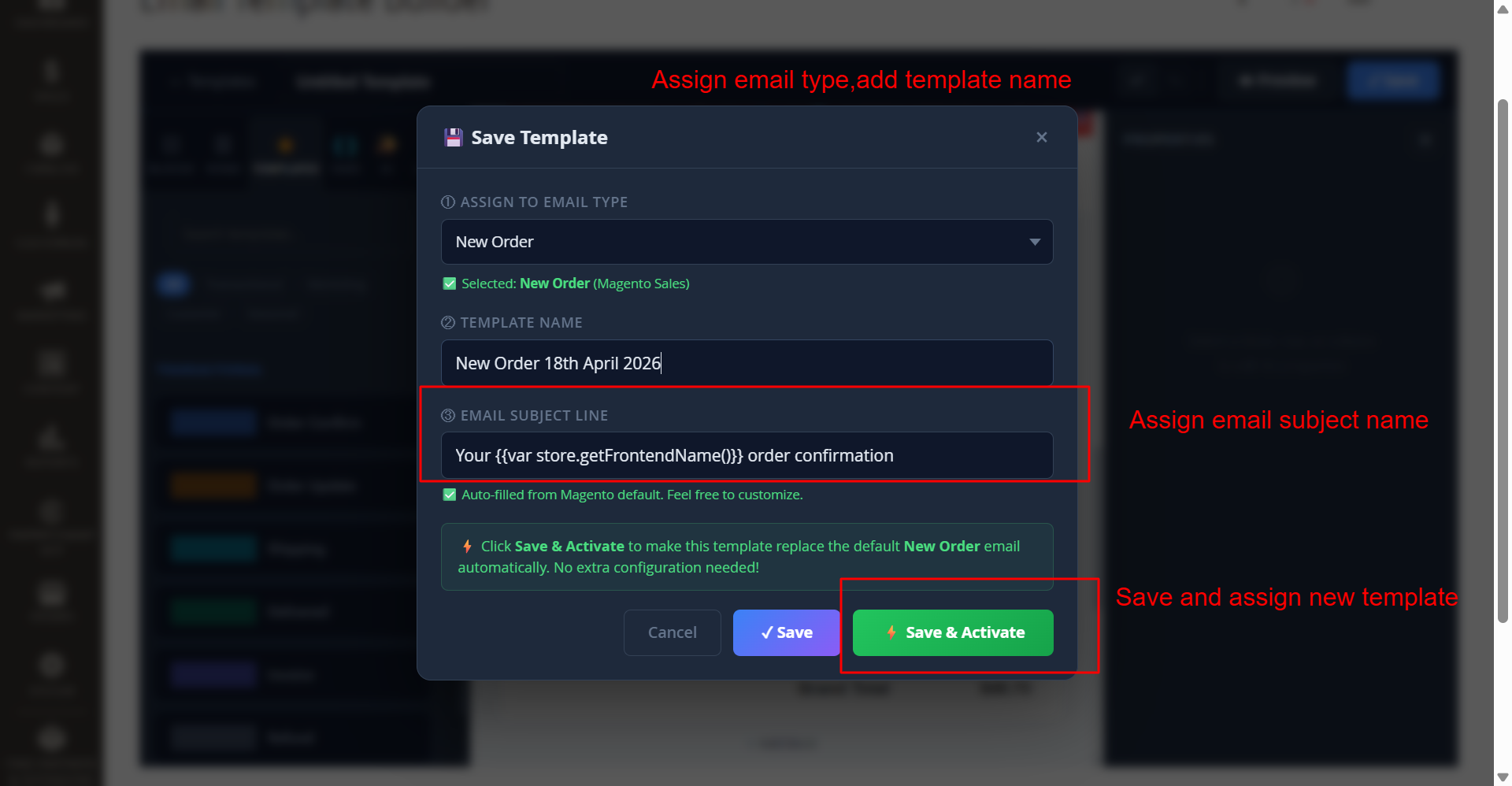
Admin: Save and Activate Email Template
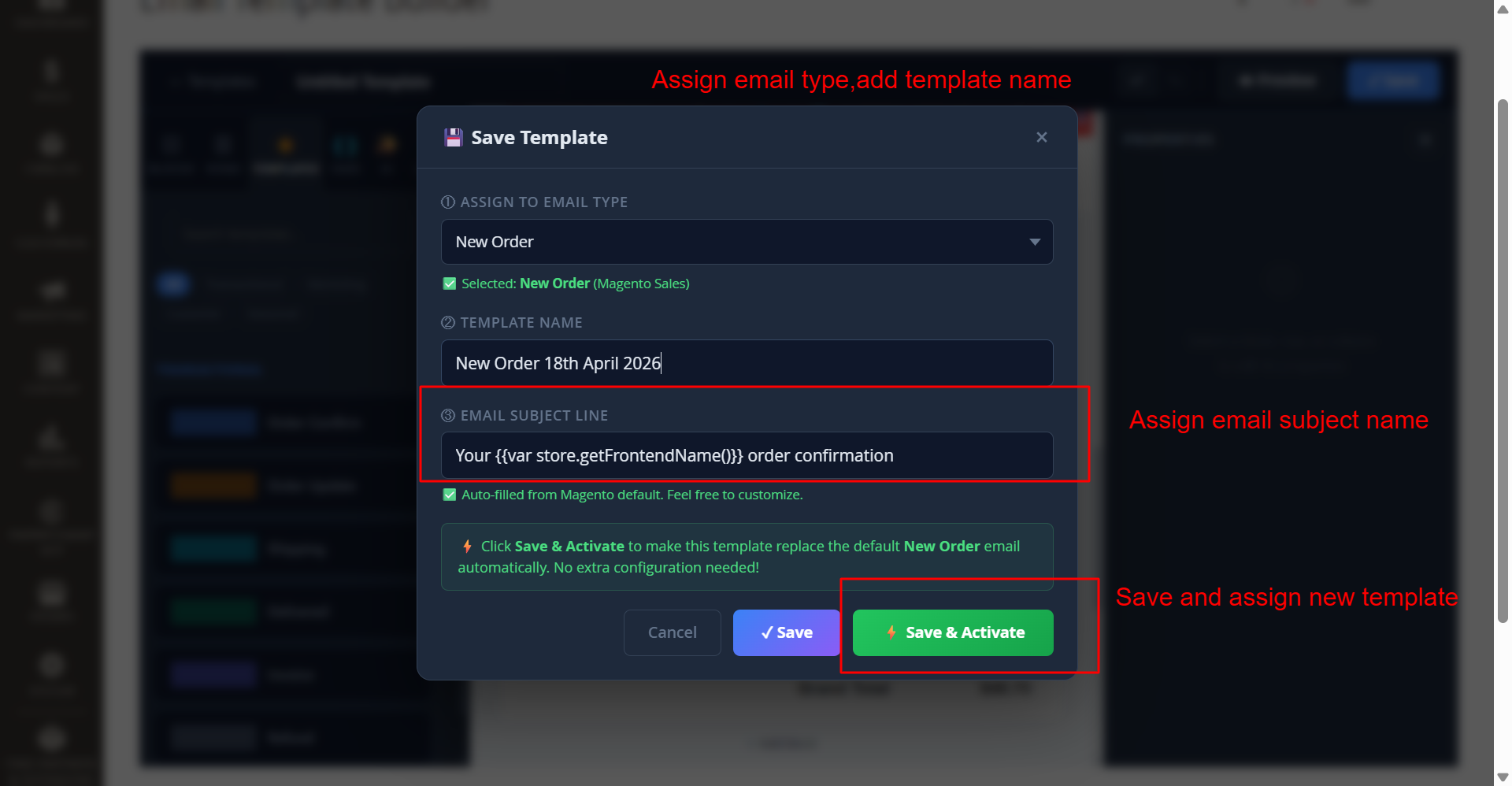
What this shows: The screenshot displays the 'Save Template' pop-up with fields for 'Assign to Email Type', 'Template Name', and 'Email Subject Line'. There are buttons labeled 'Cancel', 'Save', and 'Save & Activate'.
This screen allows administrators to define a new email template by specifying the email type, template name, and subject line. After filling out these fields, the user can click 'Save & Activate' to replace the default template. This is crucial for users who want to customize and immediately apply their email templates in the Ewebecommerce_AiEmailDesigner module.
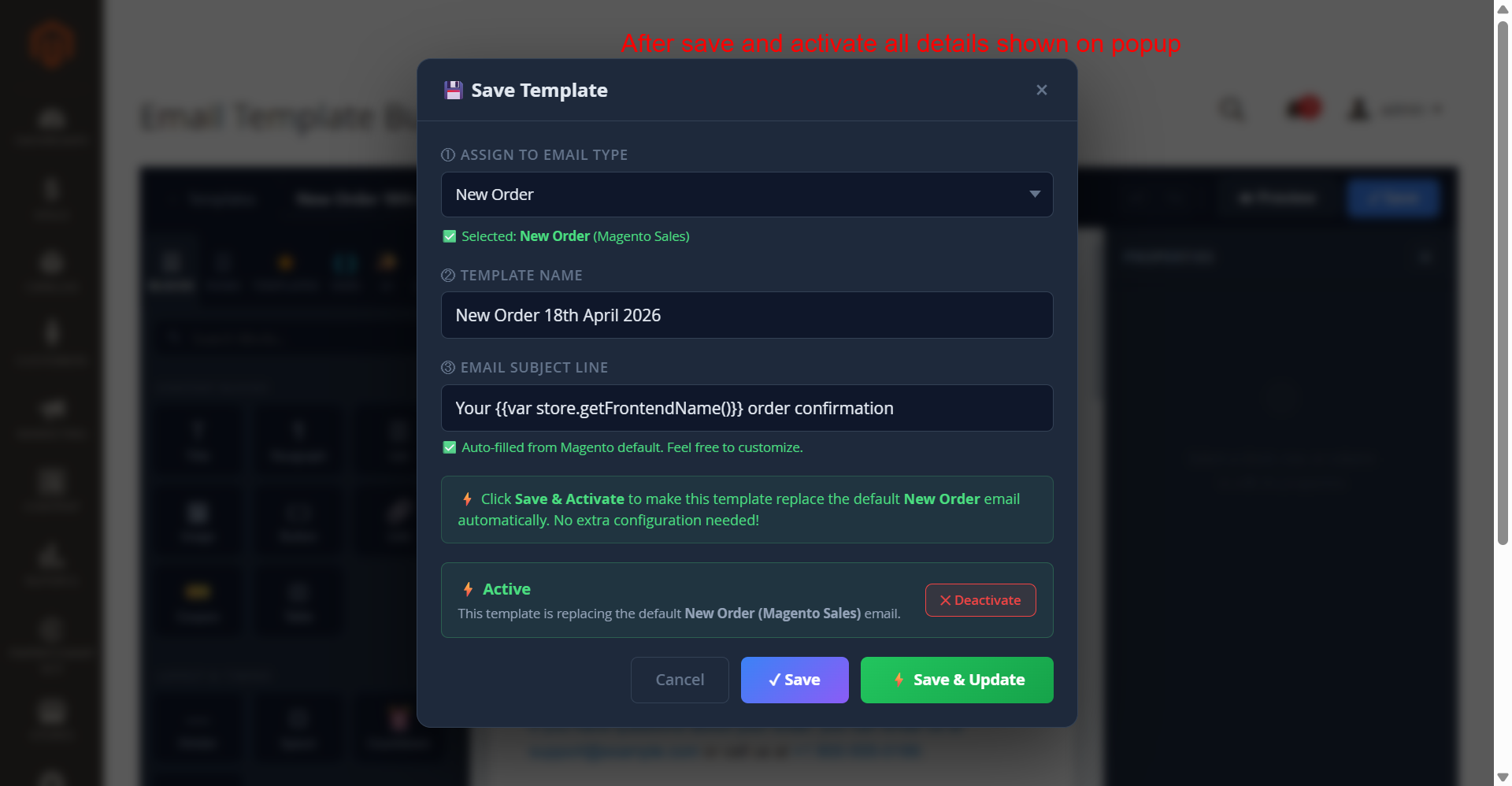
Admin: Email Template Activation Status
What this shows: The 'Save Template' pop-up shows the template's active status after saving it. Fields include 'Assign to Email Type', 'Template Name', and 'Email Subject Line', with an 'Active' label and a 'Deactivate' button.
Upon activating a template, this interface provides confirmation of the active status, ensuring that the new template is in use. The 'Deactivate' option allows for easy reversal if needed. It helps admins maintain control over which templates are currently applied, integrating new designs or adjustments efficiently.
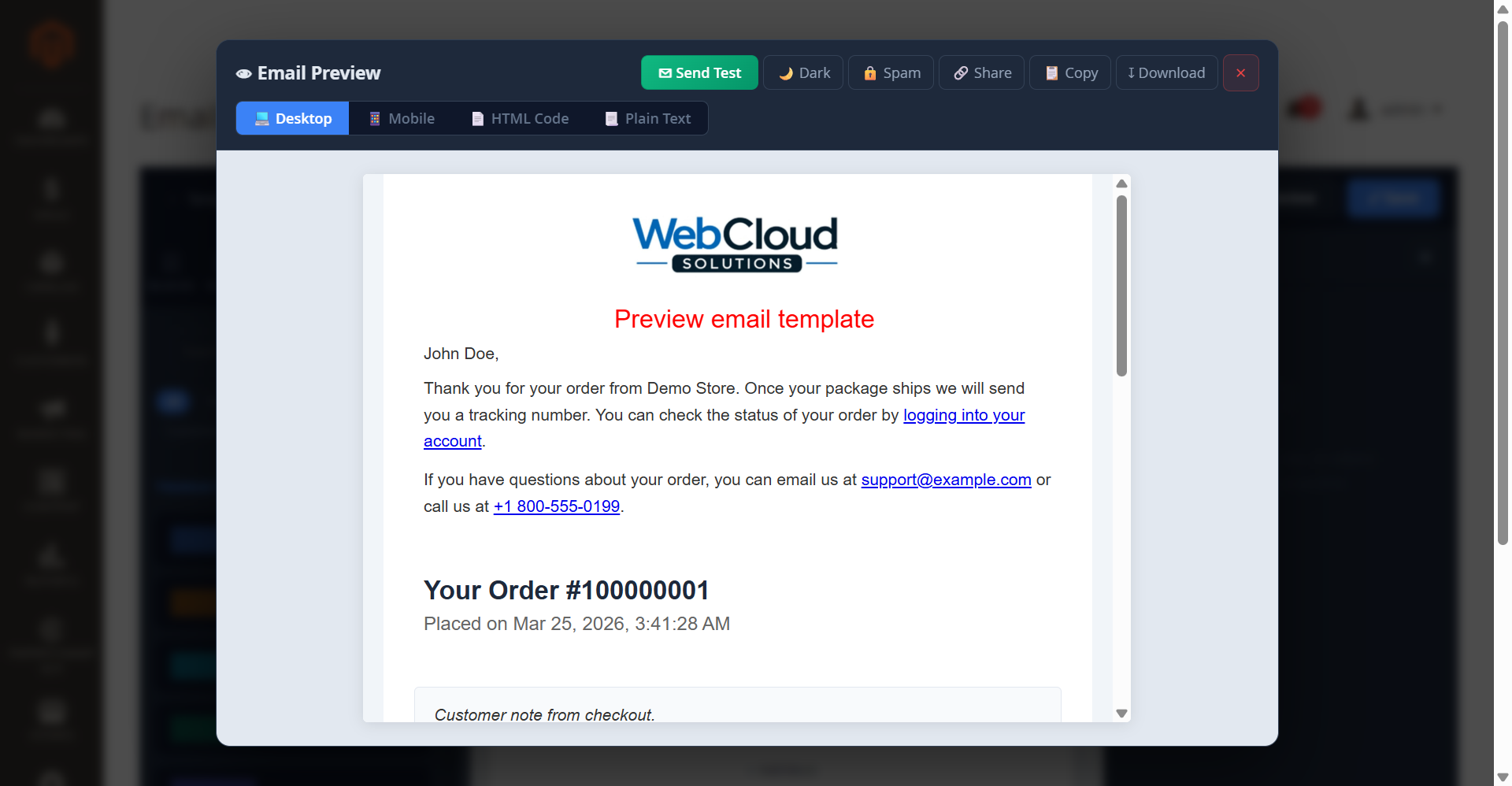
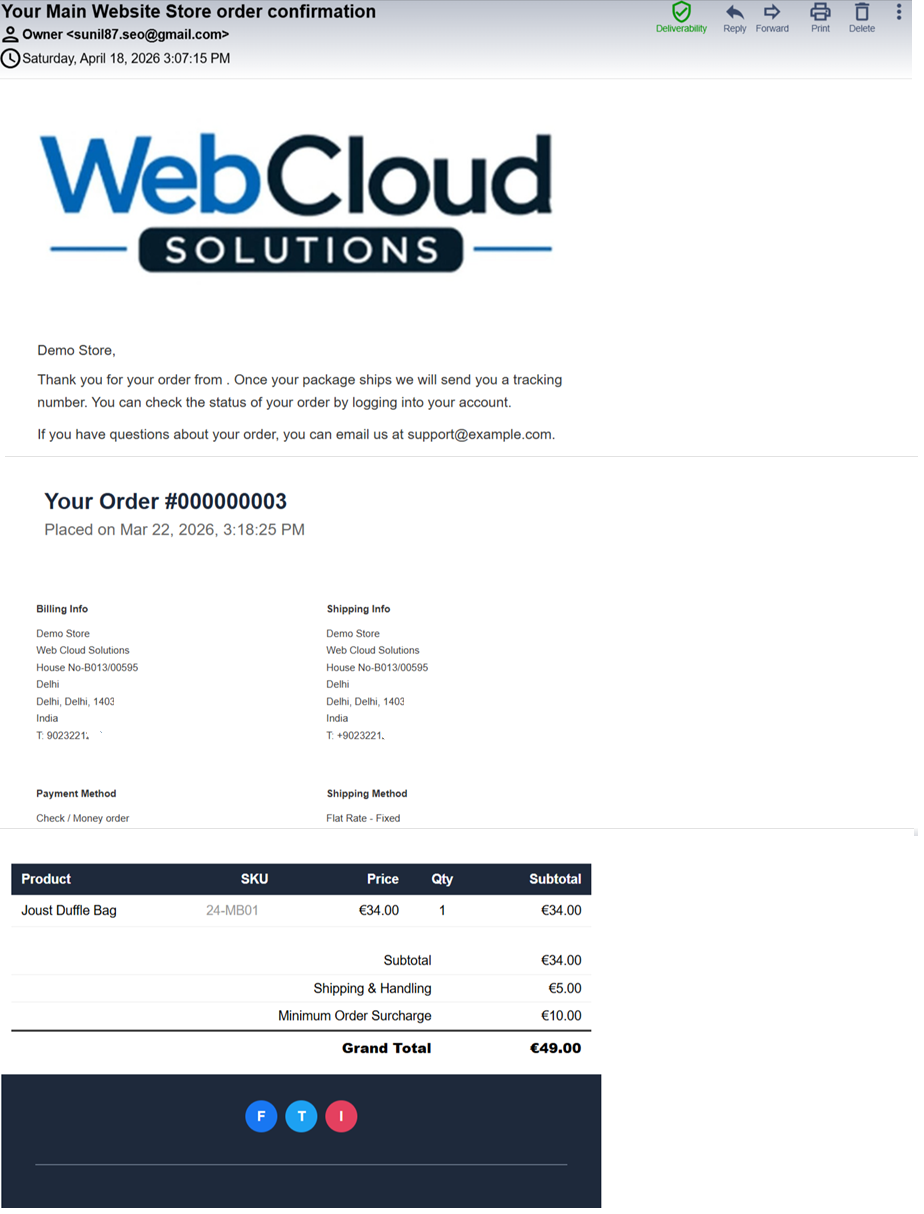
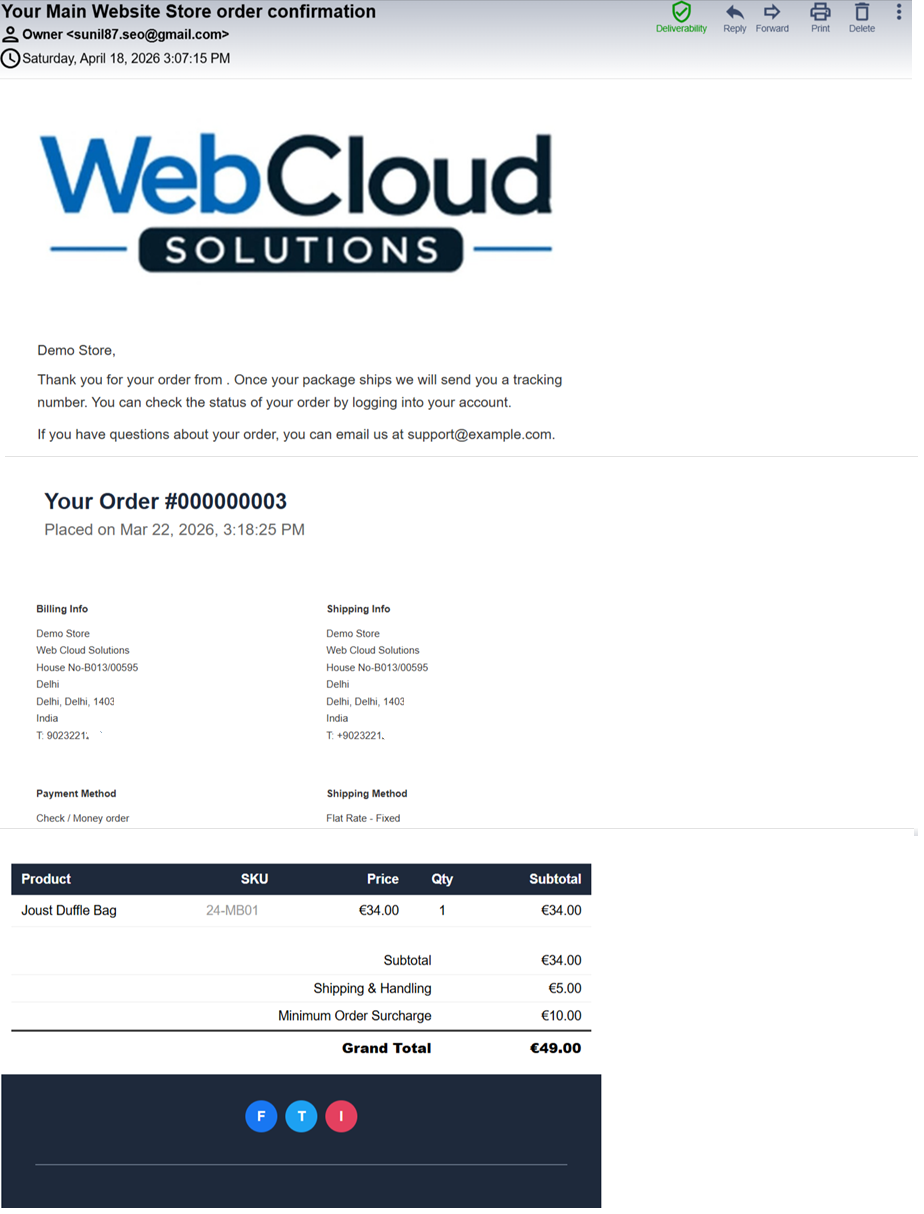
Admin: Order Confirmation Email Preview
What this shows: Shows a preview of an order confirmation email. Includes sender details, order information, customer support contact, and a detailed order summary with billing and shipping information.
This preview screen allows administrators to review the design and content of a confirmation email before sending it out. It ensures all elements such as order details and branding are correctly displayed. This step is essential for maintaining consistency and accuracy in transactional communications.
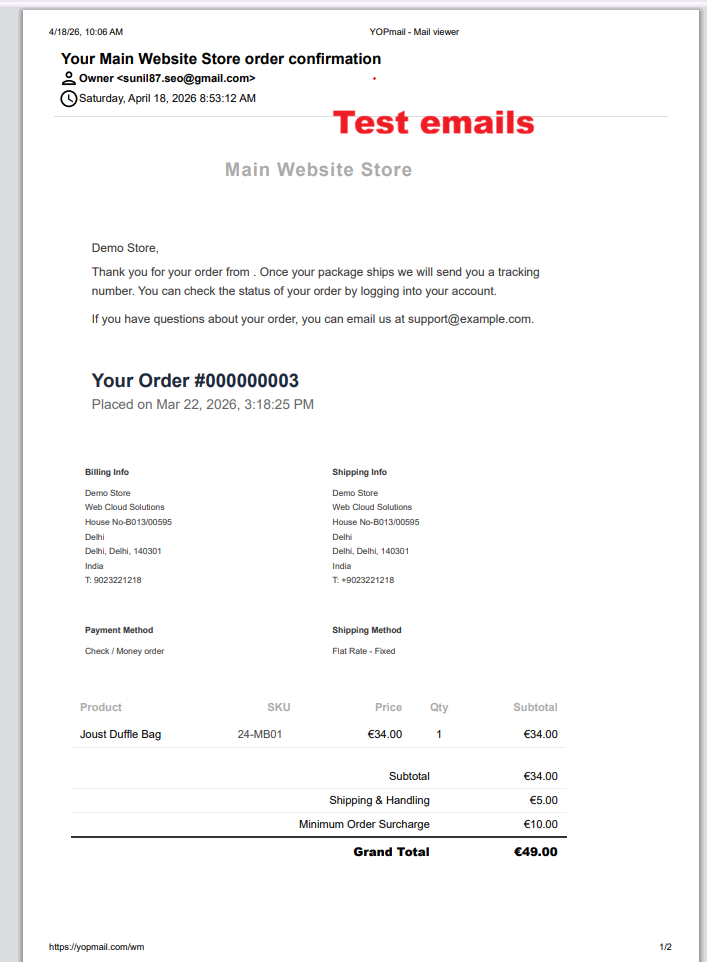
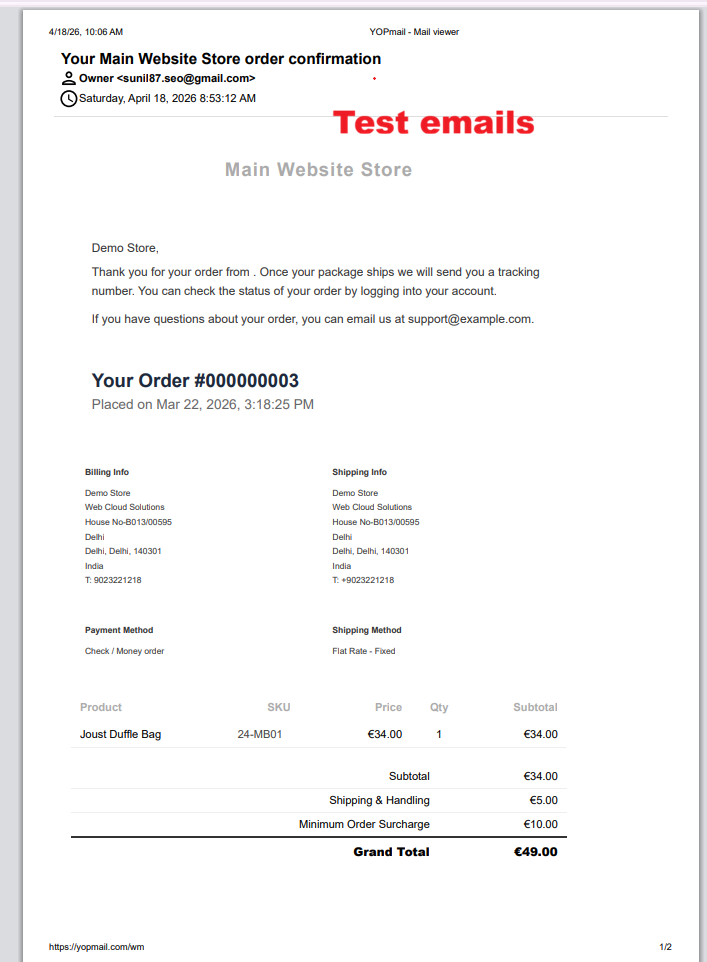
Admin: Test Order Email Display
What this shows: Displays a test version of an order confirmation email. This interface shows email headers, order details, and summary columns like product, SKU, price, and total.
Through this testing interface, users can check how emails appear with sample data. It is particularly useful for verifying formatting and ensuring content aligns with customer expectations before finalizing the template. By testing these elements, users can prevent errors and improve customer satisfaction with tailored emails.
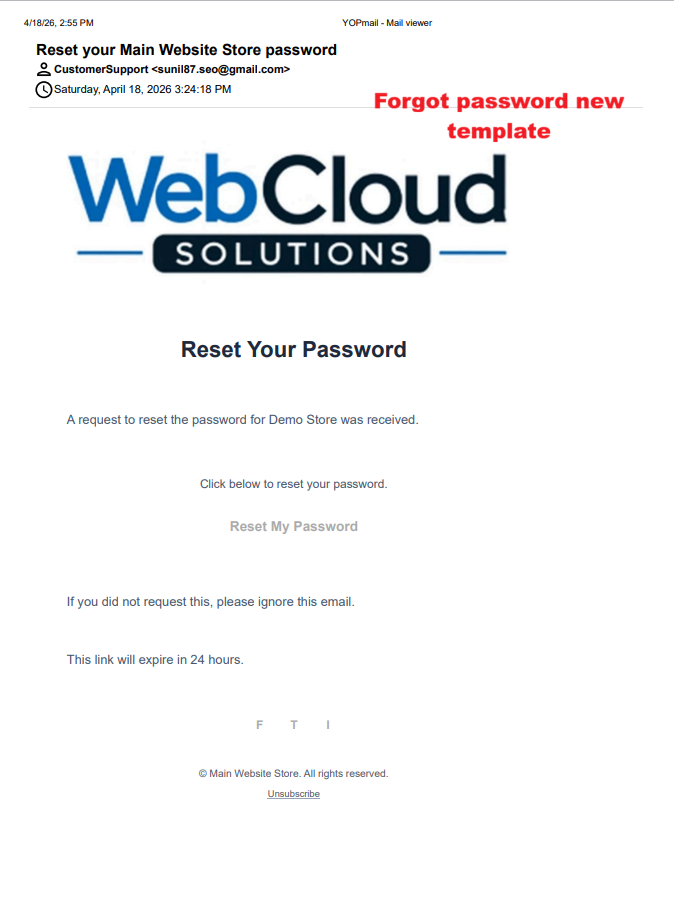
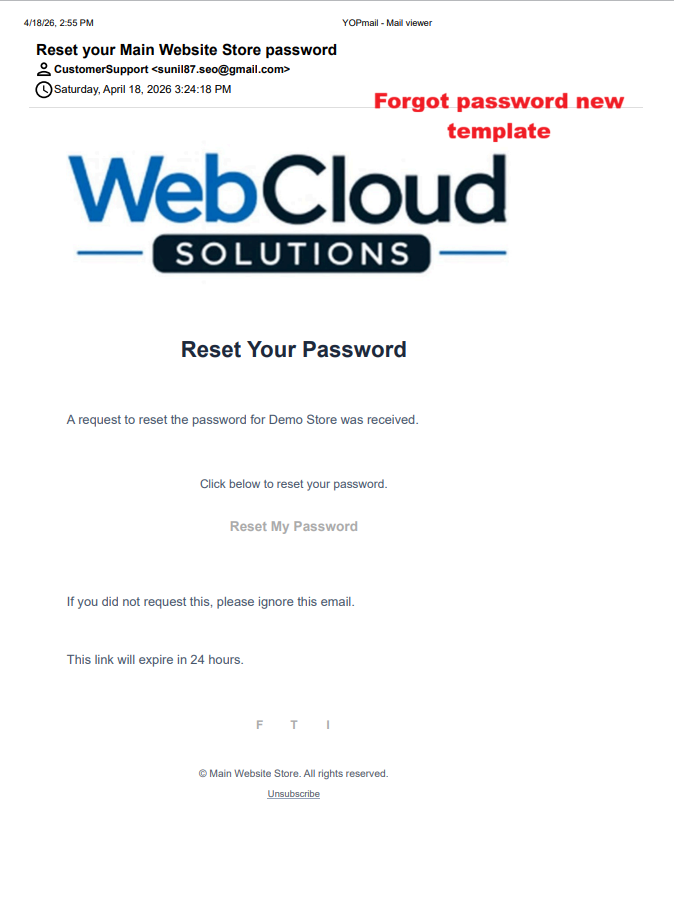
Admin: Forgot Password Email Template
What this shows: A preview of a password reset email with branding, reset instructions, and a call-to-action button labeled 'Reset My Password'.
This preview for a password reset email allows administrators to visualize how the message is rendered with current branding and instructional content. It ensures that critical elements, such as the password reset link, are perfectly integrated and operational for seamless password recovery processes.
Builder: Block Component Selection
What this shows: A sidebar menu lists content blocks such as Title, Paragraph, List, Image, Button, and Link, allowing for drag-and-drop configuration.
This builder interface provides the tools necessary for admins to customize their email templates using various content blocks. The selection enables a flexible design methodology, vital for crafting responsive and visually appealing emails that cater to different branding needs in Ewebecommerce_AiEmailDesigner.
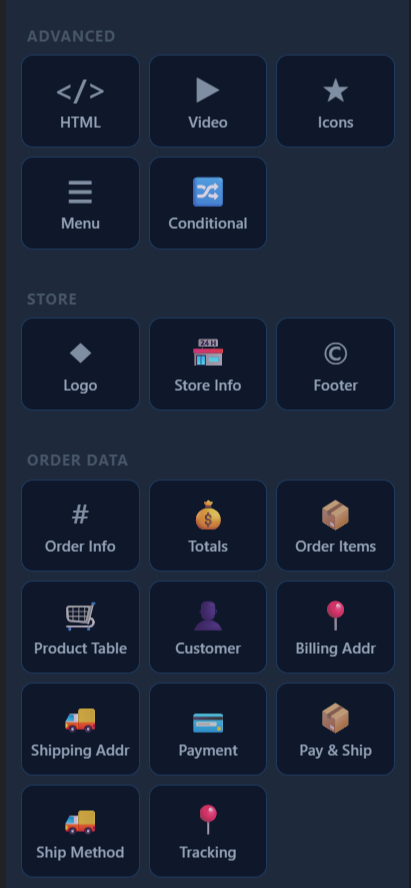
Builder: Advanced Components and Order Data
What this shows: Lists advanced components such as HTML, Video, Icons, Conditional, and additional tabs for Store and Order Data components like Order Info and Totals.
Advanced components empower users to enhance their email templates beyond basic design. This includes integrating dynamic content such as videos or conditional displays. Additionally, users can incorporate order-specific data, improving the personalization and relevance of each email sent through the AI-powered module.
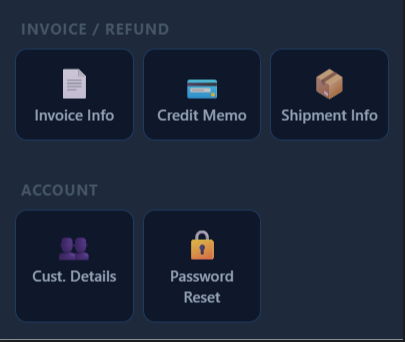
Builder: Invoice and Refund Components
What this shows: Displays components related to invoice and refund information including Invoice Info, Credit Memo, and Shipment Info.
This section allows users to seamlessly incorporate invoice and refund details into their email communications. By using these elements, businesses can ensure comprehensive order information is passed to customers, aiding transparency and streamlining financial communications.
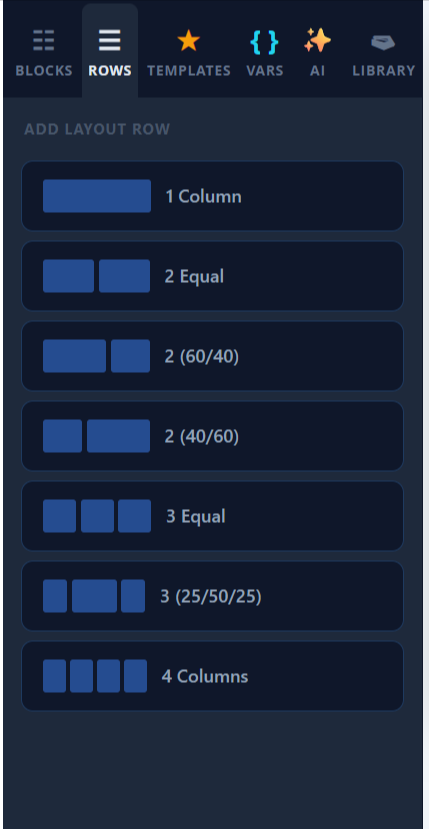
Email Builder: Layout Row Options
What this shows: The screen displays options to add layout rows with different column configurations including 1 Column, 2 Equal, 2 (60/40), 2 (40/60), 3 Equal, 3 (25/50/25), and 4 Columns.
In the Ewebecommerce AiEmailDesigner, you can customize your email layout by selecting from various row configurations. This flexibility allows you to create visually balanced and structured emails, enhancing user engagement and readability. Choosing the right layout is crucial for delivering clear and professional content tailored to your branding requirements.
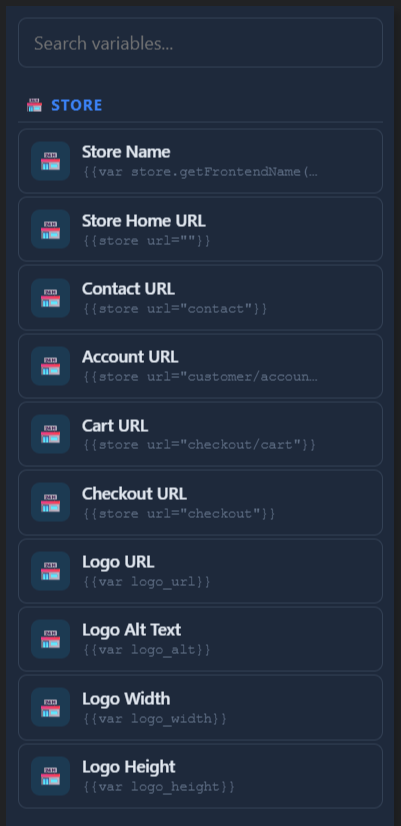
Email Builder: Store Variables
What this shows: This interface shows a list of store-related variables such as Store Name, Store Home URL, Contact URL, Account URL, and more, each with corresponding template tags.
Store variables are essential for personalizing your email templates with dynamic content related to your store. By dragging these variables into your email design, you ensure that recipients receive current and contextual information like URLs and store branding. This approach not only saves time but also guarantees consistency across communications.
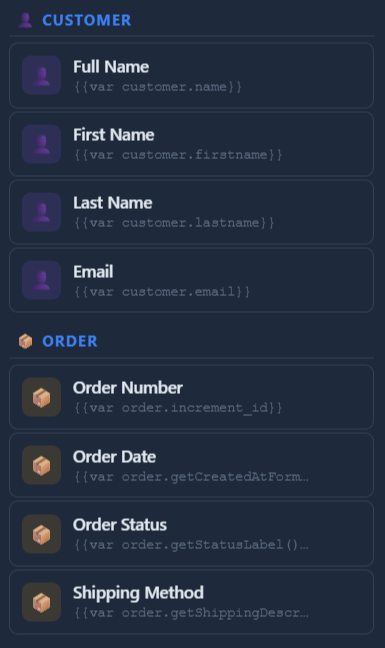
Email Builder: Customer and Order Variables
What this shows: The UI shows customer-related variables such as Full Name, First Name, Last Name, and Email, as well as order variables like Order Number, Order Date, etc.
Utilize these variables to dynamically insert customer and order-specific data into email templates. This feature enhances personalization, ensuring that each email is relevant and customized to the individual recipient's interactions with your store. Personalized emails are more engaging and can improve customer satisfaction and retention.
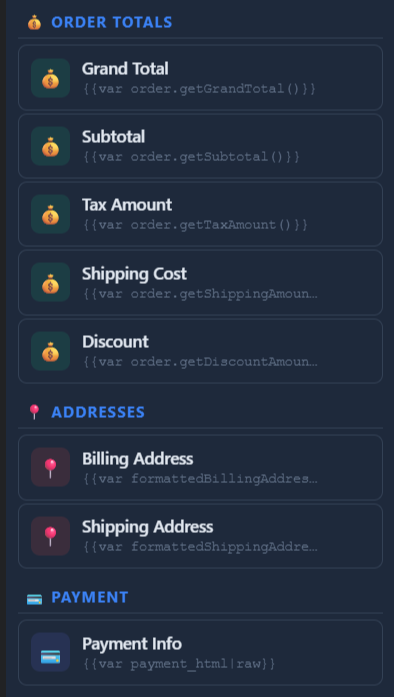
Email Builder: Order Totals and Address Variables
What this shows: Displays variables for order totals such as Grand Total, Subtotal, Tax Amount, etc., along with Address variables for Billing and Shipping.
Integrating order and address details into your emails enhances transparency by allowing customers to verify transaction details instantly. These variables help automate the inclusion of vital financial and logistic information, ensuring that each transactional email accurately reflects the customer's purchase history and preferences.
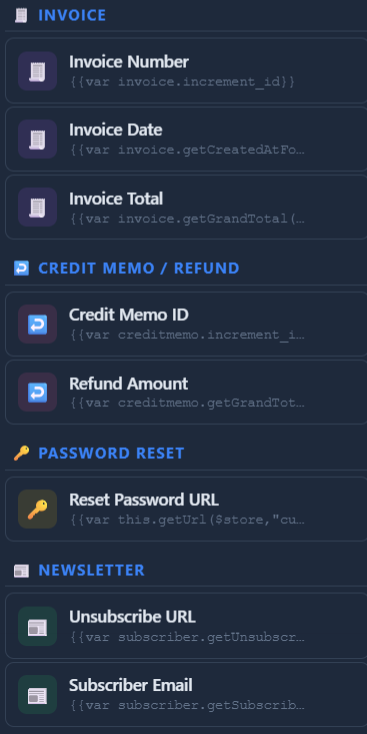
Email Builder: Invoice and Refund Variables
What this shows: Lists variables associated with invoices like Invoice Number, Invoice Date, and Invoice Total, including sections for Credit Memo and Password Reset.
Incorporating invoice and refund variables into your emails is key for automating financial communications. This functionality facilitates efficient management of post-purchase processes by keeping customers informed about their transactions. It ensures that your emails are aligned with customer actions and expectations, supporting seamless financial interactions.
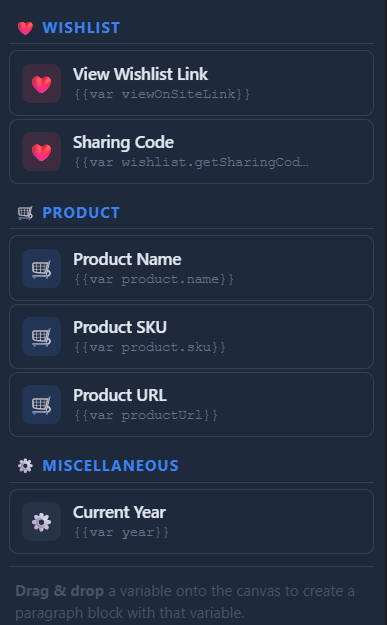
Email Builder: Wishlist and Product Variables
What this shows: Variable options related to Wishlists and Products such as View Wishlist Link, Product Name, Product SKU, and more.
Enhance your customers' shopping experience by integrating wishlist and product details into emails. This functionality allows you to craft targeted marketing messages that resonate with customer interests, promoting desired products and encouraging further engagement with your store. Personalized product recommendations can drive sales and nurture customer loyalty.
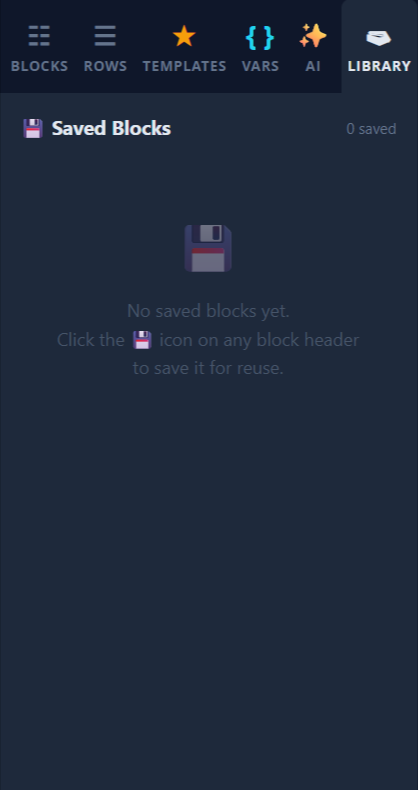
Email Builder: Library of Saved Blocks
What this shows: Displays the 'Saved Blocks' section where users can save frequently used email blocks for quick access and reuse. Currently shows '0 saved'.
The saved blocks library is a valuable feature for efficient email design workflow. It enables users to save and effortlessly reuse custom-designed content blocks, ensuring design consistency and saving time during the email creation process. Utilize this library to maintain high-quality designs across multiple email campaigns.
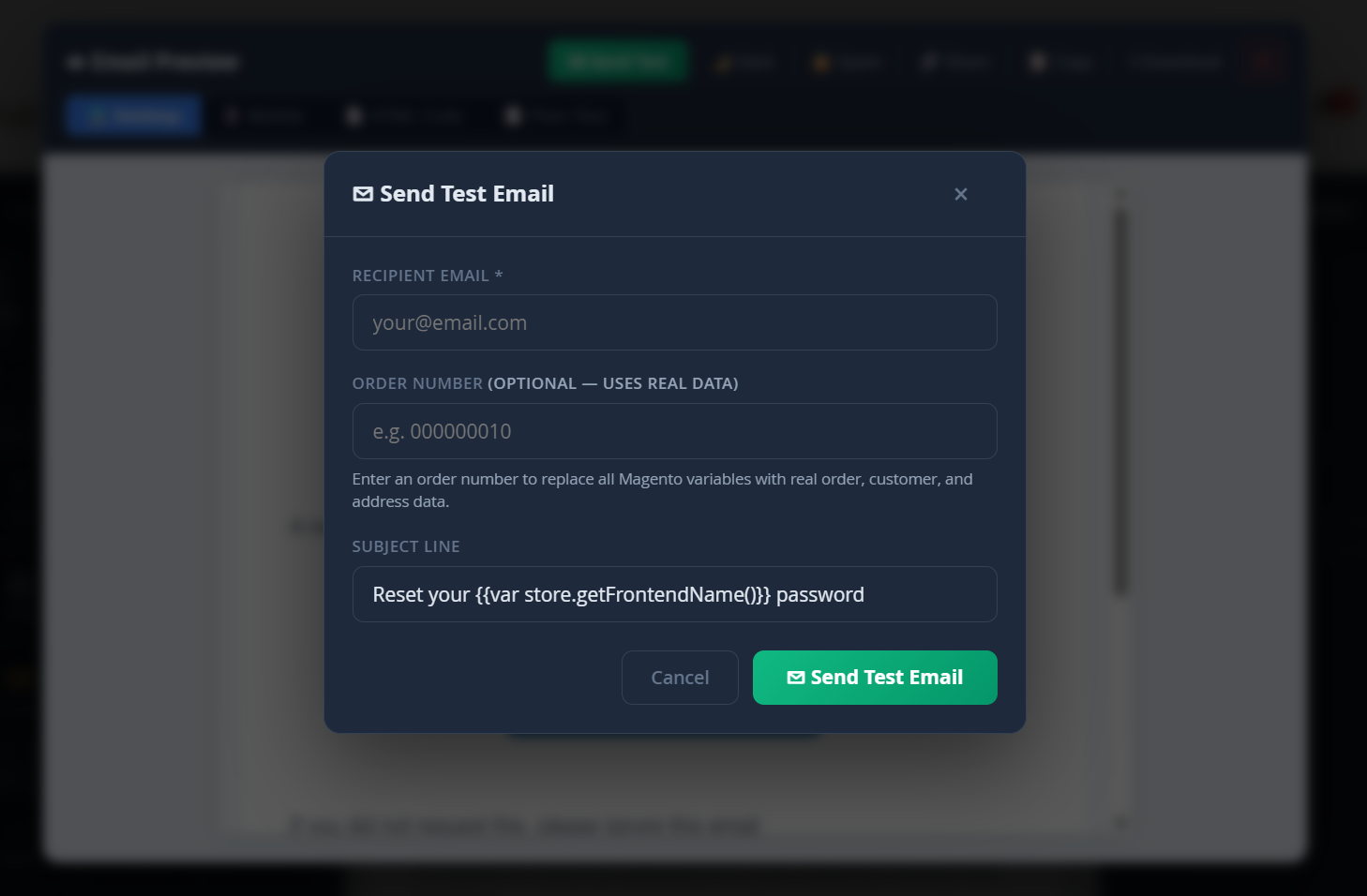
Email Builder: Send Test Email Popup
What this shows: A popup form for sending test emails, including fields for Recipient Email, Order Number (optional), and Subject Line.
Testing your email designs before deployment helps ensure that the content displays correctly across different email clients and devices. This popup allows you to send test emails by inputting a recipient's email address and optionally a specific order number to simulate real customer data. This process is crucial for verifying the dynamic content and formatting of your emails, preventing potential errors in live campaigns.
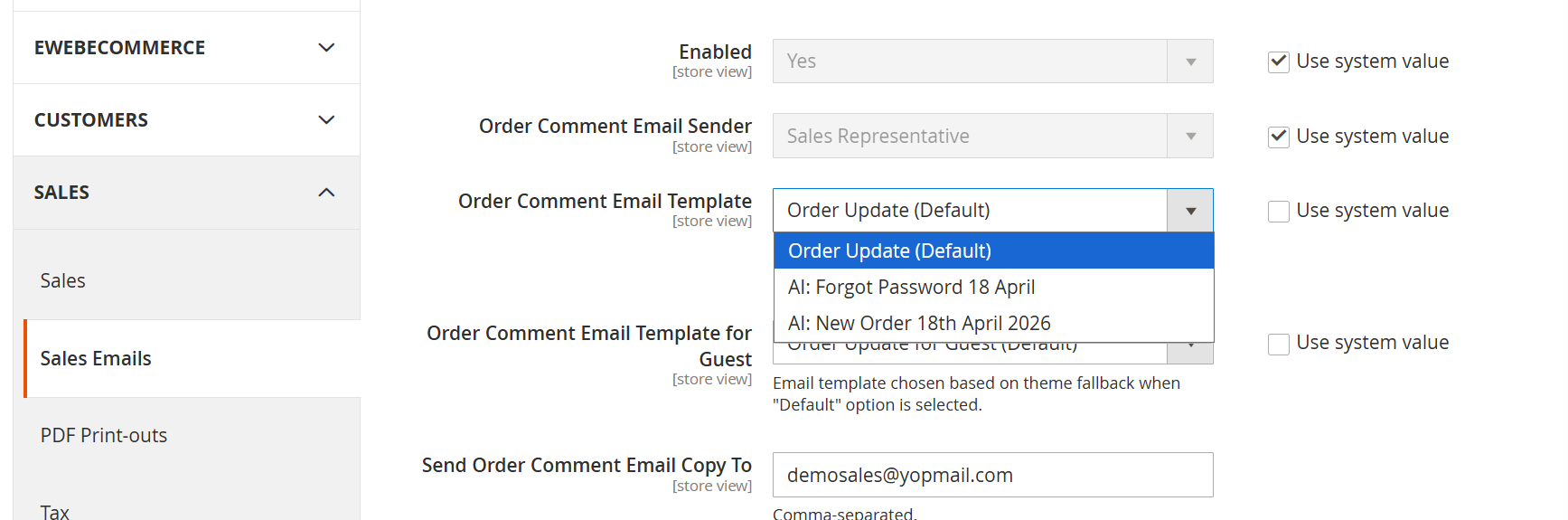
Admin: Sales Email Configuration
What this shows: This screen displays the configuration settings for order comment emails. It includes dropdowns for selecting the email template, setting the email sender, and fields for specifying recipients.
On this screen, the admin can configure email settings related to order comments. They can choose from a list of available email templates, including AI-generated ones, for standard and guest users. This flexibility is crucial for tailoring communications to match the brand's tone and enhance customer interactions. The admin also sets email recipients to ensure all comments are directed to the intended parties, leveraging Ewebecommerce's AI capabilities for effective email management.
Reviews
There are no reviews yet.