

1 Overview
Enhance Magento 2 checkouts with intuitive country phone selector and WhatsApp integration.
Ewebecommerce's CountryPhone extension enhances your Magento 2 checkout process with modern integrations such as a country-specific phone number selector and optional WhatsApp input field. Leveraging real-time validation, this tool ensures data integrity by adhering to country-specific and fraud-detection algorithms without external API reliance. It seamlessly integrates with both Luma and Hyva themes, respecting GDPR guidelines and local storage solutions.
Tailored for businesses that require precise customer communication, the extension supports WhatsApp links in both admin and customer-facing views, improving order tracking and communication without complicating the means. Built-in features like auto-detection of country codes deliver a sophisticated yet user-friendly experience. Extend your Magento functionalities with this robust module, leveraging intuitive interfaces while enhancing fraud prevention measures.
At a Glance
- Country phone selector with flags
- Optional WhatsApp field integration
- Real-time phone validation
- Fraud detection and prevention
- GDPR-friendly with no external API hits
- Hyva and Luma theme compatibility
| Module | Ewebecommerce_CountryPhone |
|---|---|
| Composer | ewebecommerce/module-country-phone |
| Version | |
| PHP | >=8.1 |
| Compatibility | Magento Framework >=103.0.7 |
| Hyva | Compatible |
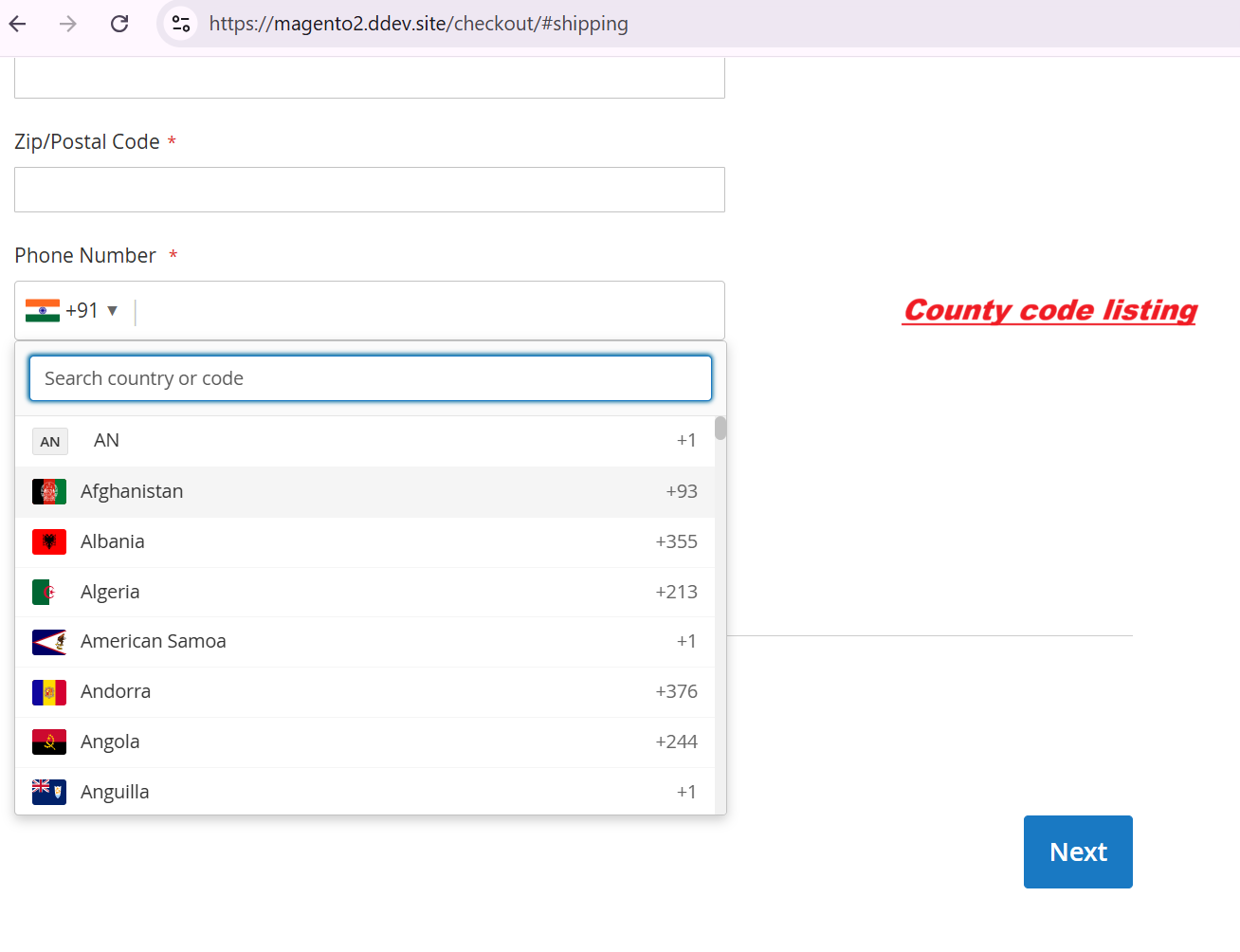
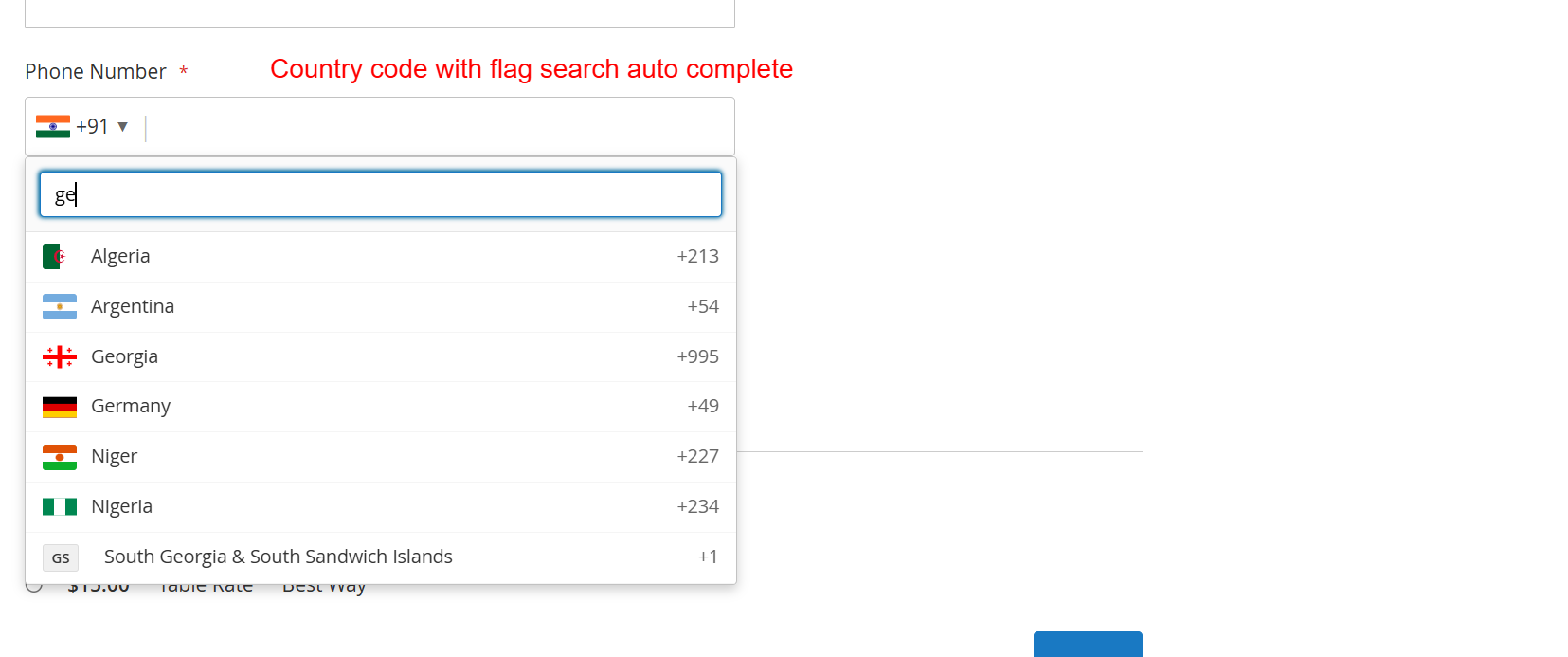
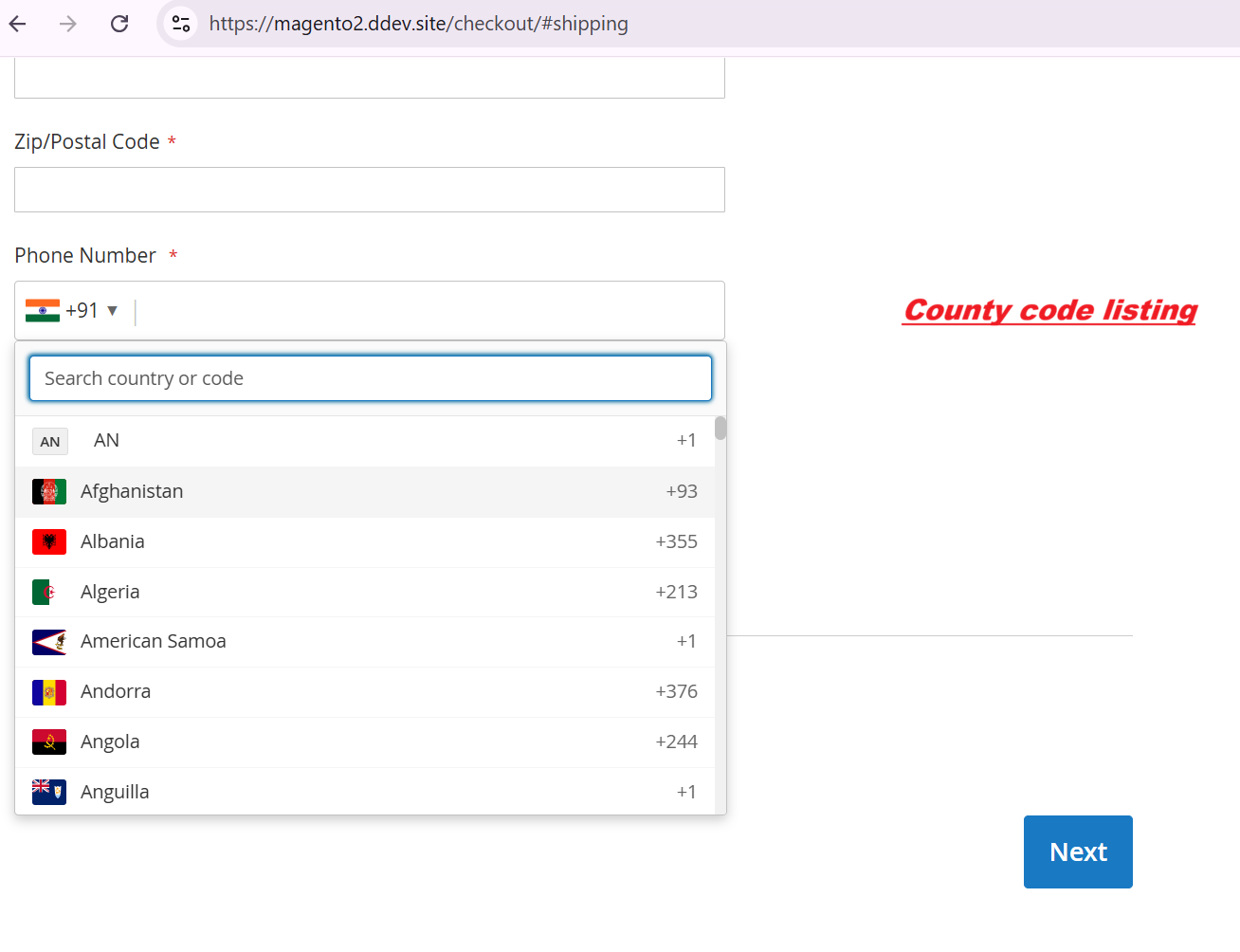
During the checkout process, customers can utilize the country code autocomplete feature to quickly find and select the correct country code for their phone number. This streamlines their checkout experience and minimizes errors in phone number entries, contributing to accurate data collection.
2 Features
Country code autocomplete with flags
Real-time input validation
Auto-detect country based on store location
Ensure phone number validity
Configureable default country
Optional WhatsApp number field
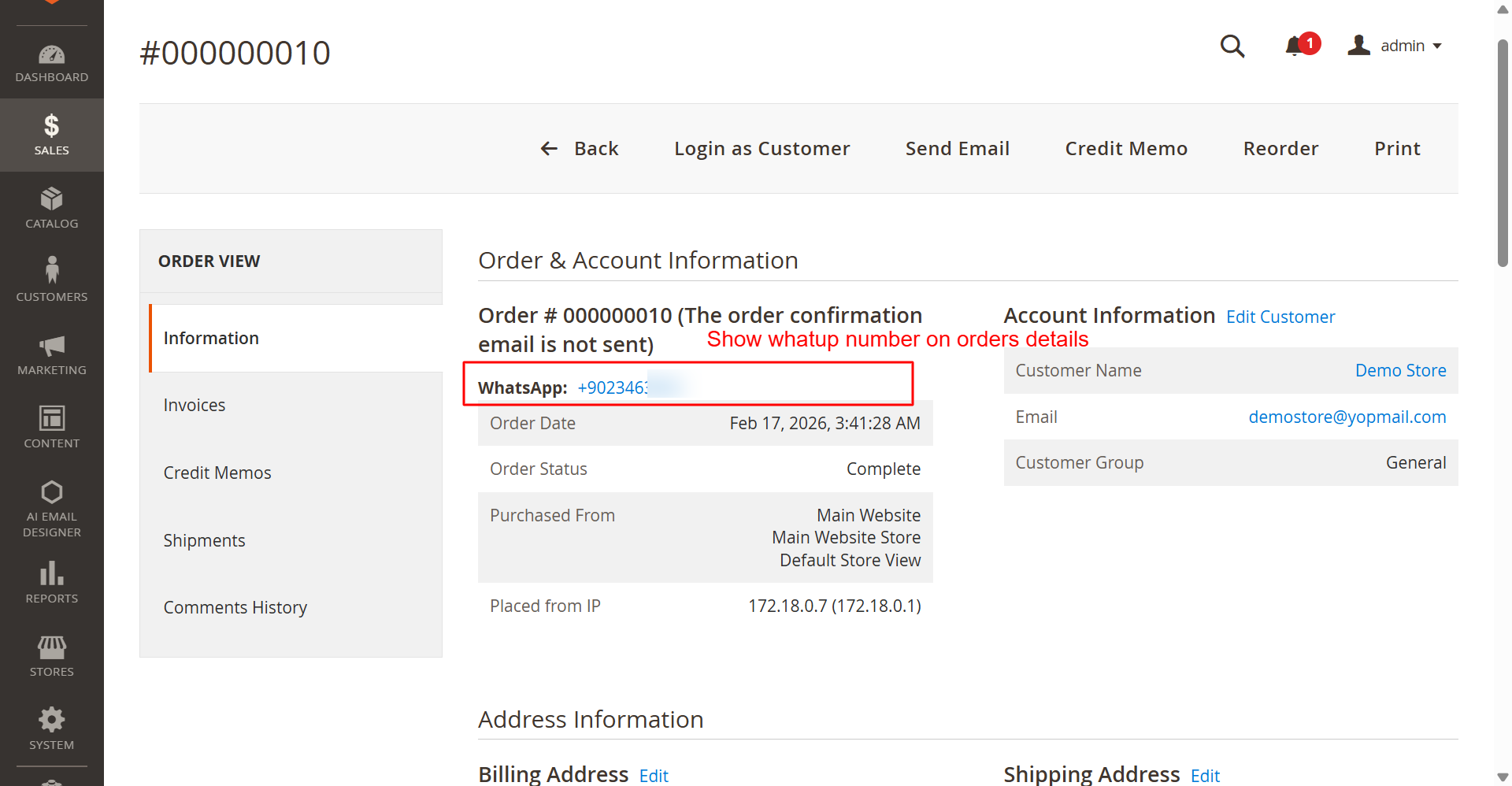
WhatsApp link on order details
Customizable labels and messages
Real-time phone validation
Country flags for WhatsApp number
Enable fraud detection settings
Configure fraud score thresholds
AI-enhanced fraud checks
Notify users of risky inputs
Block suspicious numbers
Phone Selector Features
Enhance checkouts with a dynamic phone number input system.
- Country code autocomplete with flags
- Real-time input validation
- Auto-detect country based on store location
- Ensure phone number validity
- Configureable default country
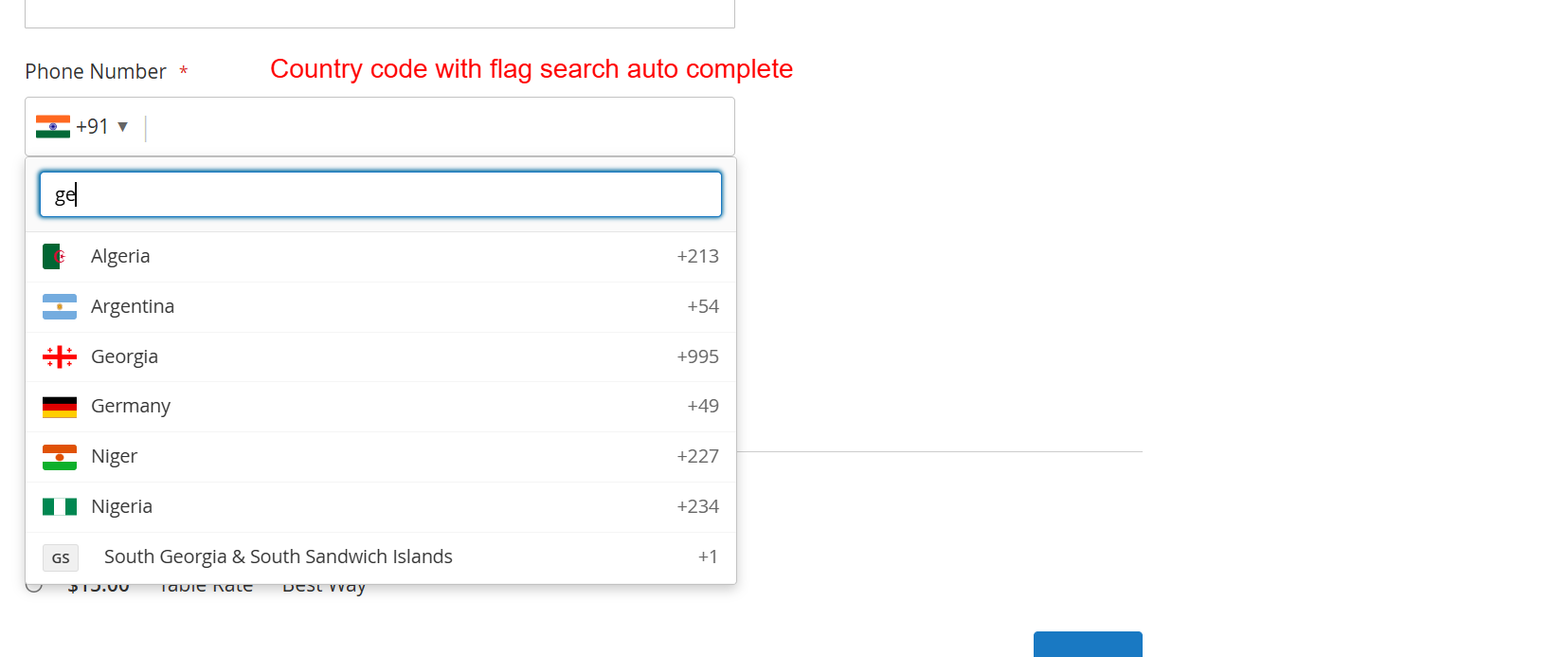
Customers interact with a user-friendly phone number field that supports autocomplete for country codes, complete with flag icons. This intuitive feature speeds up the selection process and reduces data entry errors during checkout.
WhatsApp Integration
Integrate WhatsApp smoothly into your checkout process.
- Optional WhatsApp number field
- WhatsApp link on order details
- Customizable labels and messages
- Real-time phone validation
- Country flags for WhatsApp number
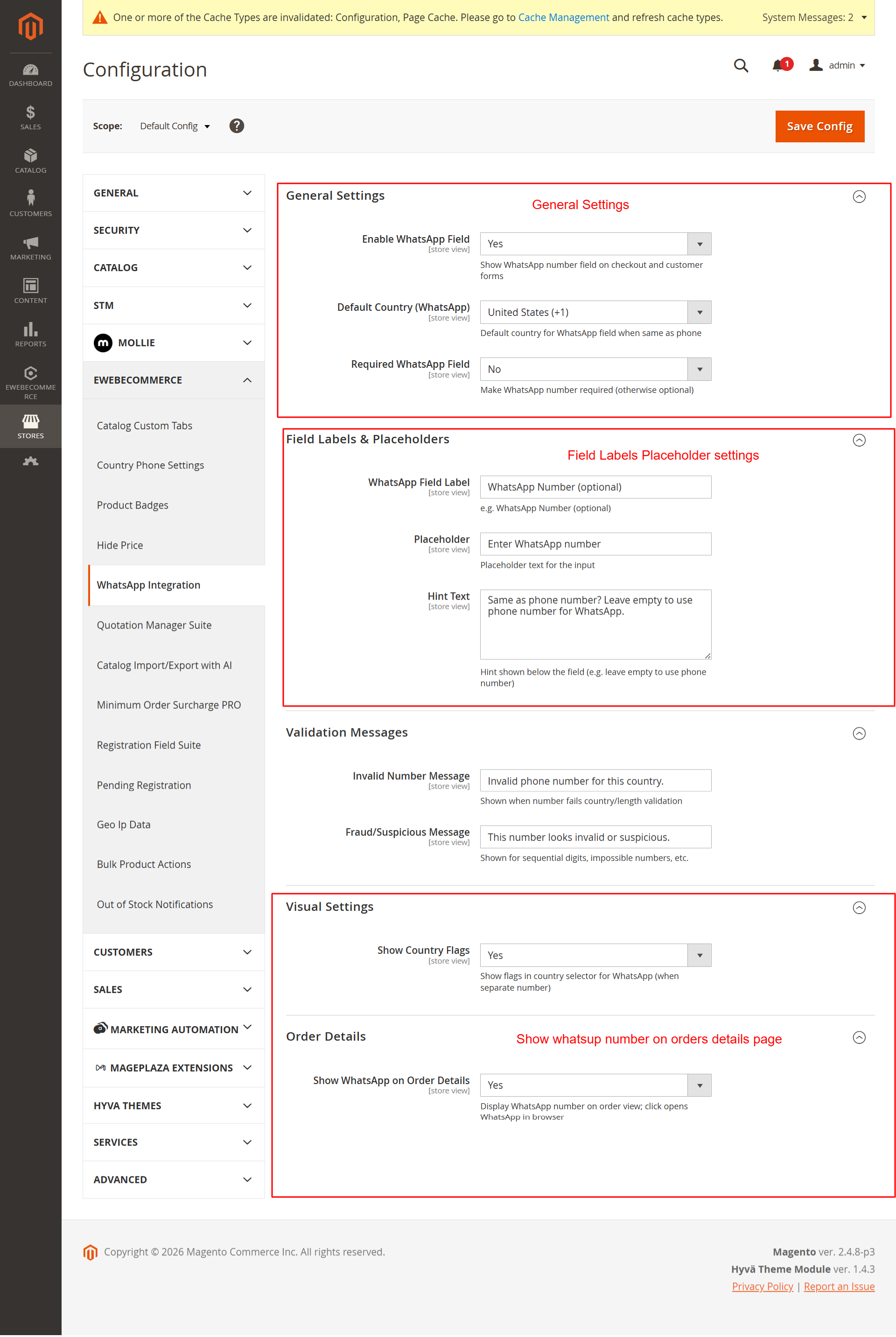
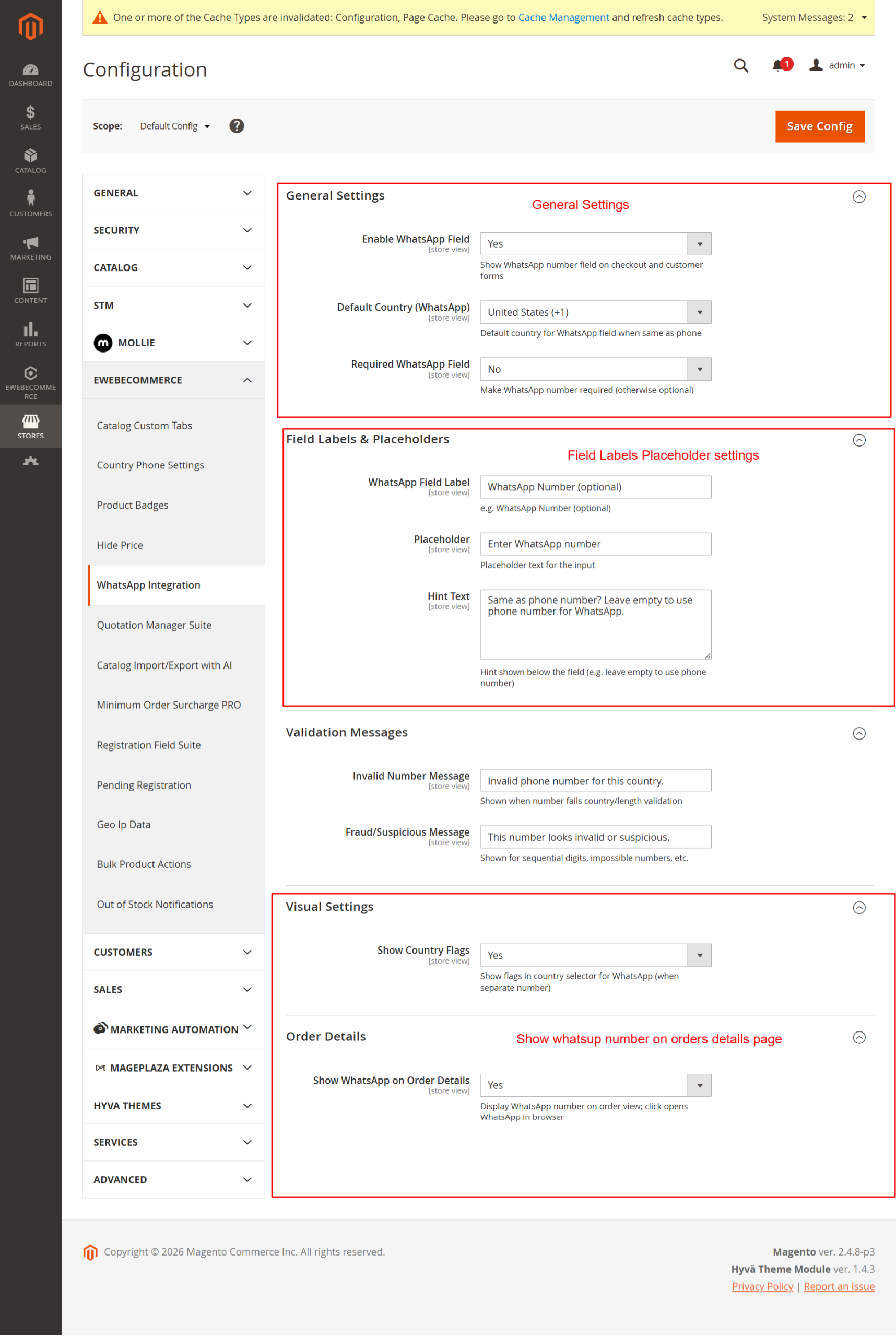
This screen is for configuring WhatsApp integration on checkout forms. Admins can enable the WhatsApp field, set a default country, and define validation messages. It adds convenience for customers to include their WhatsApp details, enhancing communication possibilities.
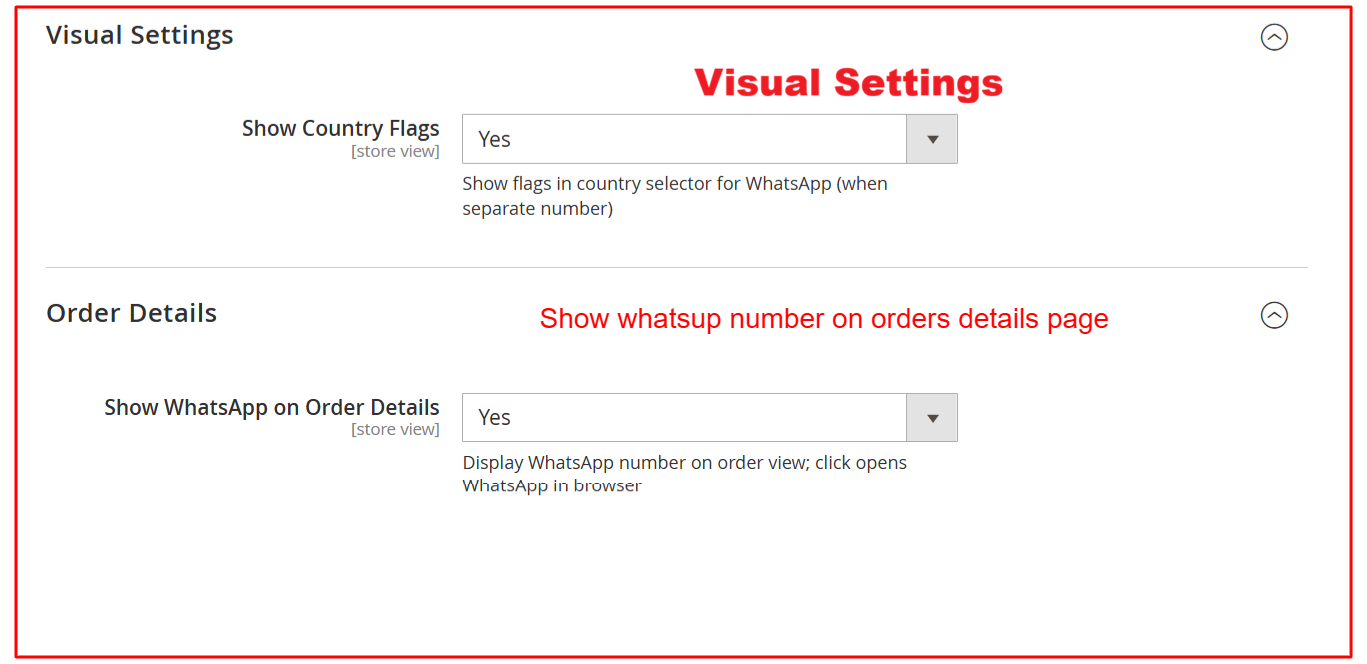
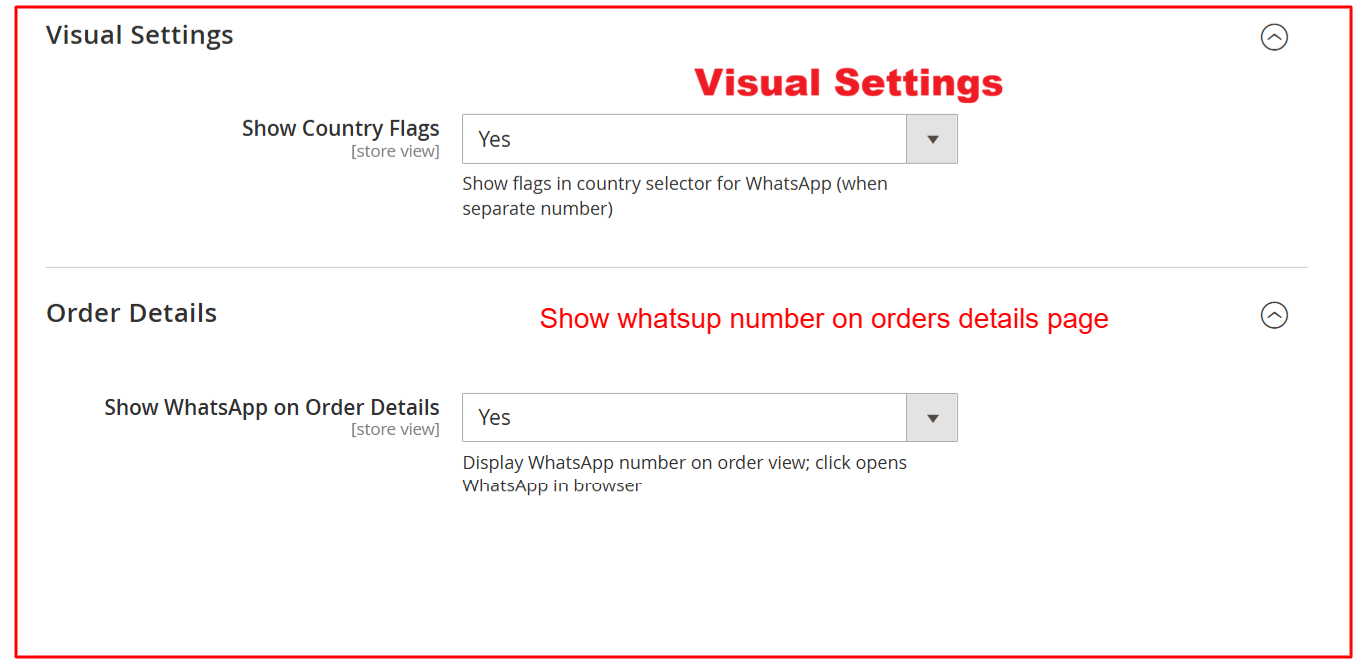
On the 'Visual Settings' page, set whether to display country flags in the WhatsApp selector and whether to show WhatsApp details on order views. These settings improve the visual appeal and functionality of your checkout process.
Fraud Detection Mechanisms
Enhance security with robust fraud detection setups.
- Enable fraud detection settings
- Configure fraud score thresholds
- AI-enhanced fraud checks
- Notify users of risky inputs
- Block suspicious numbers
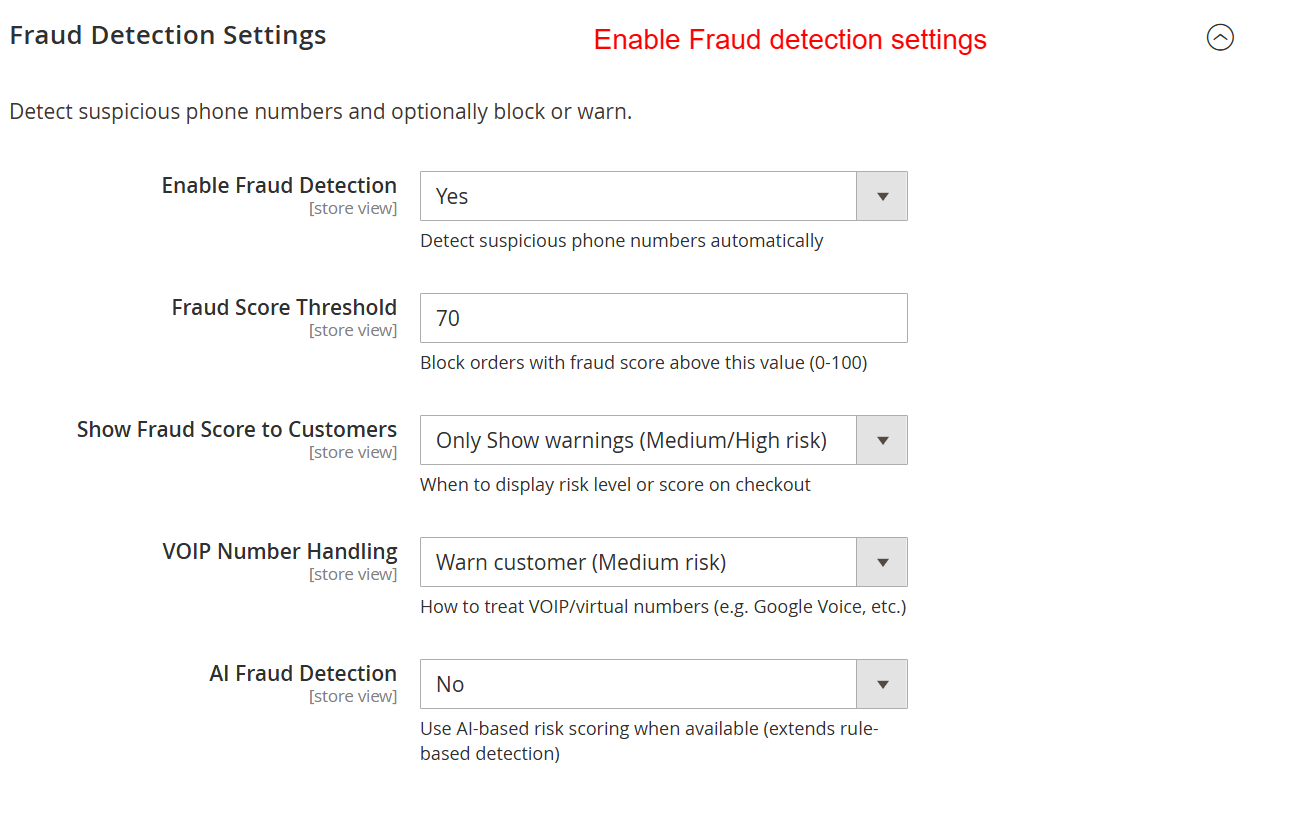
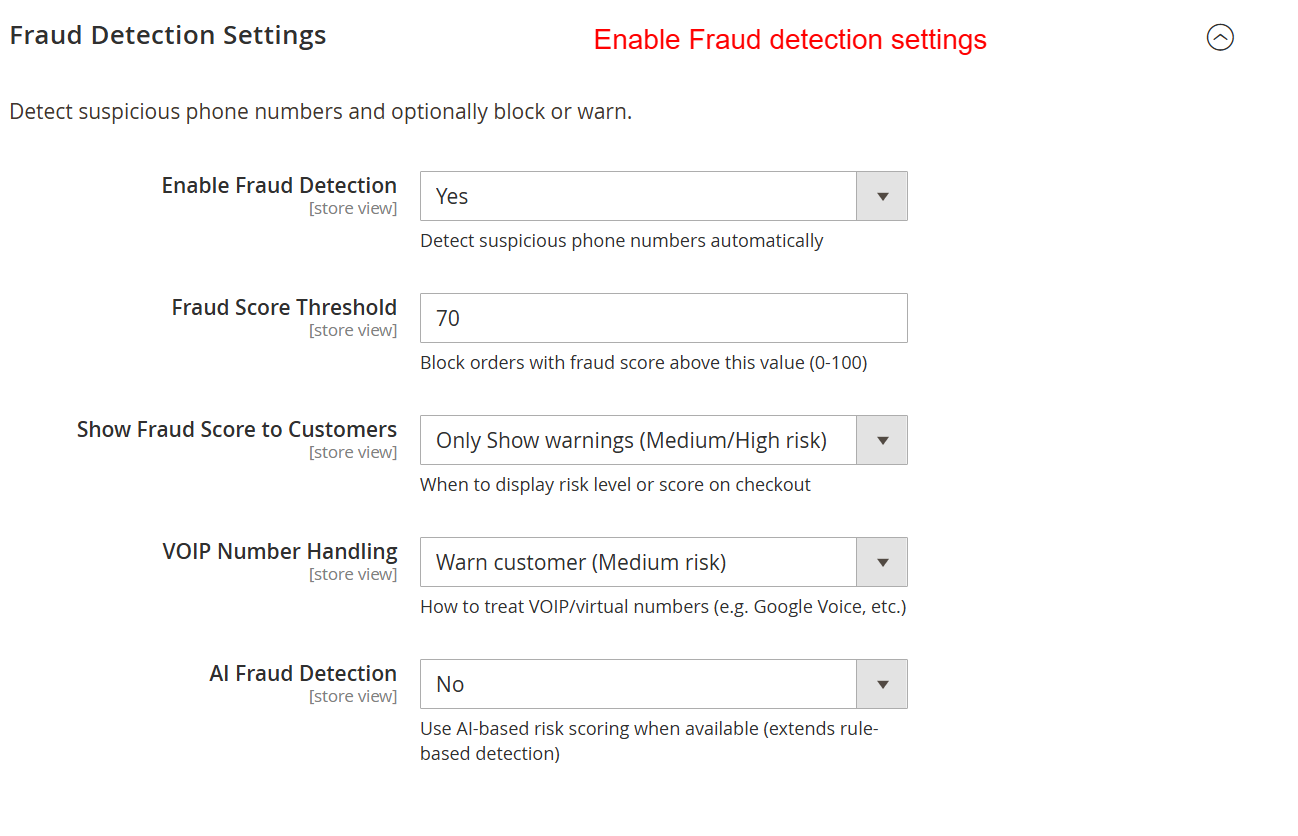
The 'Fraud Detection Settings' section allows you to configure how the system handles potentially fraudulent phone numbers by setting fraud score thresholds and displaying fraud scores to customers. This ensures that high-risk phone numbers are flagged, improving security during the checkout process.
3 Configuration Walkthrough
Navigate to Stores → Configuration in Magento Admin and follow these steps:
Enable the Module
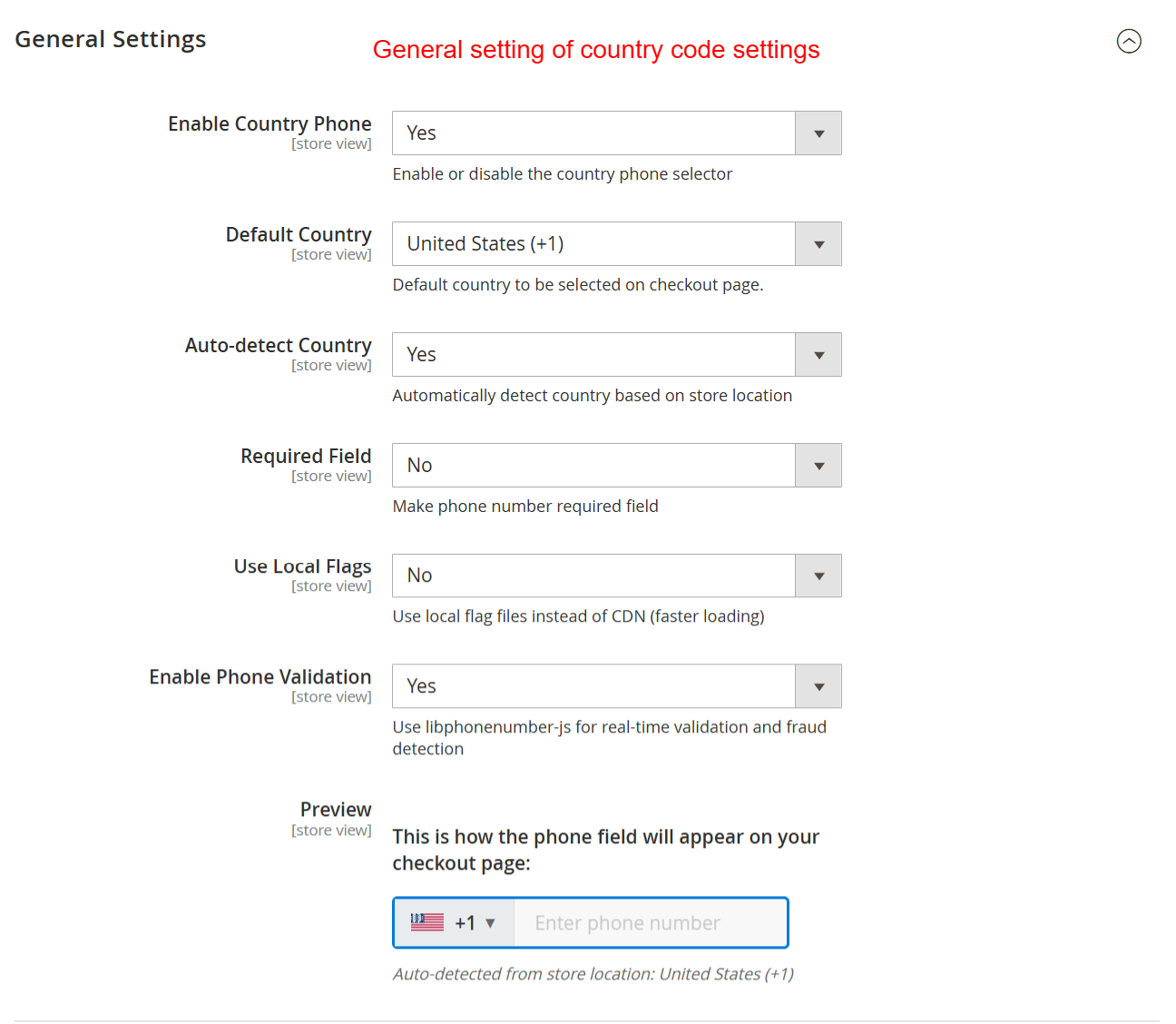
To enable the CountryPhone module, navigate to Stores > Configuration > Ewebecommerce Extensions. In the General Settings, toggle Enable Country Phone to 'Yes'. Set the Default Country for convenience and decide if the country should be auto-detected.
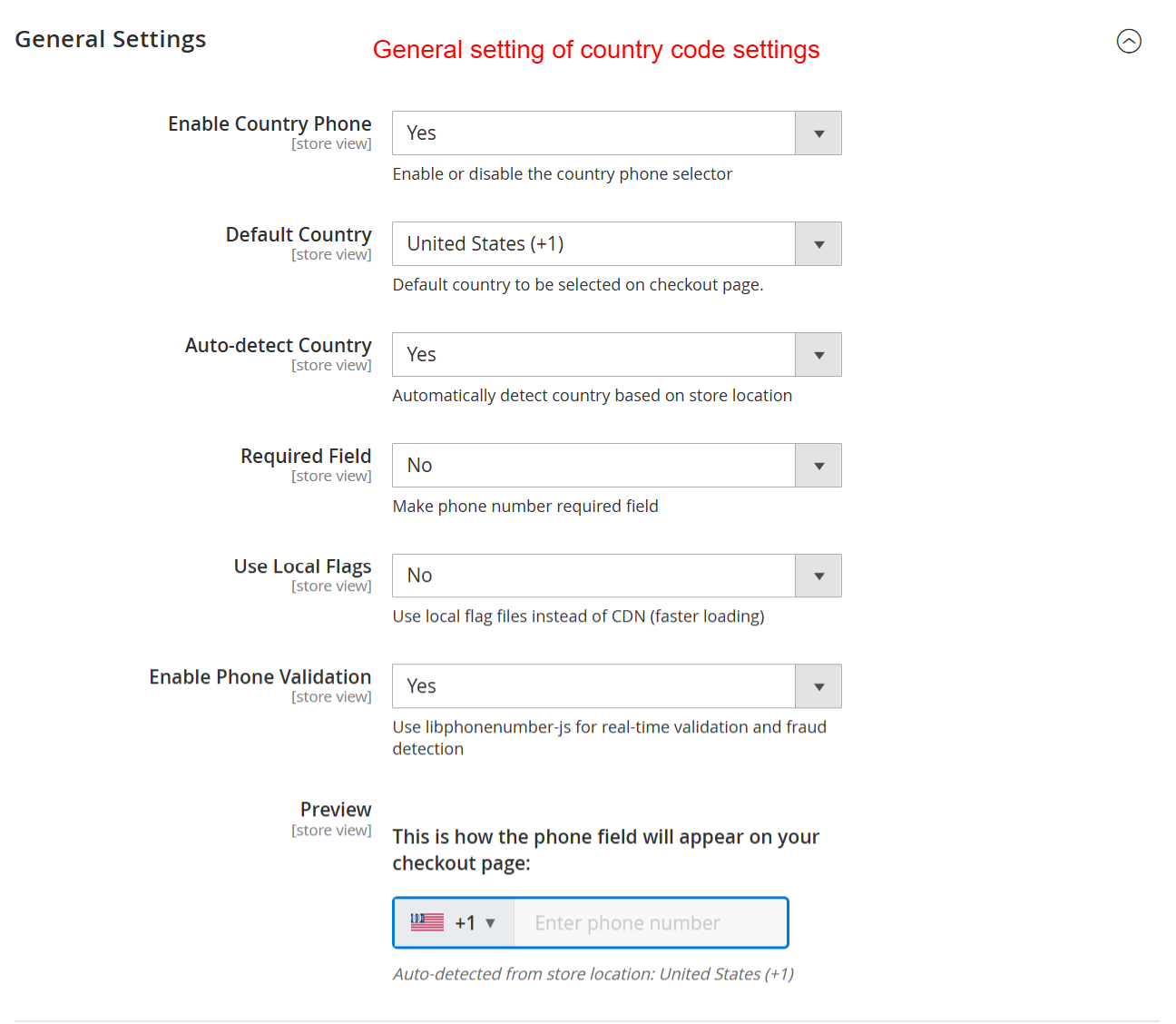
In the 'General Settings' screen, admins can enable the country phone selector, set the default country, and choose whether to auto-detect the country based on store location. It is crucial for configuring how phone numbers are handled in checkout, ensuring users have a seamless experience while entering their numbers.
Configure Fraud Detection
Within the same configuration section, open Fraud Detection Settings. Enable fraud detection by setting a Fraud Score Threshold and configuring how to handle VOIP numbers. Consider AI-based scoring to bolster rule-based detection for added security.
The 'Fraud Detection Settings' section allows you to configure how the system handles potentially fraudulent phone numbers by setting fraud score thresholds and displaying fraud scores to customers. This ensures that high-risk phone numbers are flagged, improving security during the checkout process.
Setup WhatsApp Integration
In WhatsApp Integration Settings, select Enable WhatsApp Field to allow users to input a WhatsApp number. Define the Default Country for WhatsApp and configure field requirements and validation feedback accordingly.
This screen is for configuring WhatsApp integration on checkout forms. Admins can enable the WhatsApp field, set a default country, and define validation messages. It adds convenience for customers to include their WhatsApp details, enhancing communication possibilities.
Customize WhatsApp Field
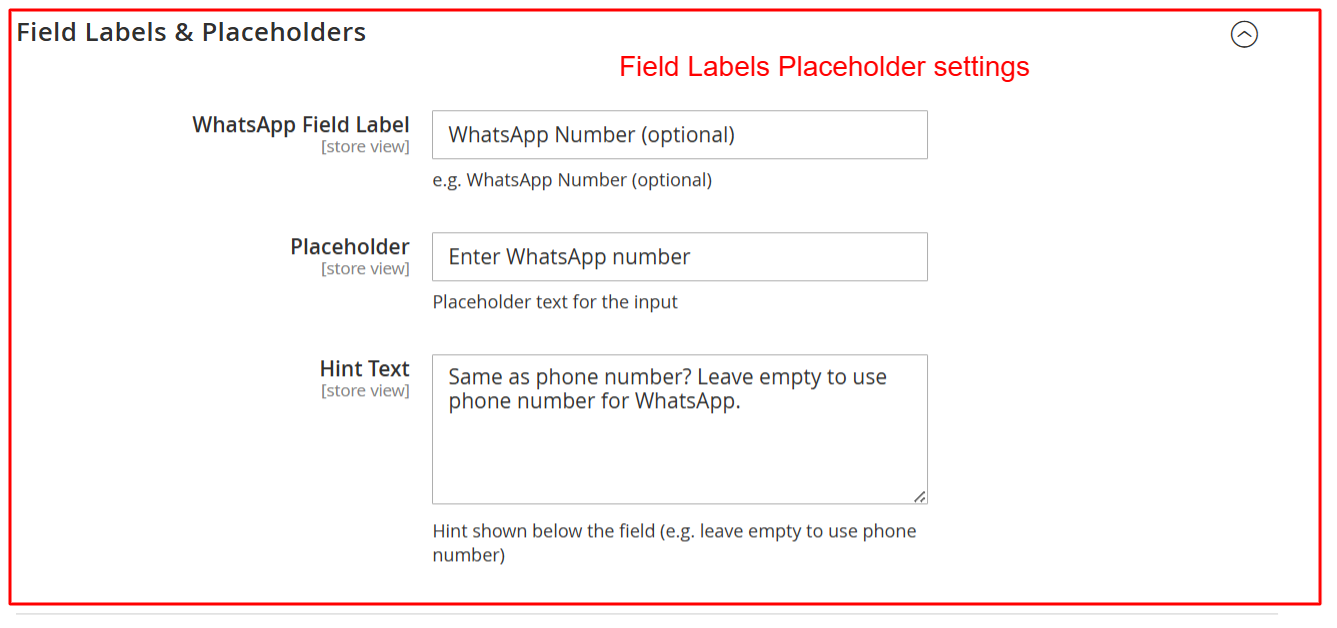
Within Field Labels & Placeholders, customize WhatsApp input with specific labels, a placeholder, and hint text to guide users clearly. This configurability helps align the interface with your store's branding.
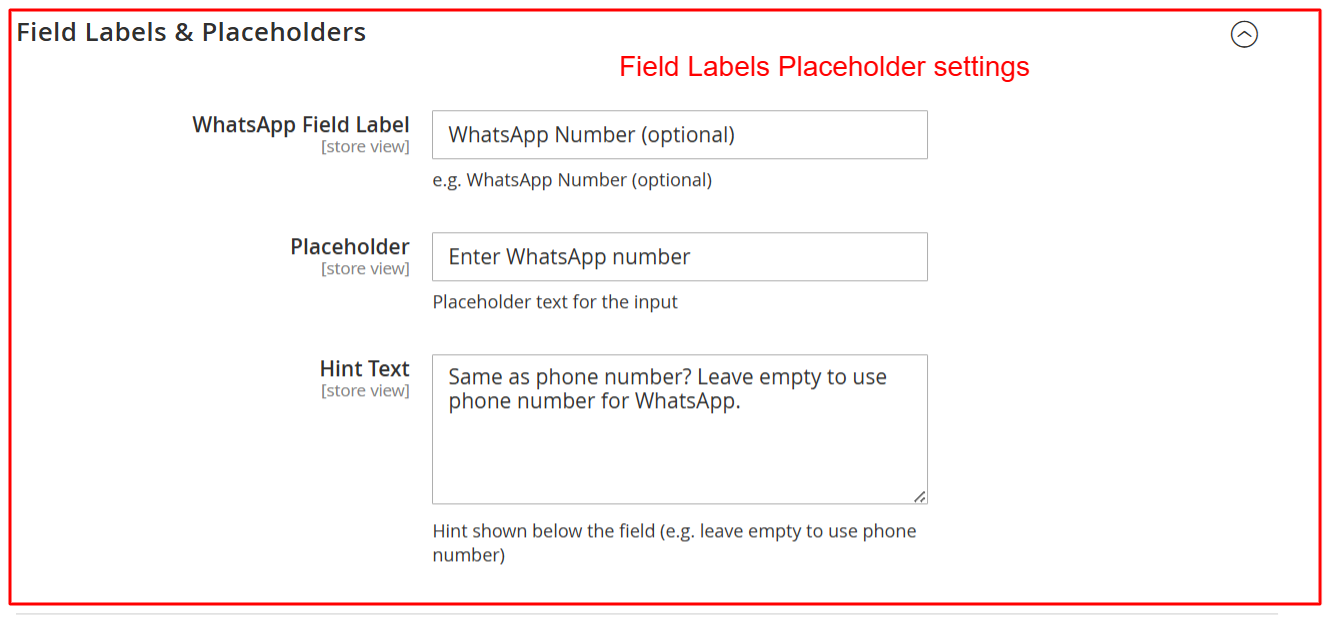
Use this screen to personalize the WhatsApp input field by setting its label, placeholder text, and hint text. This customization helps align the UI with the store's branding and clarifies input expectations for customers.
Define Validation Messages
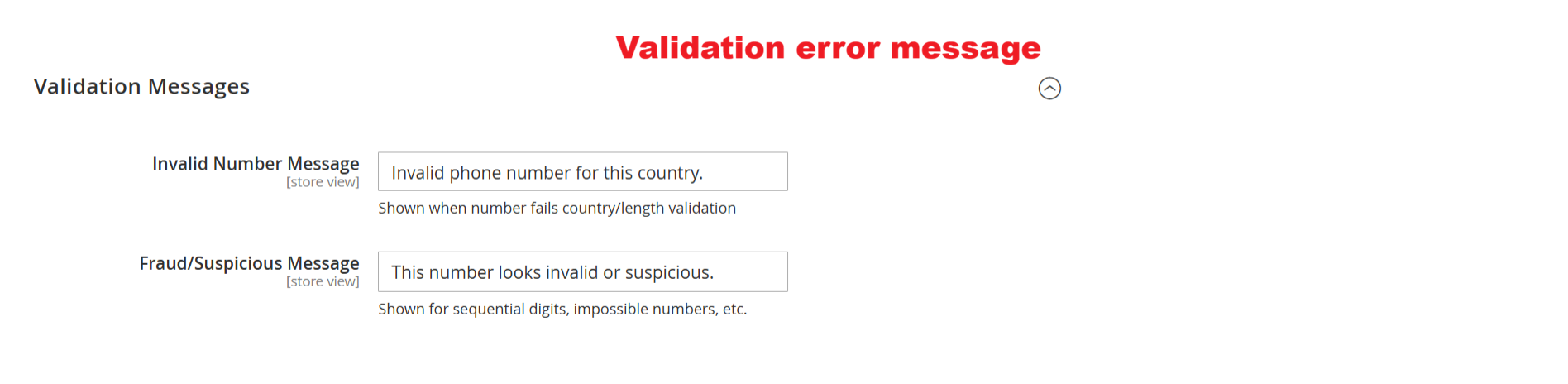
Under Validation Messages, specify the text for incorrect and suspicious input alerts. Customize messages for 'Invalid Number' and 'Fraud/Suspicious', tailoring customer notifications and ensuring input integrity.
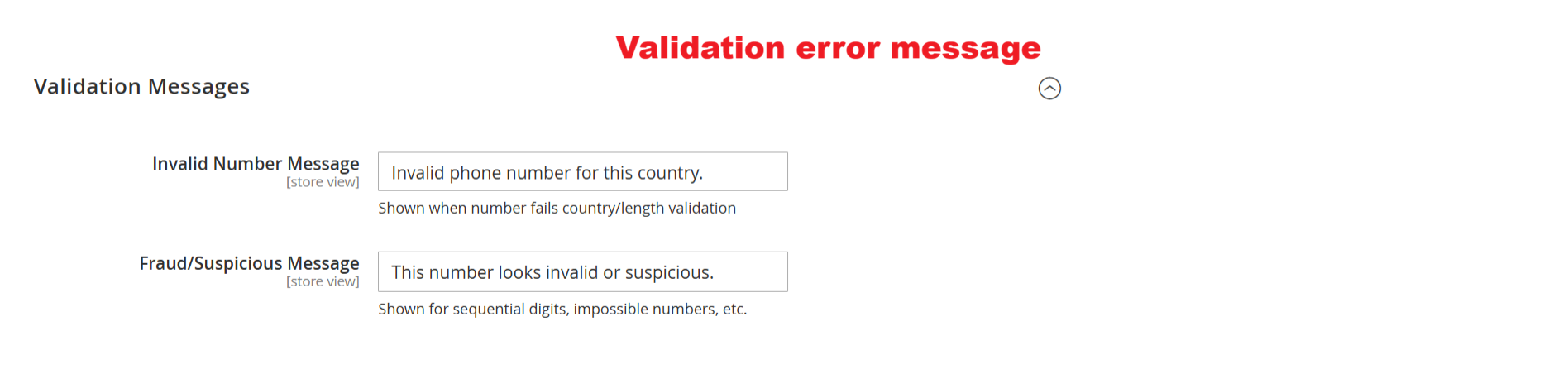
On this screen, admins can customize validation messages for incorrect or suspicious phone numbers. These messages appear when the number fails country-specific length checks or is deemed potentially fraudulent. Configuring these messages helps enhance user communication and prevent input errors during the checkout process.
4 User Journey
Valid Phone Number Entry
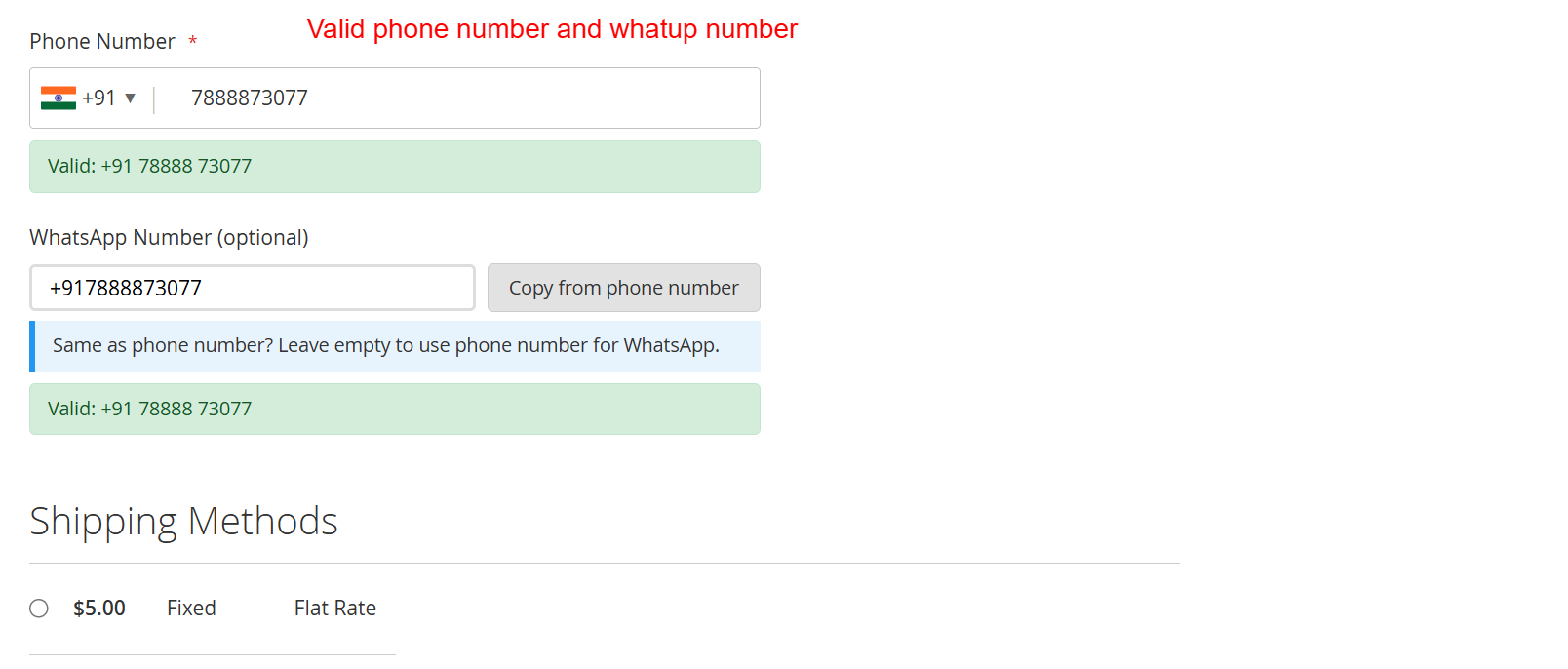
During checkout, customers receive real-time feedback while entering their phone number and optional WhatsApp number, confirming accuracy before purchase. This validation ensures data accuracy and prevents submission errors.
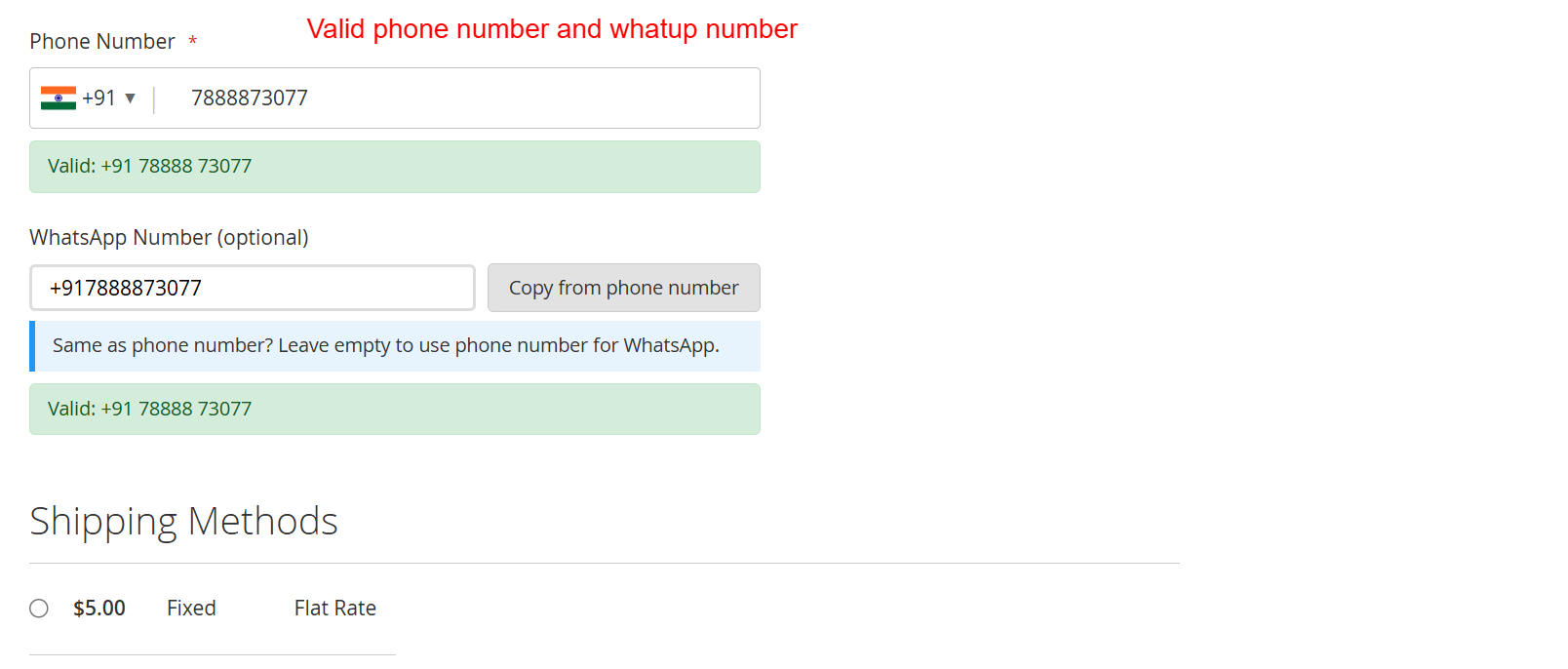
This screen shows the successful entry of a validated phone number and optional WhatsApp number with real-time feedback, ensuring data accuracy before purchase completion. It's pivotal in confirming the user inputs are correct, minimizing errors.
Handling Phone Validation Errors
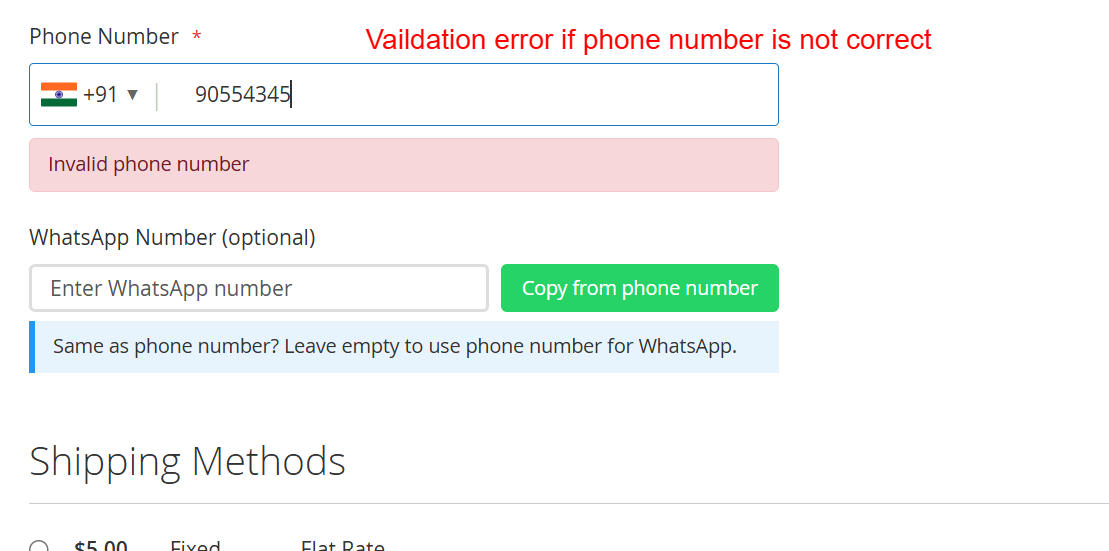
If an entered phone number is invalid, the system immediately alerts the customer, prompting correction. This reduces the likelihood of checkout errors and customer frustration, ensuring only valid data proceeds further.
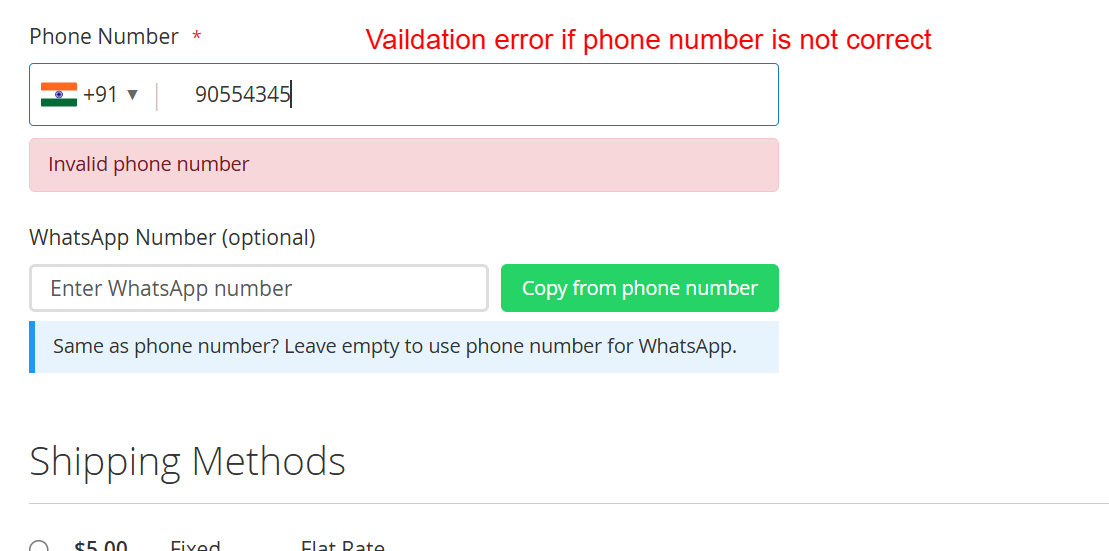
Displays error handling during phone number entry, highlighting when an invalid number is detected. Users receive immediate feedback to correct their inputs, which is essential for maintaining a smooth checkout process and ensuring valid data submission.
Editing Customer Address
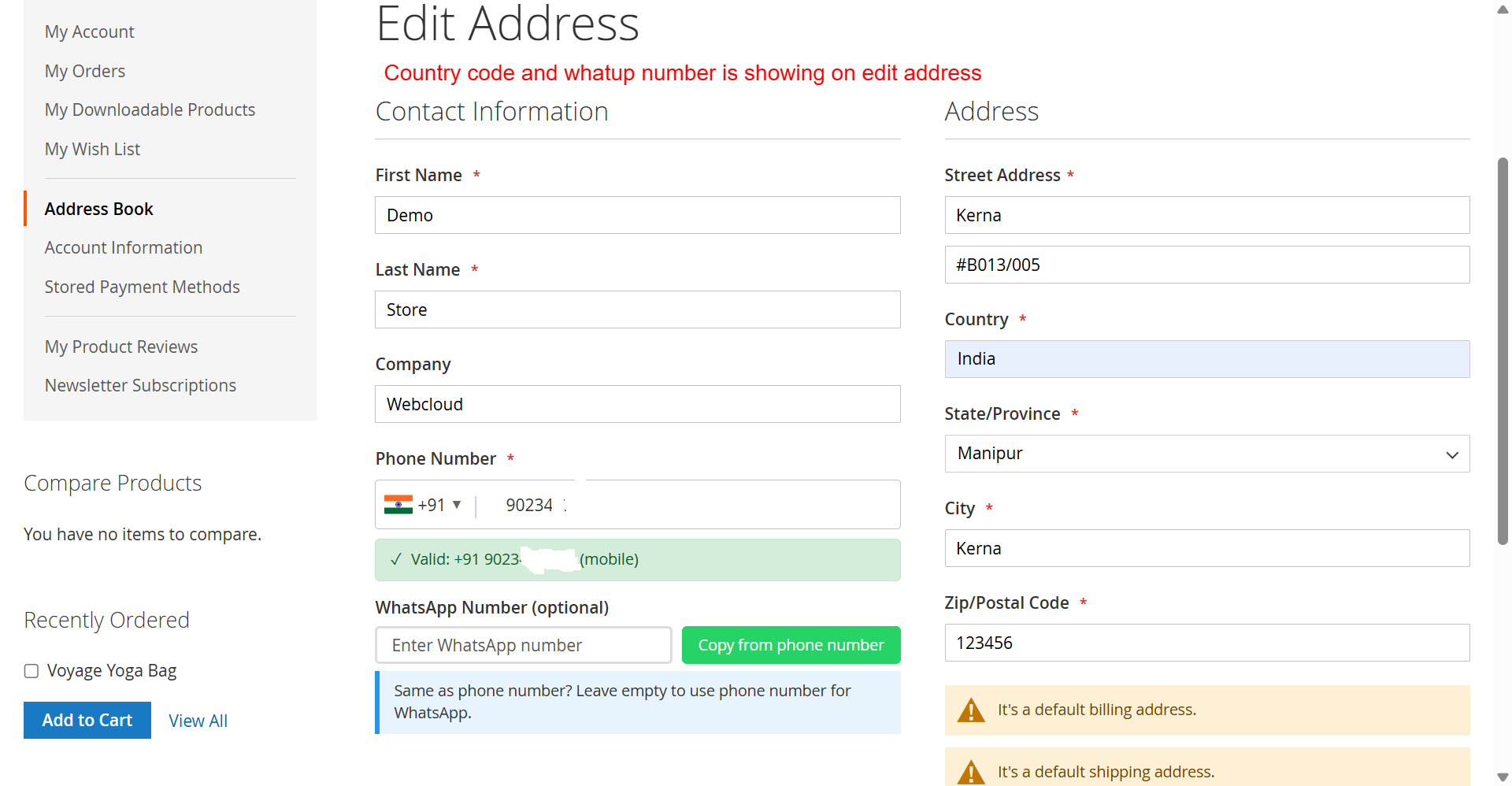
Customers can update their address book with new or modified phone numbers, complete with country selectors, ensuring consistent formatting. The integration of WhatsApp numbers adds efficiency in maintaining accurate contact details.
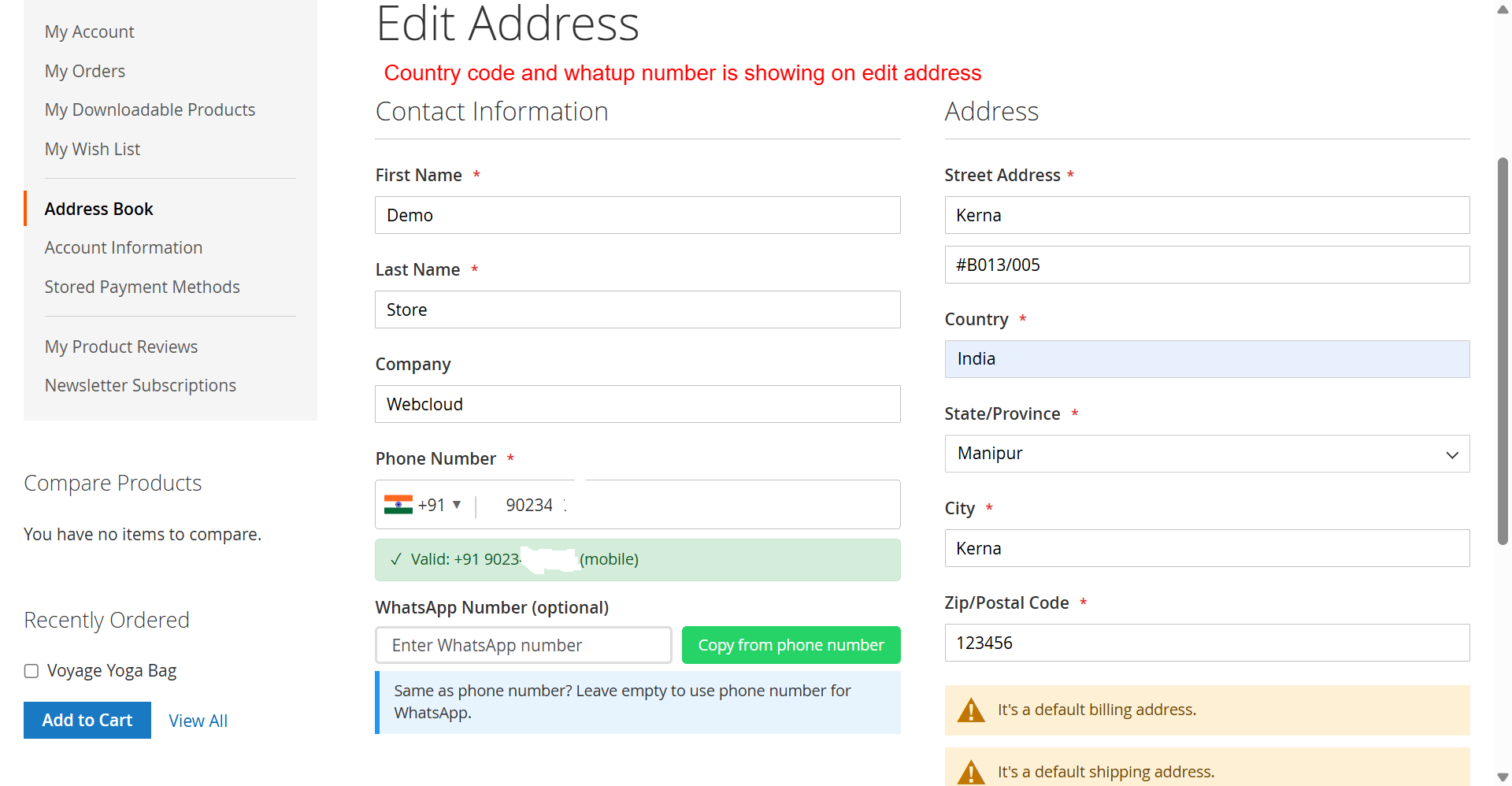
Customers edit their address details including phone and WhatsApp numbers on this screen. The integration of the country code selector ensures numbers are formatted correctly, enhancing validation and communication capabilities for further transactions.
View Address Book
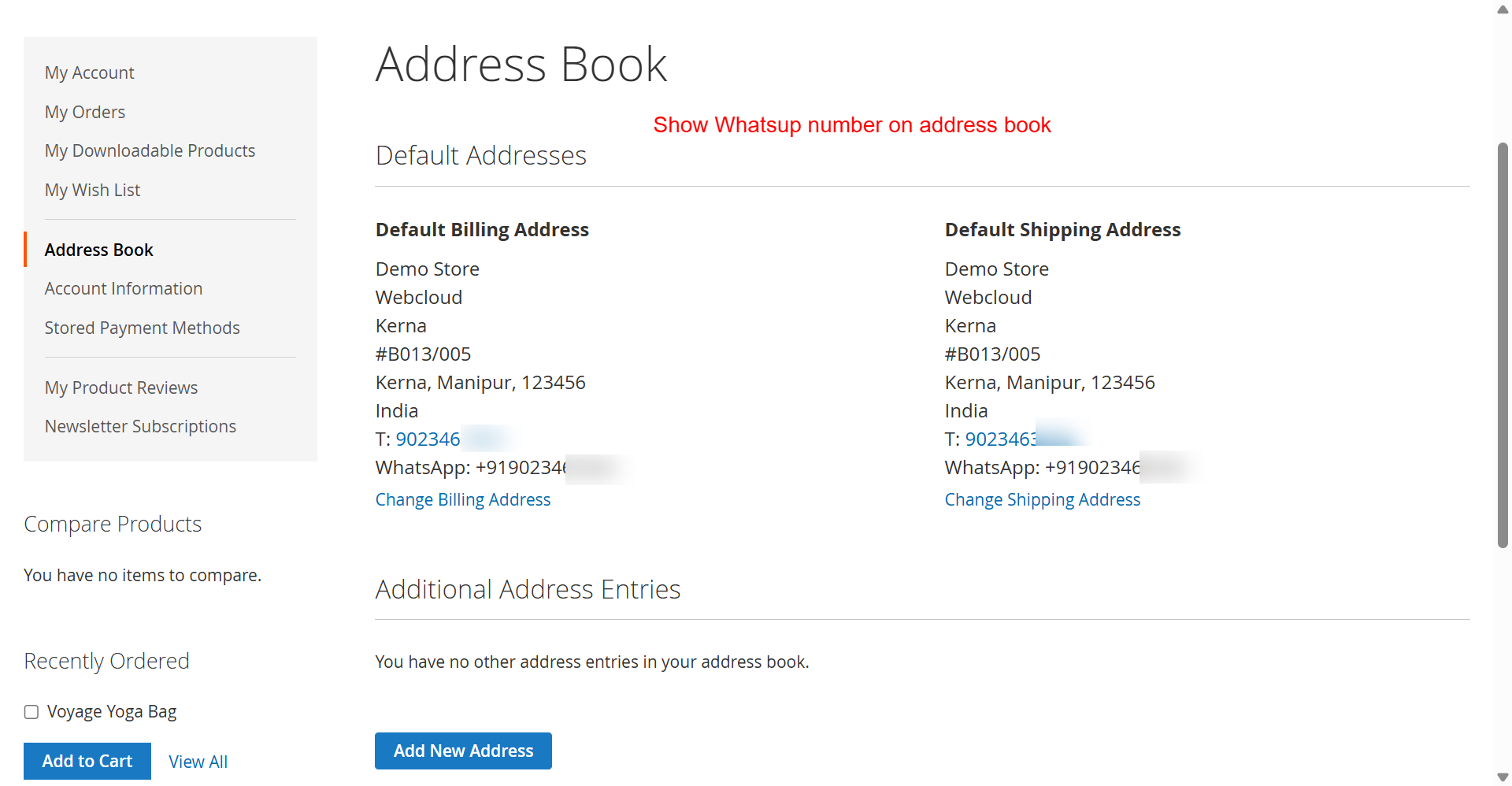
In the customer account section, users have a comprehensive view of their addresses and registered contact numbers, including named WhatsApp contacts for seamless communication in future transactions.
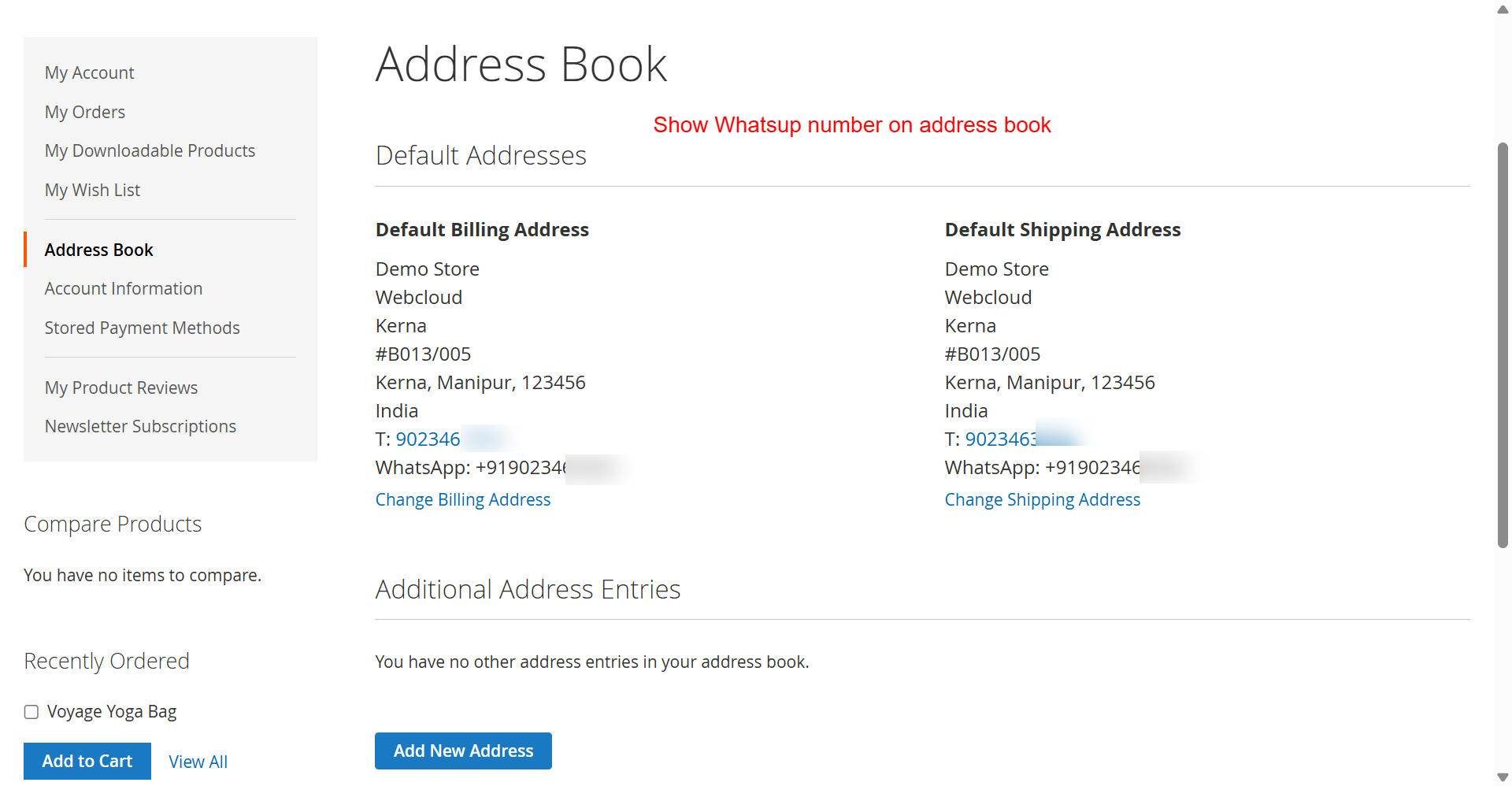
Customers can view and manage their default billing and shipping addresses, now with the added convenience of displaying associated WhatsApp numbers. This integration assists users in ensuring their contact information is current and widely accessible, enhancing communication possibilities.
5 Use Cases
Streamlined Checkouts with Accurate Inputs
Magento stores looking to reduce checkout errors by offering a visual and intuitive interface for customers can leverage this extension to ensure accurate phone number entry, improving data reliability.
Enhanced Order Communication
Business owners need to streamline post-purchase communications. By adding WhatsApp integration within order information, store managers can contact customers directly and promptly.
Fraud Prevention
For businesses worried about fraudulent orders, setting fraud thresholds and automating checks help flag and reduce high-risk transactions, ensuring secure sales processes.
GDPR Compliance and Data Privacy
Companies focused on privacy can implement this module as it adheres to GDPR regulations by performing entirely local-validation, securing customer data without external dependencies.
Seamless Hyva Theme Integration
For stores using the Hyva theme, this extension caters to direct script integrations, ensuring compatibility and improved performance with Hyva-specific design considerations.
6 Installation Guide
-
Open your command line interface and navigate to your Magento installation directory.
-
Run:
composer require ewebecommerce/country-phoneto add the package to your Magento installation. -
Execute:
bin/magento setup:upgradeto update your Magento database with the new module's setups. -
Compile your stores using:
bin/magento setup:di:compileto ensure all dependencies are correctly generated. -
Finally, clear cached data with:
bin/magento cache:cleanfor the changes to take effect fully on your frontend and backend.
7 Database Schema (3 Tables)
quote_address
| Column | Type | Nullable |
|---|---|---|
whatsapp_number |
true |
sales_order_address
| Column | Type | Nullable |
|---|---|---|
whatsapp_number |
true |
customer_address_entity
| Column | Type | Nullable |
|---|---|---|
whatsapp_number |
true |
8 Architecture
Event Observers
| Event | Observer | Area |
|---|---|---|
sales_order_save_after |
SavePhoneToCustomerAddressAfterOrder |
global |
customer_address_save_before |
SaveCustomerAddressWhatsAppObserver |
frontend |
customer_address_save_after |
SaveWhatsAppAfterAddressSave |
frontend |
Plugin Interceptors
| Target | Plugin |
|---|---|
ShippingInformationManagement |
ShippingInformationManagementPlugin |
Address |
AddressPlugin |
ToOrderAddress |
ToOrderAddressPlugin |
AddressRepositoryInterface |
AddWhatsAppToAddress |
Http |
CspHeaderPlugin |
DefaultConfigProvider |
DefaultConfigProvider |
CLI Commands
| Command | Description |
|---|---|
ewebecommerce:download-flags |
Download country flags to pub/media/country-flags |
10 Tips & Tricks
- Ensure all settings are reviewed post-installation in admin config.
- Regularly update country flags for accurate user selection.
- Test the checkout process post-upgrade to monitor field validations.
- Use 'AI-enhanced' option for superior fraud detection.
- Customize validation messages to suit your brand language.
- Consider optional WhatsApp field if a full phone is already mandatory.
- Align placeholder and label text to maintain brand tone.
- Explore Hyva integrations to leverage theme-specific benefits.
11 Step-by-Step Screenshot Reference
Every captured screen in setup order. Click any image to open the full-size version in a new tab.
Admin: General Settings for Country Phone
What this shows: A configuration page with options to enable country phone, set a default country, auto-detect country, make the field required, use local flags, and enable phone validation.
In the 'General Settings' screen, admins can enable the country phone selector, set the default country, and choose whether to auto-detect the country based on store location. It is crucial for configuring how phone numbers are handled in checkout, ensuring users have a seamless experience while entering their numbers.
Admin: Fraud Detection Configuration
What this shows: Settings to enable fraud detection, set fraud score threshold, show fraud scores, handle VOIP numbers, and use AI for detection.
The 'Fraud Detection Settings' section allows you to configure how the system handles potentially fraudulent phone numbers by setting fraud score thresholds and displaying fraud scores to customers. This ensures that high-risk phone numbers are flagged, improving security during the checkout process.
Admin: WhatsApp Integration Settings
What this shows: Options to enable WhatsApp field, set default country, make the field required, and customize validation messages.
This screen is for configuring WhatsApp integration on checkout forms. Admins can enable the WhatsApp field, set a default country, and define validation messages. It adds convenience for customers to include their WhatsApp details, enhancing communication possibilities.
Admin: WhatsApp Field Placeholder Settings
What this shows: Fields to configure the label, placeholder, and hint text for the WhatsApp input field.
Use this screen to personalize the WhatsApp input field by setting its label, placeholder text, and hint text. This customization helps align the UI with the store's branding and clarifies input expectations for customers.
Admin: Visual Configuration for WhatsApp
What this shows: Options to show country flags in the selector and display WhatsApp on order details.
On the 'Visual Settings' page, set whether to display country flags in the WhatsApp selector and whether to show WhatsApp details on order views. These settings improve the visual appeal and functionality of your checkout process.
Frontend: Country Code Autocomplete Feature
What this shows: A customer-facing phone number input with an autocomplete dropdown showing country codes with flags.
Customers interact with a user-friendly phone number field that supports autocomplete for country codes, complete with flag icons. This intuitive feature speeds up the selection process and reduces data entry errors during checkout.
Frontend: Valid Phone Number Input
What this shows: A checkout screen showing a validated phone and WhatsApp number.
This screen shows the successful entry of a validated phone number and optional WhatsApp number with real-time feedback, ensuring data accuracy before purchase completion. It's pivotal in confirming the user inputs are correct, minimizing errors.
Frontend: Phone Number Validation Error
What this shows: A checkout form indicating an invalid phone number with a validation error message.
Displays error handling during phone number entry, highlighting when an invalid number is detected. Users receive immediate feedback to correct their inputs, which is essential for maintaining a smooth checkout process and ensuring valid data submission.
Configuration: Validation Messages Settings
What this shows: This screen displays fields for configuring validation messages. There are text input fields for 'Invalid Number Message' and 'Fraud/Suspicious Message', with descriptions indicating when each message will be shown.
On this screen, admins can customize validation messages for incorrect or suspicious phone numbers. These messages appear when the number fails country-specific length checks or is deemed potentially fraudulent. Configuring these messages helps enhance user communication and prevent input errors during the checkout process.
Frontend: Customer Address Book Overview
What this shows: The address book interface shows sections for 'Default Billing Address' and 'Default Shipping Address', each including a displayed WhatsApp number with options to change the addresses.
Customers can view and manage their default billing and shipping addresses, now with the added convenience of displaying associated WhatsApp numbers. This integration assists users in ensuring their contact information is current and widely accessible, enhancing communication possibilities.
Frontend: Edit Customer Address
What this shows: An address editing form displaying fields for name, company, phone number with country code selector, WhatsApp number, and address details including country and city.
Customers edit their address details including phone and WhatsApp numbers on this screen. The integration of the country code selector ensures numbers are formatted correctly, enhancing validation and communication capabilities for further transactions.
Admin: Order Details with WhatsApp Display
What this shows: Displays order overview information including WhatsApp number under 'Order & Account Information'. Navigation includes options like Invoices, Shipments, and Comments History.
Admins can view customer order details, including their WhatsApp number, allowing for streamlined communication with customers about orders and inquiries. This feature supports better customer relationship management and efficiency in handling orders.
Checkout: Country Code Autocomplete Feature
What this shows: During checkout, a phone number field with a country code dropdown is visible, which allows users to search and select their country code easily.
During the checkout process, customers can utilize the country code autocomplete feature to quickly find and select the correct country code for their phone number. This streamlines their checkout experience and minimizes errors in phone number entries, contributing to accurate data collection.

Reviews
There are no reviews yet.