

1 Overview
Advanced surcharge management for Magento 2, offering flexible rules and seamless analytics.
Ewebecommerce_MinOrderSurcharge provides Magento 2 store owners with robust tools for managing minimum order surcharges. The extension empowers merchants to define flexible surcharge rules based on various criteria, ensuring a tailored approach in applying additional charges to orders. With advanced analytics and customization options, store owners can refine their pricing strategies to maximize revenue while maintaining customer satisfaction.
The module supports a wide range of features including integration with the Hyva theme, CSV import/export for surcharge rules, and a comprehensive analytics dashboard. Equipped with tools such as a progress bar and dynamic notifications, merchants can guide customers towards achieving minimum order values, reducing cases of cart abandonment and improving average order value.
At a Glance
- Flexible surcharge thresholds
- Rule-based and global surcharges
- Customizable progress bar
- Advanced analytics dashboard
- Cart and checkout integration
- Hyva theme and Luma theme compatible
- Real-time surcharge notifications
- CSV import/export rules
| Module | Ewebecommerce_MinOrderSurcharge |
|---|---|
| Composer | ewebecommerce/module-minordersurcharge |
| Version | 2.0.0 |
| PHP | ^7.4|^8.0|^8.1|^8.2|^8.3 |
| Compatibility | Magento Framework ^103.0 |
| Hyva | Compatible |
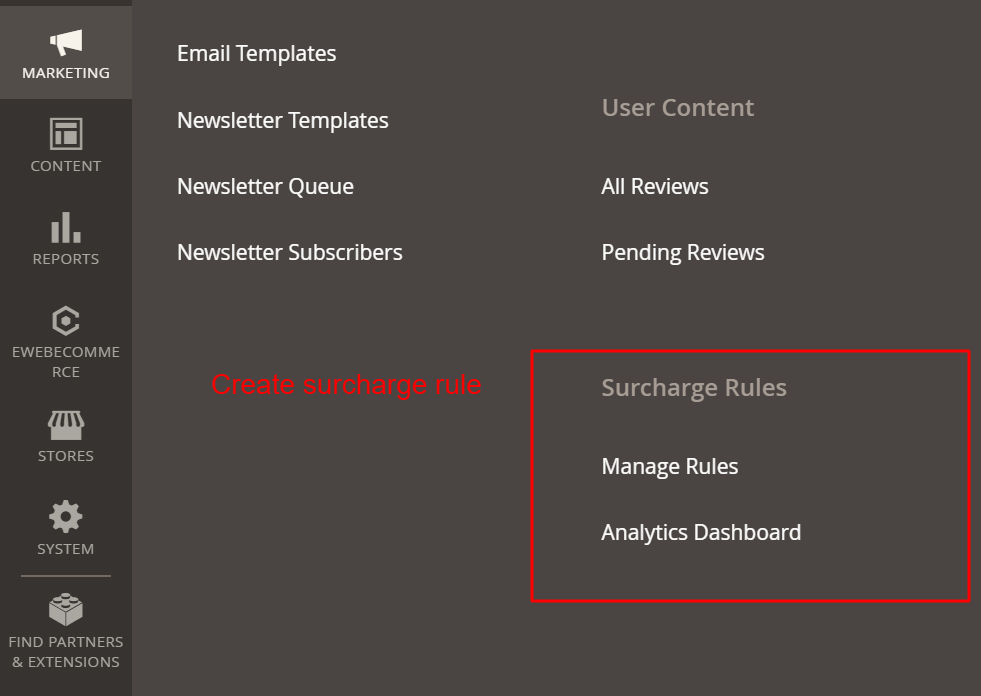
Navigate to the 'Surcharge Rules' section from the Marketing menu to manage rules and view analytics. 'Manage Rules' allows customization of surcharge conditions, while 'Analytics Dashboard' provides insights into surcharge performance. This is critical for effectively managing and analyzing surcharge policies.
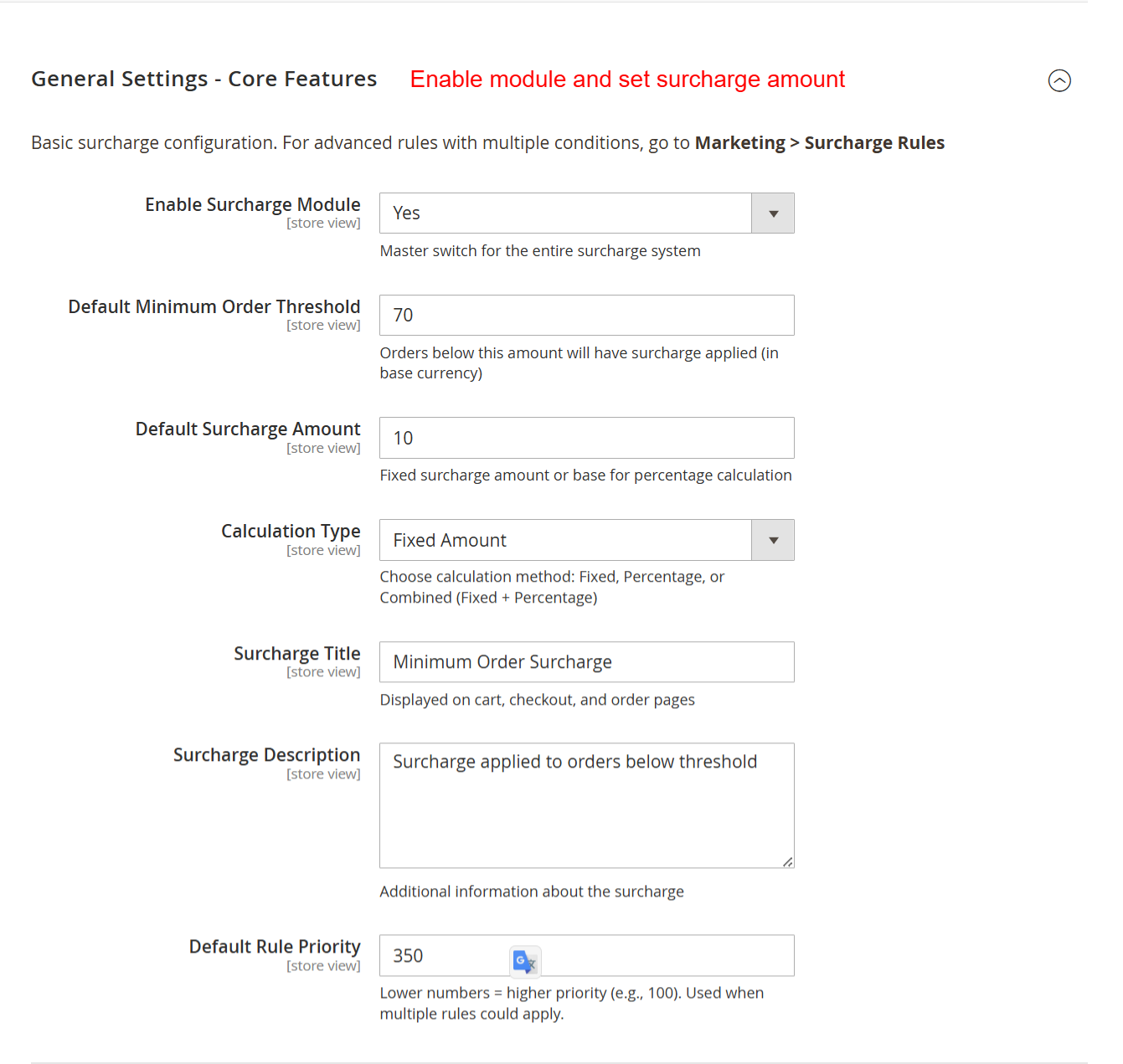
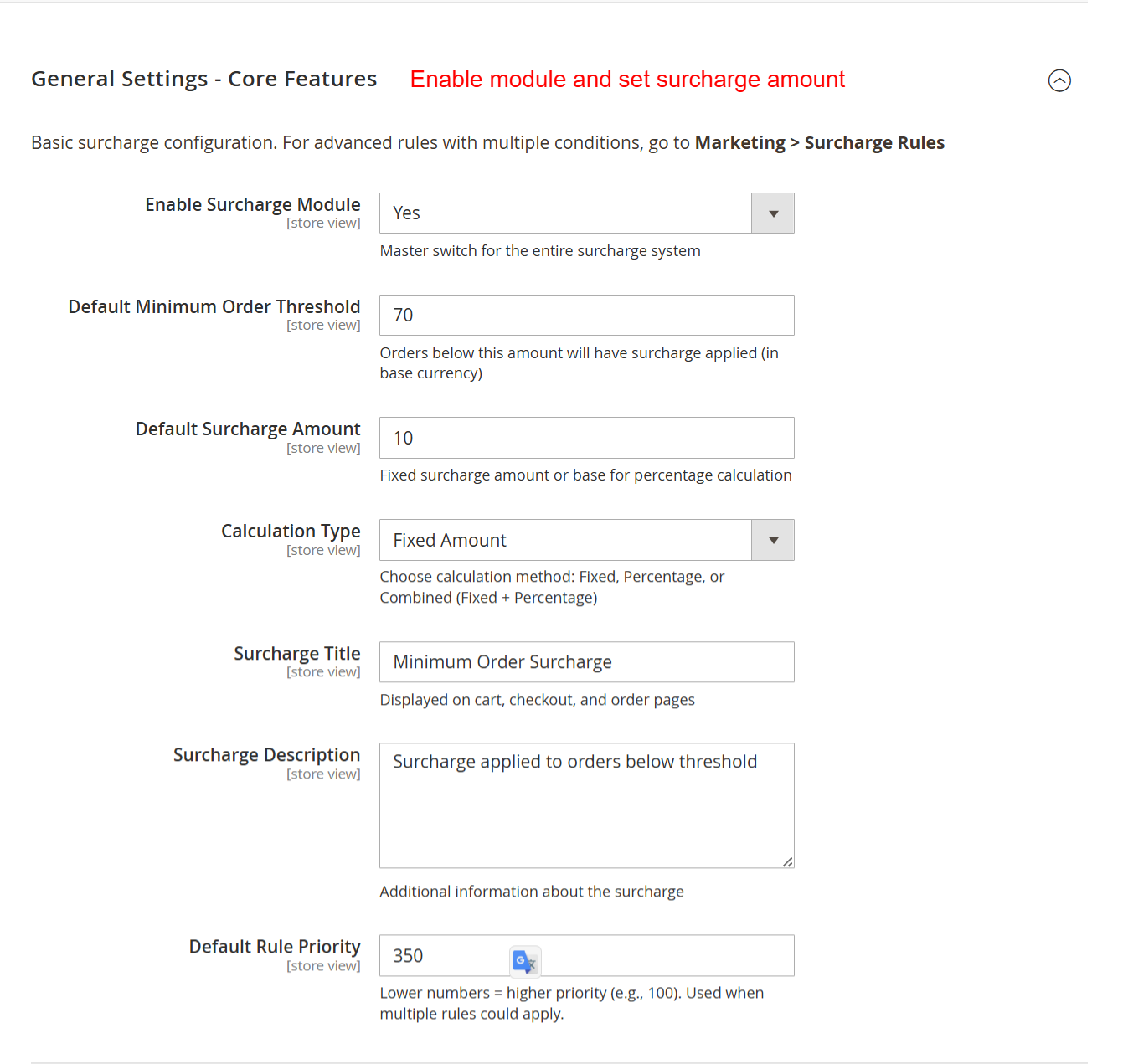
This screen allows you to configure core settings for the surcharge module, including enabling the module, setting thresholds, and defining surcharge amounts and calculation types. Adjust these settings early to ensure surcharges apply correctly to orders below a specified threshold.
2 Features
Enable or disable the surcharge module
Set default minimum order thresholds
Define default surcharge amounts
Choose between fixed, percentage, or combined calculations
Configure display options across checkout and order views
Manage notifications and messaging for surcharge alerts
Handle analytics tracking for performance assessment
Integrate tax rules and coupon interactions
Configure where surcharge info is displayed
Include surcharges in invoices and emails
Enable cart page progress bar
Customize progress bar color for brand alignment
Design notification messages with dynamic placeholders
Utilize cart abandonment recovery strategies
Track surcharge revenue and performance
Analyze waived surcharges for insights
Speed data analysis with rule performance tracking
Measure effectiveness by customer segments
Generate and export reports in CSV or PDF format
Configure tax calculations for surcharges
Set tax class application for compliance
Manage surcharge exclusion with coupons
Determine coupon application priority
Group customer-level applications and exclusions
Create unlimited surcharge rules with conditions
Set rule priorities for conflict management
Export rules to CSV or JSON for backup
Import rules with options to merge or replace
Utilize history tracking for rule changes
General Settings
Configure essential parameters for module operation.
- Enable or disable the surcharge module
- Set default minimum order thresholds
- Define default surcharge amounts
- Choose between fixed, percentage, or combined calculations
- Configure display options across checkout and order views
- Manage notifications and messaging for surcharge alerts
- Handle analytics tracking for performance assessment
- Integrate tax rules and coupon interactions
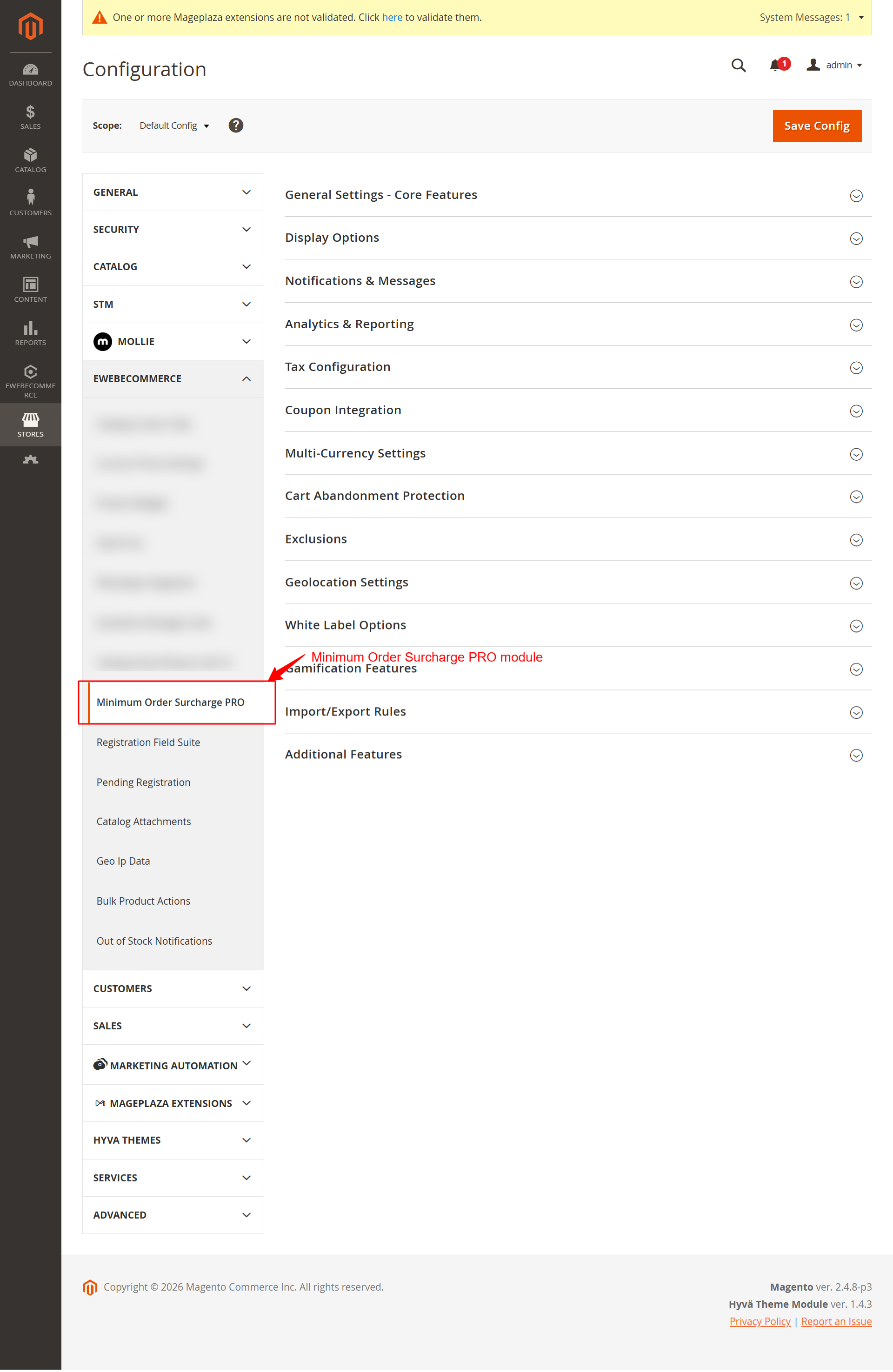
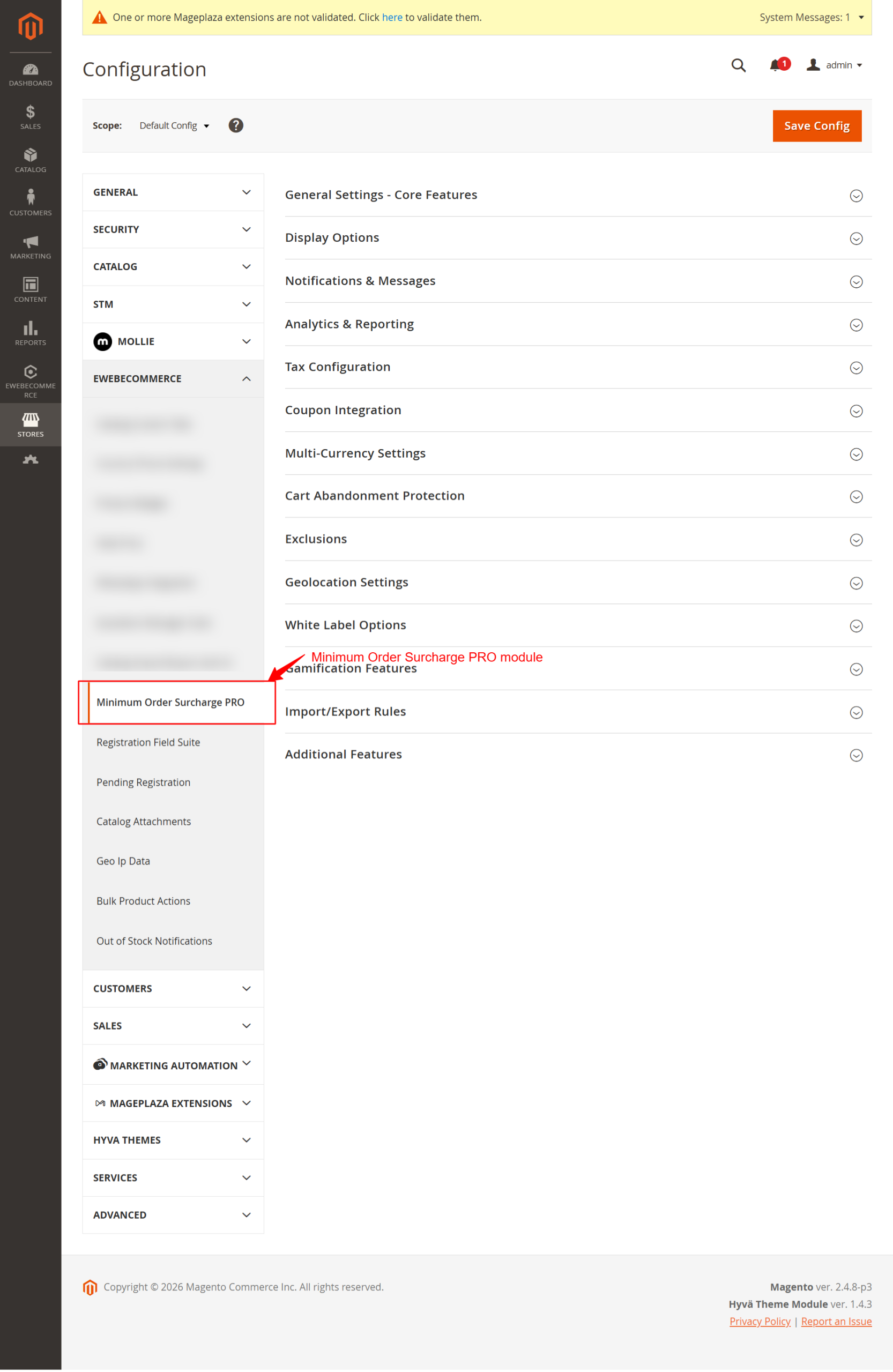
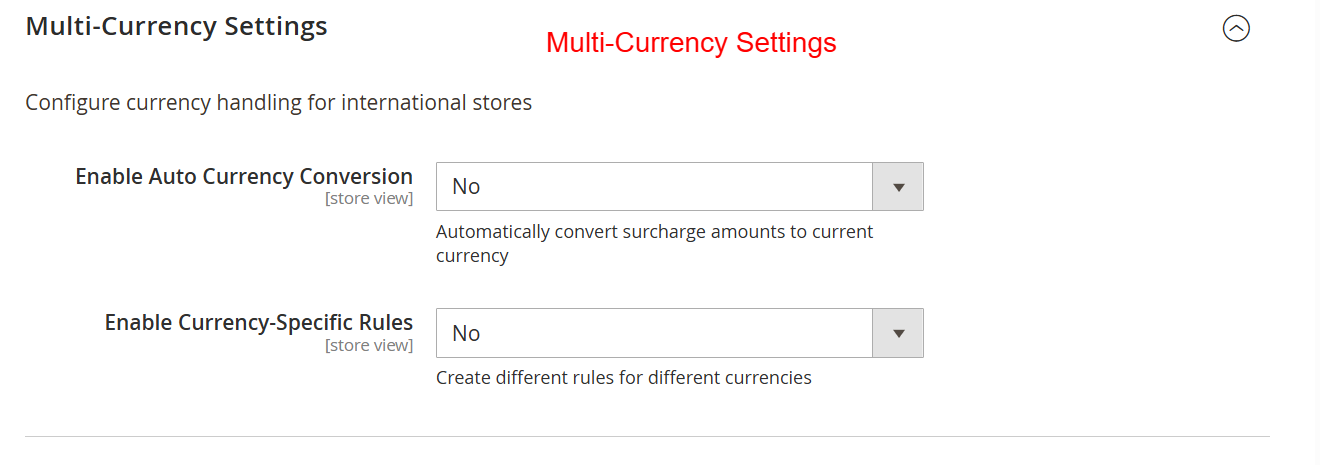
Access various configuration categories for the Minimum Order Surcharge PRO module. Users can configure advanced options under each section to tailor the surcharge behavior, analytics, tax integration, and more according to their business needs.
Display & Notifications
Optimize user interaction by customizing visibility.
- Configure where surcharge info is displayed
- Include surcharges in invoices and emails
- Enable cart page progress bar
- Customize progress bar color for brand alignment
- Design notification messages with dynamic placeholders
- Utilize cart abandonment recovery strategies
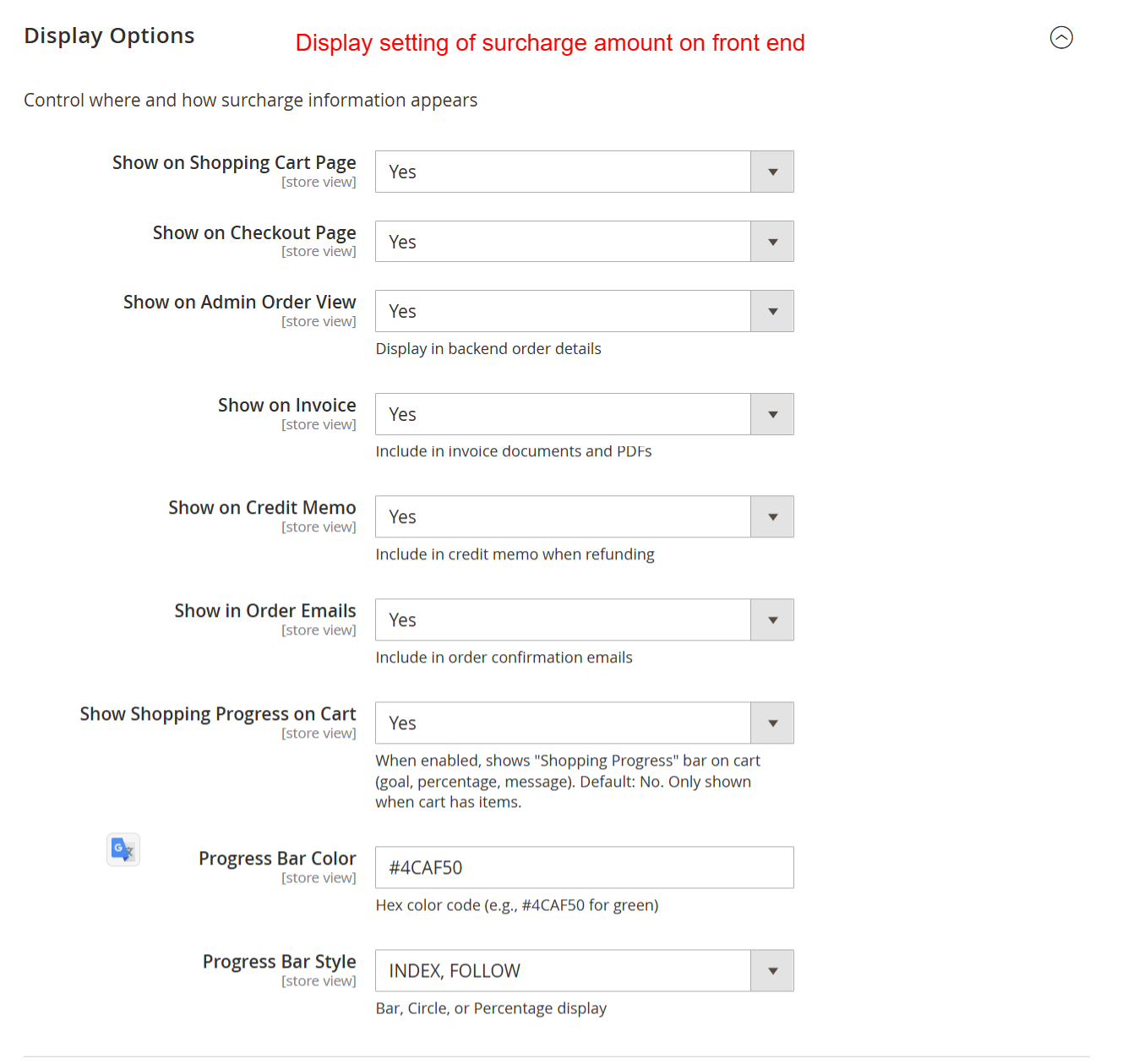
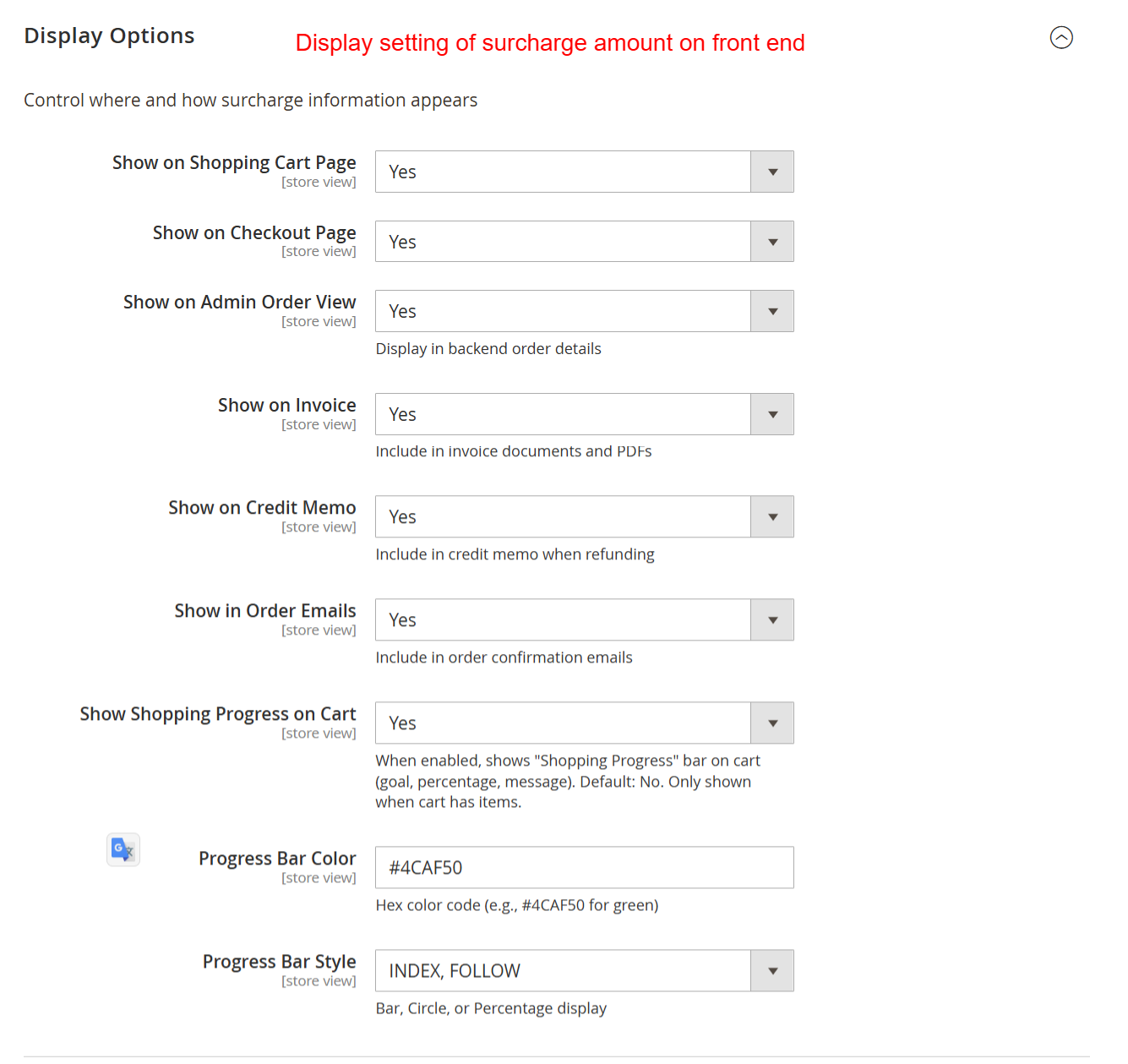
Control how surcharge information displays across various customer touchpoints like shopping carts and invoices. Ensuring visibility enhances transparency with customers, helping them understand any additional costs associated with their orders.
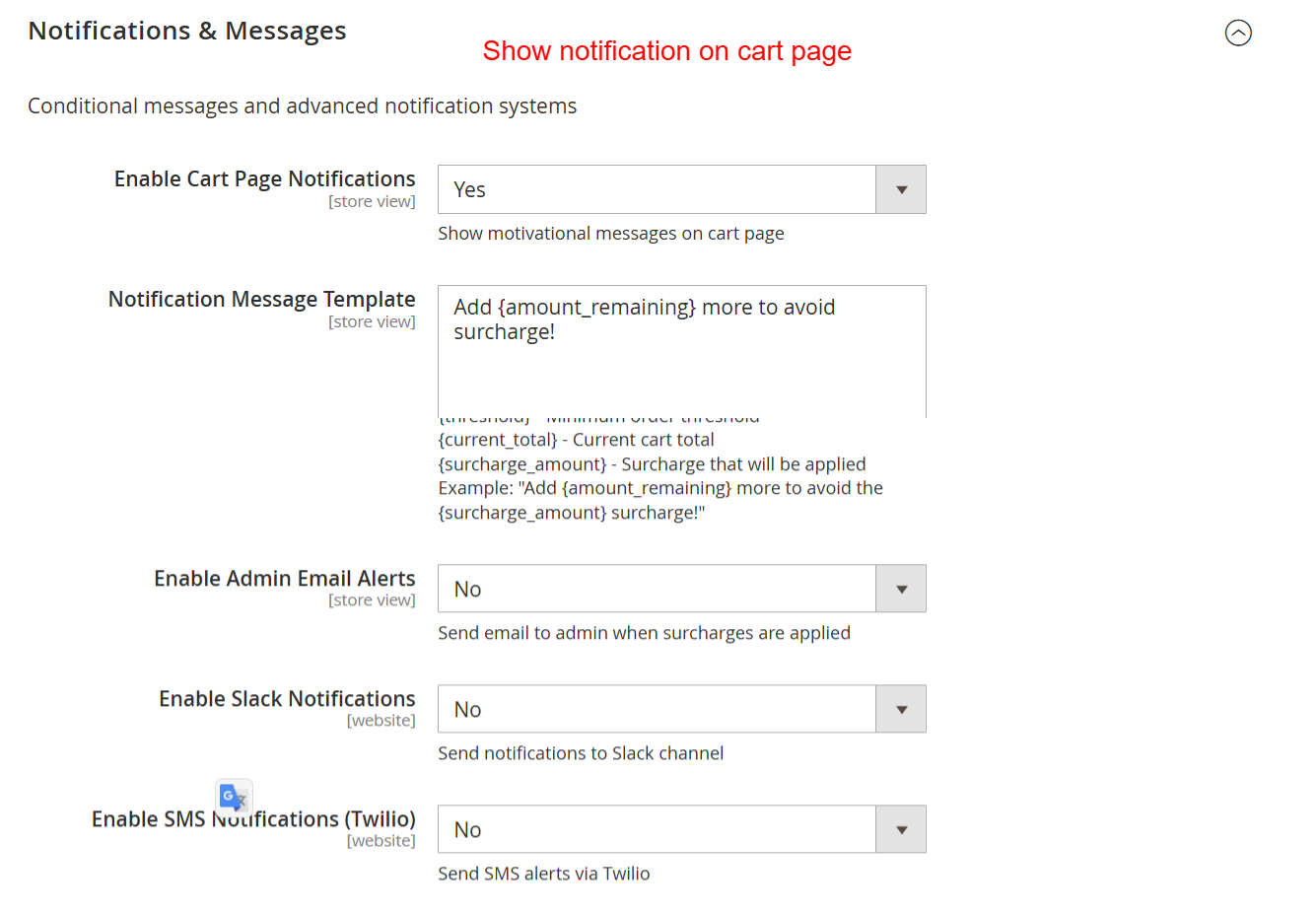
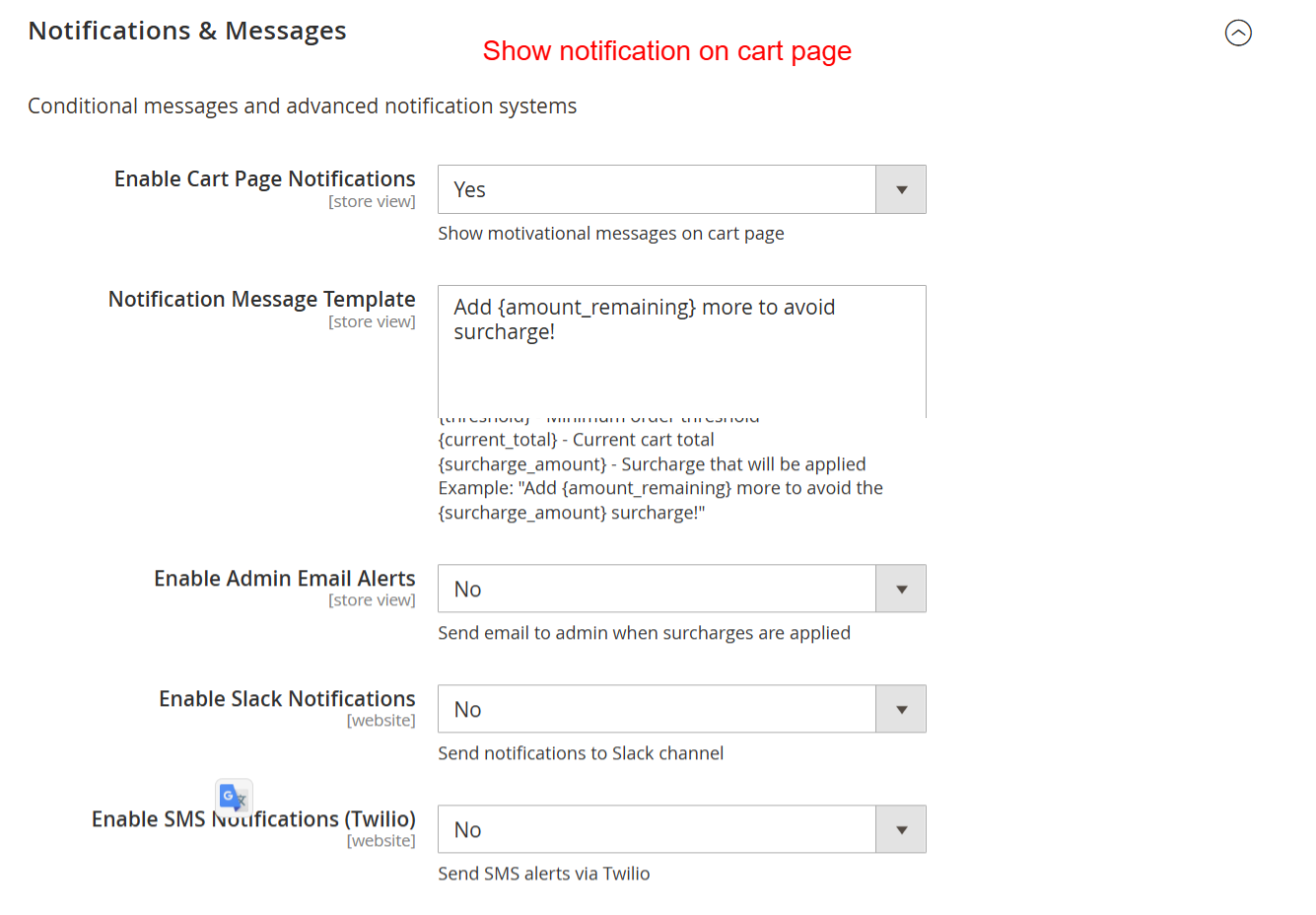
Configure notification settings to alert customers about surcharges directly on the cart page and using customized messages. This allows administrators to maintain clear communication about additional costs, improving the buying experience and reducing cart abandonment.
Analytics & Reporting
Leverage analytics to refine surcharge strategies.
- Track surcharge revenue and performance
- Analyze waived surcharges for insights
- Speed data analysis with rule performance tracking
- Measure effectiveness by customer segments
- Generate and export reports in CSV or PDF format
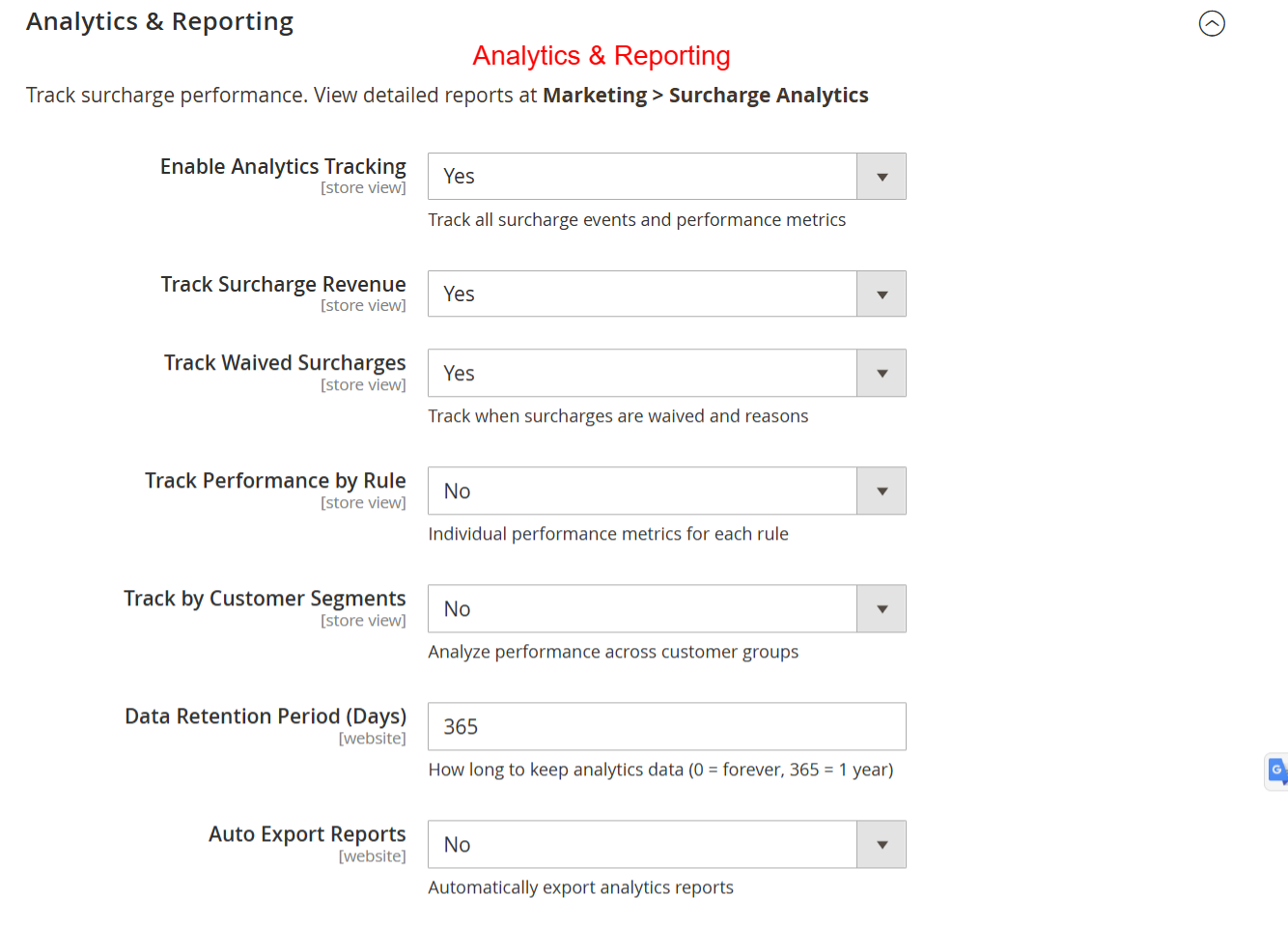
Enable and configure analytics to track surcharges, revenue summaries, and waive details. This helps in assessing the effectiveness of surcharge strategies and adjusting them based on comprehensive performance metrics.
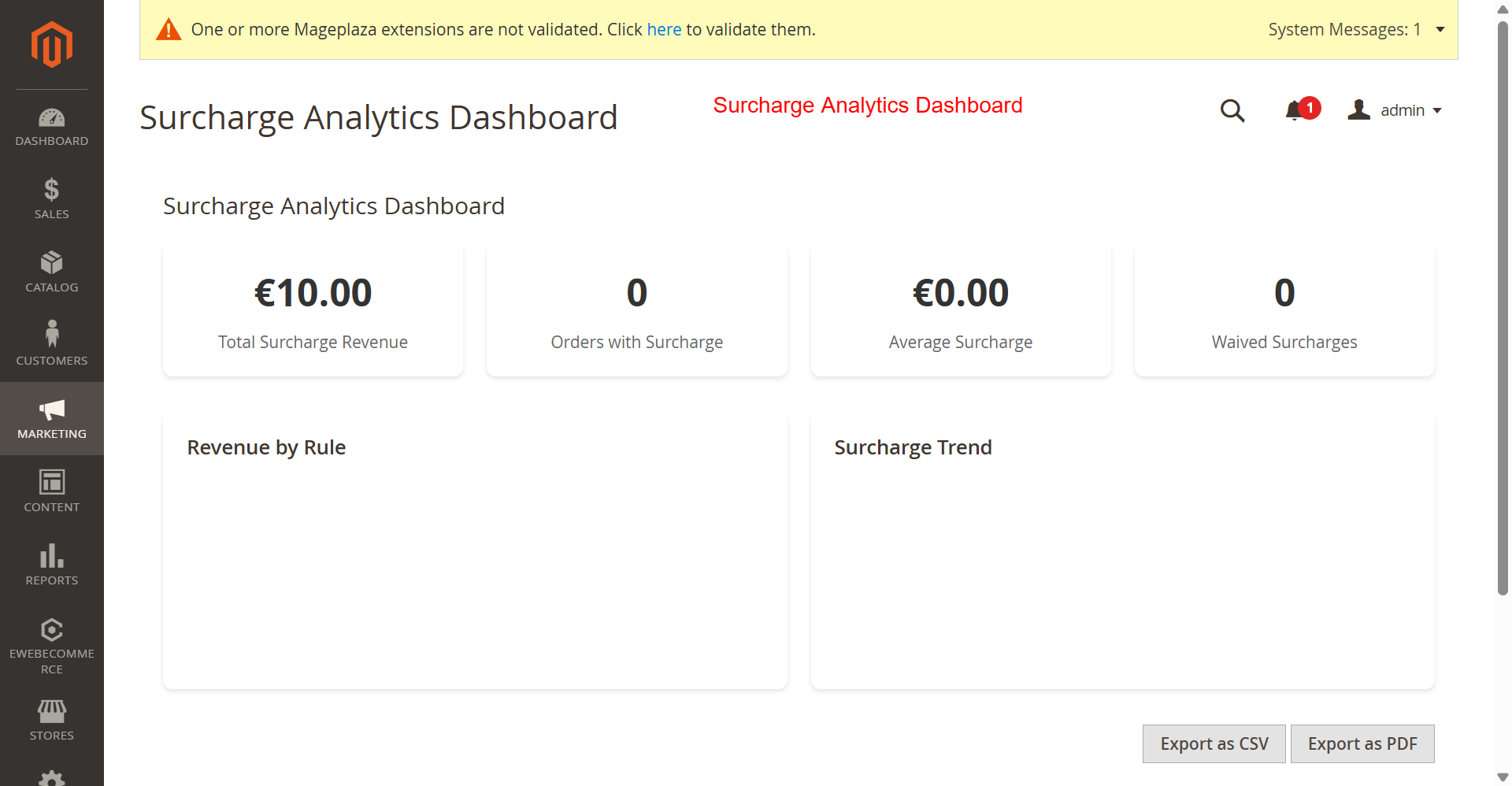
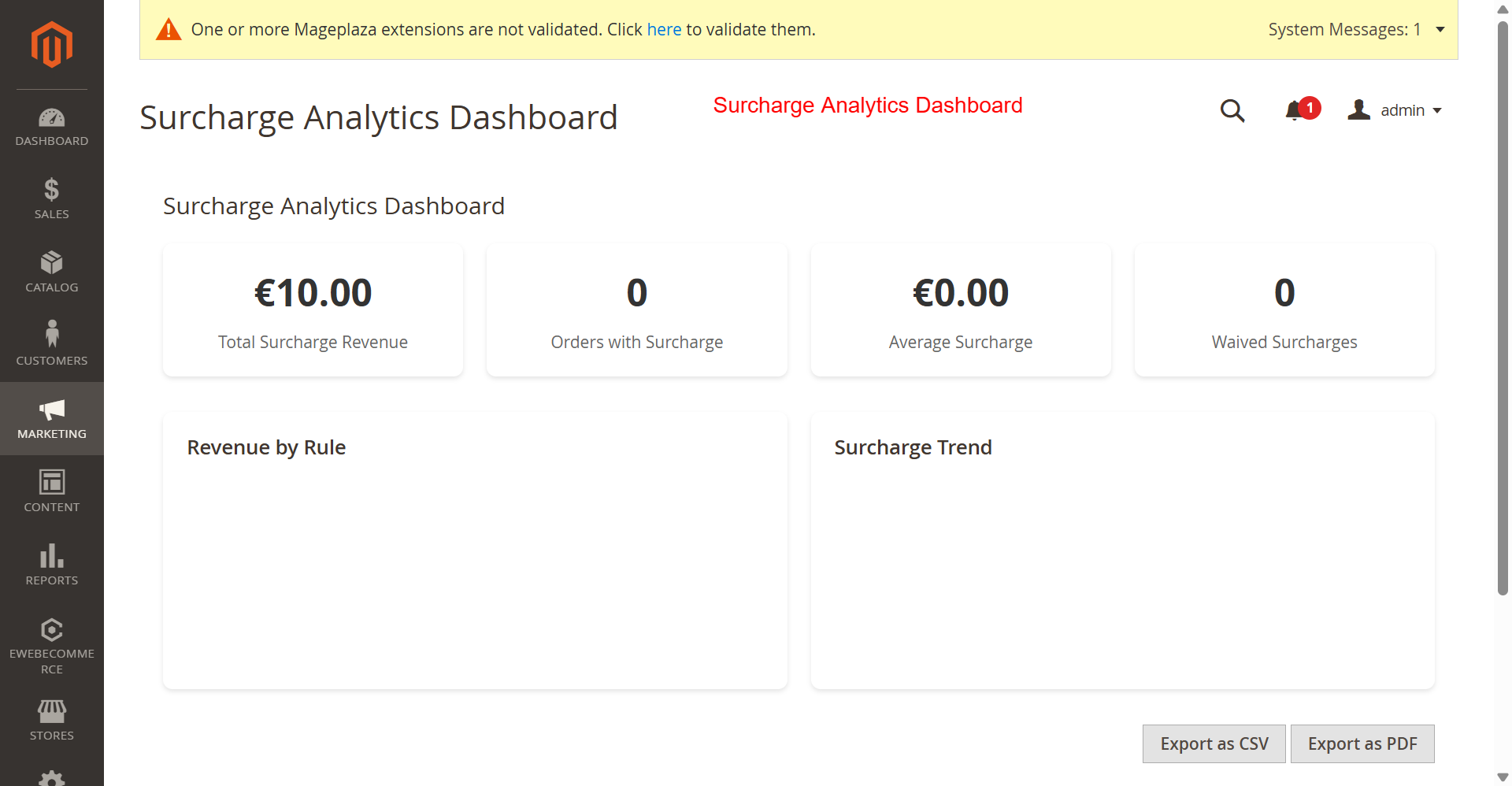
This Surcharge Analytics Dashboard provides an overview of surcharge performance metrics. Admins can quickly assess the financial impact of surcharges, track trends, and adjust strategies accordingly. The export functions enable data continuity and further analysis, facilitating informed decision-making.
Tax & Coupon Integration
Ensure compliance and optimize promotions.
- Configure tax calculations for surcharges
- Set tax class application for compliance
- Manage surcharge exclusion with coupons
- Determine coupon application priority
- Group customer-level applications and exclusions
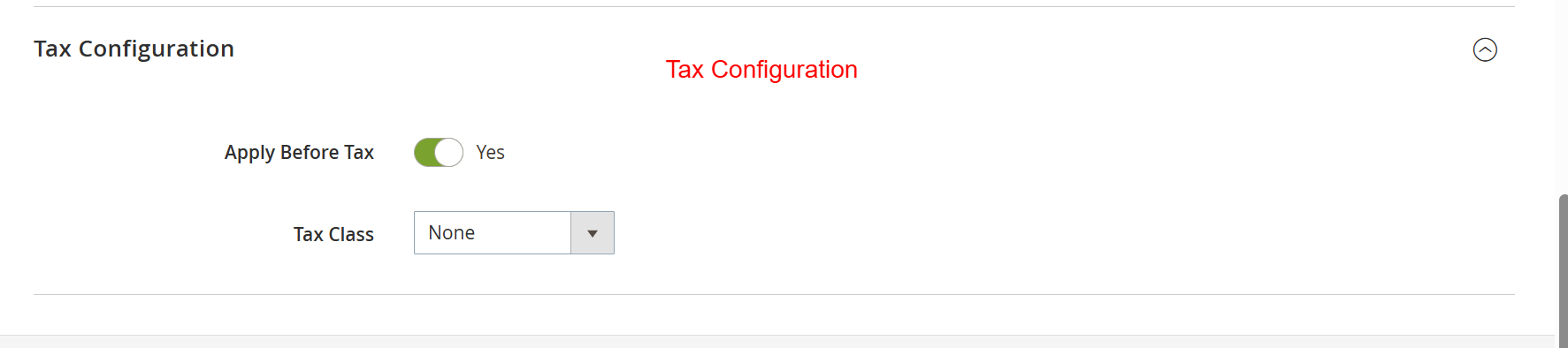
Set tax application rules for surcharges to ensure compliance with local tax regulations. Configuring tax settings accurately affects how surcharges are calculated and displayed in invoices and order summaries.
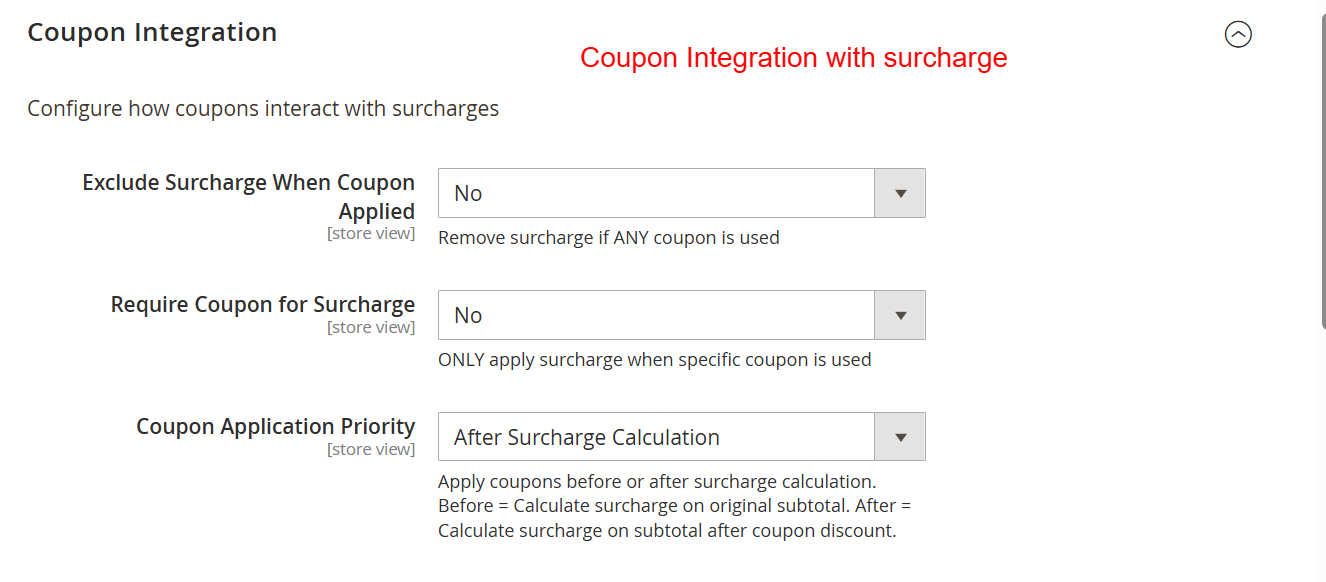
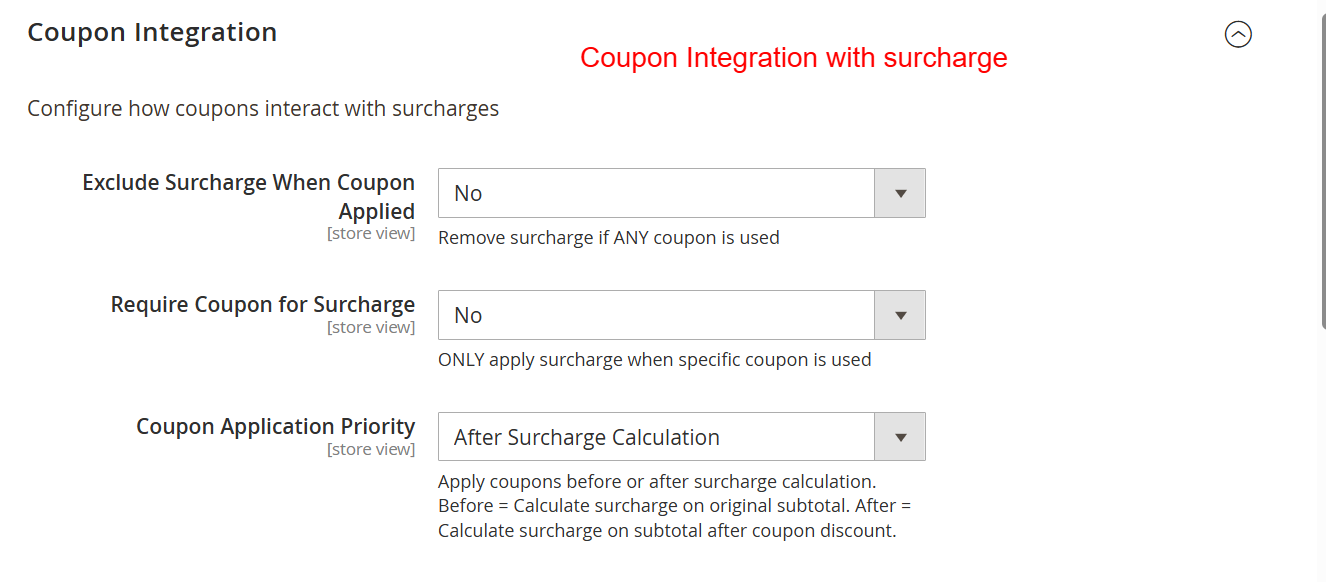
Manage the interplay between surcharges and coupons by setting rules on how they are applied. This helps in determining whether surcharges should persist when a coupon is applied, deeply influencing promotional strategies and customer incentives.
Rule Management & Import/Export
Gain control over detailed surcharge rule settings.
- Create unlimited surcharge rules with conditions
- Set rule priorities for conflict management
- Export rules to CSV or JSON for backup
- Import rules with options to merge or replace
- Utilize history tracking for rule changes
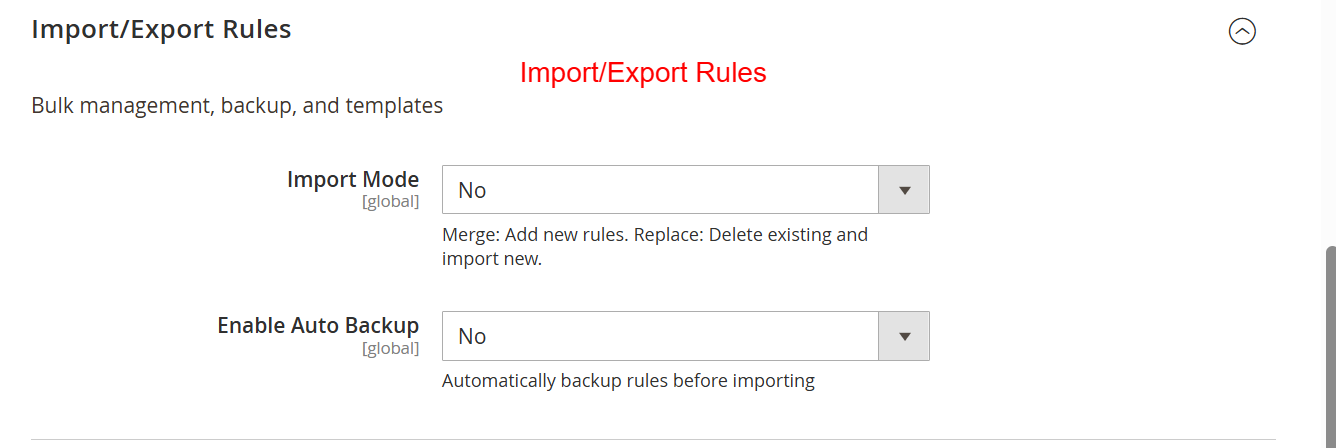
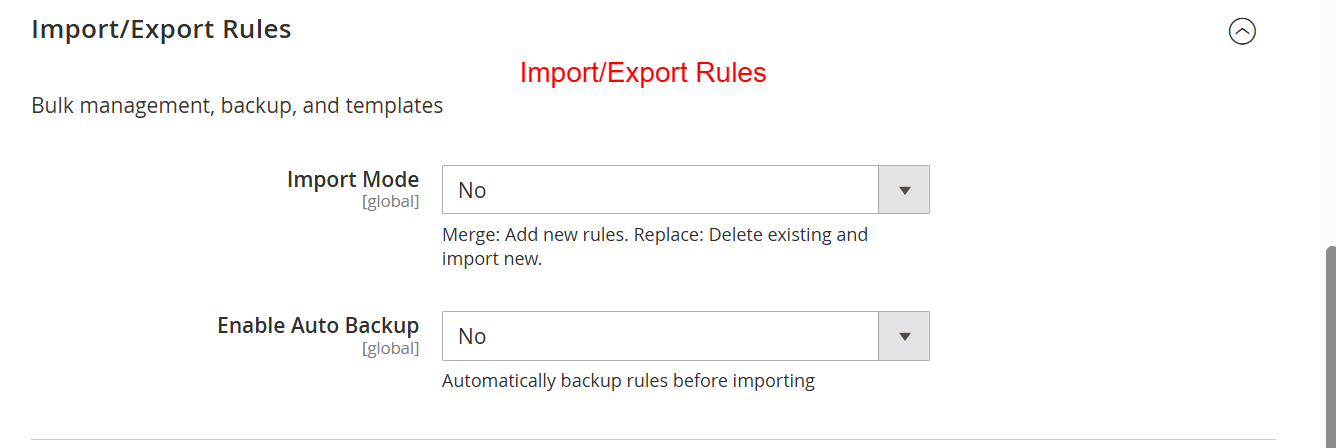
Use this area to manage surcharge rules through import and export functionality. Options include merging new rules with existing ones or replacing them entirely, as well as backing up rules to prevent data loss during import processes.
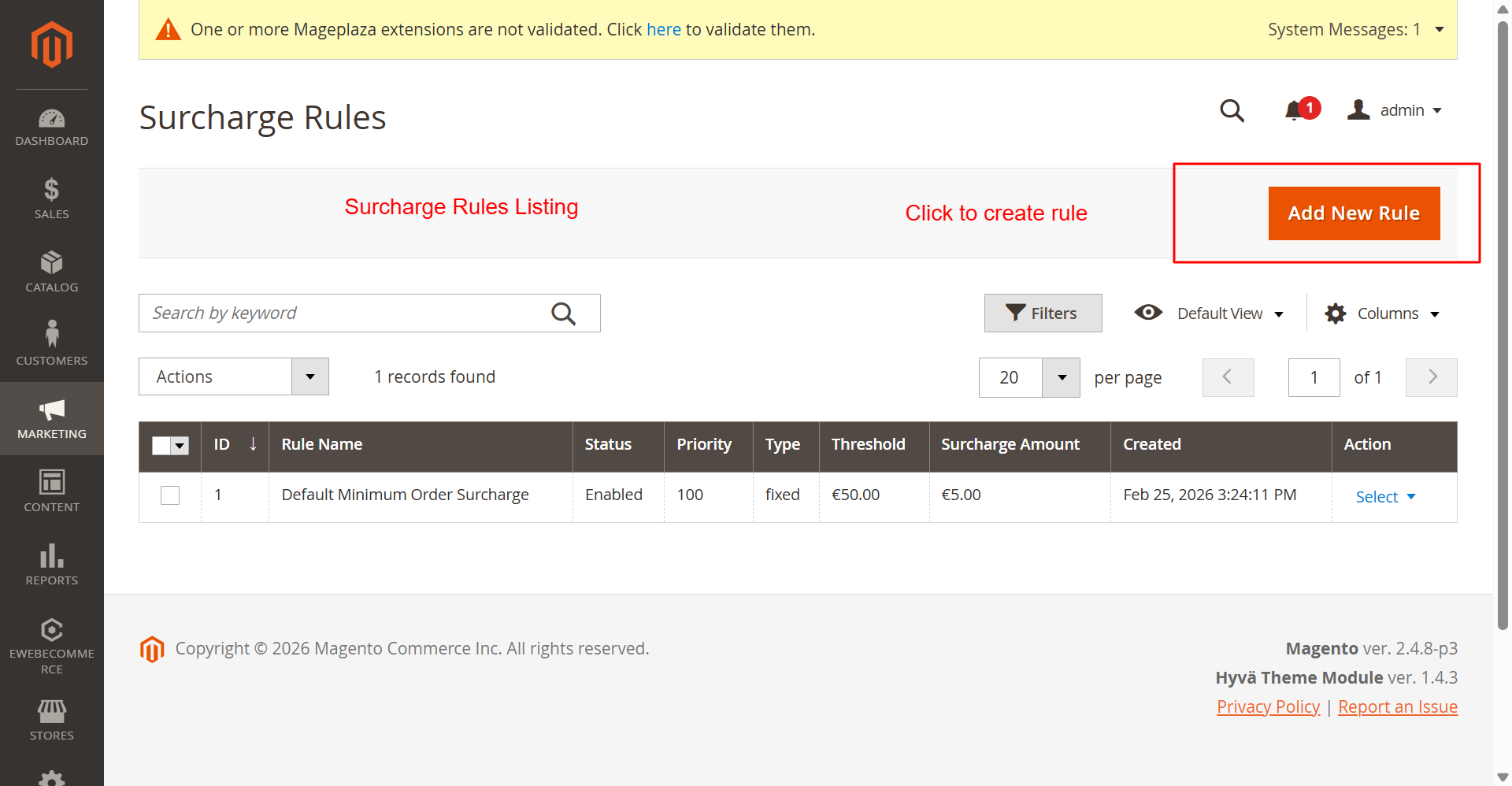
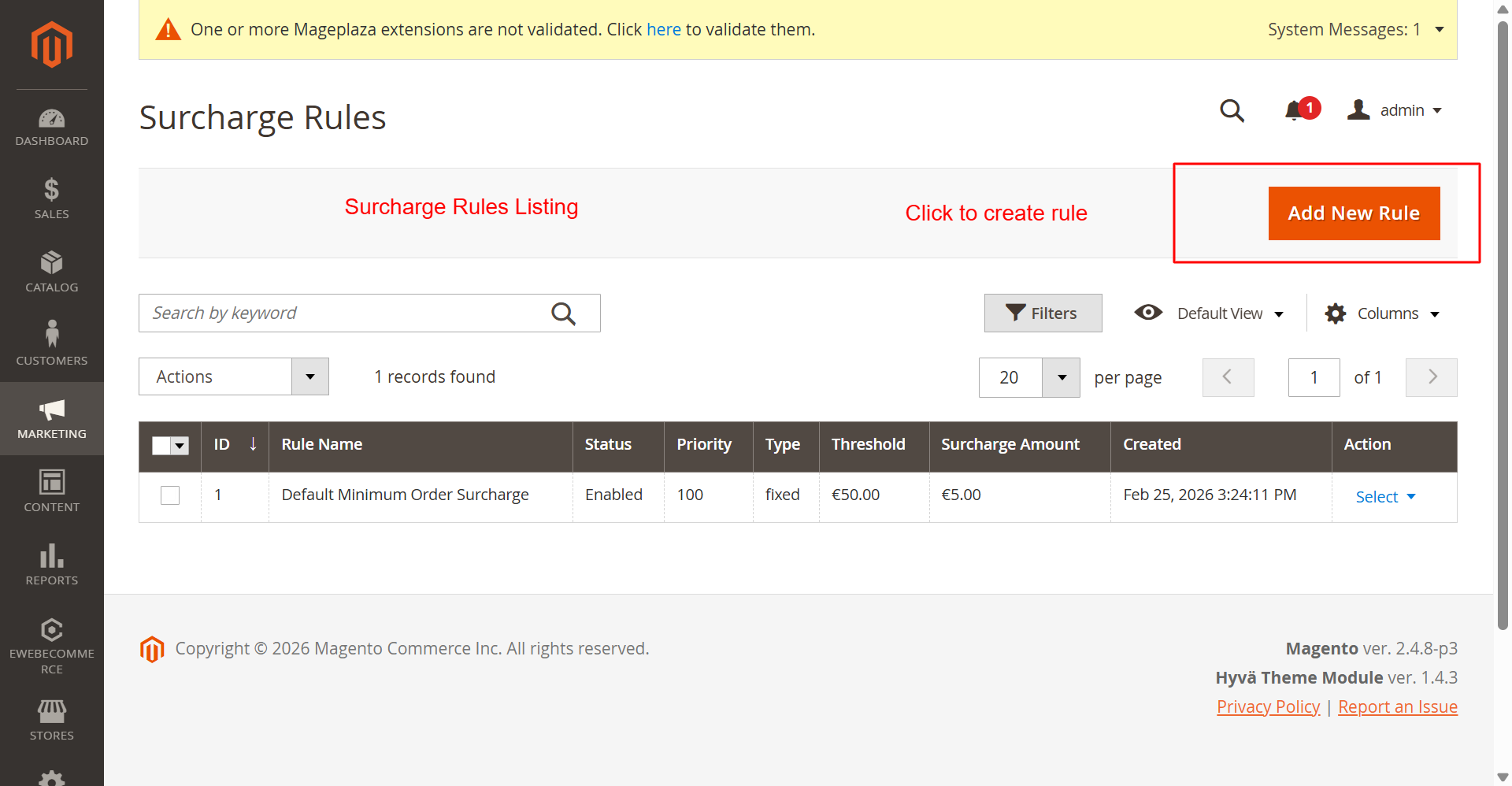
This screen provides an overview of all existing surcharge rules, enabling administrators to manage and adjust them easily. Adding or modifying rules here allows for effective surcharge strategy implementation across various products and customer segments.
3 Configuration Walkthrough
Navigate to Stores → Configuration in Magento Admin and follow these steps:
Enable the Module
To enable the Ewebecommerce_MinOrderSurcharge module, navigate to Stores > Configuration > Minimum Order Surcharge PRO > General Settings. Set Enable Surcharge Module to Yes. This will activate the module's functionality across your store.
This screen allows you to configure core settings for the surcharge module, including enabling the module, setting thresholds, and defining surcharge amounts and calculation types. Adjust these settings early to ensure surcharges apply correctly to orders below a specified threshold.
Set Default Thresholds and Amounts
Within the General Settings, set the Default Minimum Order Threshold and Default Surcharge Amount. These parameters determine the standard criteria for surcharge application unless further customization is added through rules.
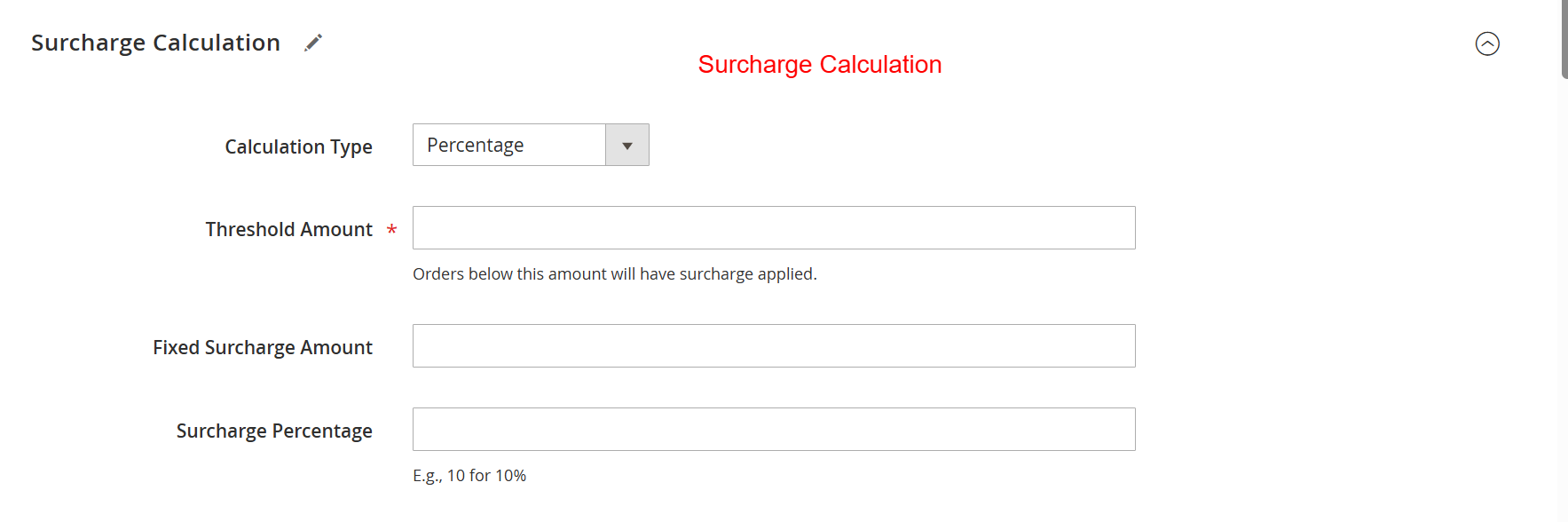
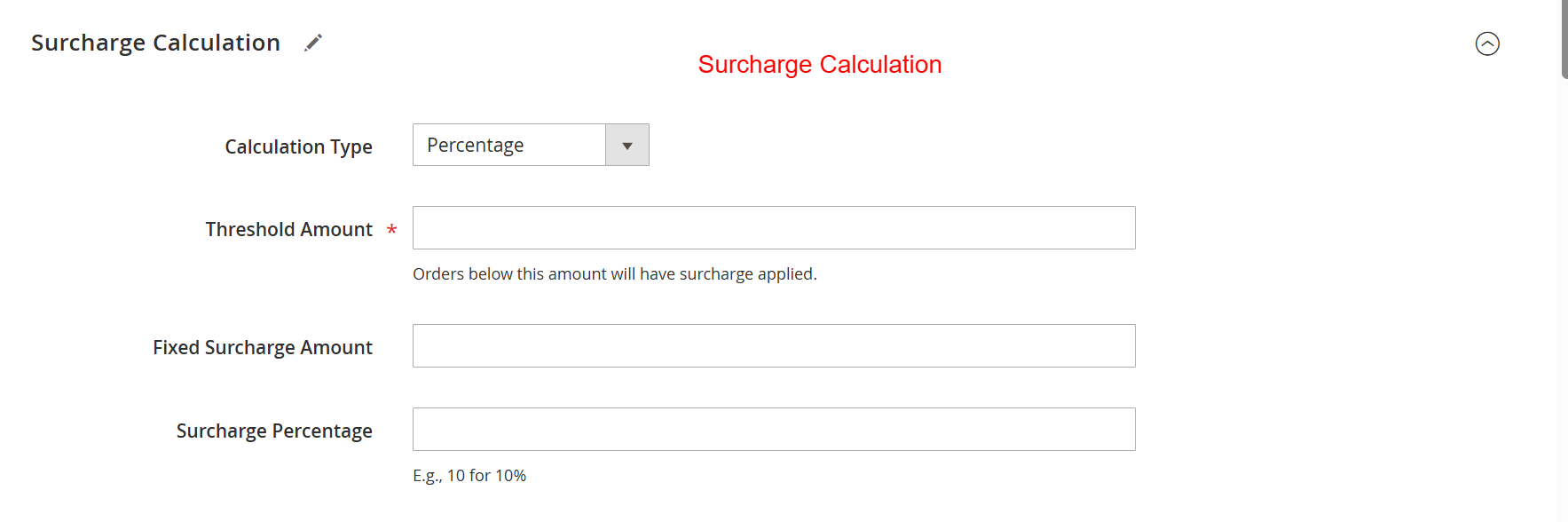
Define how surcharges are calculated by choosing between fixed amounts or percentage-based strategies. Specifying threshold amounts ensures that surcharges are appropriately applied, reinforcing the structure of your pricing model and enhancing revenue management.
Configure Display Options
To manage where and how surcharges are displayed, go to Display Options in the same configuration path. Enable features to show surcharge details on the shopping cart, checkout, and order view pages to enhance customer transparency.
Control how surcharge information displays across various customer touchpoints like shopping carts and invoices. Ensuring visibility enhances transparency with customers, helping them understand any additional costs associated with their orders.
Set Notification Templates
Under Notifications & Messages, configure settings to alert customers about surcharges using dynamic message templates. This functionality aids in reducing cart abandonment by providing clear surcharge rationale.
Configure notification settings to alert customers about surcharges directly on the cart page and using customized messages. This allows administrators to maintain clear communication about additional costs, improving the buying experience and reducing cart abandonment.
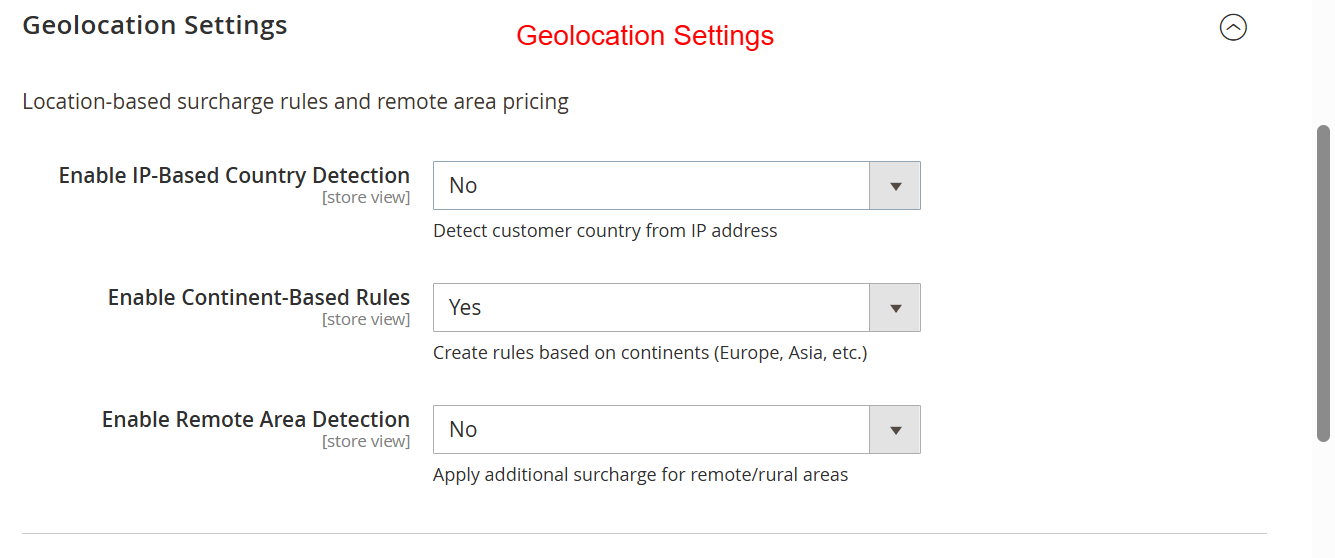
Enable Geolocation Rules
For location-specific surcharge applications, enable geolocation settings in the Geolocation Surcharge section. You can configure rules based on customer location via IP detection to personalize surcharge strategies effectively.
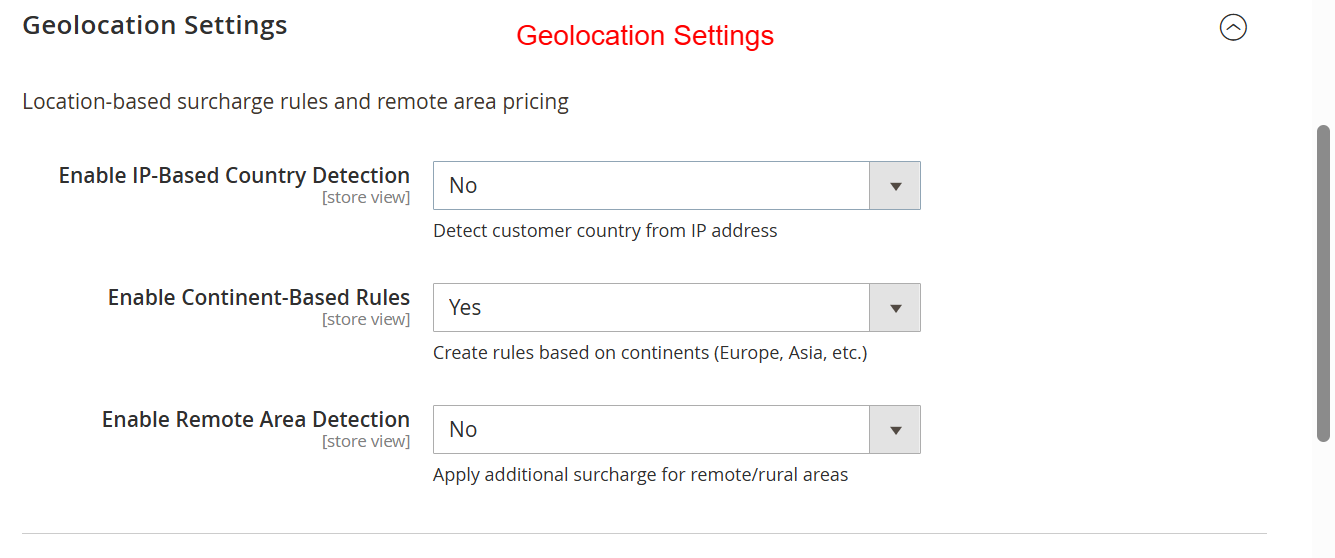
This screen allows you to configure location-based surcharge rules. By enabling IP-based country detection, retailers can apply different surcharges based on customer's geographic locations, thereby enhancing the flexibility and precision of pricing strategies.
Manage Coupon Interactions
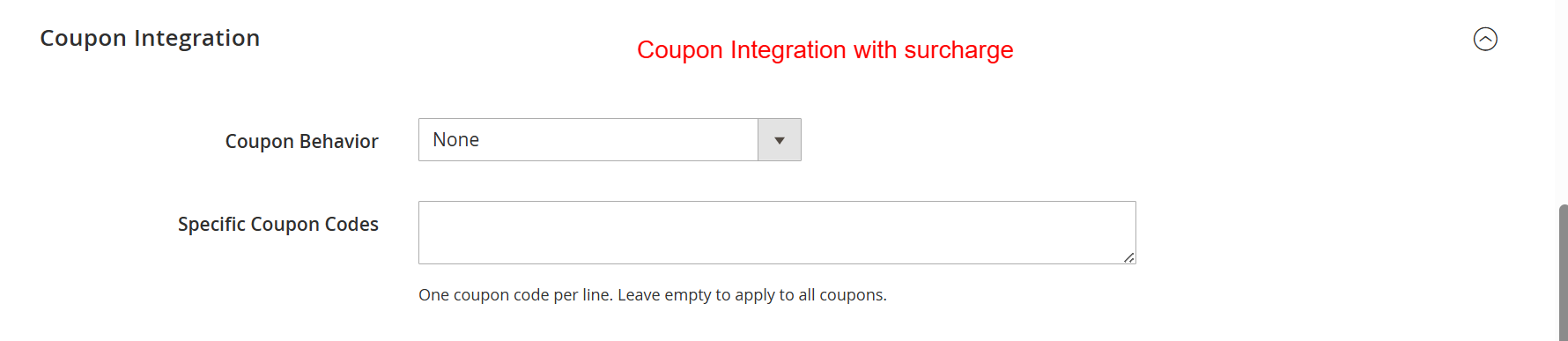
Navigate to Coupon Integration to define how coupons interact with surcharges. Set exclusions or requirements such as applying surcharges only when certain coupons are used, to fine-tune your promotional strategies.
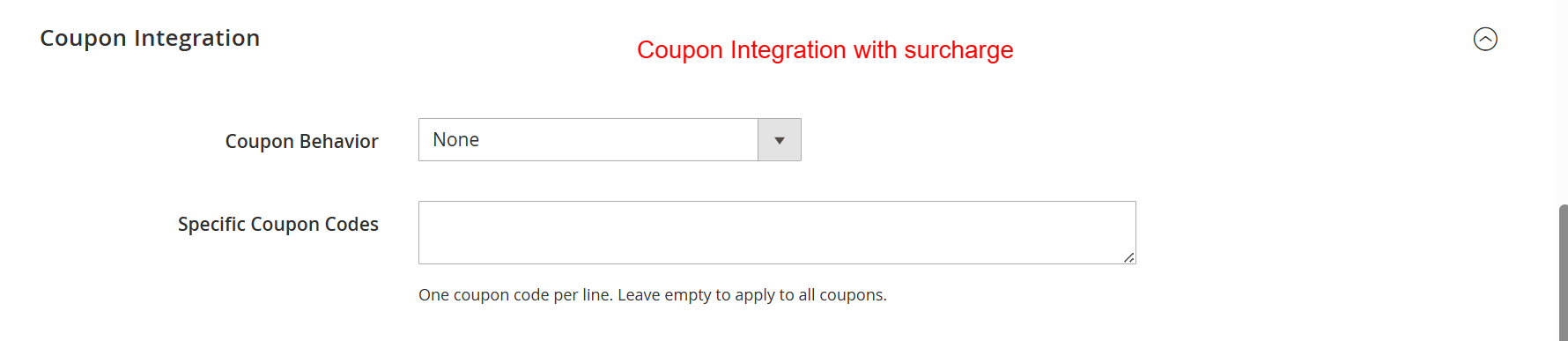
Administrators use this screen to determine how coupons interact with surcharges. They select behavior from options like 'None', which disregards coupons, or specify coupon codes that might exempt certain conditions. This configuration allows businesses to maintain promotional flexibility alongside surcharge policies.
Set Up Tax Calculations
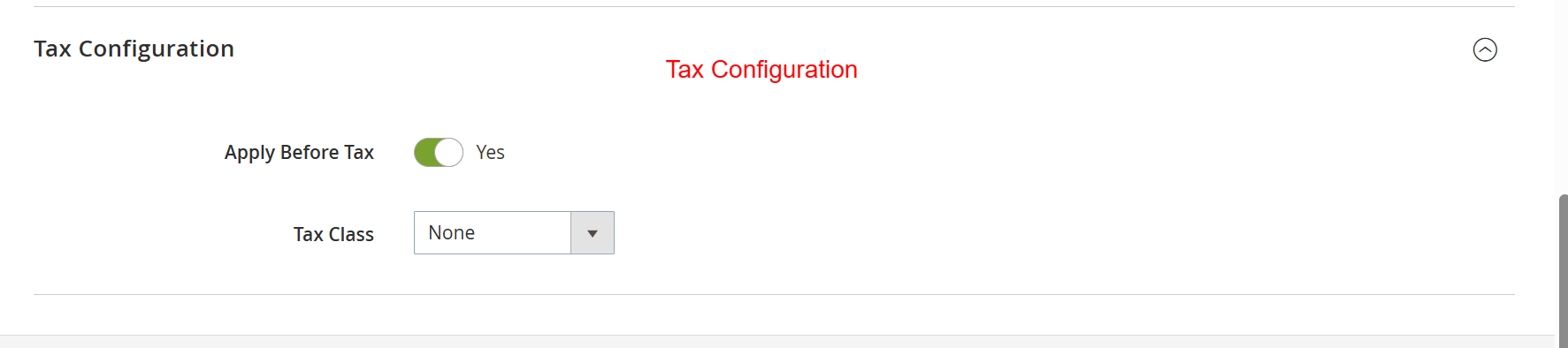
Under Tax Configuration, define whether surcharges are calculated before tax. Ensure the correct tax class is selected to integrate surcharge calculations into your tax setup, maintaining legal compliance and accurate reporting.

This screen allows administrators to define whether the surcharge is applied before taxes and to associate a tax class if needed. Correct tax configuration is essential for legal compliance and accurate financial reporting, ensuring the surcharge integrates smoothly with fiscal policies.
4 User Journey
Viewing Surcharges in Cart
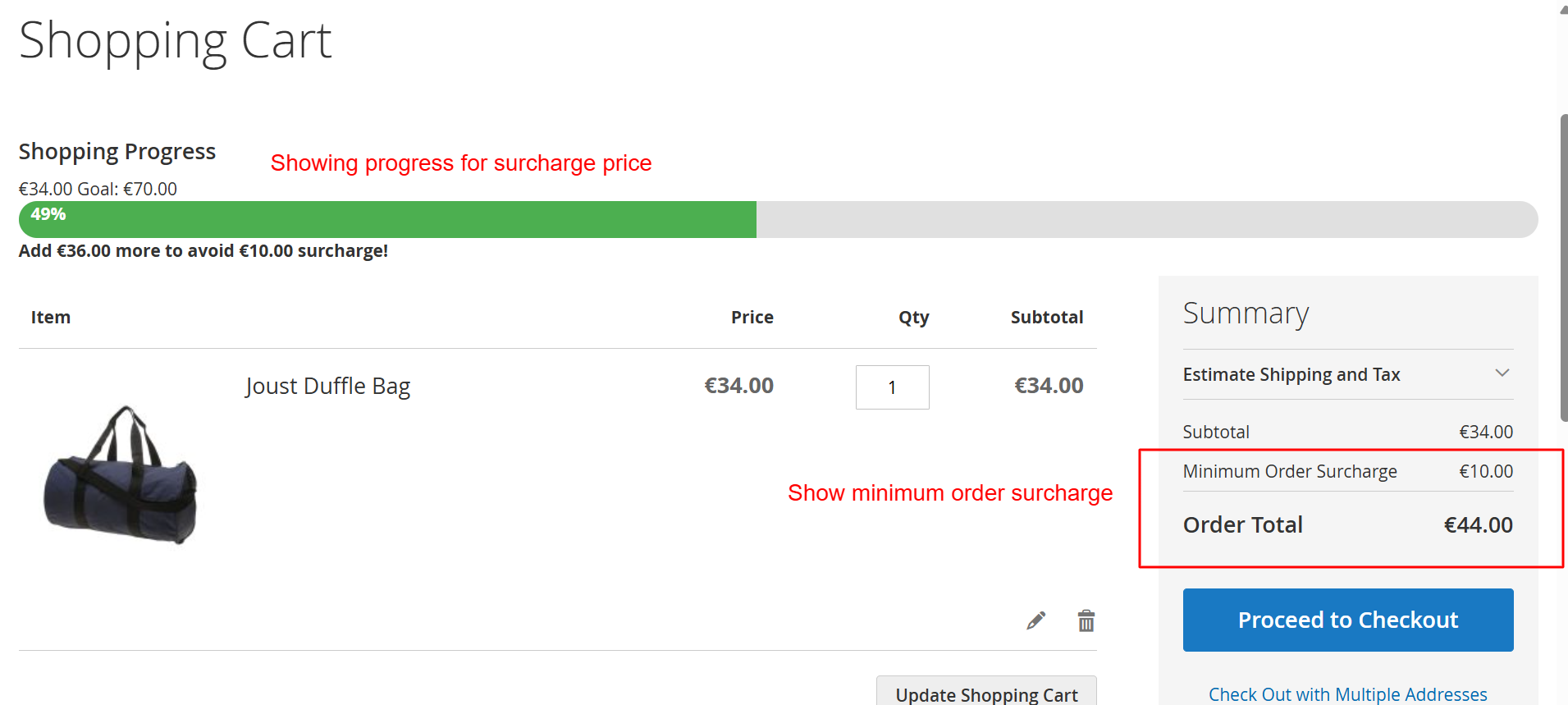
Customers can view surcharges directly on the cart page, including progress towards meeting minimum order thresholds. This feature provides clarity and encourages customers to adjust their order to avoid surcharges.
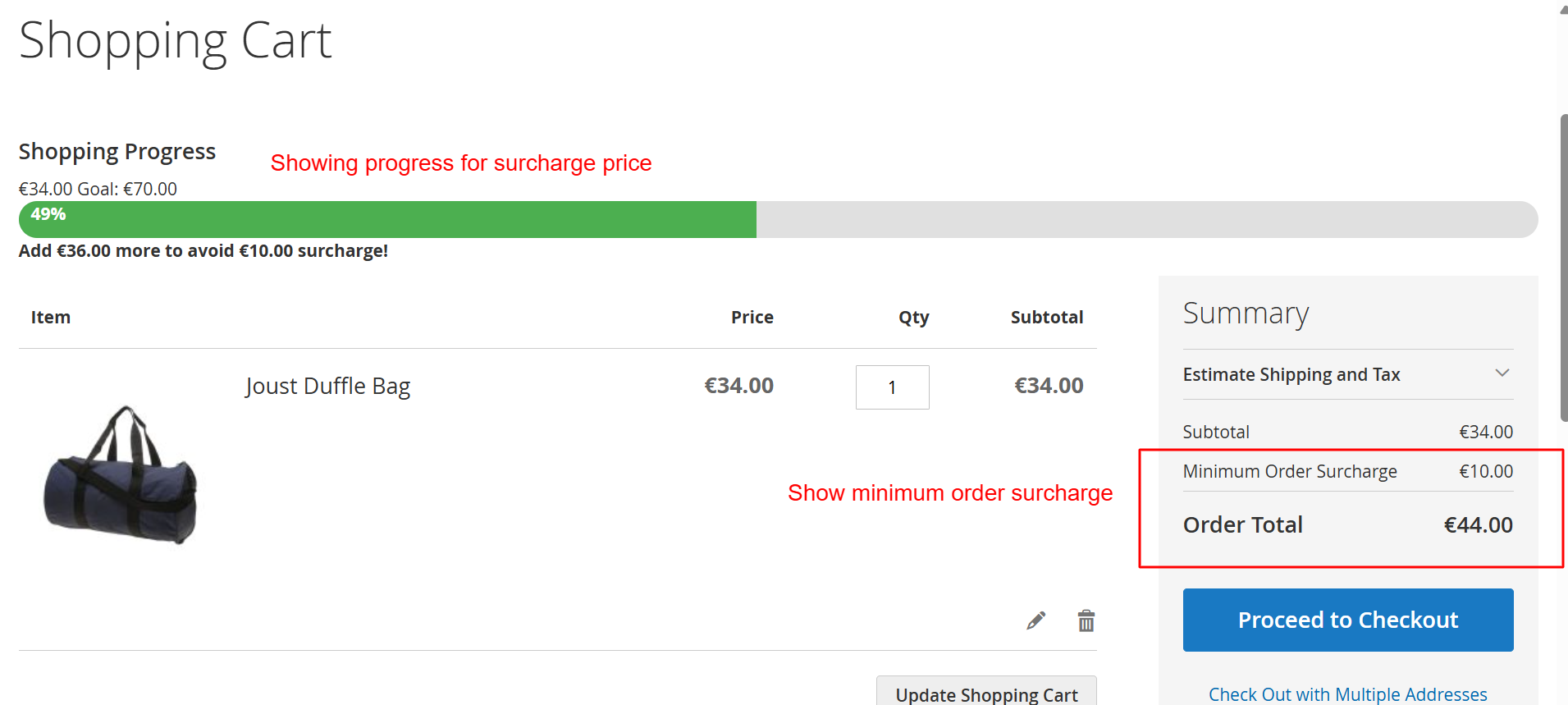
Customers using the Luma theme are guided visually on meeting minimum order thresholds to avoid surcharges. This screen shows real-time updates in the cart, helping them understand how close they are to achieving the goal, thus promoting higher order values and customer engagement.
Checkout with Surcharge Summary
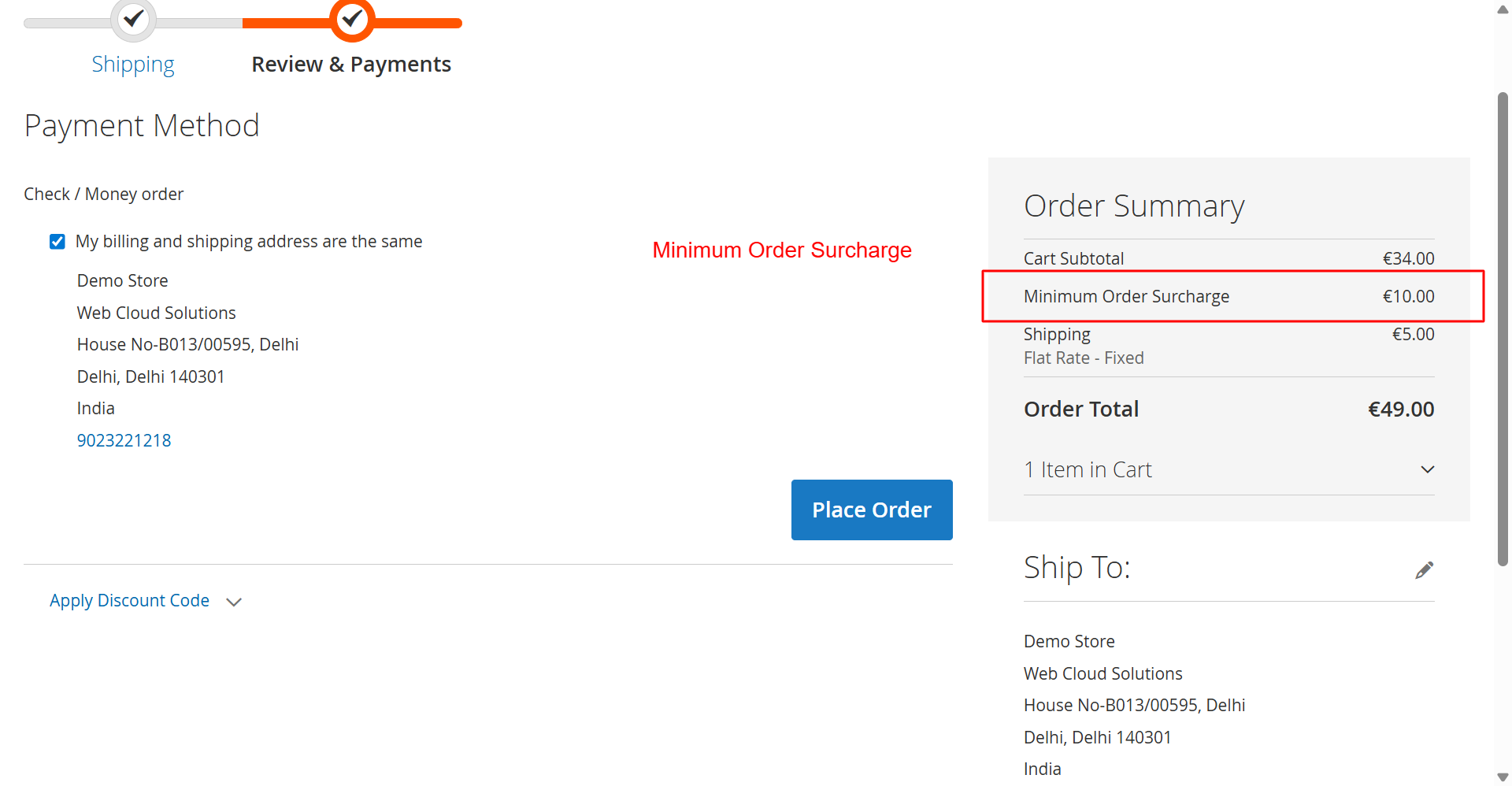
During the checkout process, the order summary will clearly itemize any surcharges applied, ensuring customers are aware of additional fees before completing their purchase.
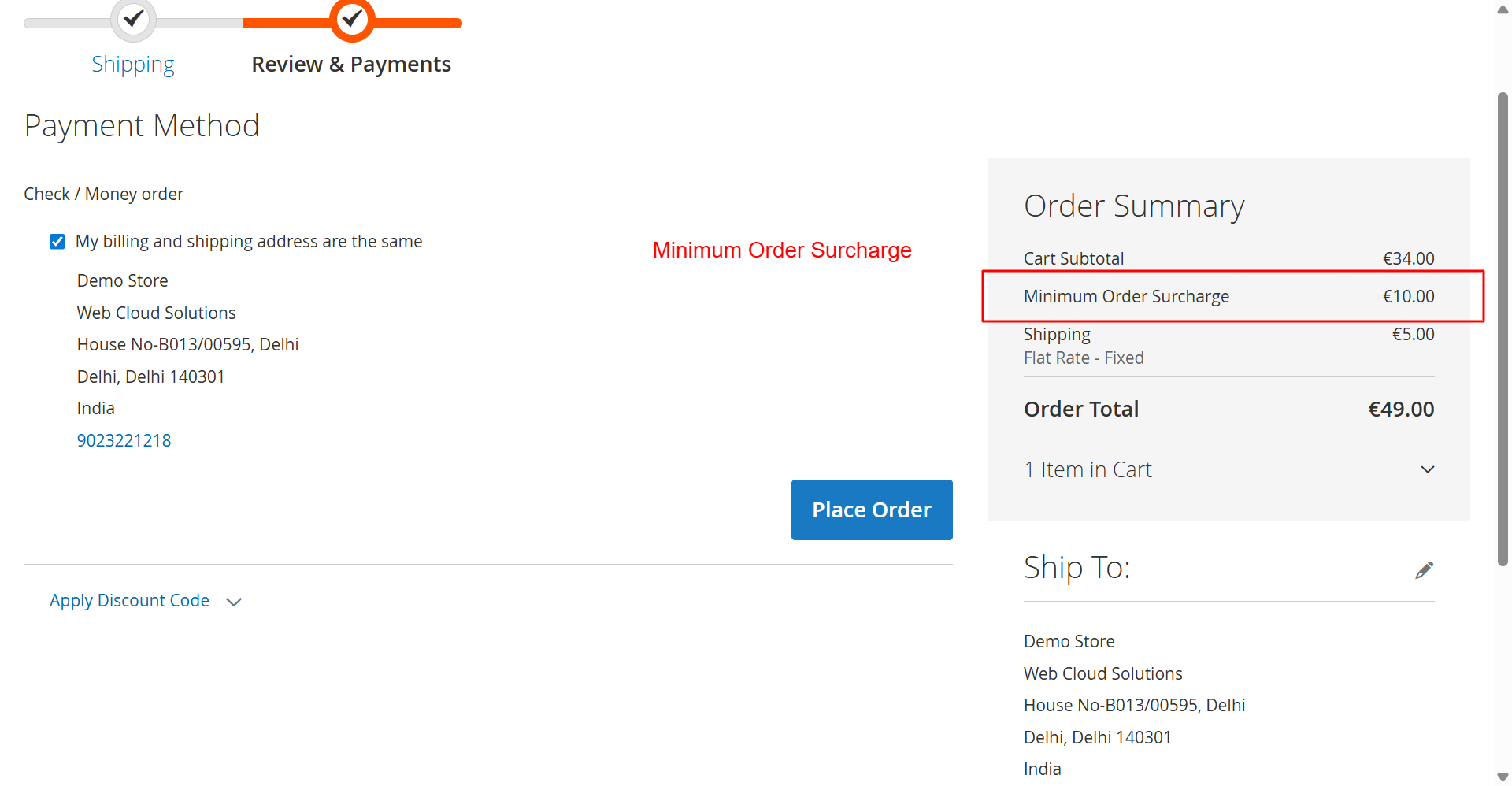
While reviewing the order, customers see any applicable surcharges clearly itemized in their order summary. This transparency during checkout reinforces trust and aids in maintaining clear communication about additional fees, thus minimizing cart abandonment rates.
Hyva Theme Surcharge Display
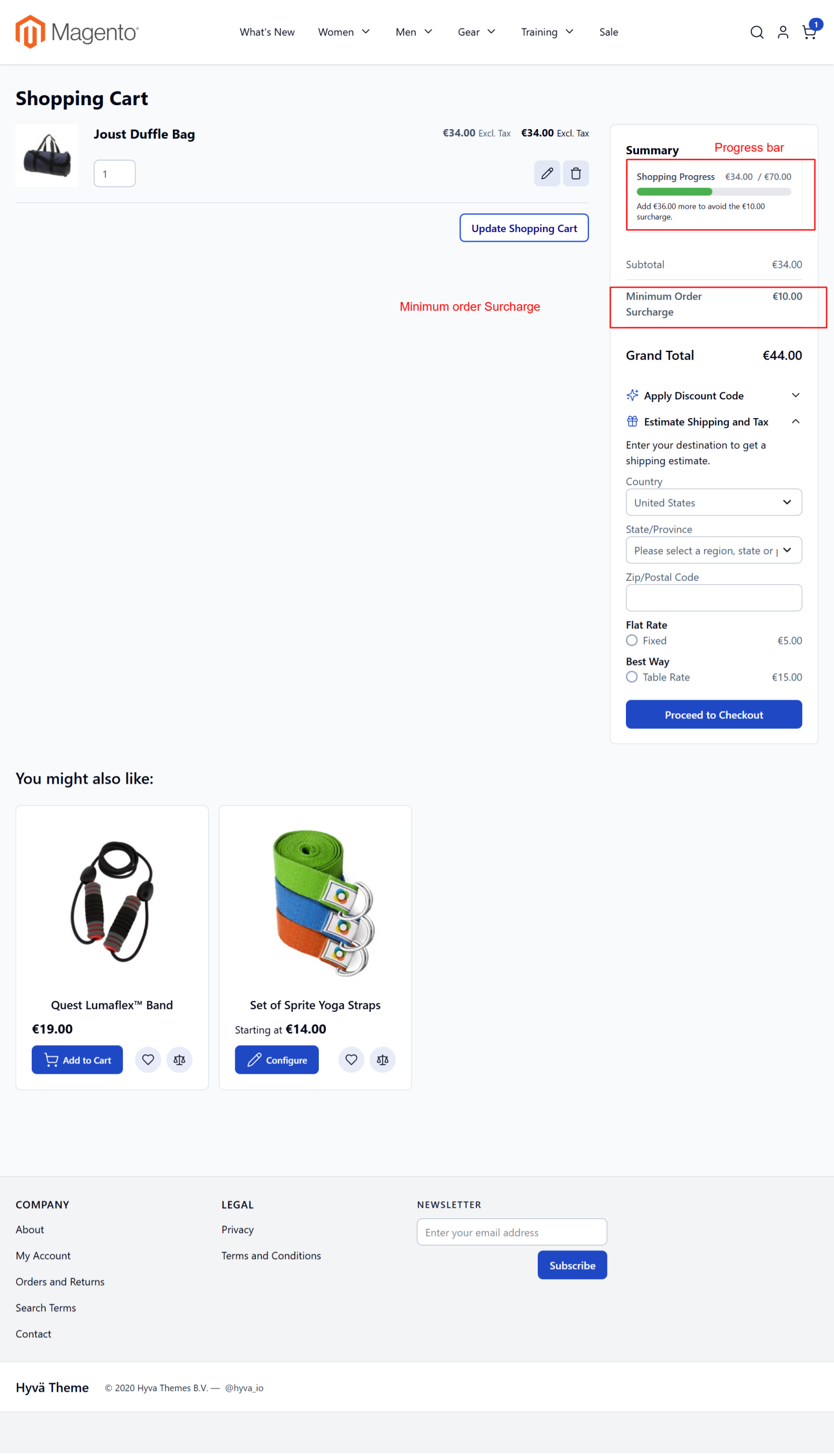
The Hyva theme enhances user experience with visual indicators showing surcharge conditions directly from the shopping cart, motivating customers to increase their order value.
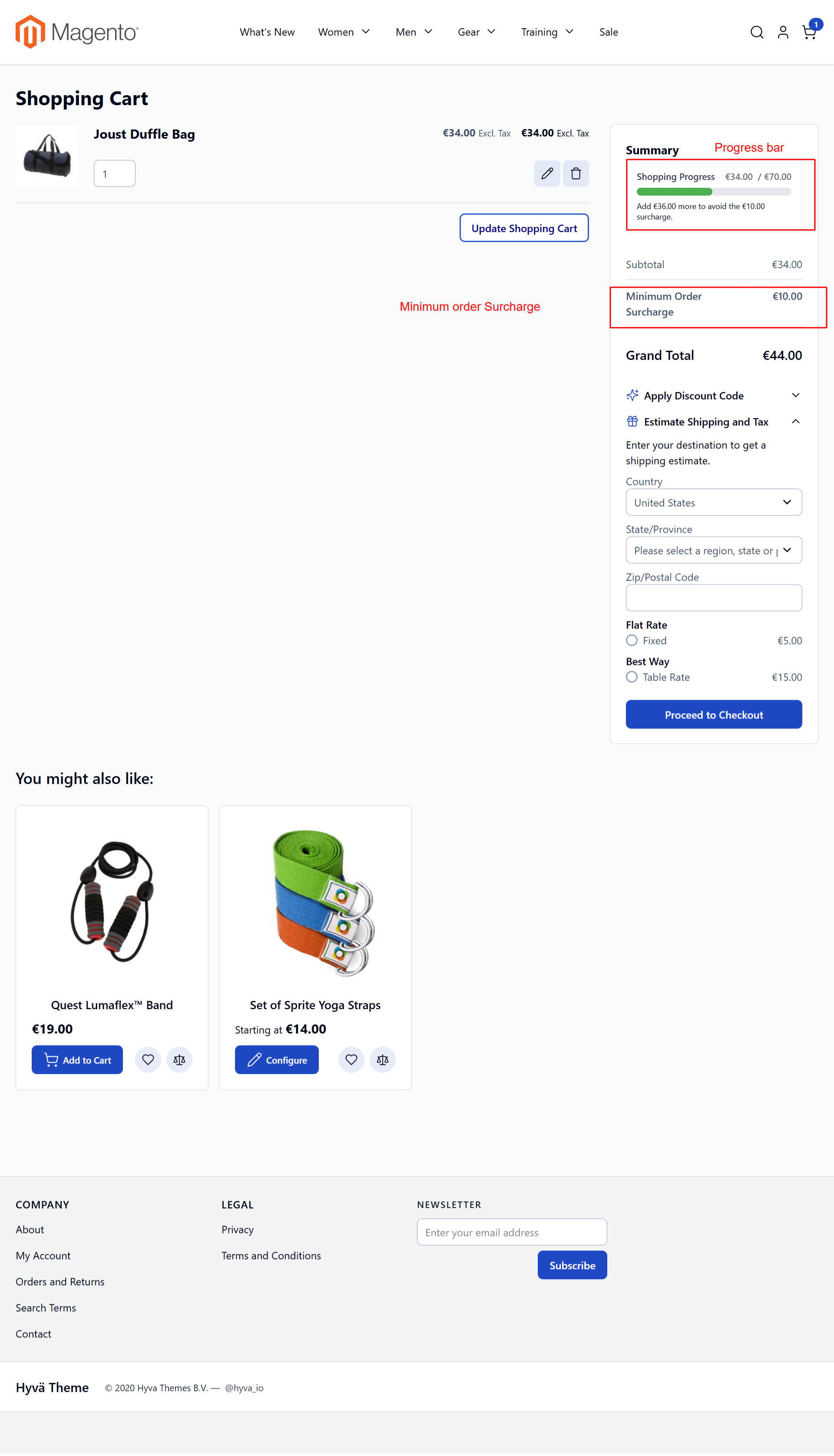
In the Hyva theme, shoppers can identify surcharge conditions directly from their shopping cart, enhanced by an interactive progress bar that encourages additional purchases. This feature supports user purchase satisfaction and increased order values by motivating customers to adjust cart contents appropriately.
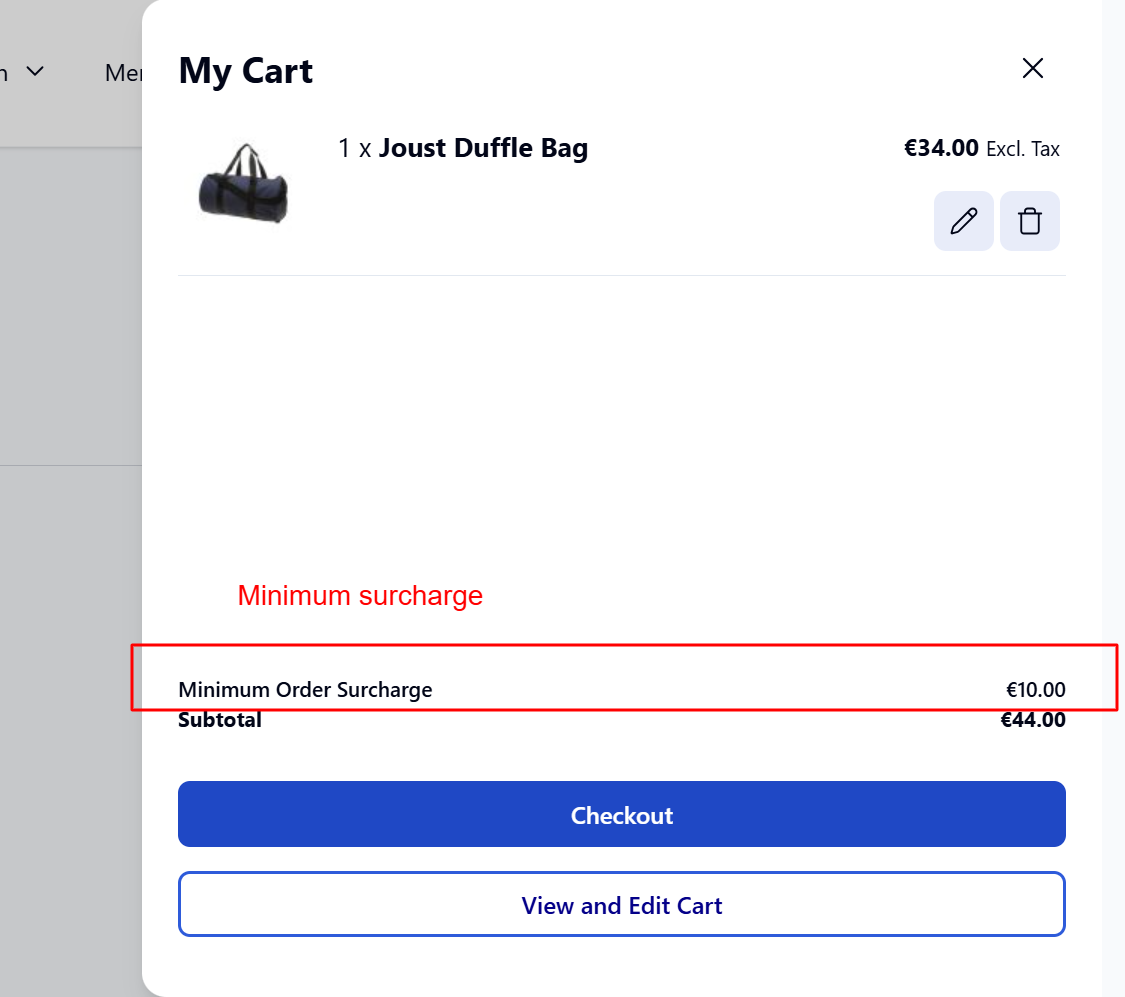
Minicart Overview
Customers can quickly review surcharge details in the minicart, providing transparent cost breakdowns and aiding in rapid purchase decisions.
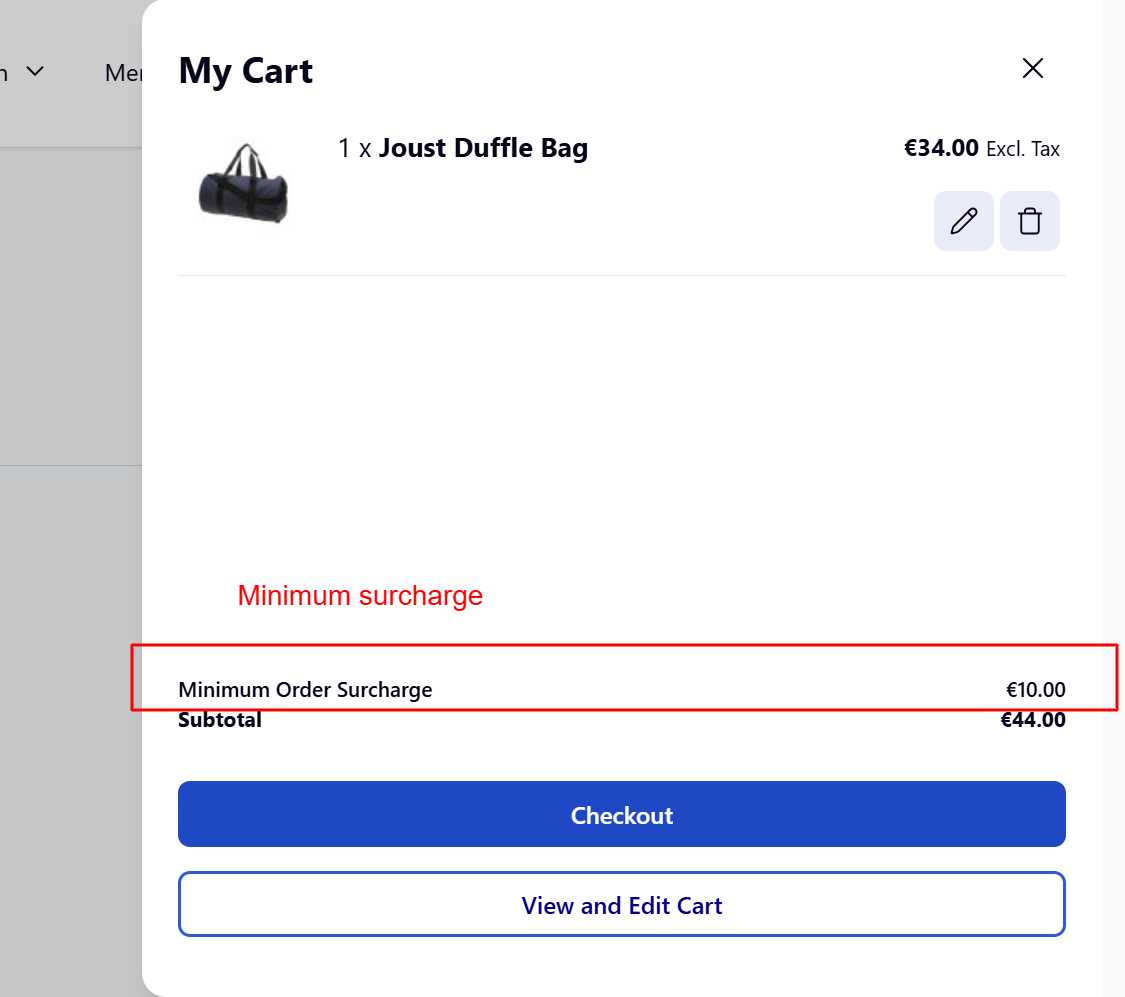
Shoppers see a summary of surcharges in the Hyvä Theme's minicart feature, providing a quick glance at additional charges. This interface aids swift decision-making and increases transparency, contributing to an improved shopping experience.
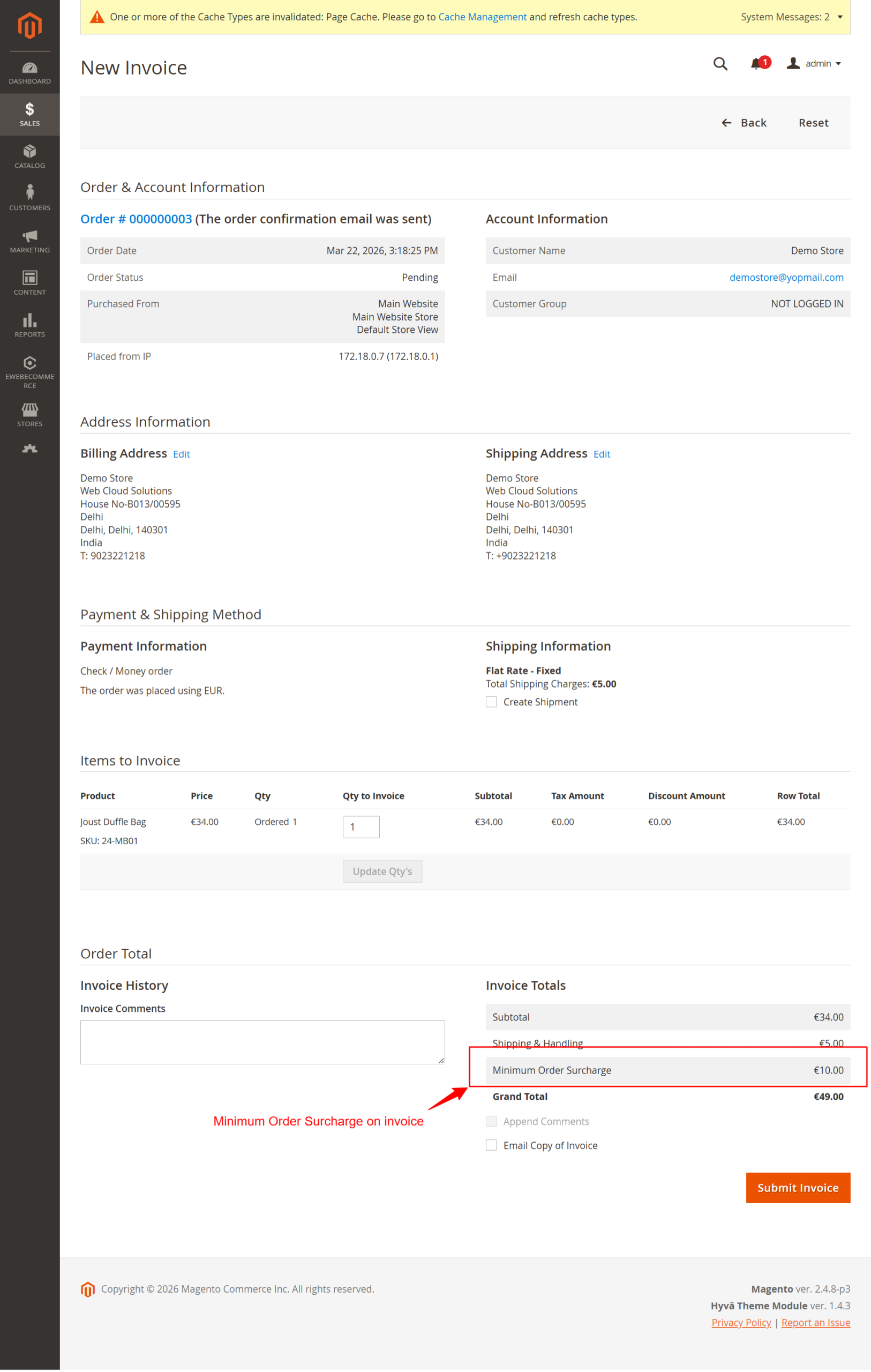
Invoice Review with Surcharge
Admins can review invoice details, ensuring surcharges are applied correctly and reflected in the total charges before an invoice is sent to the customer.
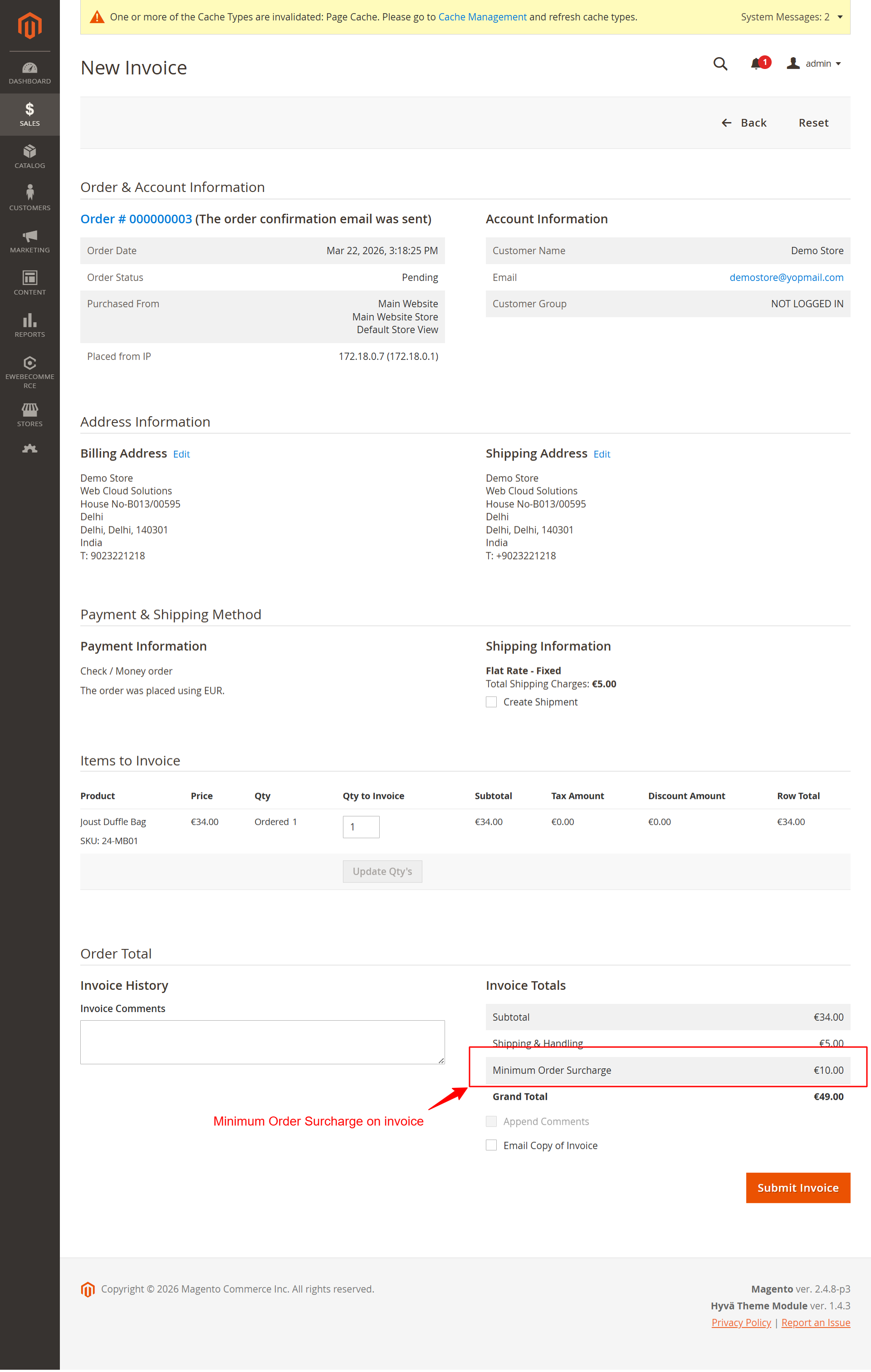
This screen allows the admin to review detailed information about a customer's invoice, including the recently added 'Minimum Order Surcharge'. Users can verify the surcharge is applied correctly, ensuring compliance with the store's pricing rules. It is critical to confirm that all charges are accurate before submitting the invoice.
5 Use Cases
Retail Store with Seasonal Discounts
A retailer can apply surcharges during non-promotional periods, encouraging customers to meet minimum order values. Seasonal discounts are offered by aligning surcharge thresholds with seasonal peaks and promotional strategies.
Wholesale B2B Transactions
For B2B transactions, minimum order surcharges ensure orders reach a profitable scale before proceeding. Specialized rules can be set for corporate customers using the extension's B2B features and advanced rule engine.
International Shipping Adjustments
Surcharges can manage international shipping costs by setting region-specific rules. Using geolocation settings, businesses can apply surcharges equitably based on customer location to account for varying shipping expenses.
Special Event Sales
During events, specialized conditions can create a dynamic surcharge strategy. Businesses can increase revenue by adjusting minimum thresholds and incentivizing higher-order values through targeted promotions.
High-Value Product Launch
When launching high-value products, define specific surcharges to ensure minimum profitable order thresholds are met, allowing supplemental revenue from related costlier items bought together.
6 Installation Guide
-
Install via Composer:
composer require ewebecommerce/module-minordersurcharge -
Enable the module:
bin/magento module:enable Ewebecommerce_MinOrderSurcharge -
Upgrade setup:
bin/magento setup:upgrade -
Compile DI:
bin/magento setup:di:compile -
Deploy static content:
bin/magento setup:static-content:deploy -f -
Clean cache:
bin/magento cache:clean
7 Database Schema (9 Tables)
ewebecommerce_surcharge_rule
| Column | Type | Nullable |
|---|---|---|
rule_id |
false | |
name |
false | |
description |
true | |
is_active |
false | |
priority |
false | |
calculation_type |
false | |
surcharge_amount |
false | |
surcharge_percentage |
false | |
threshold_amount |
false | |
conditions_serialized |
true | |
customer_groups |
true | |
customer_type |
true | |
min_order_count |
true | |
min_lifetime_spending |
true | |
store_ids |
true | |
country_ids |
true | |
state_ids |
true | |
postcode_ranges |
true | |
city_names |
true | |
category_ids |
true | |
product_skus |
true | |
product_tags |
true | |
category_condition |
true | |
product_categories |
true | |
exclude_categories |
true | |
specific_products |
true | |
payment_methods |
true | |
shipping_methods |
true | |
coupon_codes |
true | |
coupon_behavior |
true | |
days_of_week |
true | |
time_from |
true | |
time_to |
true | |
date_from |
true | |
date_to |
true | |
holiday_dates |
true | |
min_items |
true | |
max_items |
true | |
min_weight |
true | |
max_weight |
true | |
min_unique_products |
true | |
notification_message |
true | |
progress_bar_color |
true | |
apply_before_tax |
false | |
tax_class_id |
true | |
include_in_tax |
false | |
exclude_admin_orders |
false | |
stop_further_rules |
false | |
ab_test_group |
true | |
ab_test_percentage |
true | |
continent_codes |
true | |
remote_area_enabled |
false | |
remote_area_amount |
true | |
created_at |
false | |
updated_at |
false |
ewebecommerce_surcharge_analytics
| Column | Type | Nullable |
|---|---|---|
analytics_id |
false | |
rule_id |
true | |
order_id |
true | |
quote_id |
true | |
event_type |
false | |
surcharge_amount |
false | |
order_subtotal |
false | |
currency_code |
false | |
customer_id |
true | |
customer_group |
true | |
customer_type |
true | |
payment_method |
true | |
shipping_method |
true | |
country_id |
true | |
region |
true | |
city |
true | |
was_waived |
false | |
waive_reason |
true | |
coupon_code |
true | |
ab_test_group |
true | |
store_id |
true | |
created_at |
false |
quote
| Column | Type | Nullable |
|---|---|---|
minimum_order_surcharge |
true | |
base_minimum_order_surcharge |
true | |
surcharge_rule_id |
true | |
surcharge_rule_name |
true |
sales_order
| Column | Type | Nullable |
|---|---|---|
minimum_order_surcharge |
true | |
base_minimum_order_surcharge |
true | |
surcharge_rule_id |
true | |
surcharge_rule_name |
true |
sales_invoice
| Column | Type | Nullable |
|---|---|---|
minimum_order_surcharge |
true | |
base_minimum_order_surcharge |
true |
sales_creditmemo
| Column | Type | Nullable |
|---|---|---|
minimum_order_surcharge |
true | |
base_minimum_order_surcharge |
true |
sales_order_grid
| Column | Type | Nullable |
|---|---|---|
minimum_order_surcharge |
true |
ewebecommerce_surcharge_rule_history
| Column | Type | Nullable |
|---|---|---|
history_id |
false | |
rule_id |
false | |
changes |
true | |
admin_user_id |
true | |
action |
false | |
created_at |
false |
ewebecommerce_surcharge_abandonment
| Column | Type | Nullable |
|---|---|---|
abandonment_id |
false | |
quote_id |
false | |
customer_id |
true | |
customer_email |
true | |
cart_total |
false | |
surcharge_amount |
false | |
recovery_email_sent |
false | |
abandoned_at |
false | |
recovered_at |
true |
8 Architecture
Event Observers
| Event | Observer | Area |
|---|---|---|
sales_model_service_quote_submit_before |
AddSurchargeToOrder |
global |
sales_order_place_after |
TrackSurchargeAnalytics |
global |
sales_quote_collect_totals_after |
AnalyticsTracking |
global |
sales_quote_collect_totals_after |
ValidateCouponConditions |
global |
checkout_cart_save_after |
CartAbandonment |
global |
Plugin Interceptors
| Target | Plugin |
|---|---|
QuoteManagement |
OrderRepository |
Session |
SessionPlugin |
Cart |
CartPlugin |
Address |
AddressPlugin |
Quote |
SetAdminOrderFlag |
CommonTaxCollector |
CommonTaxCollectorPlugin |
Totals |
CartTotalsCollectPlugin |
Onepage |
OnepageTotalsPlugin |
CartTotalRepository |
TotalsSegmentTitlePlugin |
GuestCartTotalRepository |
TotalsSegmentTitlePlugin |
TotalsConverter |
TotalsConverterTitlePlugin |
CartTotalManagement |
TotalsInformationTitlePlugin |
GuestCartTotalManagement |
TotalsInformationTitlePlugin |
TotalsInformationManagement |
TotalsInformationCalculateTitlePlugin |
GuestTotalsInformationManagement |
TotalsInformationCalculateTitlePlugin |
Page |
DebugHints |
Cart |
Cart |
Json |
JsonTotalsPlugin |
Cron Jobs
| Job | Schedule |
|---|---|
ewebecommerce_surcharge_cleanup |
0 2 * * * |
ewebecommerce_surcharge_analytics_report |
0 8 * * 1 |
CLI Commands
| Command | Description |
|---|---|
surcharge:rules:export |
Export surcharge rules to CSV or JSON |
surcharge:rules:import |
Import surcharge rules from CSV or JSON |
10 Tips & Tricks
- Regularly review surcharge analytics to optimize rules.
- Communicate surcharge details clearly to avoid confusion.
- Leverage geolocation rules for region-specific pricing.
- Test surcharge settings in a staging environment first.
- Use dynamic placeholders for informative notifications.
- Back up rules before importing new configurations.
- Engage users with visible progress bars to avoid surcharges.
- Keep configuration documentation handy for quick reference.
11 Step-by-Step Screenshot Reference
Every captured screen in setup order. Click any image to open the full-size version in a new tab.
Admin: Marketing > Surcharge Rules Menu
What this shows: This menu shows options under Surcharge Rules, including 'Manage Rules' and 'Analytics Dashboard'.
Navigate to the 'Surcharge Rules' section from the Marketing menu to manage rules and view analytics. 'Manage Rules' allows customization of surcharge conditions, while 'Analytics Dashboard' provides insights into surcharge performance. This is critical for effectively managing and analyzing surcharge policies.
Admin: Surcharge General Settings
What this shows: Features fields such as 'Enable Surcharge Module', 'Default Minimum Order Threshold', 'Default Surcharge Amount', and more.
This screen allows you to configure core settings for the surcharge module, including enabling the module, setting thresholds, and defining surcharge amounts and calculation types. Adjust these settings early to ensure surcharges apply correctly to orders below a specified threshold.
Admin: Surcharge Configuration Section
What this shows: Shows the configuration panel with categories like General Settings, Display Options, Notifications, and more.
Access various configuration categories for the Minimum Order Surcharge PRO module. Users can configure advanced options under each section to tailor the surcharge behavior, analytics, tax integration, and more according to their business needs.
Admin: Surcharge Display Options
What this shows: Includes options for where the surcharge displays, such as on shopping cart pages, invoices, and emails.
Control how surcharge information displays across various customer touchpoints like shopping carts and invoices. Ensuring visibility enhances transparency with customers, helping them understand any additional costs associated with their orders.
Admin: Surcharge Notifications & Messages
What this shows: Features controls for enabling notifications and customizing message templates for surcharges.
Configure notification settings to alert customers about surcharges directly on the cart page and using customized messages. This allows administrators to maintain clear communication about additional costs, improving the buying experience and reducing cart abandonment.
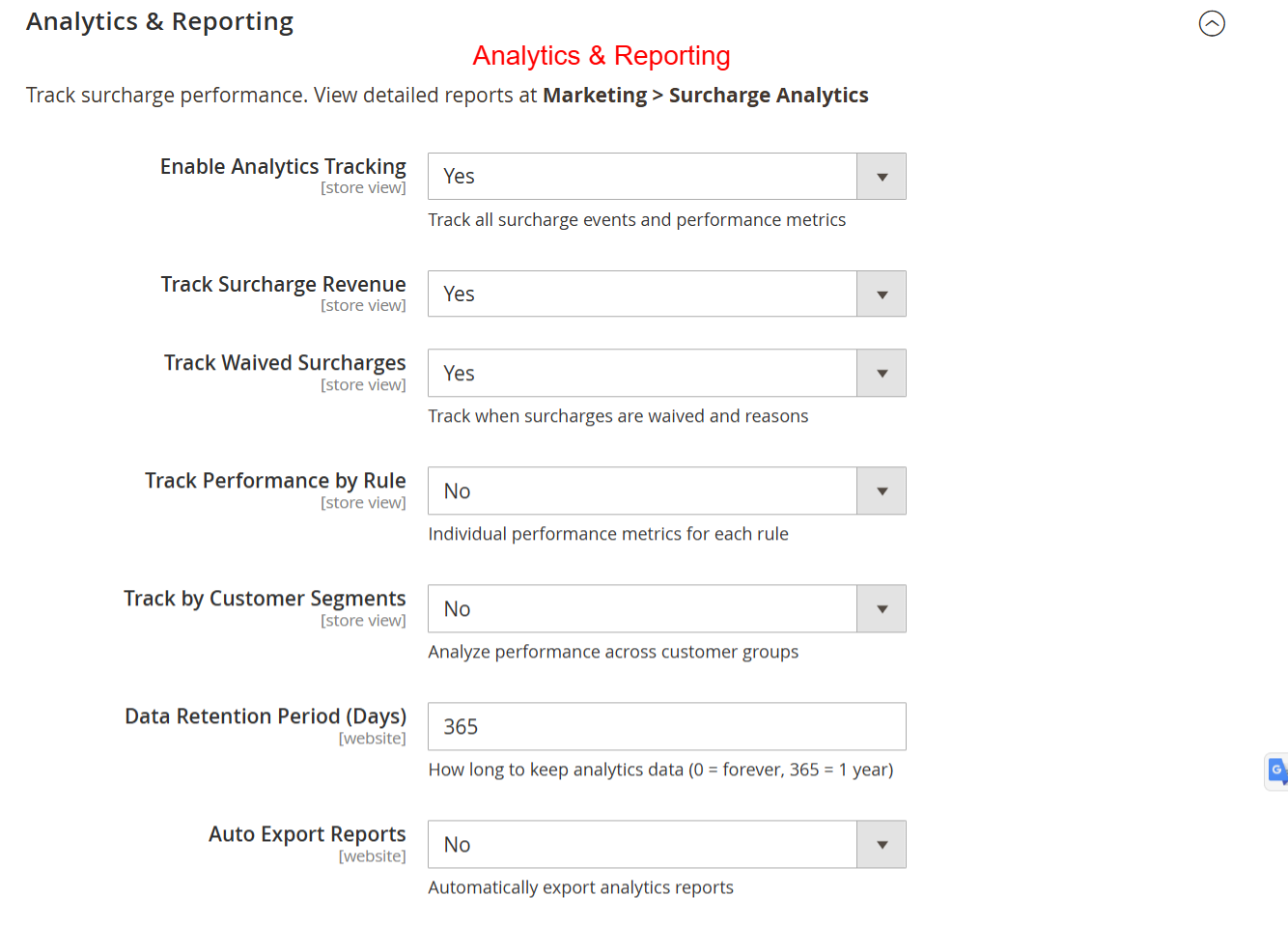
Admin: Surcharge Analytics & Reporting
What this shows: Options for enabling tracking of surcharge revenue, performance, waived surcharges, and data retention.
Enable and configure analytics to track surcharges, revenue summaries, and waive details. This helps in assessing the effectiveness of surcharge strategies and adjusting them based on comprehensive performance metrics.
Admin: Surcharge Tax Configuration
What this shows: Includes options like 'Apply Before Tax' and 'Tax Class' selection.
Set tax application rules for surcharges to ensure compliance with local tax regulations. Configuring tax settings accurately affects how surcharges are calculated and displayed in invoices and order summaries.
Admin: Surcharge Coupon Integration
What this shows: Options to configure how coupons affect surcharge calculations, such as exclusions and priority.
Manage the interplay between surcharges and coupons by setting rules on how they are applied. This helps in determining whether surcharges should persist when a coupon is applied, deeply influencing promotional strategies and customer incentives.
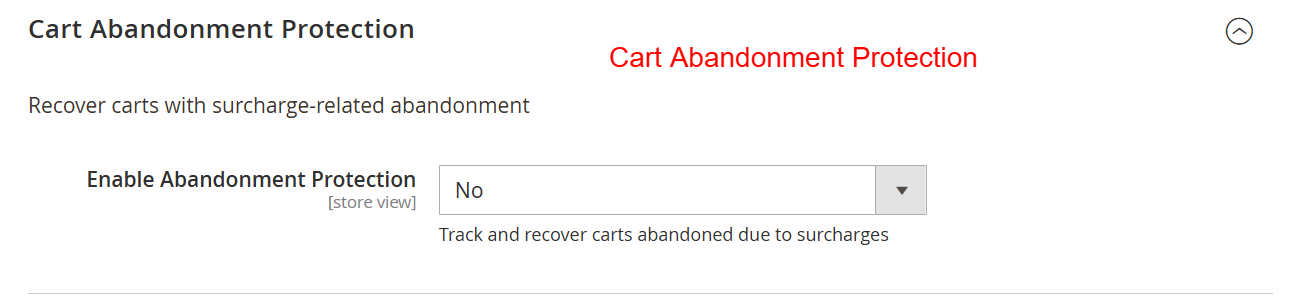
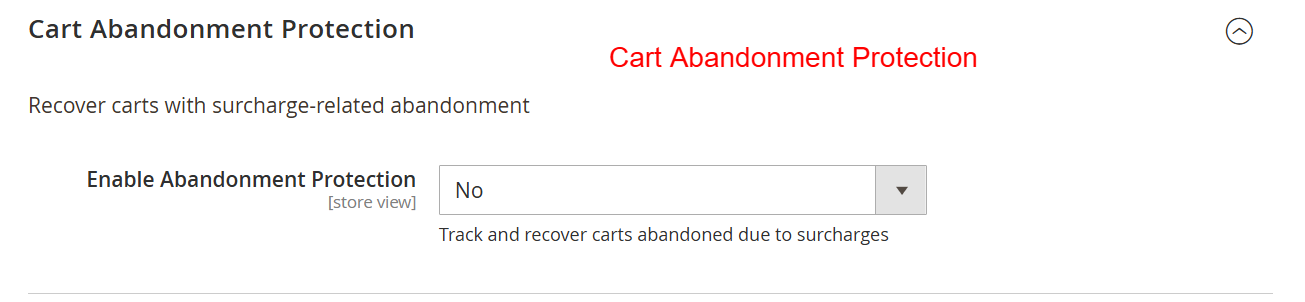
Admin: Cart Abandonment Protection Settings
What this shows: A dropdown menu to enable or disable cart abandonment protection related to surcharges.
This configuration allows administrators to toggle the cart abandonment protection feature, which aims to recover carts abandoned due to surcharge issues. Activating this feature is crucial for reducing lost sales and maintaining customer engagement.
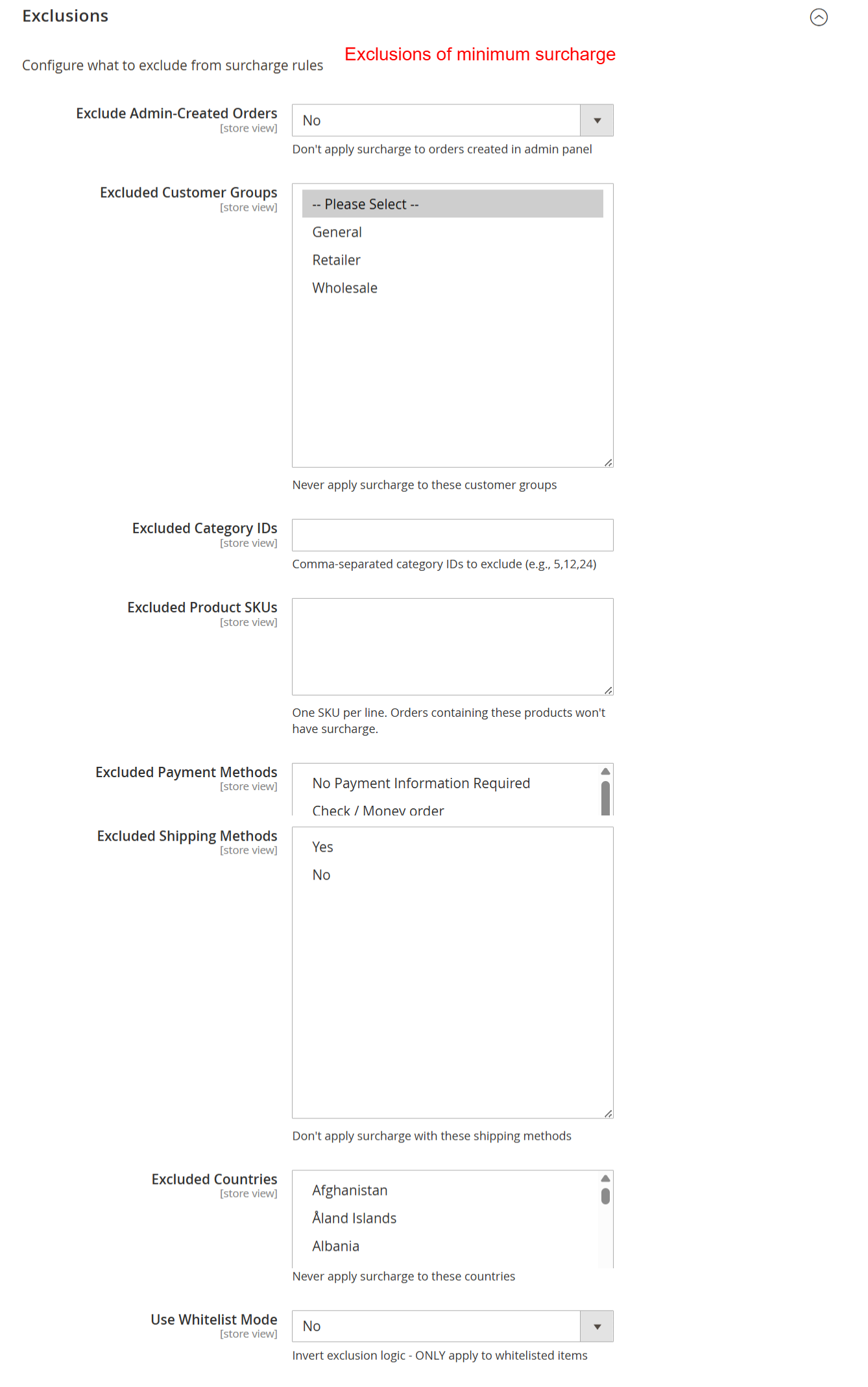
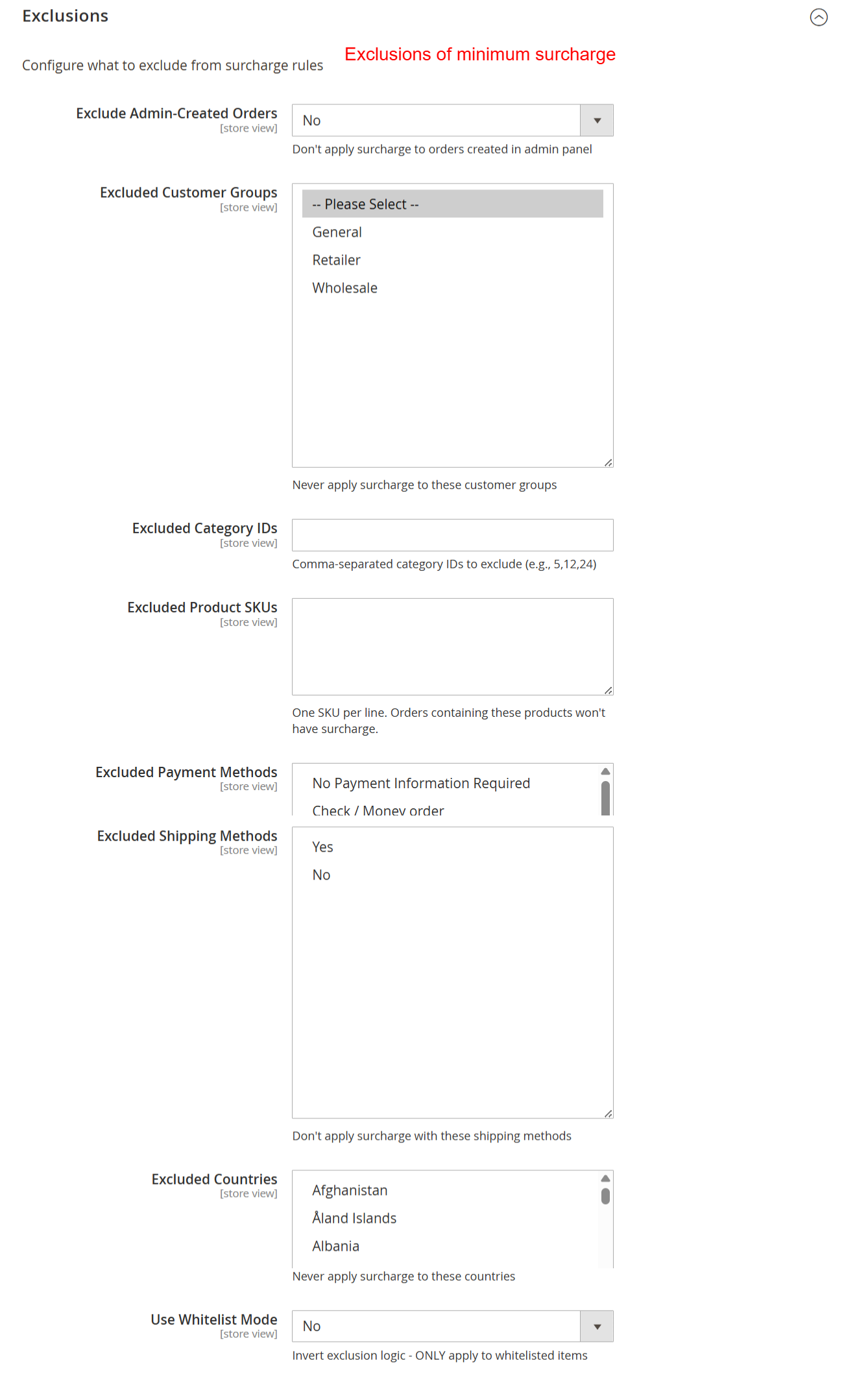
Admin: Exclusions for Minimum Surcharge
What this shows: Several options for excluding certain orders from surcharge rules, including customer groups, product SKUs, payment methods, and countries.
Administrators can configure various exclusions to customize the application of surcharge rules. By setting these exclusions, such as excluding certain customer groups or shipping methods, businesses can tailor surcharge practices to better meet customer needs and comply with business policies.
Admin: Geolocation Surcharge Settings
What this shows: Options for enabling IP-based country detection, continent-based rules, and remote area detection.
This screen allows you to configure location-based surcharge rules. By enabling IP-based country detection, retailers can apply different surcharges based on customer's geographic locations, thereby enhancing the flexibility and precision of pricing strategies.
Admin: Import/Export Surcharge Rules
What this shows: Settings for managing import modes and enabling automatic backup of rules.
Use this area to manage surcharge rules through import and export functionality. Options include merging new rules with existing ones or replacing them entirely, as well as backing up rules to prevent data loss during import processes.
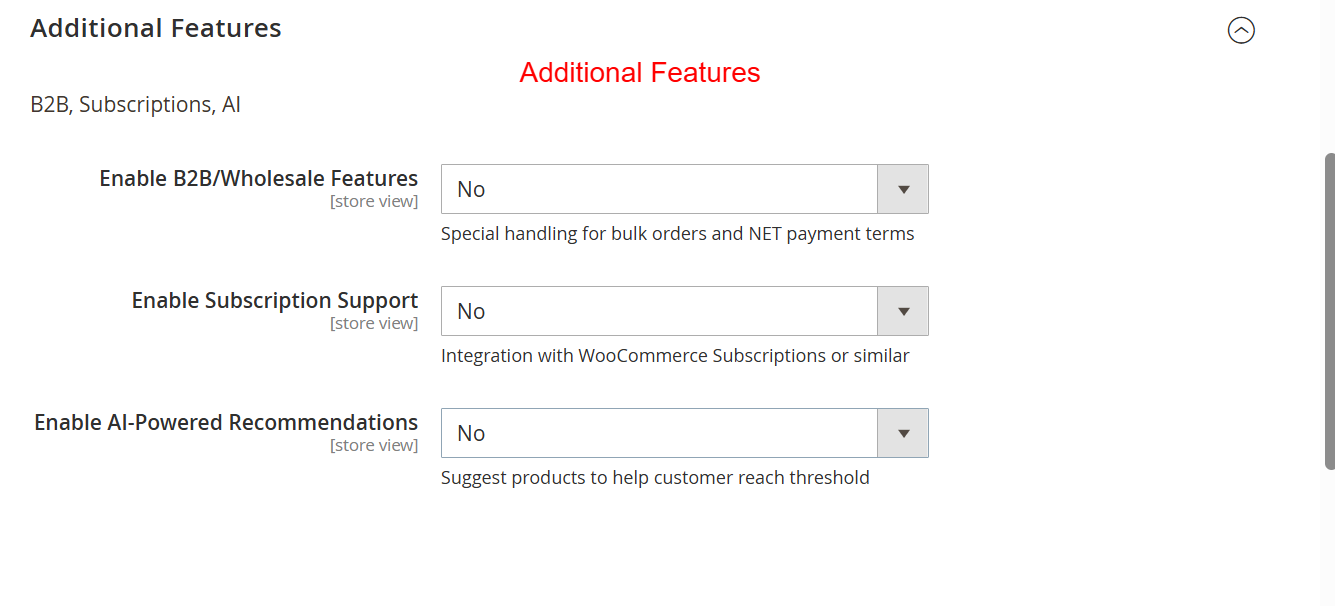
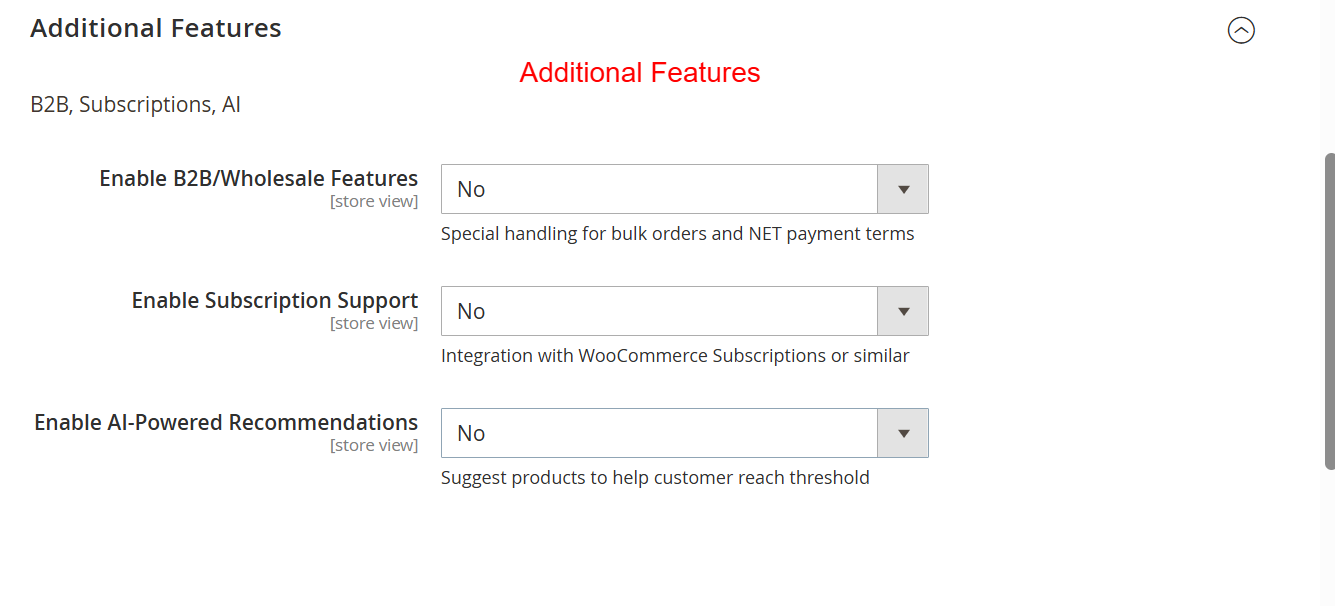
Admin: Additional Features Configuration
What this shows: Toggle switches to enable features like B2B support, subscription handling, and AI recommendations.
This section enables the activation of additional features to extend the functionality of the surcharge module. By enabling B2B features or AI-powered recommendations, businesses can cater to specific market segments and improve user experience.
Admin: Surcharge Rules Listing
What this shows: A table displaying a list of surcharge rules with options to add new rules, filter, and manage them.
This screen provides an overview of all existing surcharge rules, enabling administrators to manage and adjust them easily. Adding or modifying rules here allows for effective surcharge strategy implementation across various products and customer segments.
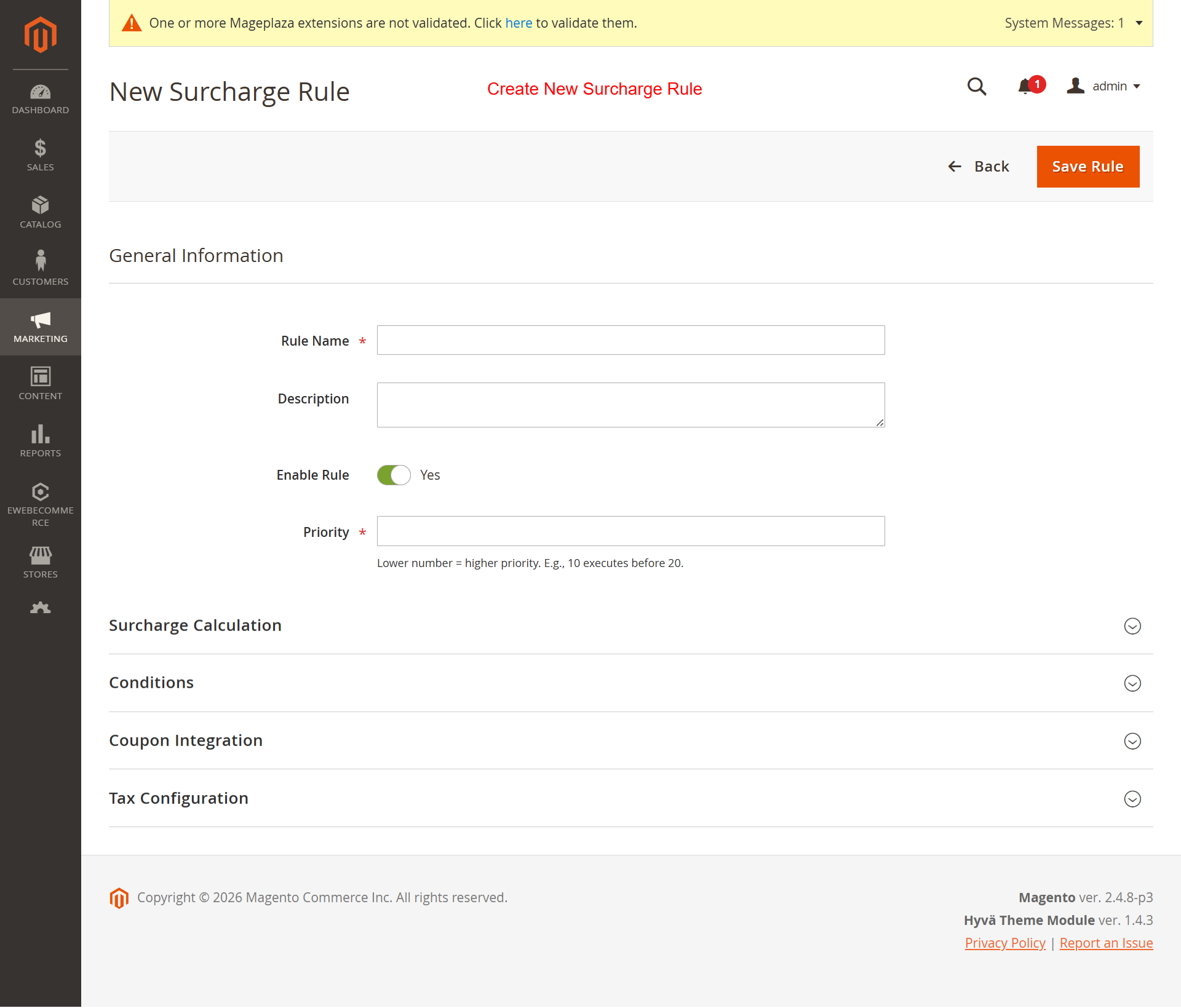
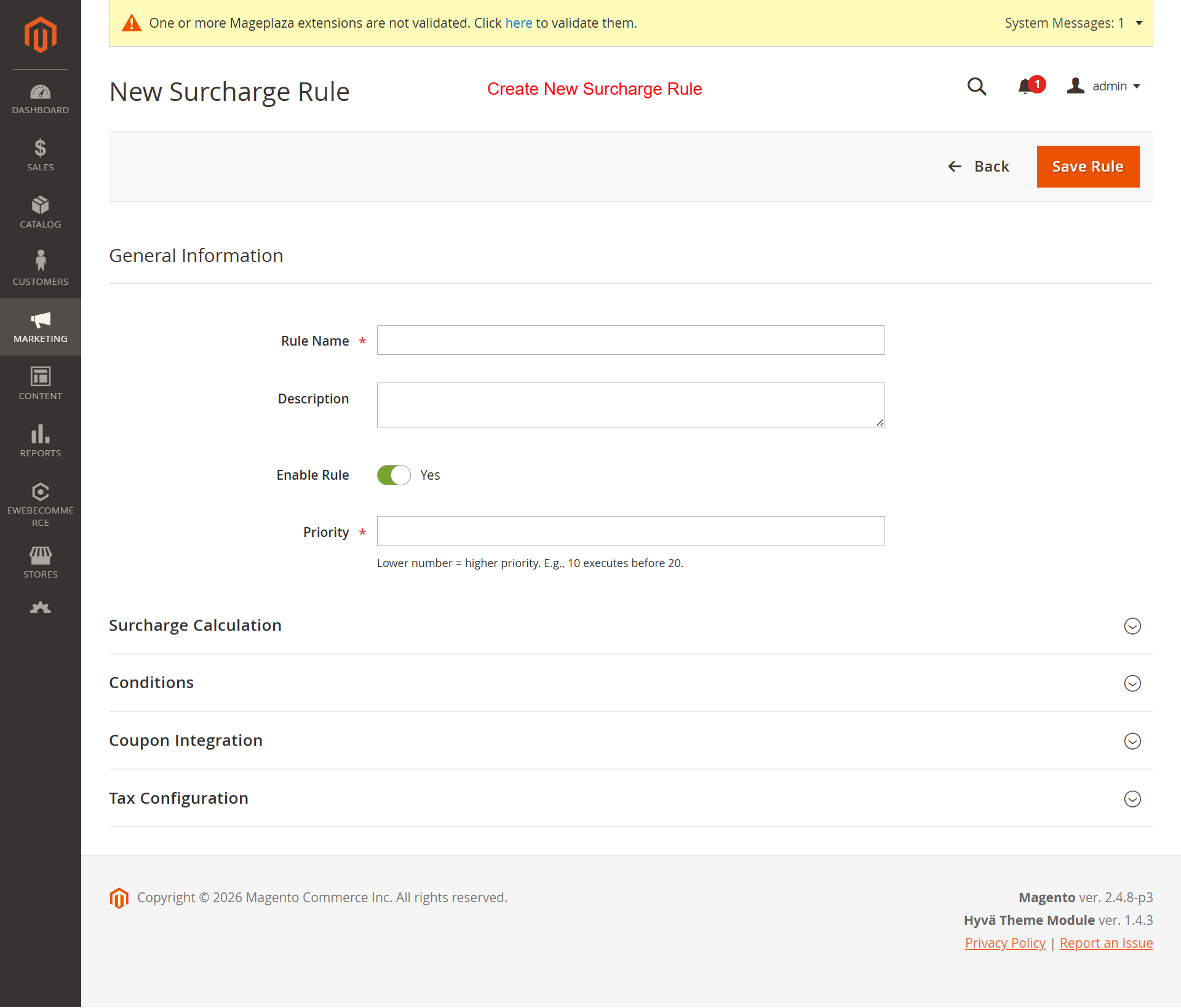
Admin: Create New Surcharge Rule
What this shows: Form fields for setting rule name, description, priority, and enabling the rule. Includes sections for surcharge calculations and conditions.
Create a new surcharge rule by filling out the necessary details and configuring specific conditions. This feature is essential for setting precise surcharge parameters that align with business policies.
Admin: Surcharge Calculation Settings
What this shows: Options for setting the calculation type, threshold amount, and input fields for fixed and percentage-based surcharges.
Define how surcharges are calculated by choosing between fixed amounts or percentage-based strategies. Specifying threshold amounts ensures that surcharges are appropriately applied, reinforcing the structure of your pricing model and enhancing revenue management.
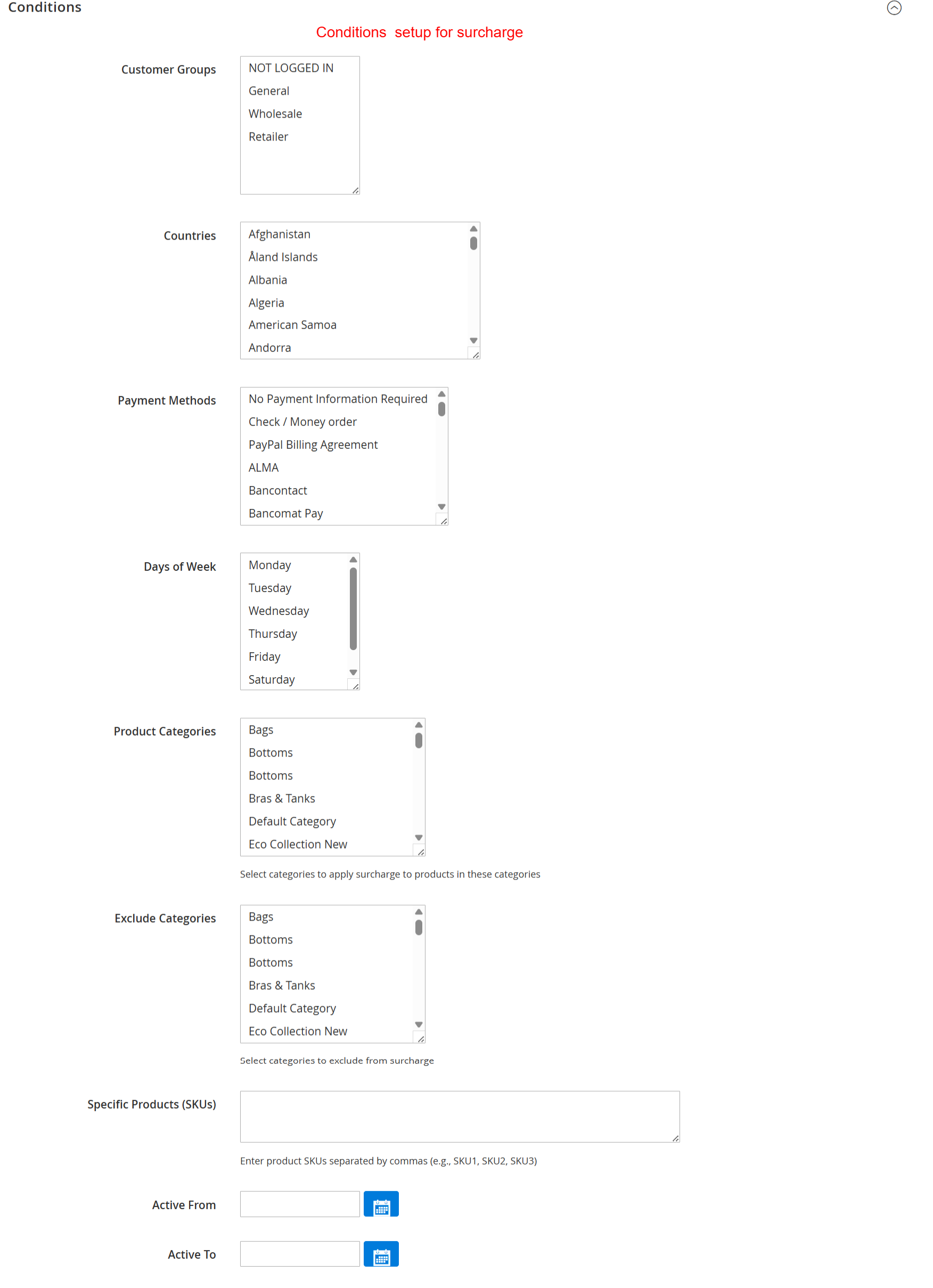
Admin: Set Conditions for Surcharge Rules
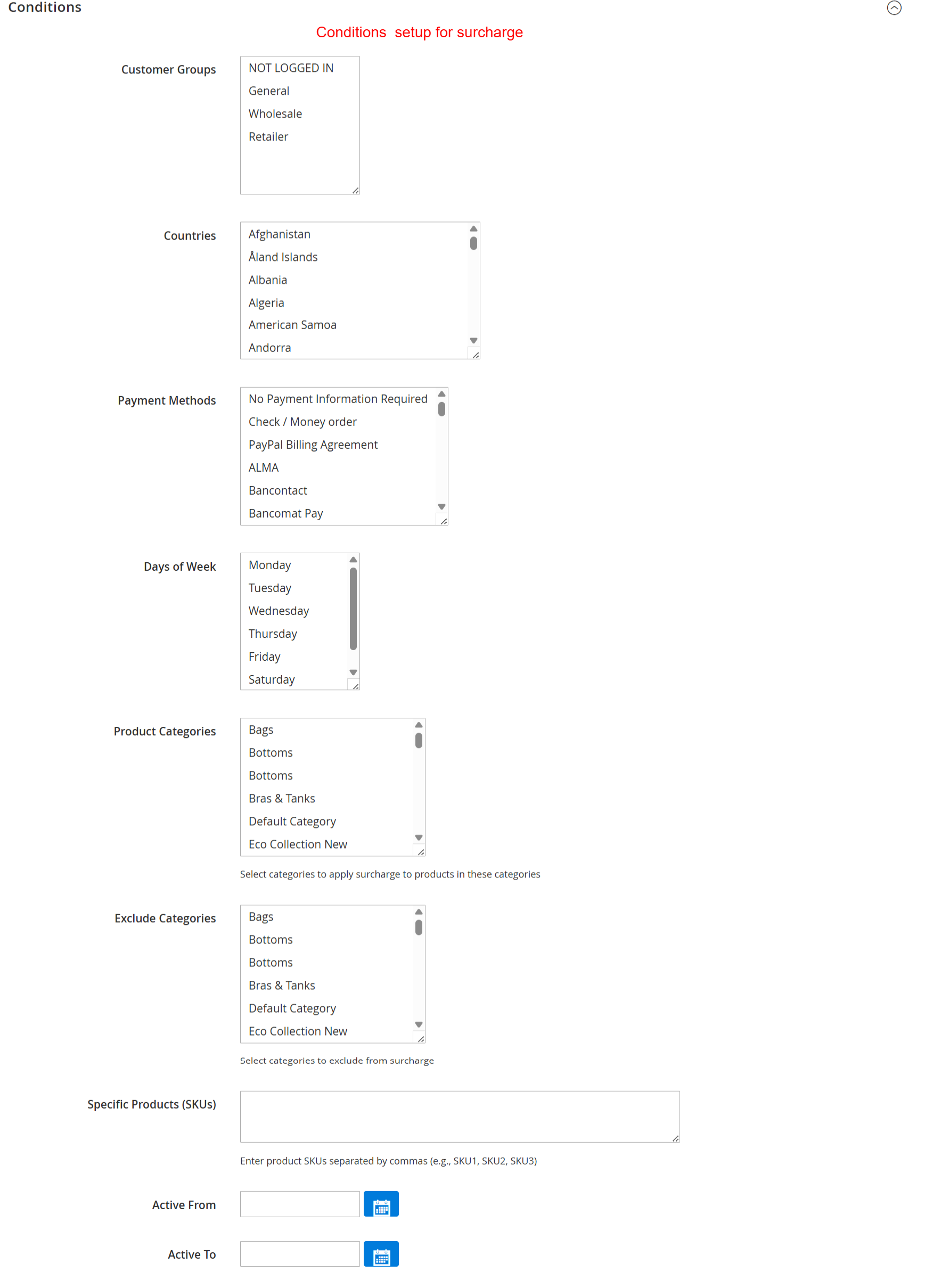
What this shows: This UI displays lists for selecting customer groups, countries, payment methods, days of the week, product categories, and exclusion categories. It also includes fields for specific product SKUs and date activation settings.
On this screen, administrators define detailed conditions under which surcharges apply. They can specify eligible customer groups, geographic regions, payment methods, and more to tailor surcharge application precisely. This step is critical for configuring rules that align with business goals while using the Ewebecommerce_MinOrderSurcharge extension.
Admin: Configure Coupon and Surcharge Interaction
What this shows: The screen features a dropdown for 'Coupon Behavior' and a textarea for entering 'Specific Coupon Codes'.
Administrators use this screen to determine how coupons interact with surcharges. They select behavior from options like 'None', which disregards coupons, or specify coupon codes that might exempt certain conditions. This configuration allows businesses to maintain promotional flexibility alongside surcharge policies.
Admin: Surcharge Tax Settings
What this shows: Includes a toggle switch for 'Apply Before Tax' and a dropdown for selecting 'Tax Class'.
This screen allows administrators to define whether the surcharge is applied before taxes and to associate a tax class if needed. Correct tax configuration is essential for legal compliance and accurate financial reporting, ensuring the surcharge integrates smoothly with fiscal policies.
Frontend: Luma Theme Cart Surcharge Display
What this shows: Shows a shopping cart page with a progress bar indicating surcharge avoidance threshold. The summary displays a 'Minimum Order Surcharge'.
Customers using the Luma theme are guided visually on meeting minimum order thresholds to avoid surcharges. This screen shows real-time updates in the cart, helping them understand how close they are to achieving the goal, thus promoting higher order values and customer engagement.
Frontend: Luma Theme Checkout Surcharge Summary
What this shows: Displays 'Minimum Order Surcharge' amount within the order summary during the checkout process.
While reviewing the order, customers see any applicable surcharges clearly itemized in their order summary. This transparency during checkout reinforces trust and aids in maintaining clear communication about additional fees, thus minimizing cart abandonment rates.
Frontend: Hyvä Theme Cart Surcharge Details
What this shows: A cart page with surcharge information displayed in a summary box, featuring a progress bar towards surcharge avoidance.
In the Hyvä theme, shoppers can identify surcharge conditions directly from their shopping cart, enhanced by an interactive progress bar that encourages additional purchases. This feature supports user purchase satisfaction and increased order values by motivating customers to adjust cart contents appropriately.
Frontend: Hyvä Theme Minicart Surcharge Overview
What this shows: The minicart displays itemized order contents including the 'Minimum Order Surcharge'.
Shoppers see a summary of surcharges in the Hyvä Theme's minicart feature, providing a quick glance at additional charges. This interface aids swift decision-making and increases transparency, contributing to an improved shopping experience.
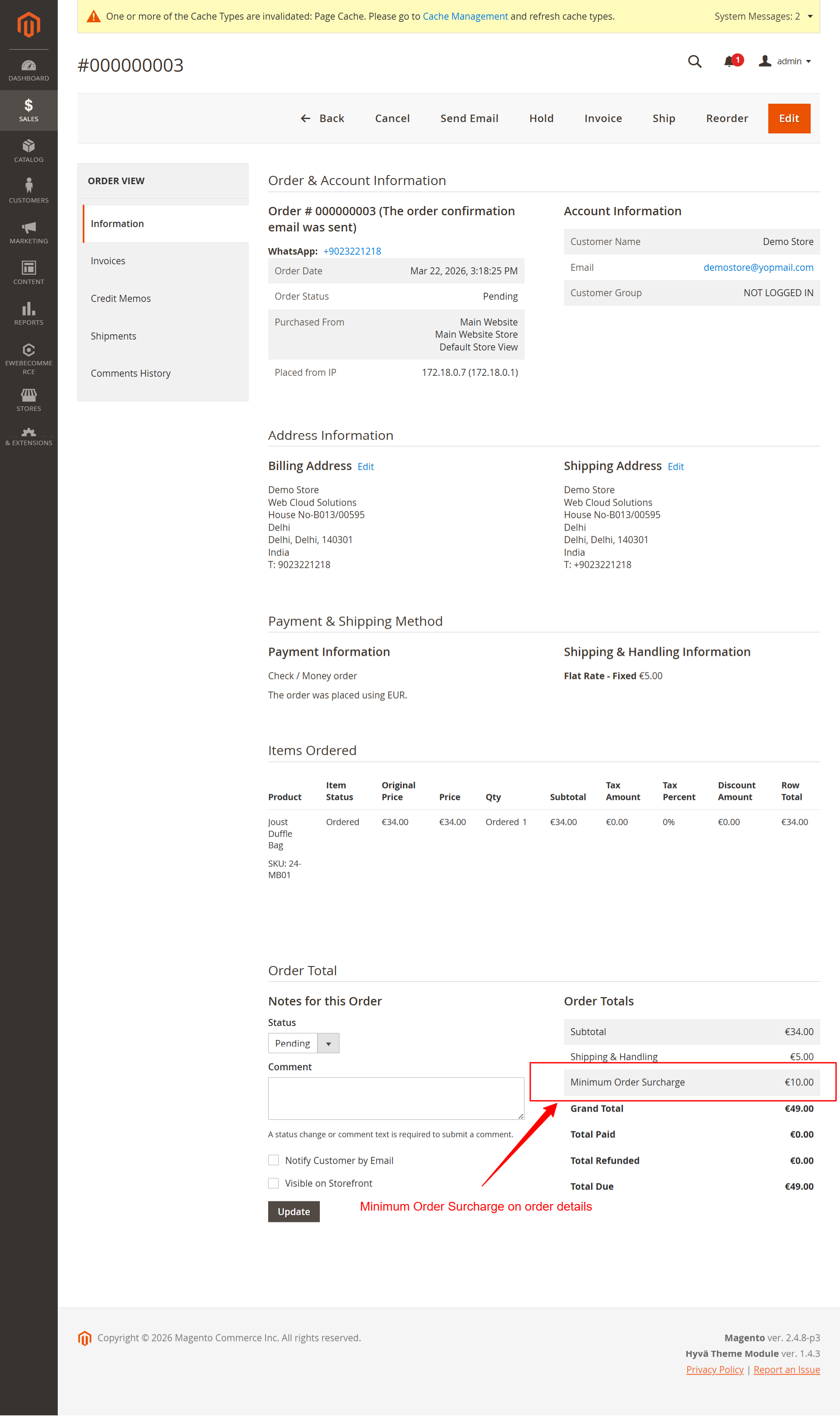
Admin: Review Order Details with Surcharge
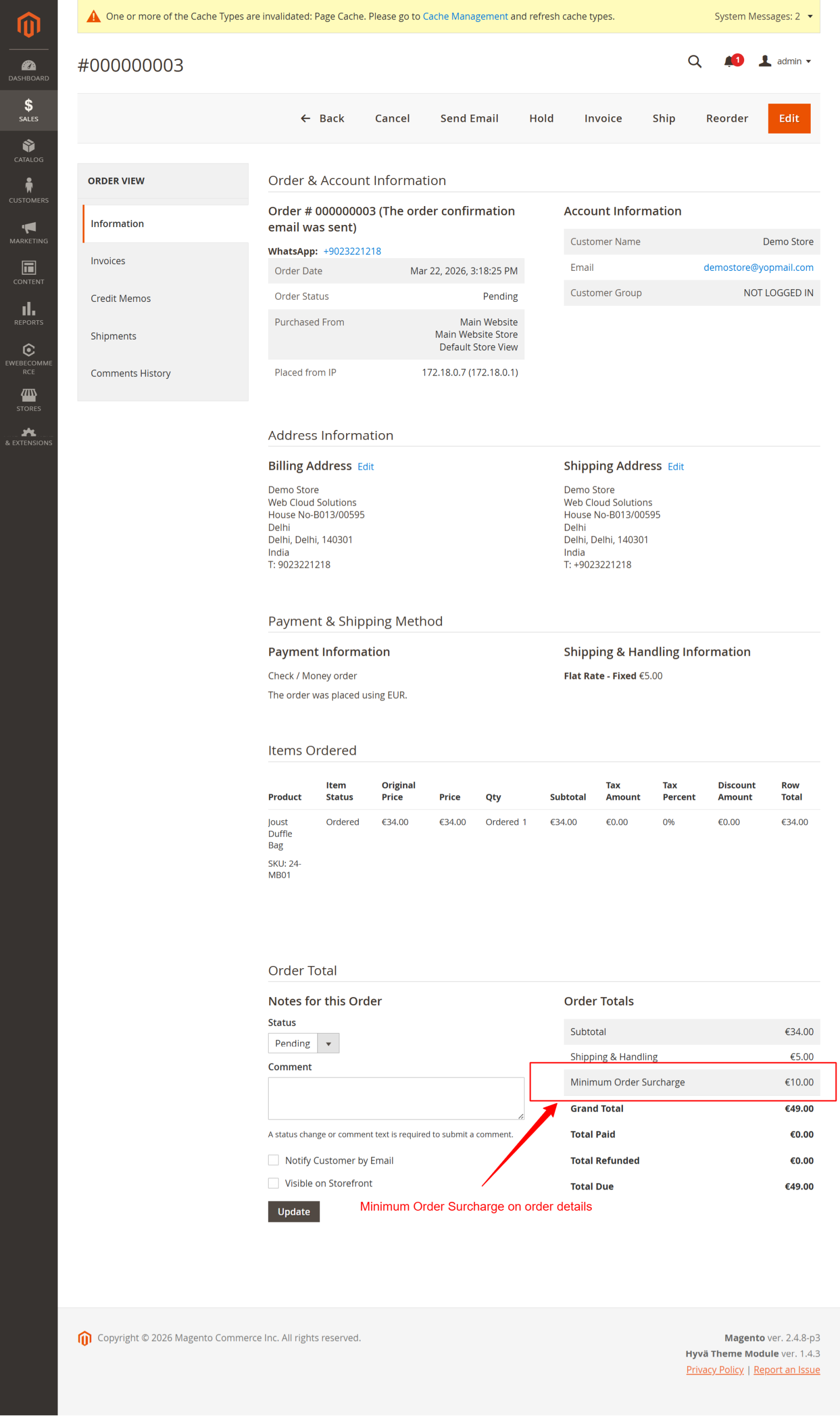
What this shows: Order details page highlighting a 'Minimum Order Surcharge' line item within the order totals section.
Administrative staff can review complete order details including applied surcharges. This screen assists in post-purchase validation and handling customer service queries regarding surcharge applications, ensuring transactions adhere to configured rules.
Admin: Invoice Details with Surcharge
What this shows: The invoice details screen displays order and account information, including billing and shipping addresses. It features product information with prices, quantities, and total costs, along with a section showing the 'Minimum Order Surcharge' before the 'Grand Total'.
This screen allows the admin to review detailed information about a customer's invoice, including the recently added 'Minimum Order Surcharge'. Users can verify the surcharge is applied correctly, ensuring compliance with the store's pricing rules. It is critical to confirm that all charges are accurate before submitting the invoice.
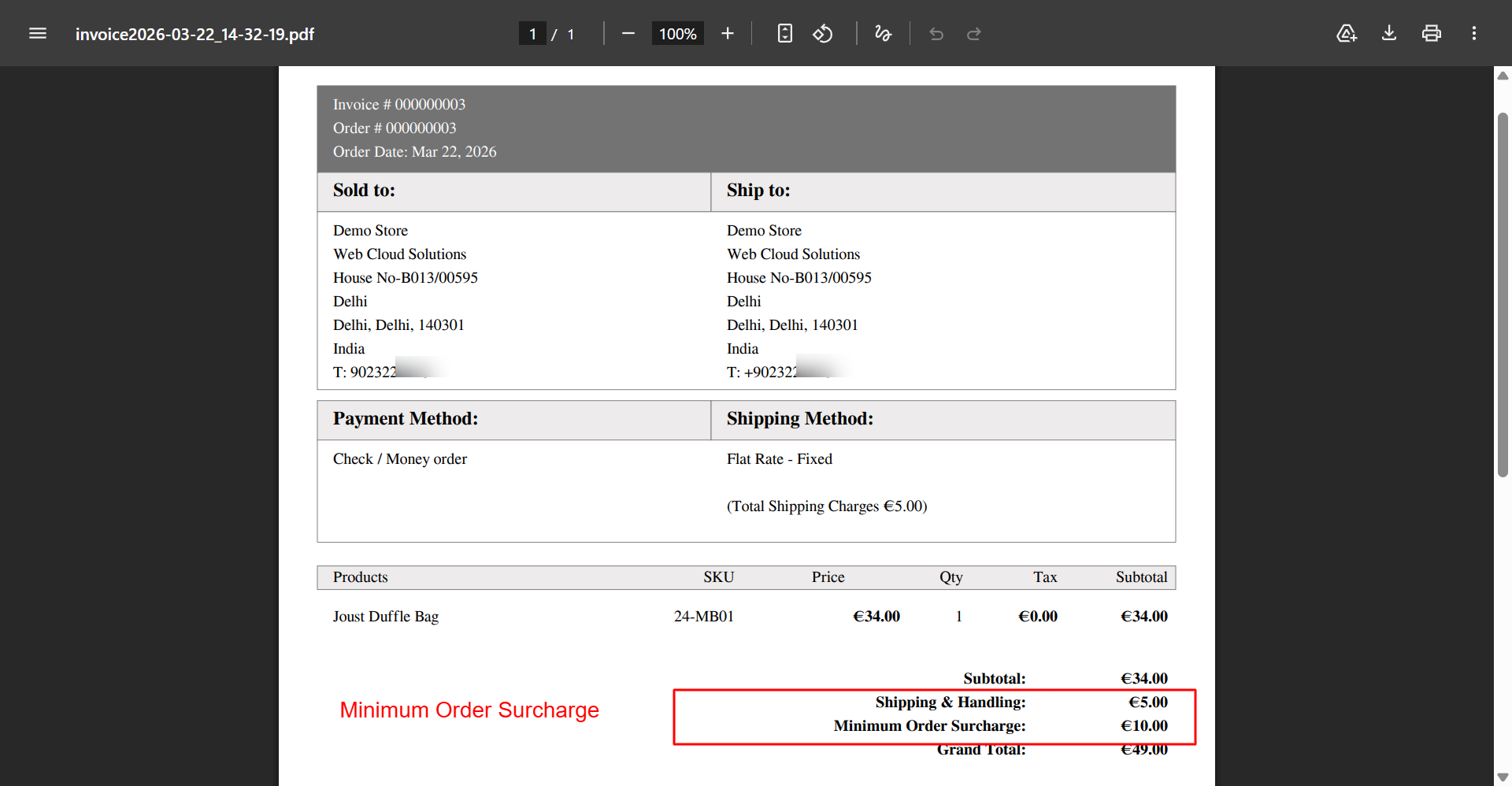
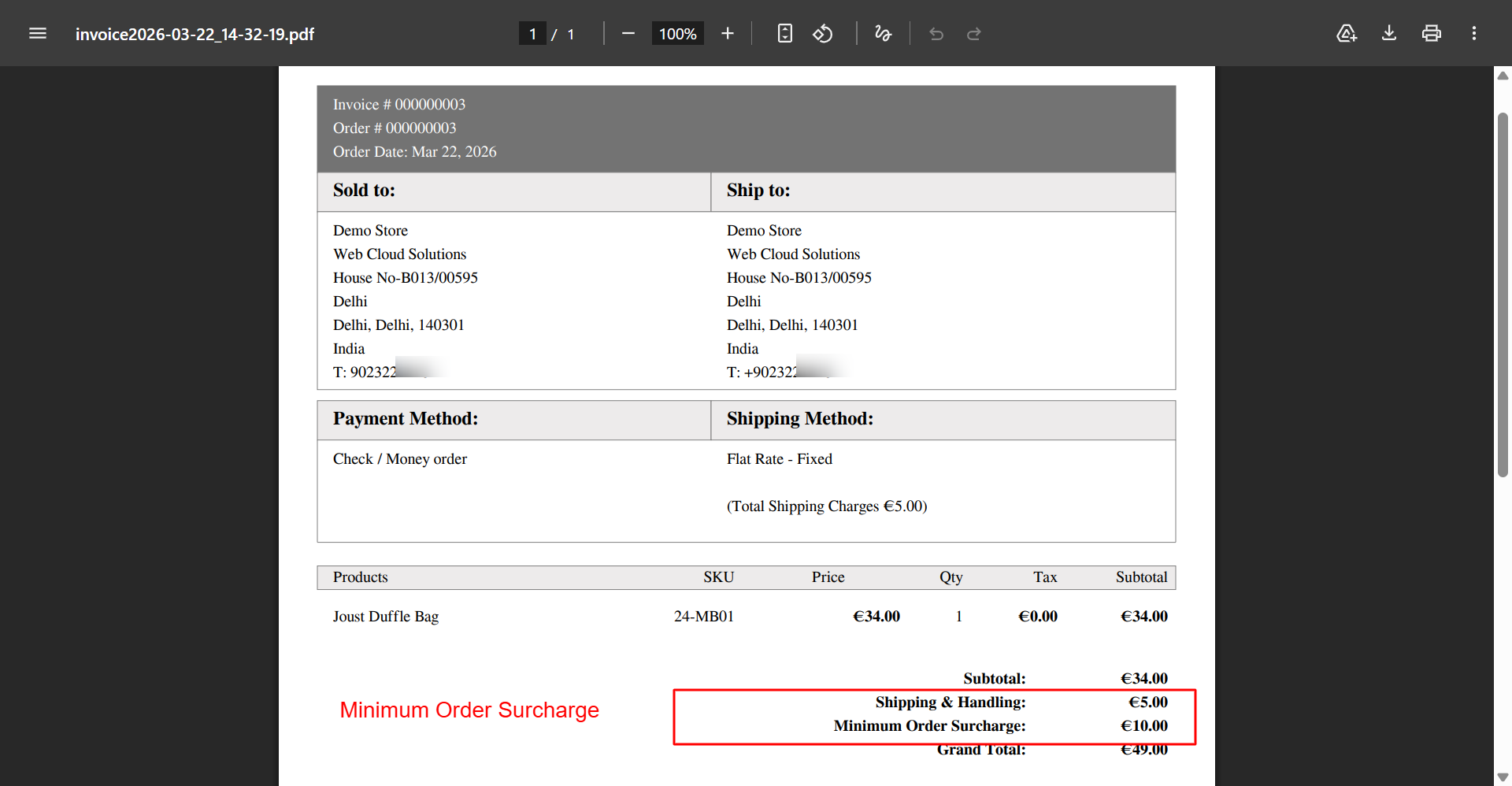
Admin: PDF Invoice Showing Surcharge
What this shows: A PDF representation of an invoice document, showcasing order details such as the sold-to and ship-to information. The invoice lists payment and shipping methods, product details, and prominently displays the 'Minimum Order Surcharge'.
The PDF invoice acts as a formal document that contains all relevant order details including the 'Minimum Order Surcharge'. Ensuring this surcharge appears correctly on the PDF ensures transparency and fairness in customer transactions. This step is critical for maintaining accurate records for both the business and the customer.
Admin: Surcharge Analytics Dashboard
What this shows: The dashboard presents analytics for surcharge-related metrics including 'Total Surcharge Revenue', 'Orders with Surcharge', and 'Average Surcharge'. It offers options to 'Export as CSV' and 'Export as PDF'.
This Surcharge Analytics Dashboard provides an overview of surcharge performance metrics. Admins can quickly assess the financial impact of surcharges, track trends, and adjust strategies accordingly. The export functions enable data continuity and further analysis, facilitating informed decision-making.



Reviews
There are no reviews yet.