
1 Overview
Advanced surcharge management for WooCommerce with rule customization and detailed analytics.
WooCommerce Minimum Order Surcharge PRO is the comprehensive solution for managing advanced surcharges in your online store. With this powerful plugin, you can create unlimited surcharge rules that leverage advanced conditions to meet the unique needs of your business. An integrated analytics dashboard provides real-time insights, empowering you to enhance order values while managing processing costs effectively.
Experience the flexibility to target specific customer groups, products, and regions with customized surcharges. Whether you manage a single store or multiple stores, this plugin supports multi-currency operations and offers detailed reporting, including daily, weekly, and monthly breakdowns. These features, combined with an intuitive interface, make the plugin invaluable for eCommerce success.
At a Glance
- Unlimited surcharge rules
- Fixed, percentage, or combined surcharges
- Advanced conditions for rules
- Multi-currency support
- Real-time analytics and reports
- Easy rule scheduling and execution
- Priority rule execution
- Rule performance analysis
| Plugin | Minimum Order Surcharge Pro for WooCommerce |
|---|---|
| Version | 2.0.0 |
| Author | Webcloud Solutions |
| License | GPLv2 or later |
| WooCommerce | Compatible |
| Files | 59 total (19 PHP) |
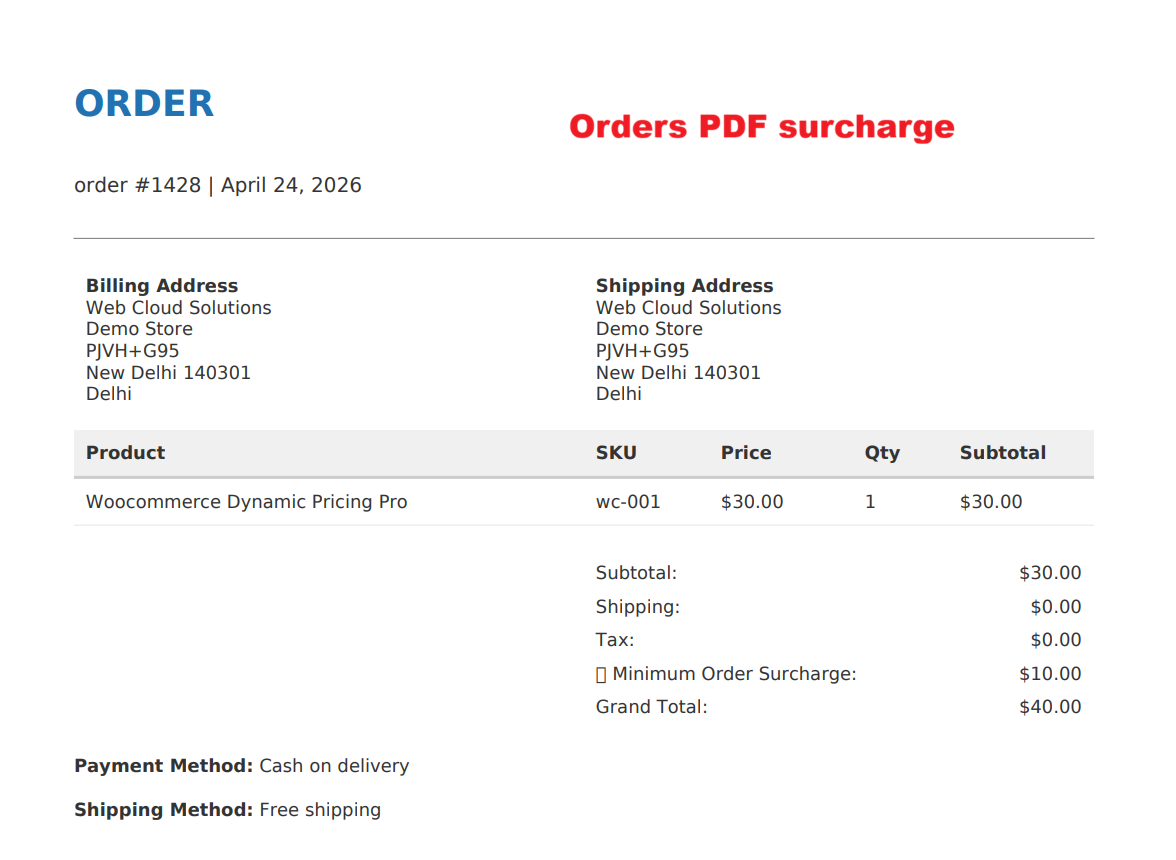
This document provides both customers and store managers with an overview of the order, including precise surcharge details. The inclusion of 'Minimum Order Surcharge' shows how store rules affect pricing, vital for audit trails and customer service inquiries.
2 Features
Create unlimited surcharge rules
Fixed amount, percentage, or combined surcharges
Set priority for rule execution
Schedule rules with start/end dates
User Roles: Target customer groups
Product Categories: Apply to specific products
Shipping Zones: Location-based surcharges
Payment Methods: COD fees, gateway charges
Time-Based: Weekend/holiday surcharges
Multi-Store Support: Different rules per store
Real-time revenue tracking
Rule performance analysis
Beautiful charts and graphs
Date range filtering
Export analytical data to CSV/PDF
Daily/Weekly/Monthly reports
Customer behavior insights
General settings: Thresholds, tax, rounding
Notification settings: Cart and checkout messages
Display settings: Surcharge info locations and styles
Advanced settings: Multi-currency, debug mode, data handling
License activation for updates and support
User role targeting: Guests, registered, VIPs
Customer group target options
Cart composition rules: Items, weight, volume
Coupon integration: Conditional discounts
Order complexity considerations
Multi-currency support: WOOCS, WPML integration
Custom notifications and progress bars
Import/export rule functionality
White-label ready design
Extensive hooks and REST API support
Advanced Surcharge Rules
Define surcharge rules with precision and flexibility.
- Create unlimited surcharge rules
- Fixed amount, percentage, or combined surcharges
- Set priority for rule execution
- Schedule rules with start/end dates
- User Roles: Target customer groups
- Product Categories: Apply to specific products
- Shipping Zones: Location-based surcharges
- Payment Methods: COD fees, gateway charges
- Time-Based: Weekend/holiday surcharges
- Multi-Store Support: Different rules per store
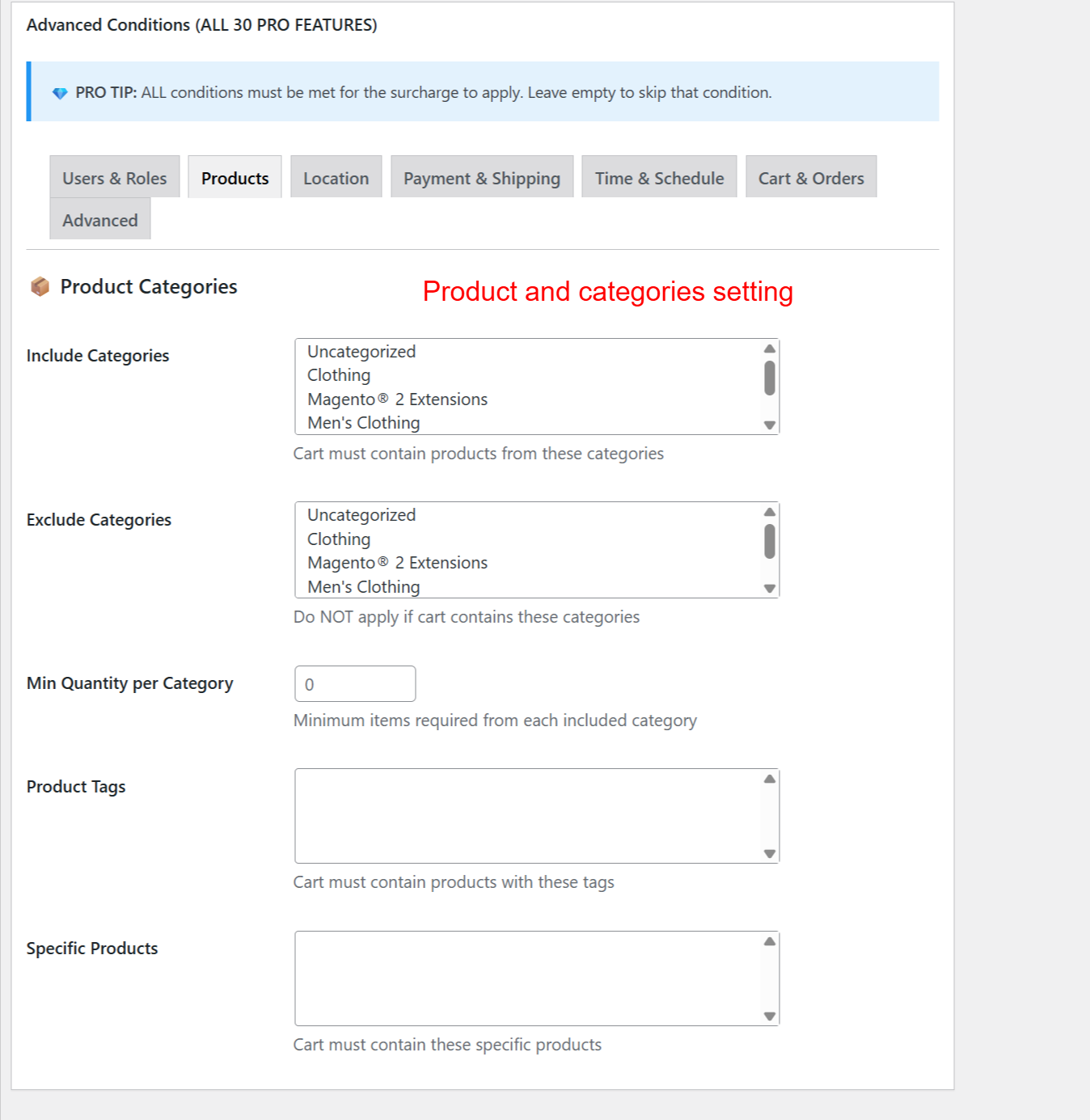
This screen lets you apply surcharge rules based on product categories, tags, or specific products. By correctly setting these conditions, you ensure that the surcharge is applied only to certain product groups, providing a granular level of discount management.
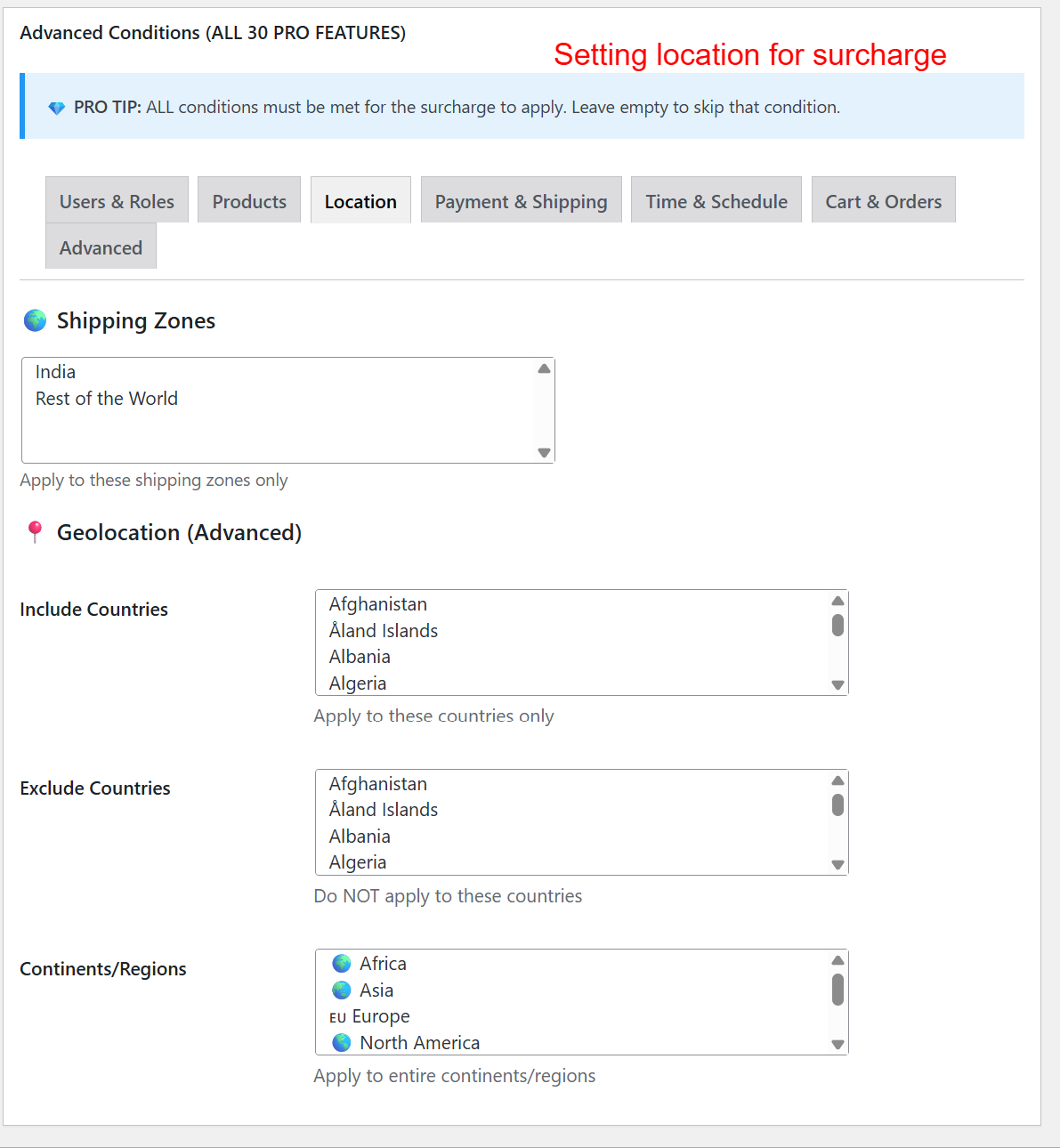
Location-based settings allow you to enforce surcharges based on geographical areas. By selecting specific shipping zones or countries, you can strategize where surcharges are applied, helping manage shipping costs globally or locally as needed.
Analytics & Reporting
Gain insights and track the performance of surcharge rules.
- Real-time revenue tracking
- Rule performance analysis
- Beautiful charts and graphs
- Date range filtering
- Export analytical data to CSV/PDF
- Daily/Weekly/Monthly reports
- Customer behavior insights
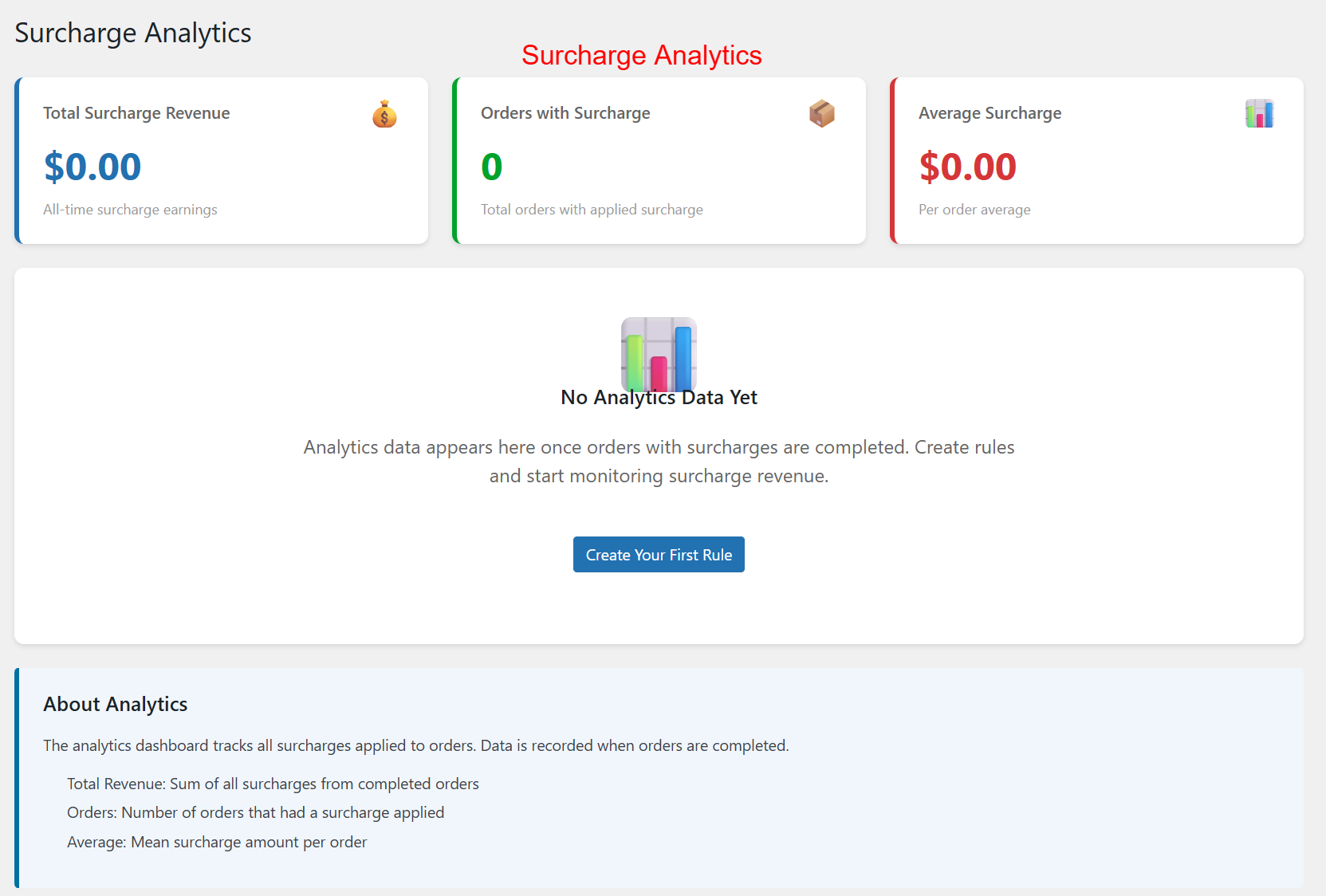
Through this dashboard, administrators can monitor the impact of surcharges on revenue. The analytics provide insights into the effectiveness of pricing strategies and help identify opportunities for optimization. The data presented helps in strategic planning by assessing surcharge performance over time.
Configuration and Customization
Set up and customize environments to fit your store's specific needs.
- General settings: Thresholds, tax, rounding
- Notification settings: Cart and checkout messages
- Display settings: Surcharge info locations and styles
- Advanced settings: Multi-currency, debug mode, data handling
- License activation for updates and support
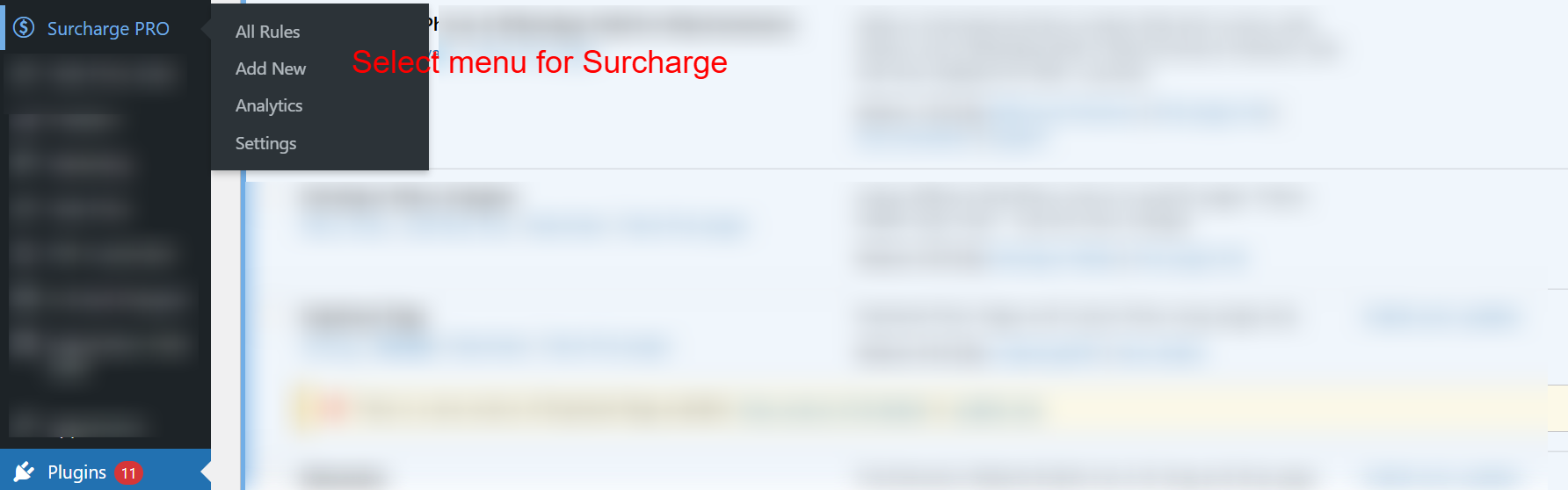
This navigation menu allows administrators to access various plugin features. 'All Rules' lists existing surcharge rules, 'Add New' lets you create a new rule, 'Analytics' provides insights, and 'Settings' allows configuration tweaks. Efficient navigation through these options is essential for setting up and managing surcharges effectively.
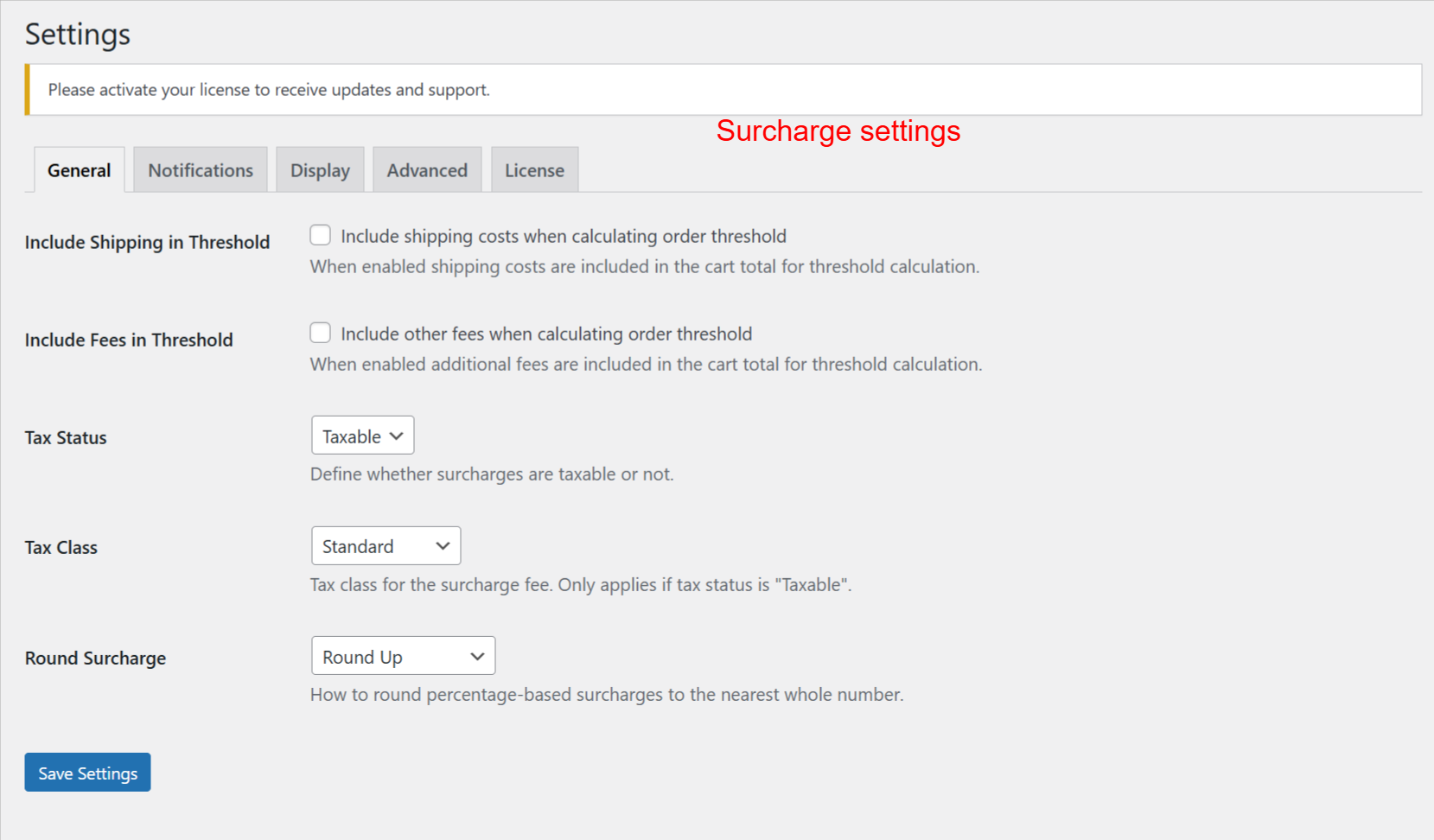
This settings screen allows administrators to configure general parameters for surcharges, including whether shipping or additional fees are considered in the threshold. Options for tax treatment and rounding also ensure that surcharges are applied correctly. Configuring these settings is critical for accurate surcharge calculations.
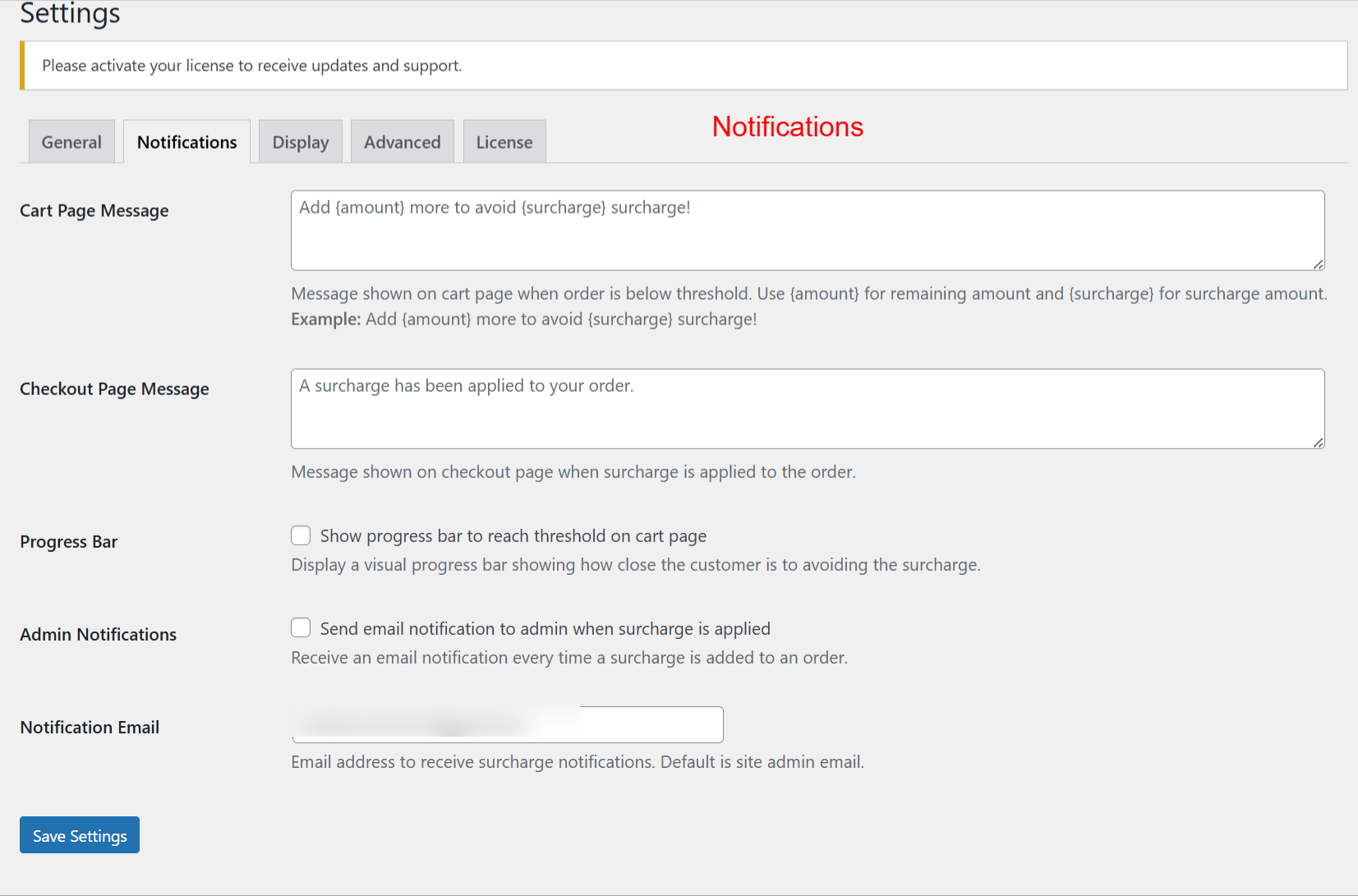
Administrators use this screen to customize messaging related to surcharges. Customizing the cart and checkout messages helps inform customers about surcharge conditions and adjustments. Enhanced communication through notifications can improve customer understanding of surcharges applied to their orders.
User-Specific & Cart-Based Configurations
Tailor your surcharges based on user roles and cart specifications.
- User role targeting: Guests, registered, VIPs
- Customer group target options
- Cart composition rules: Items, weight, volume
- Coupon integration: Conditional discounts
- Order complexity considerations
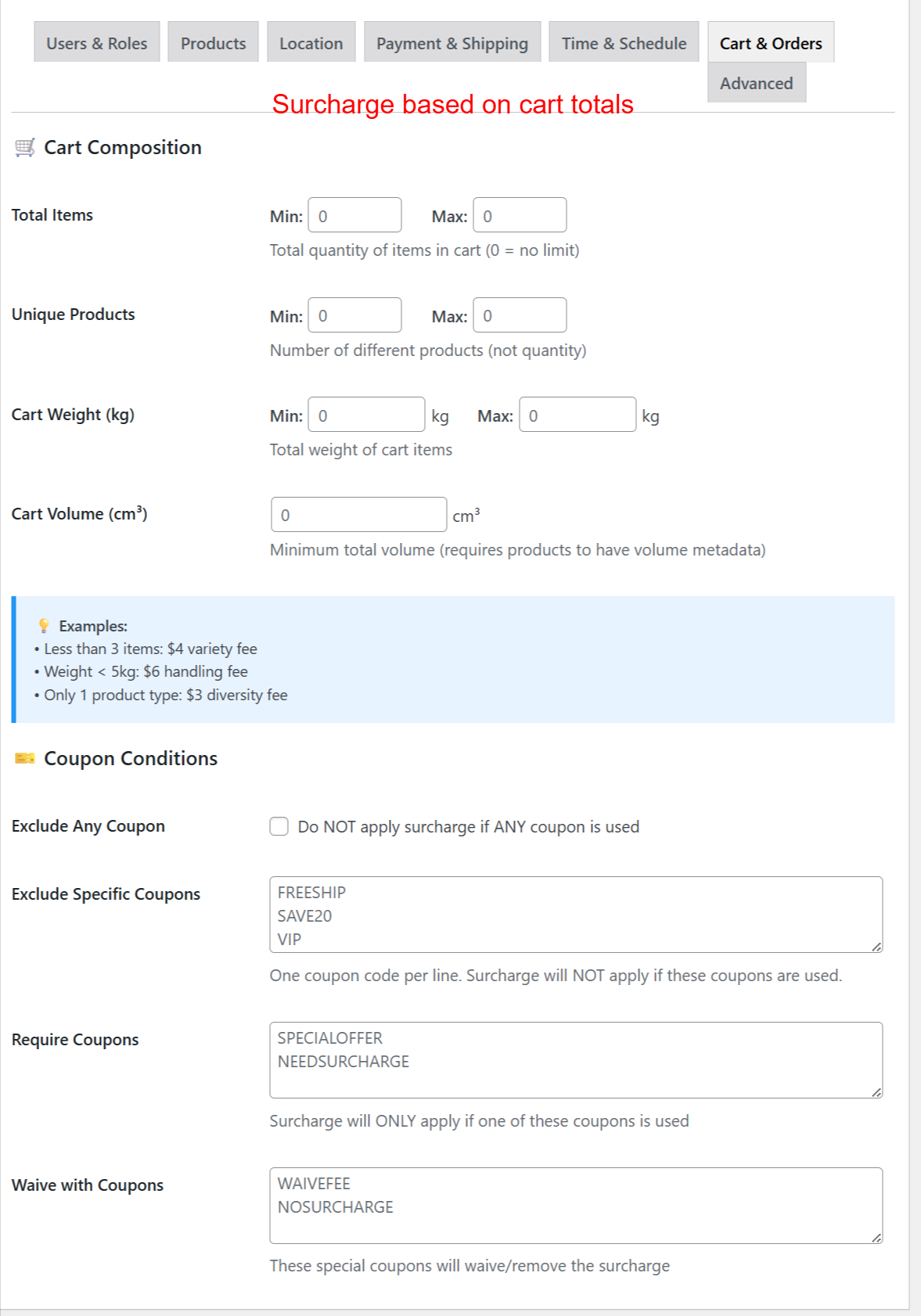
In this screen, you set parameters for triggering surcharges based on cart composition, such as the total number of items or the combined weight. Administrators can also specify exceptions using coupon conditions to ensure certain discounts override the surcharge. These settings allow precise control over when and how surcharges are applied based on cart characteristics, essential for tailored pricing strategies.
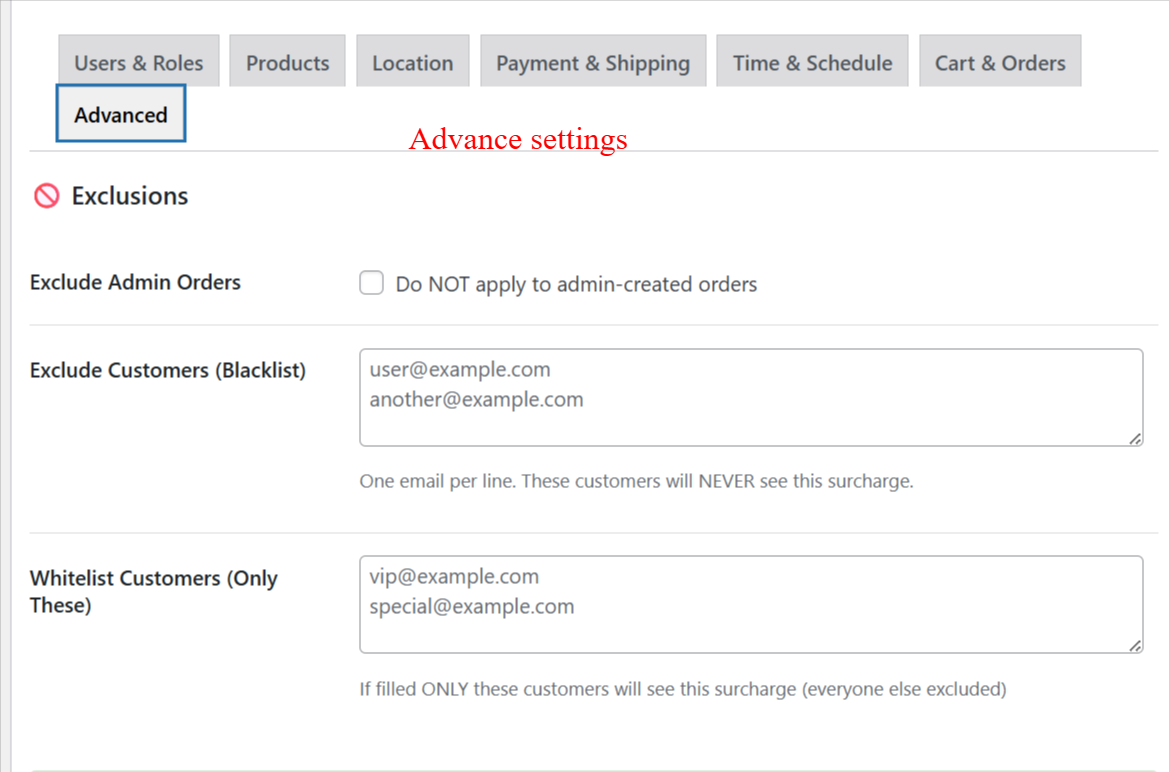
This screen allows admins to define exclusions for surcharges, preventing charges on admin-generated orders and specifying customers who will never or always see the surcharge. These exclusions can be critical for maintaining customer satisfaction and operational flexibility, particularly for loyalty programs or specific customer agreements.
Professional Features & Extensibility
Extend capabilities with professional-tier features and developer-friendly tools.
- Multi-currency support: WOOCS, WPML integration
- Custom notifications and progress bars
- Import/export rule functionality
- White-label ready design
- Extensive hooks and REST API support
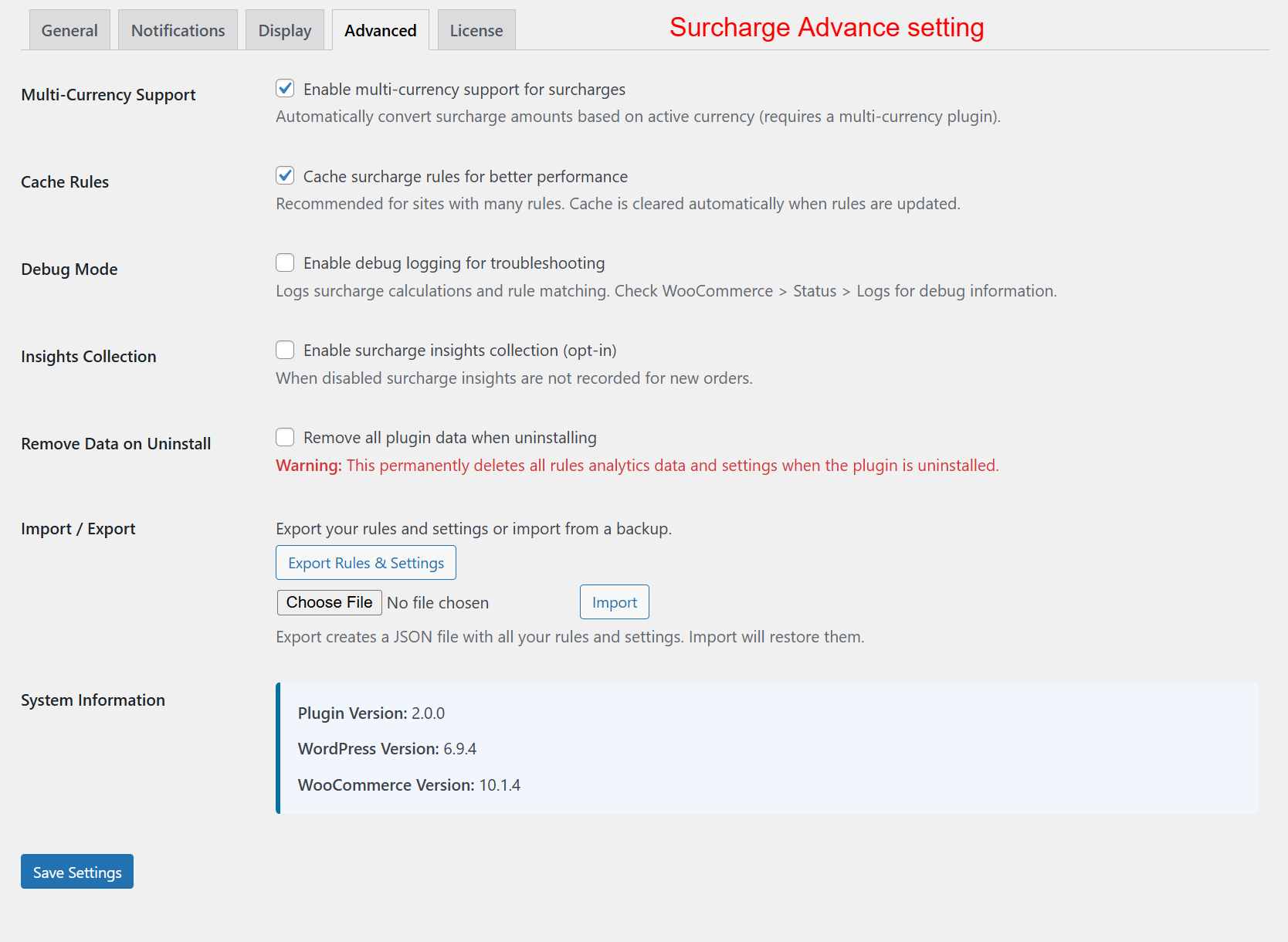
Utilize these advanced settings to optimize the plugin's performance. Enable multi-currency support, manage data efficiency with caching, and safeguard your installation's integrity with import/export features. These settings help tailor the plugin's capabilities to meet complex business needs.
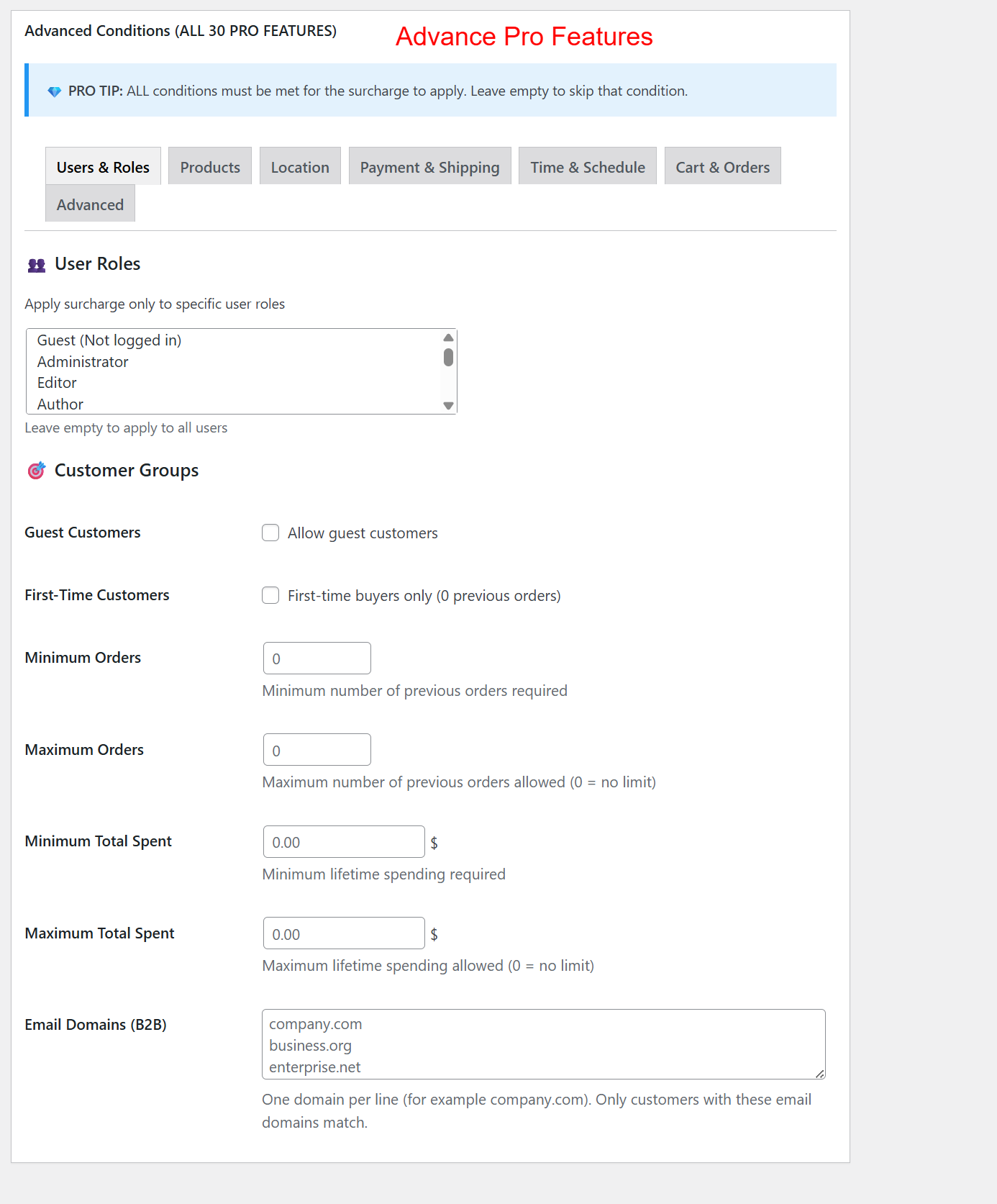
Here, you can customize surcharges for specific user roles and customer groups. By configuring these options, you can apply different surcharges based on user type, order history, or spending habits, allowing you to tailor pricing strategies to customer segments.
3 Configuration Walkthrough
Activate the Plugin
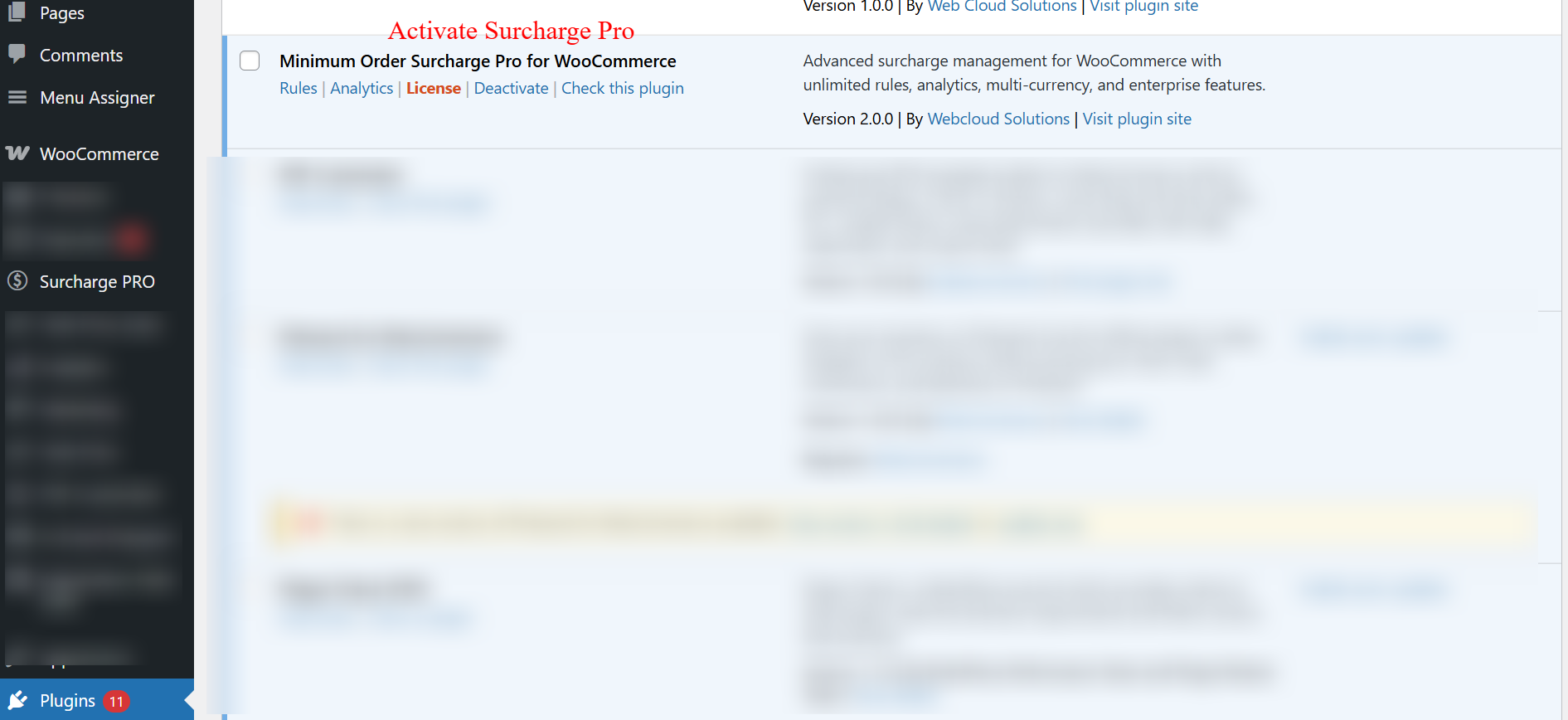
You can activate the plugin via the WordPress admin panel by navigating to Plugins > Installed Plugins > Minimum Order Surcharge Pro for WooCommerce. Click 'Activate' to enable the plugin.

On this screen, administrators can view the current status of the 'Minimum Order Surcharge Pro for WooCommerce' plugin. It highlights essential actions like activating the plugin to unlock its potential for managing advanced surcharges. Activating the plugin is crucial for access to unlimited rules, analytics, and other enterprise features.
Activate License Key
After installation, navigate to Surcharge PRO > Settings > License to enter your license key. Activation of the license is necessary to get plugin updates and premium support.
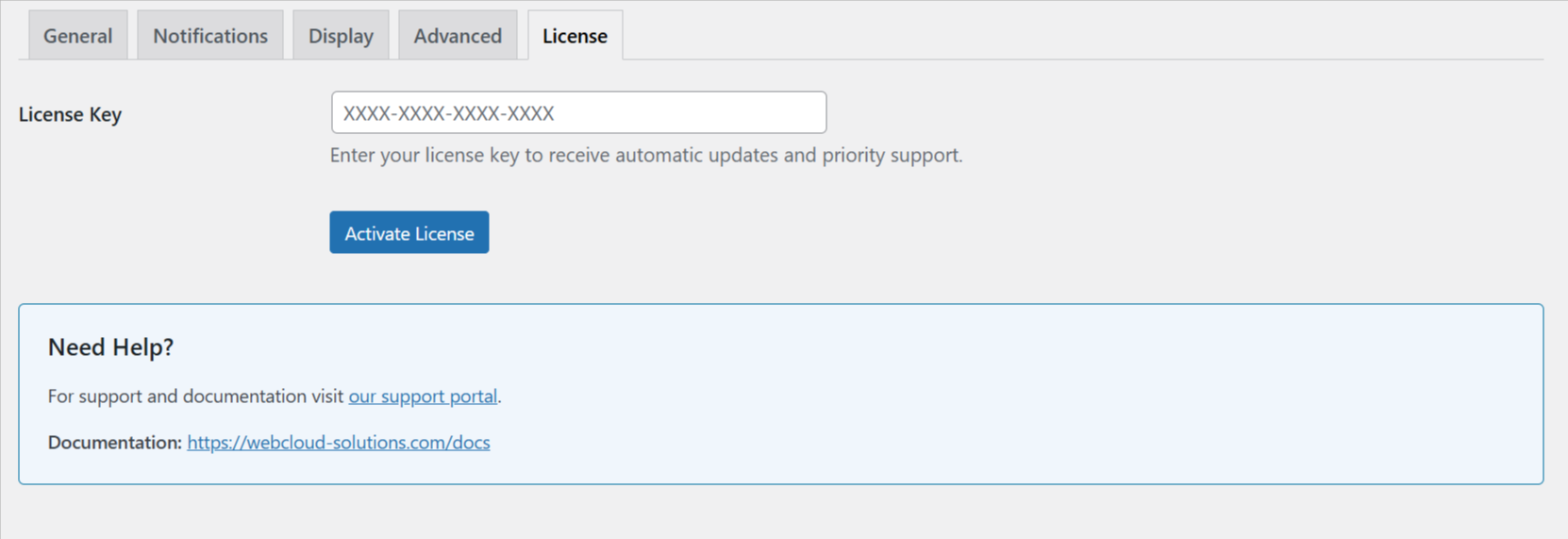
Enter your license key here to activate full plugin functionality and access updates and support. Licensing ensures that users get the latest features and maintenance necessary for optimal plugin performance.
Accessing Surcharge Features
Use the Surcharge PRO menu in the WordPress admin sidebar to access all plugin functionalities such as adding new rules, viewing all rules, and checking analytics.
This navigation menu allows administrators to access various plugin features. 'All Rules' lists existing surcharge rules, 'Add New' lets you create a new rule, 'Analytics' provides insights, and 'Settings' allows configuration tweaks. Efficient navigation through these options is essential for setting up and managing surcharges effectively.
Setting General Surcharge Configurations
Adjust configurations by going to Surcharge PRO > Settings > General Settings. Options include shipping and fees in threshold calculations, tax application, and rounding preferences.
This settings screen allows administrators to configure general parameters for surcharges, including whether shipping or additional fees are considered in the threshold. Options for tax treatment and rounding also ensure that surcharges are applied correctly. Configuring these settings is critical for accurate surcharge calculations.
Customizing Notification Settings
Configure how surcharge messages appear to customers under Settings > Notifications. This includes messages on cart and checkout pages and setting up admin notification preferences.
Administrators use this screen to customize messaging related to surcharges. Customizing the cart and checkout messages helps inform customers about surcharge conditions and adjustments. Enhanced communication through notifications can improve customer understanding of surcharges applied to their orders.
Setting Up Display Settings
Adjust where and how surcharge details appear using Display Settings. Customize CSS and decide visibility locations to maintain consistency and customer experience.
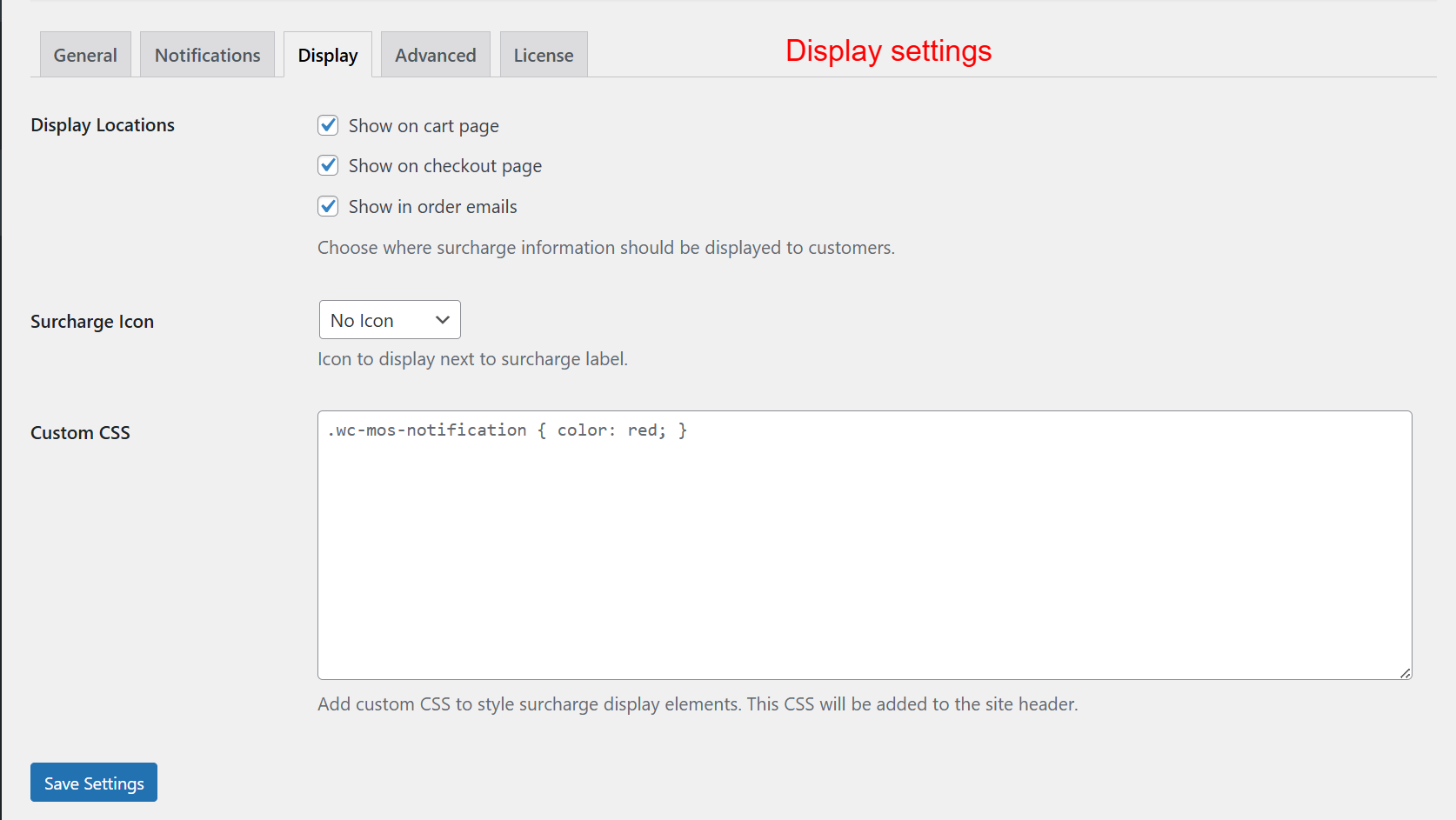
Adjust display parameters to dictate where surcharge information appears to customers—on the cart page, checkout, or through emails. Set custom CSS for styling purposes. These settings are vital for creating a seamless customer experience by ensuring surcharge information is accessible and visually consistent.
Configuring Advanced Settings
Access advanced configuration options under Advanced Settings for features like multi-currency support, caching options, debug mode, and data handling upon uninstallation.
Utilize these advanced settings to optimize the plugin's performance. Enable multi-currency support, manage data efficiency with caching, and safeguard your installation's integrity with import/export features. These settings help tailor the plugin's capabilities to meet complex business needs.
4 User Journey
Creating a New Surcharge Rule
To create a new surcharge rule, navigate to Surcharge PRO > Add New. Enter the rule details, select various conditions, and configure the surcharge type and priority before saving.
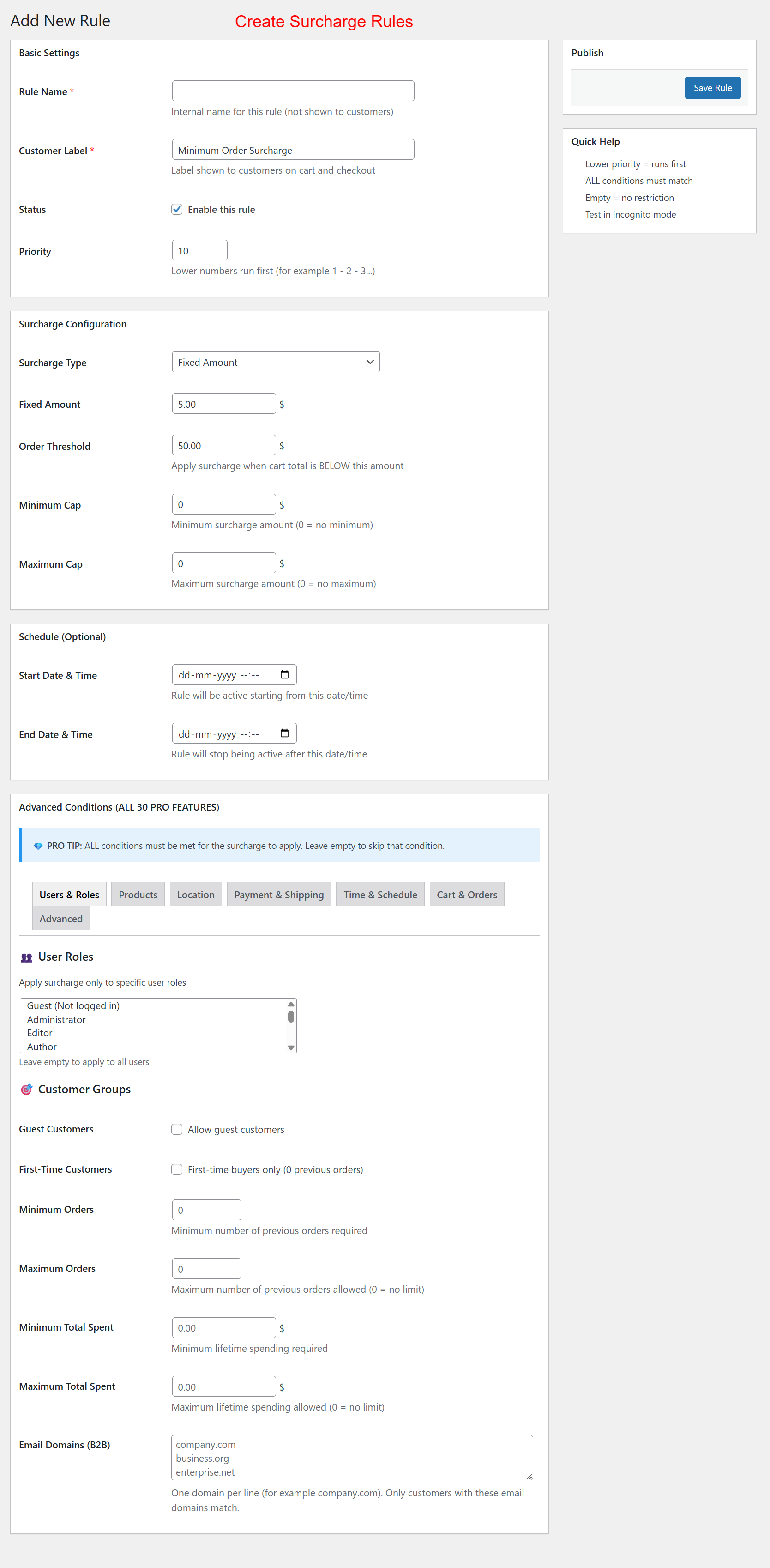
Create specific surcharge rules by defining conditions such as order threshold, surcharge type, and customer applicability. These rules allow for precise surcharge strategies tailored to business needs, ensuring compliance with sales goals and promotional campaigns. Set priorities and detailed conditions for refined surcharge management.
Cart Page - Customer View
Customers will see surcharges clearly displayed on the cart page, providing transparency and clarity before they proceed to the checkout.
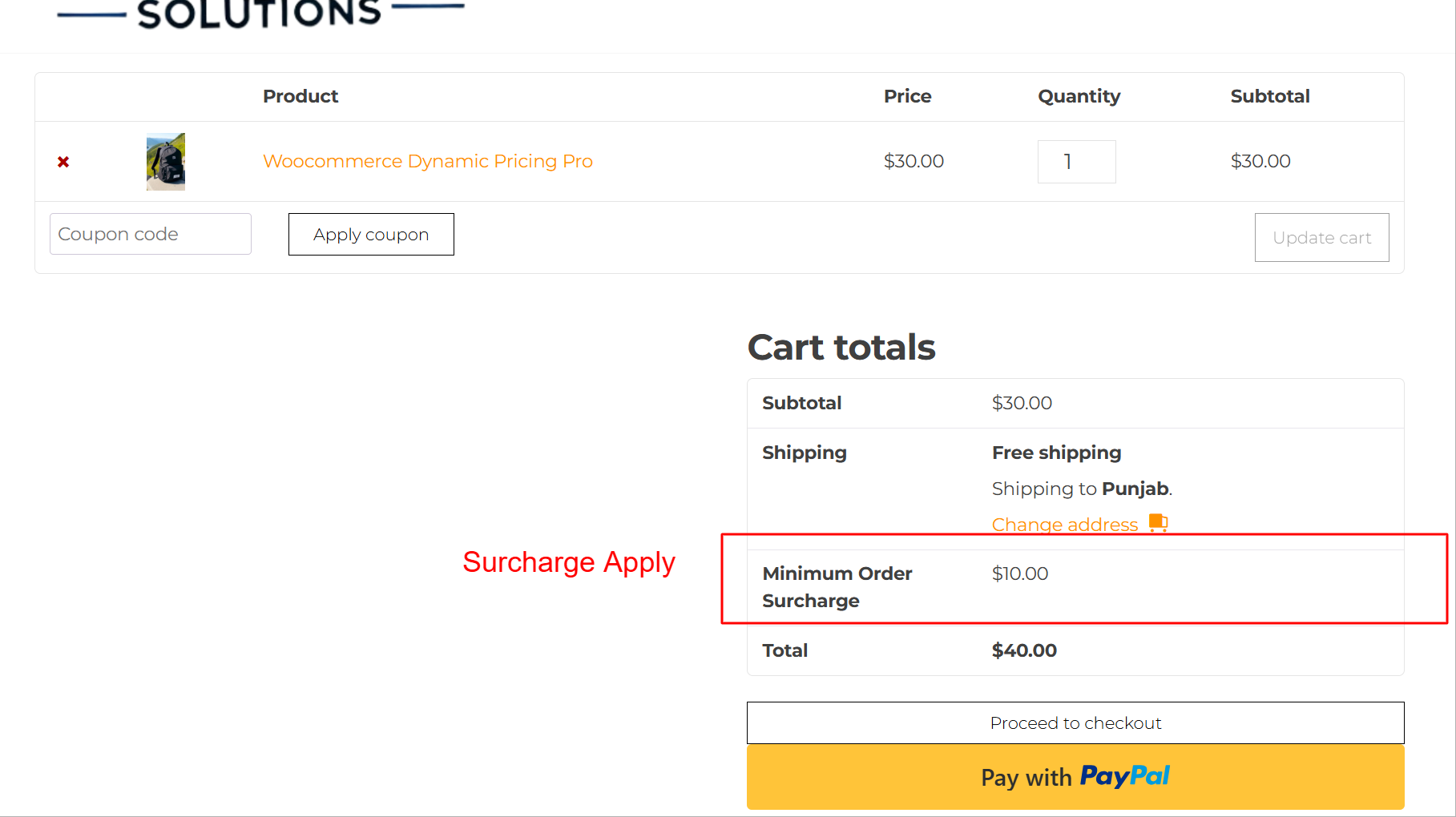
This frontend view displays how surcharges appear on the cart page to customers, ensuring transparency in pricing before proceeding to checkout. By showing the surcharge clearly at this stage, customers are informed of the total cost, helping to build trust and reduce cart abandonment.
Checkout Page - Finalizing Purchase
The surcharge is presented as a distinct line item during checkout, ensuring customers are aware of the full cost prior to purchase completion.
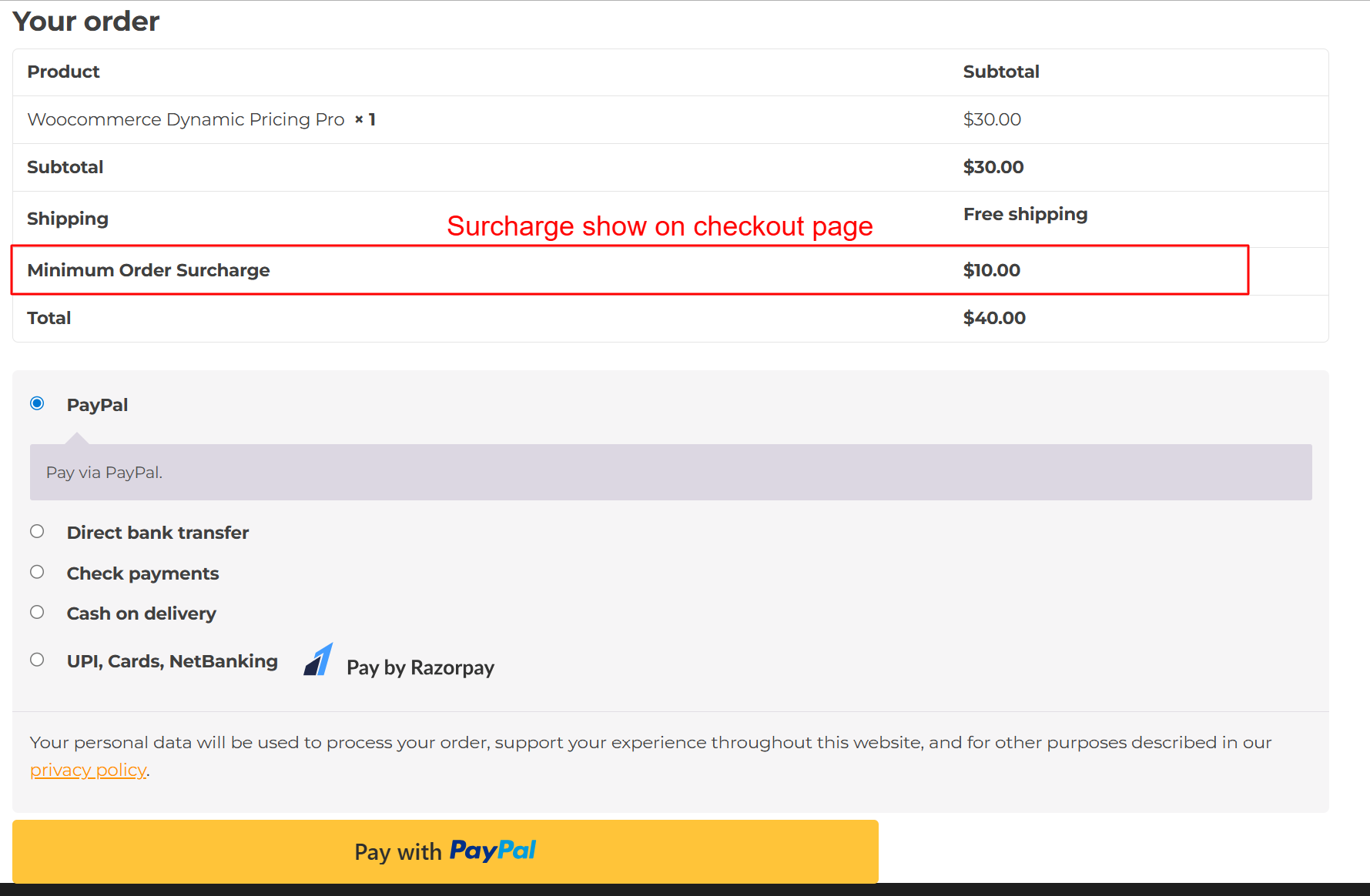
At checkout, customers see the surcharge applied as part of the order total, confirming costs before finalizing their purchase. This transparency reassures customers about the pricing structure and ensures they understand the full cost associated with their order, reducing disputes.
Order Confirmation
Once purchases are completed, the order confirmation page provides a breakdown, displaying surcharges to confirm accuracy for the customer.
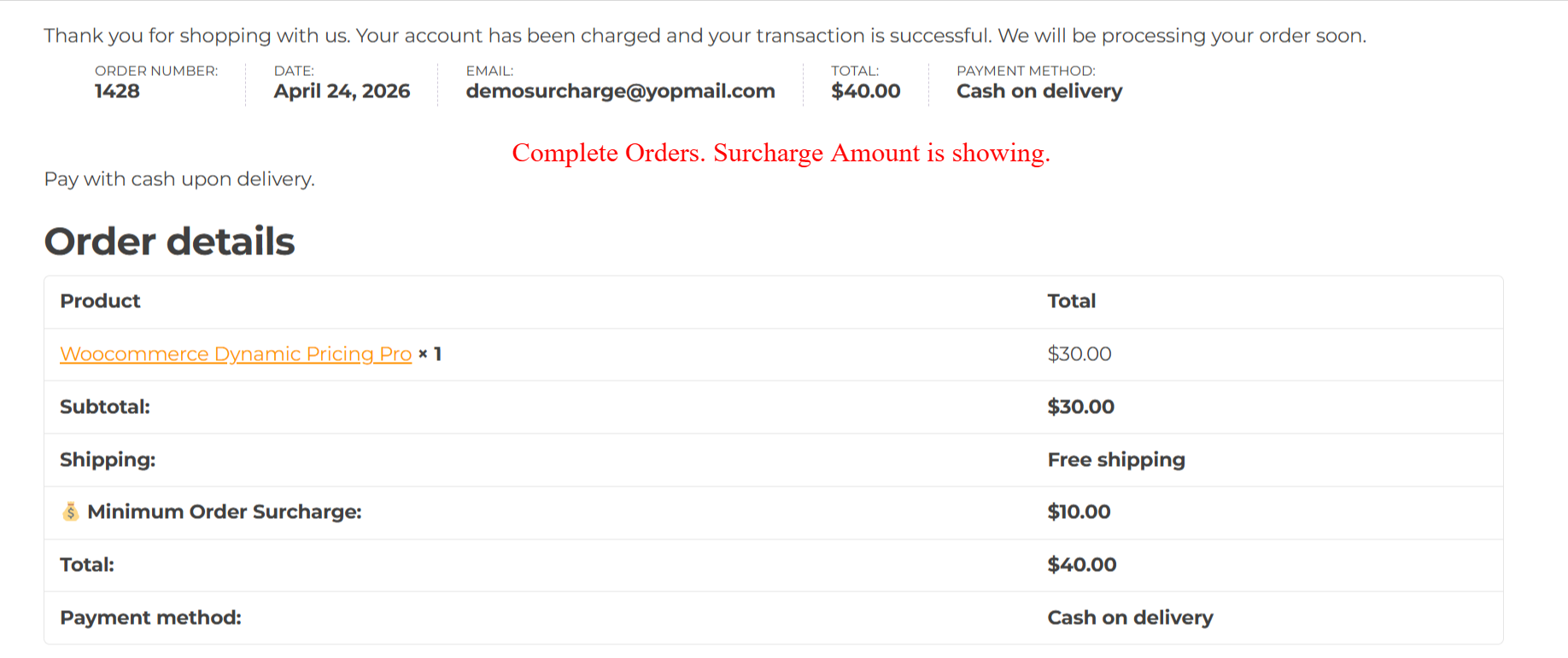
After the order is completed, the confirmation page provides a detailed breakdown of the order, including applied surcharges. This step confirms for customers the accuracy of the charges and serves as a reference for future inquiries or support requests, supporting transparency and clarity in customer communication.
Post-Purchase Order Details
Detailed order information, including surcharges, is available for customers to review, reinforcing transparency and trust in the transaction.
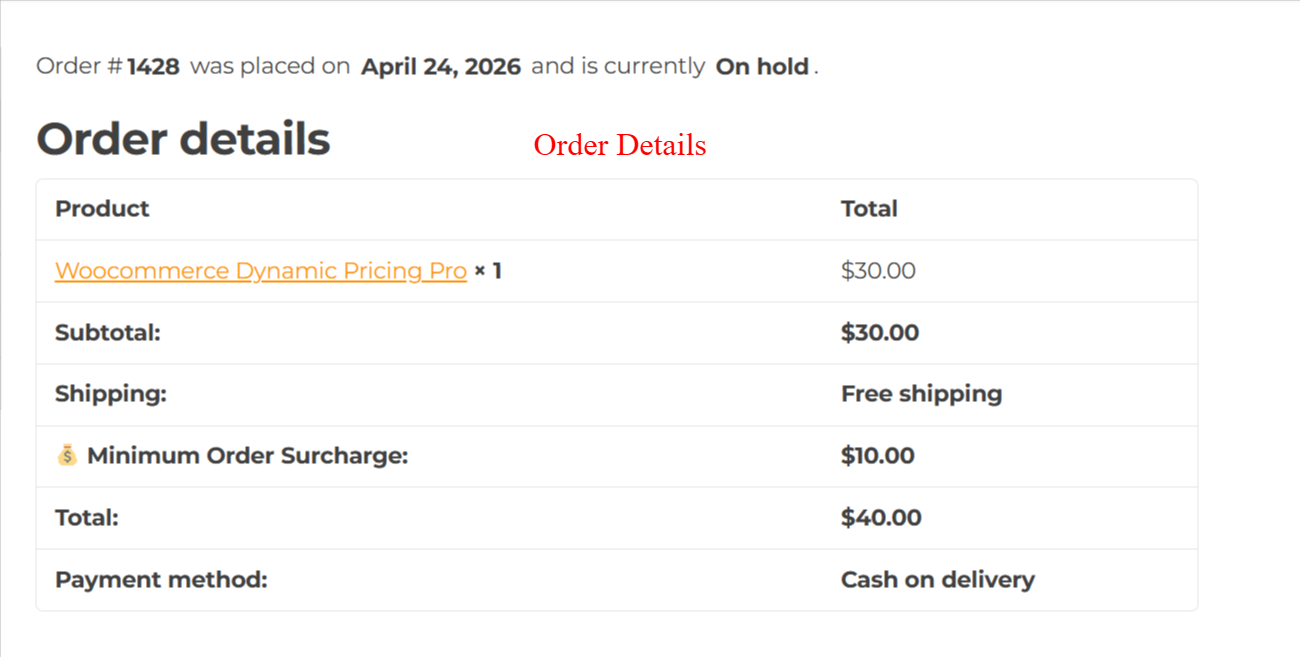
Customers view this screen to see a detailed breakdown of their order, including a specific line for the 'Minimum Order Surcharge'. This helps customers understand additional charges applied due to order constraints, ensuring transparency in the purchasing process.
5 Use Cases
Remote Area Surcharges
Implement specific surcharges for deliveries to remote or hard-to-reach locations, managing additional transportation costs efficiently.
Seasonal Promotions
Create promotional rules that offer discounts or apply surcharges during specified periods, such as holidays or peak shopping times.
Cash on Delivery Fees
Apply additional fees for cash on delivery orders to offset the increased handling costs associated with this payment method.
Wholesale or B2B Pricing
Set minimum order values or apply tiered surcharges for wholesale clients or B2B transactions to ensure profitability.
International Shipping Rules
Differentiate surcharges for international orders by setting conditions based on geographic regions, ensuring accurate billing.
8 Tips & Tricks
- Regularly review surcharge rules to match current business strategies.
- Use multi-currency support for seamless international sales.
- Customize notification messages to enhance customer clarity.
- Leverage analytics regularly to optimize surcharge effectiveness.
- Import/export functionality helps in seamless rule management across stores.
10 Step-by-Step Screenshot Reference
Every captured screen in setup order. Click any image to open the full-size version in a new tab.
wp-admin: Plugin Activation Overview
What this shows: This screen shows the 'Minimum Order Surcharge Pro for WooCommerce' plugin entry. The entry includes activation status, version numbers, and links to 'Rules', 'Analytics', 'License', 'Deactivate', and 'Check this plugin'.
On this screen, administrators can view the current status of the 'Minimum Order Surcharge Pro for WooCommerce' plugin. It highlights essential actions like activating the plugin to unlock its potential for managing advanced surcharges. Activating the plugin is crucial for access to unlimited rules, analytics, and other enterprise features.
wp-admin: Surcharge PRO Menu Navigation
What this shows: The Surcharge PRO menu is expanded to show 'All Rules', 'Add New', 'Analytics', and 'Settings' options.
This navigation menu allows administrators to access various plugin features. 'All Rules' lists existing surcharge rules, 'Add New' lets you create a new rule, 'Analytics' provides insights, and 'Settings' allows configuration tweaks. Efficient navigation through these options is essential for setting up and managing surcharges effectively.
wp-admin: Surcharge General Settings
What this shows: This settings page includes options like 'Include Shipping in Threshold', 'Include Fees in Threshold', 'Tax Status', and 'Round Surcharge'. There is a 'Save Settings' button at the bottom.
This settings screen allows administrators to configure general parameters for surcharges, including whether shipping or additional fees are considered in the threshold. Options for tax treatment and rounding also ensure that surcharges are applied correctly. Configuring these settings is critical for accurate surcharge calculations.
wp-admin: Surcharge Notification Settings
What this shows: Notification settings include text fields for 'Cart Page Message', 'Checkout Page Message', and options like 'Progress Bar' and 'Admin Notifications'.
Administrators use this screen to customize messaging related to surcharges. Customizing the cart and checkout messages helps inform customers about surcharge conditions and adjustments. Enhanced communication through notifications can improve customer understanding of surcharges applied to their orders.
wp-admin: Surcharge Display Settings
What this shows: Display settings offer options for 'Display Locations', 'Surcharge Icon', and a 'Custom CSS' field. 'Save Settings' is available.
Adjust display parameters to dictate where surcharge information appears to customers—on the cart page, checkout, or through emails. Set custom CSS for styling purposes. These settings are vital for creating a seamless customer experience by ensuring surcharge information is accessible and visually consistent.
wp-admin: Surcharge Advanced Settings
What this shows: Advanced settings include 'Multi-Currency Support', 'Cache Rules', 'Debug Mode', and 'Remove Data on Uninstall'. Import/export options are available, alongside system information.
Utilize these advanced settings to optimize the plugin's performance. Enable multi-currency support, manage data efficiency with caching, and safeguard your installation's integrity with import/export features. These settings help tailor the plugin's capabilities to meet complex business needs.
wp-admin: License Key Activation
What this shows: This screen includes a field for 'License Key' entry and an 'Activate License' button. Support and documentation links are provided.
Enter your license key here to activate full plugin functionality and access updates and support. Licensing ensures that users get the latest features and maintenance necessary for optimal plugin performance.
wp-admin: Create Surcharge Rule
What this shows: This screen includes fields for 'Rule Name', 'Customer Label', 'Surcharge Type', and advanced conditions like 'User Roles' and 'Customer Groups'.
Create specific surcharge rules by defining conditions such as order threshold, surcharge type, and customer applicability. These rules allow for precise surcharge strategies tailored to business needs, ensuring compliance with sales goals and promotional campaigns. Set priorities and detailed conditions for refined surcharge management.
wp-admin: Add New Rule > Basic Details
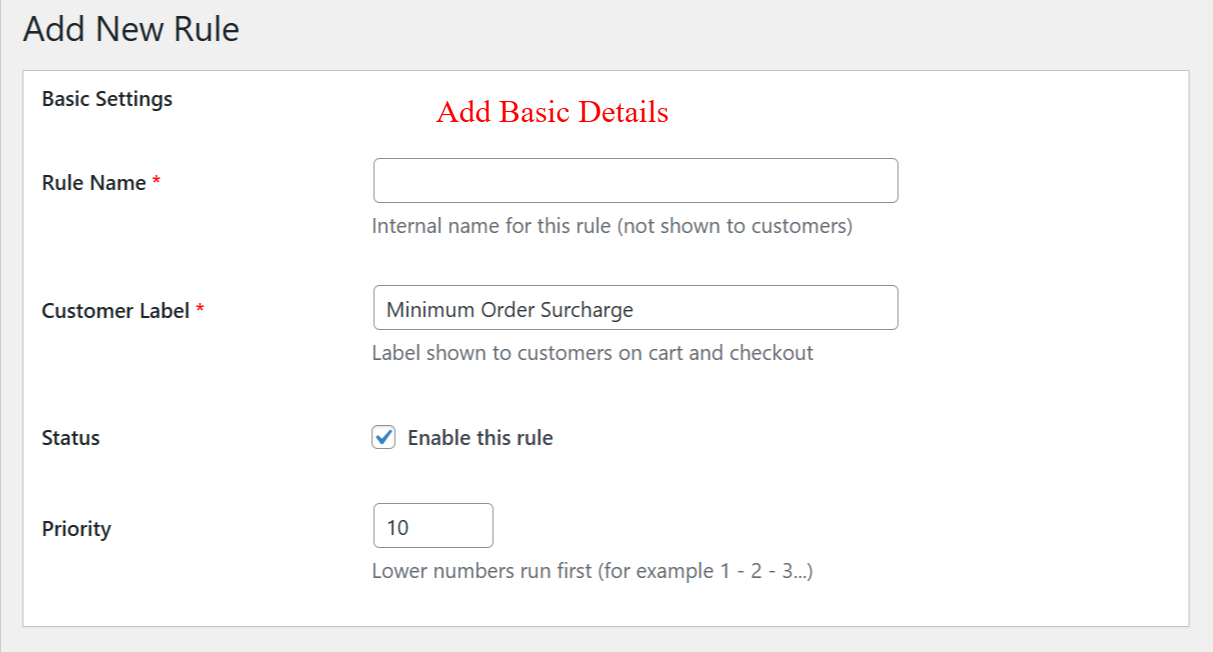
What this shows: This screen displays fields for entering 'Rule Name', 'Customer Label', 'Status', and 'Priority'. There is a checkbox to enable the rule and text boxes for input.
On this screen, you can define the basic details for a new surcharge rule in your WooCommerce store. The 'Rule Name' is used internally, while the 'Customer Label' appears on the cart and checkout pages. Enabling the rule is crucial as it activates the surcharge based on set parameters. The 'Priority' determines the order of execution if multiple surcharges are applied.
wp-admin: Add New Rule > Surcharge Configuration
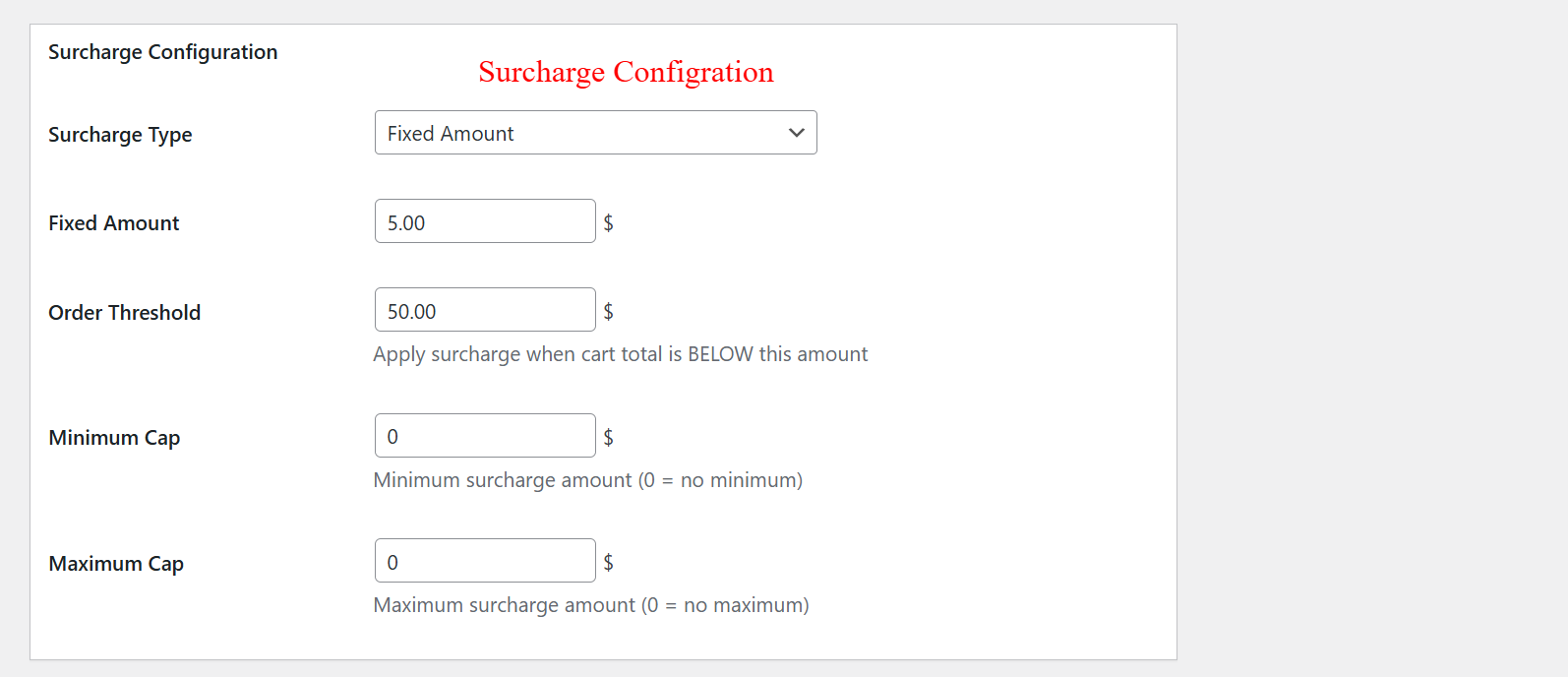
What this shows: Displays configuration options including dropdown for 'Surcharge Type', and input fields for 'Fixed Amount', 'Order Threshold', 'Minimum Cap', and 'Maximum Cap'.
This configuration screen allows you to set the type and amount of surcharge applied when certain conditions are met. You choose a 'Surcharge Type' and define the amount to be charged if the cart total falls below the defined 'Order Threshold'. You can also specify minimum and maximum limits for the surcharge.
wp-admin: Add New Rule > Schedule Surcharge
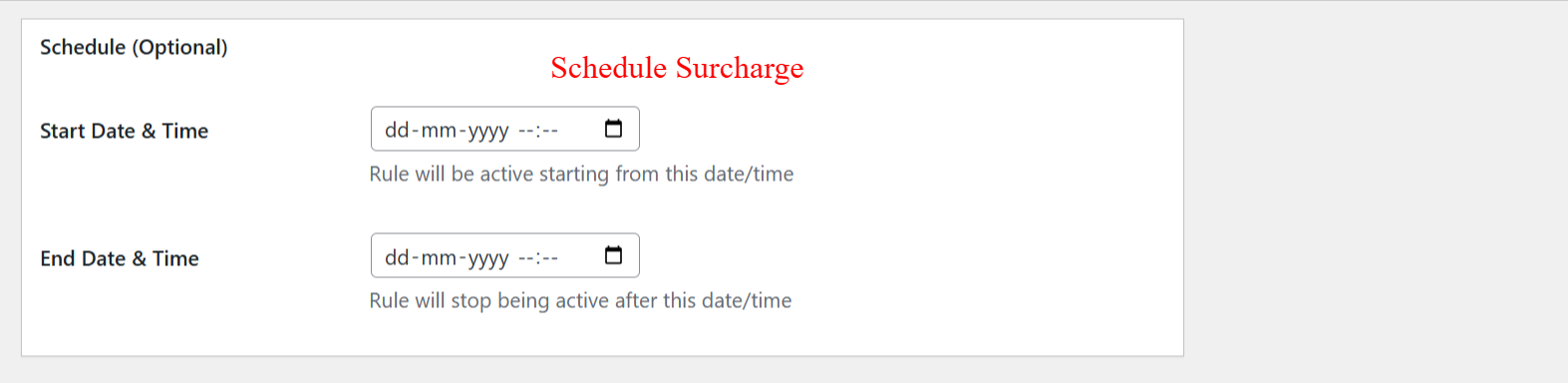
What this shows: Contains fields for 'Start Date & Time' and 'End Date & Time', allowing schedules to be set optionally.
This schedule screen enables you to define when a surcharge rule becomes active and when it expires. By setting a 'Start Date & Time' and 'End Date & Time', you can automate the timing of your rules to match strategic business schedules, such as holiday promotions or special events.
wp-admin: Advanced Pro Features > User Roles
What this shows: Shows a list box for selecting user roles, checkboxes for 'Guest Customers' and 'First-Time Customers', and input fields for 'Minimum Orders', 'Maximum Orders', among other conditions.
Here, you can customize surcharges for specific user roles and customer groups. By configuring these options, you can apply different surcharges based on user type, order history, or spending habits, allowing you to tailor pricing strategies to customer segments.
wp-admin: Advanced Conditions > Product Categories
What this shows: Includes options for 'Include Categories', 'Exclude Categories', 'Min Quantity per Category', 'Product Tags', and 'Specific Products'.
This screen lets you apply surcharge rules based on product categories, tags, or specific products. By correctly setting these conditions, you ensure that the surcharge is applied only to certain product groups, providing a granular level of discount management.
wp-admin: Advanced Conditions > Location Settings
What this shows: Displays settings for 'Shipping Zones', 'Include Countries', 'Exclude Countries', and 'Continents/Regions', with dropdown lists for selection.
Location-based settings allow you to enforce surcharges based on geographical areas. By selecting specific shipping zones or countries, you can strategize where surcharges are applied, helping manage shipping costs globally or locally as needed.
wp-admin: Advanced Conditions > Payment and Shipping
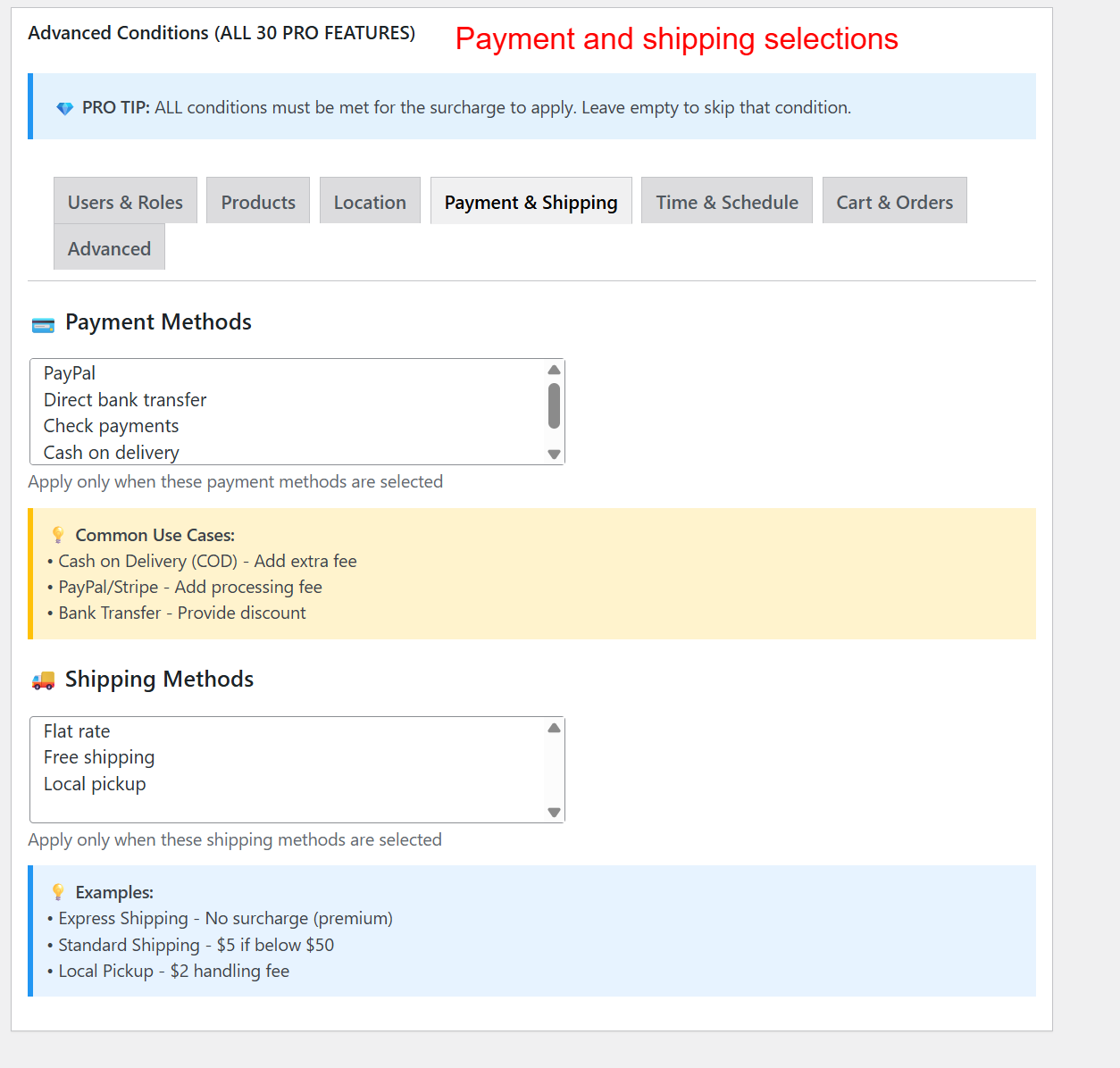
What this shows: Lists options for 'Payment Methods' and 'Shipping Methods', with associated use case notes beneath each section.
This section allows for adding surcharges based on selected payment and shipping methods. For instance, you might add a surcharge for cash on delivery but offer discounts for bank transfers, enabling flexible pricing models that can influence customer choice in payment method.
wp-admin: Advanced Conditions > Time & Schedule
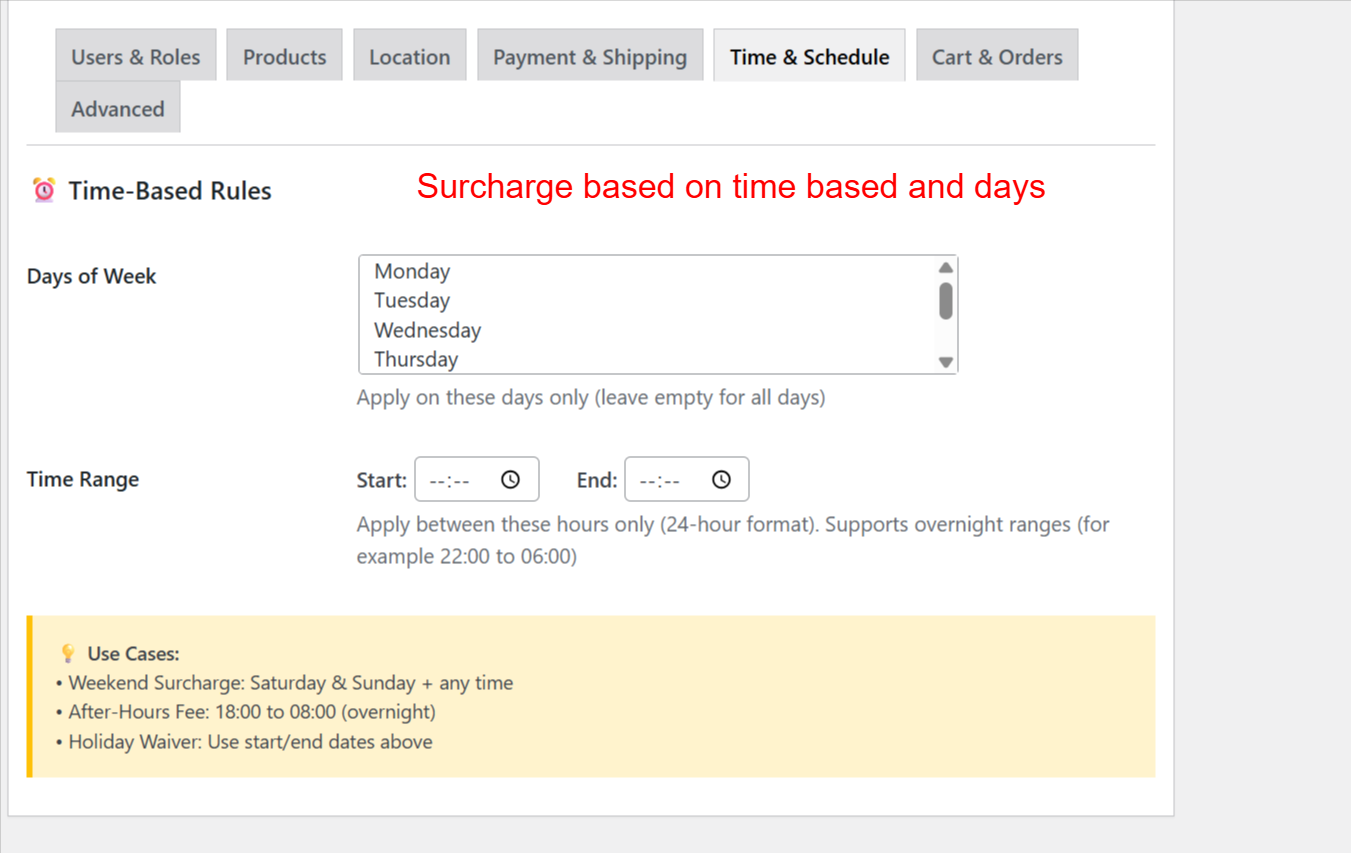
What this shows: Includes 'Days of Week' and 'Time Range' fields with list boxes and input fields for time settings.
This feature lets you set surcharges based on specific days and times. You can, for example, configure higher weekend surcharges or apply time-sensitive promotions, allowing effective dynamic pricing strategies in your WooCommerce store.
wp-admin: Cart & Orders > Cart Composition
What this shows: Form fields to set minimum and maximum values for total items, unique products, cart weight, and cart volume. It includes options for coupon conditions to exclude or require specific coupons.
In this screen, you set parameters for triggering surcharges based on cart composition, such as the total number of items or the combined weight. Administrators can also specify exceptions using coupon conditions to ensure certain discounts override the surcharge. These settings allow precise control over when and how surcharges are applied based on cart characteristics, essential for tailored pricing strategies.
wp-admin: Advanced Settings > Exclusions
What this shows: Options to exclude surcharges from admin-created orders and to manage customer exclusions through blacklists and whitelists. Includes fields for entering customer emails.
This screen allows admins to define exclusions for surcharges, preventing charges on admin-generated orders and specifying customers who will never or always see the surcharge. These exclusions can be critical for maintaining customer satisfaction and operational flexibility, particularly for loyalty programs or specific customer agreements.
wp-admin: Surcharge Rules Listing
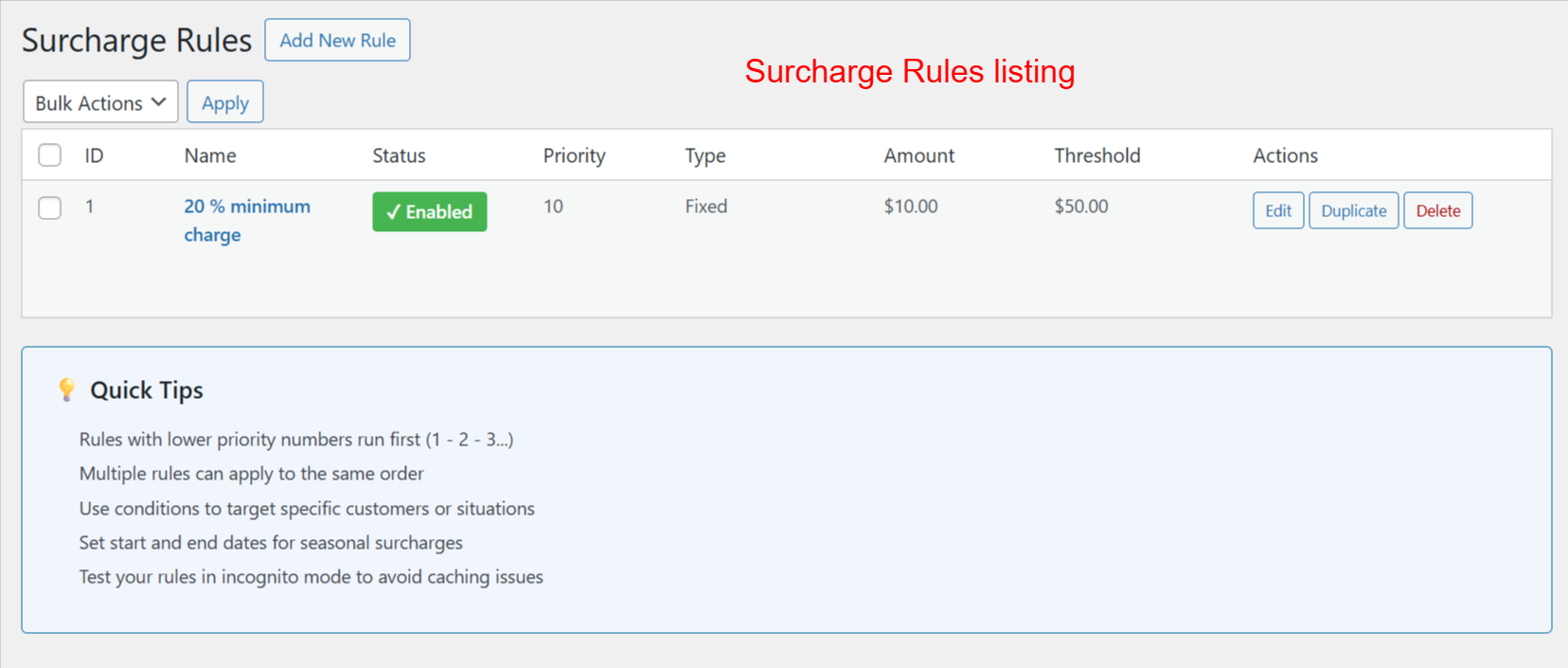
What this shows: A table displaying surcharge rules with details like ID, name, status, priority, type, amount, and threshold. Includes 'Edit', 'Duplicate', and 'Delete' actions.
On this page, admins can view and manage existing surcharge rules, offering clear visibility into each rule's priorities and settings. The ability to edit, duplicate, or delete rules quickly helps streamline the management of complex pricing strategies in the store.
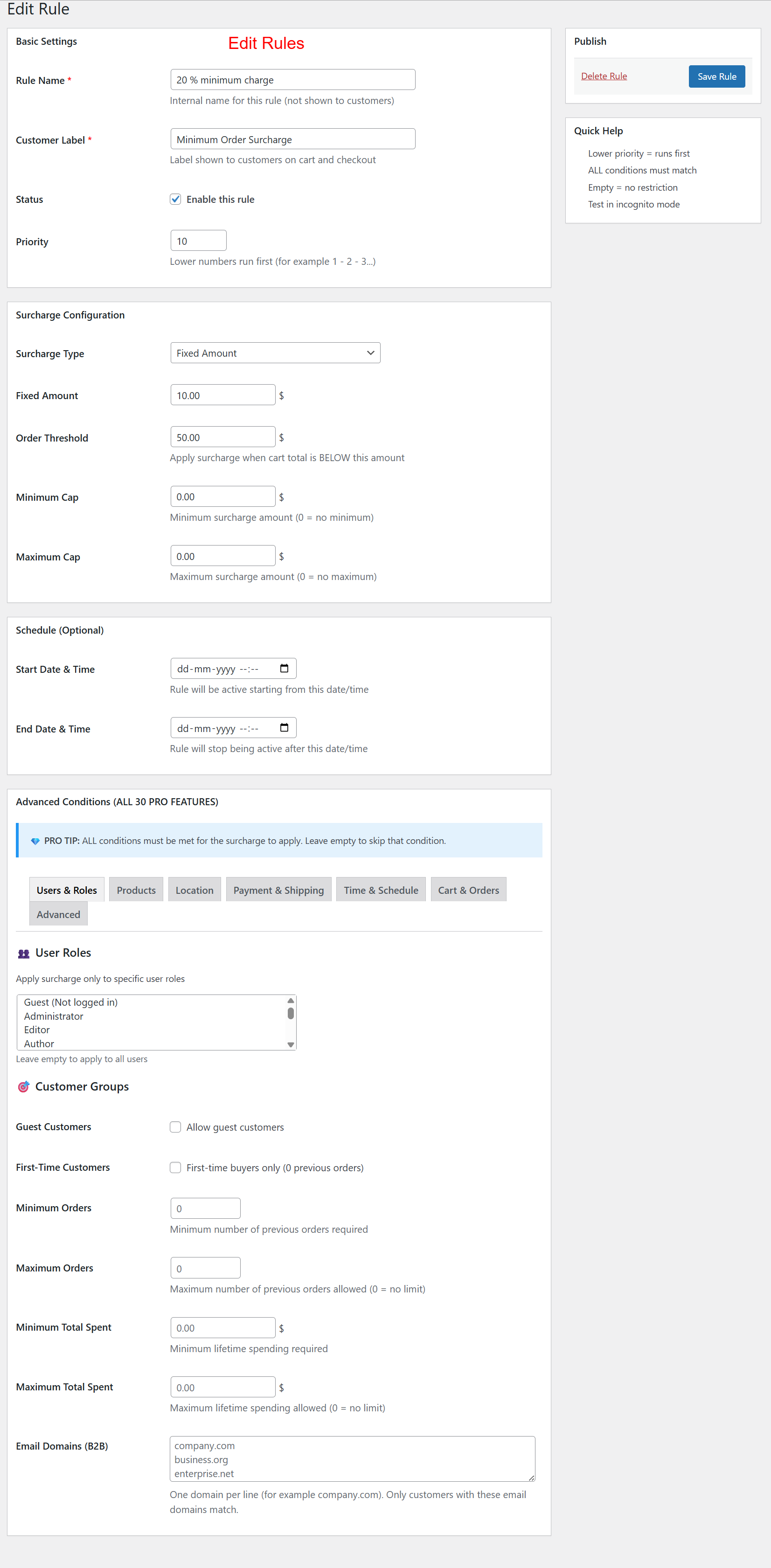
wp-admin: Edit Surcharge Rule
What this shows: Settings for editing a surcharge rule, including name, customer label, status, priority, type, fixed amount, order threshold, and scheduling options. Advanced conditions are also editable.
This screen is where detailed configuration of surcharge rules occurs, with capabilities to set specific conditions like minimum order thresholds and applicable periods. Fine-tuning these rules ensures precise surcharge application, allowing the store to adjust for various business scenarios and optimize sales.
wp-admin: Surcharge Analytics Dashboard
What this shows: Dashboard displaying analytics for surcharge revenue, number of orders with surcharges, and average surcharge per order. Prompts to create rules and more information about analytics.
Through this dashboard, administrators can monitor the impact of surcharges on revenue. The analytics provide insights into the effectiveness of pricing strategies and help identify opportunities for optimization. The data presented helps in strategic planning by assessing surcharge performance over time.
Frontend: Cart Page with Surcharge Applied
What this shows: Customer's cart page showing product details and a 'Minimum Order Surcharge' applied in the cart totals section.
This frontend view displays how surcharges appear on the cart page to customers, ensuring transparency in pricing before proceeding to checkout. By showing the surcharge clearly at this stage, customers are informed of the total cost, helping to build trust and reduce cart abandonment.
Frontend: Checkout Page with Surcharge
What this shows: Checkout page summarizing the order with a 'Minimum Order Surcharge' line item included in order totals.
At checkout, customers see the surcharge applied as part of the order total, confirming costs before finalizing their purchase. This transparency reassures customers about the pricing structure and ensures they understand the full cost associated with their order, reducing disputes.
Frontend: Order Confirmation with Surcharge
What this shows: Order confirmation page showing detailed order information, including the 'Minimum Order Surcharge' within the order summary.
After the order is completed, the confirmation page provides a detailed breakdown of the order, including applied surcharges. This step confirms for customers the accuracy of the charges and serves as a reference for future inquiries or support requests, supporting transparency and clarity in customer communication.
Order Details: Customer View
What this shows: This screen displays order details including product name, subtotal, shipping type, minimum order surcharge, total, and payment method.
Customers view this screen to see a detailed breakdown of their order, including a specific line for the 'Minimum Order Surcharge'. This helps customers understand additional charges applied due to order constraints, ensuring transparency in the purchasing process.
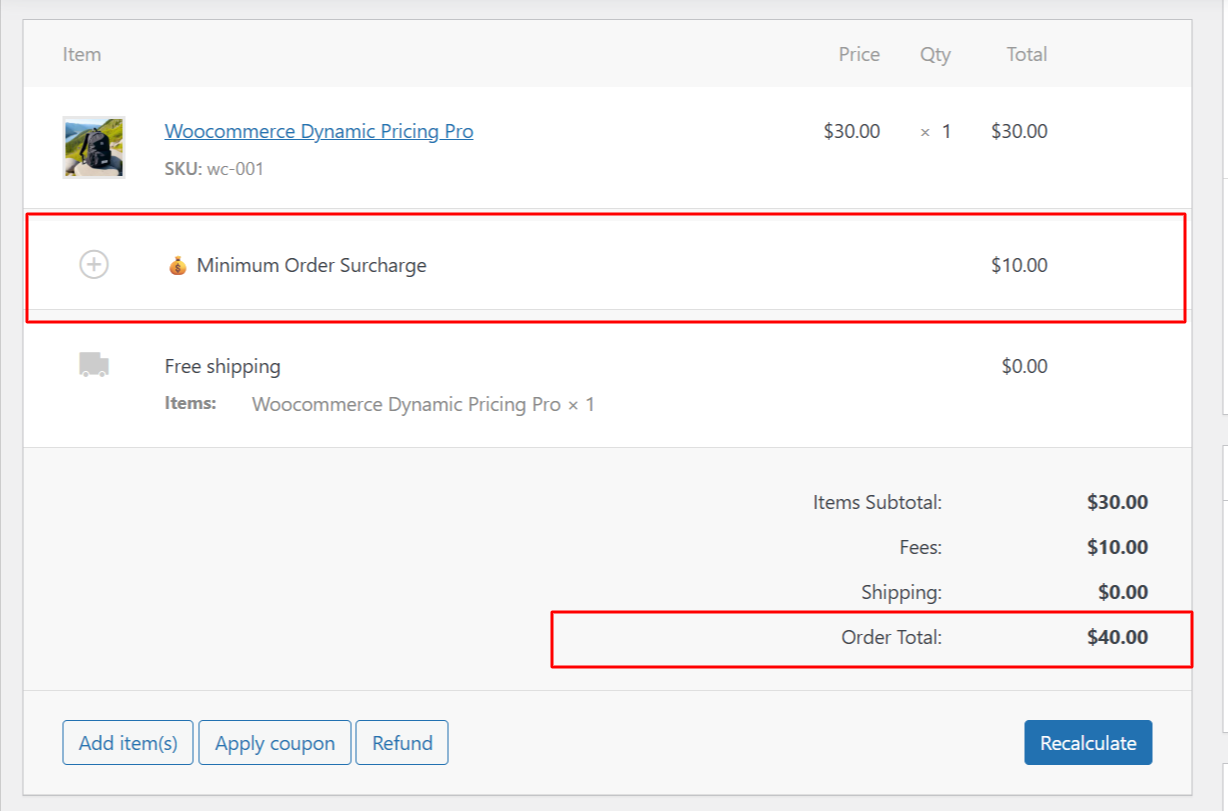
Order Details: Admin Panel View
What this shows: Admin interface showing order details with individual product information, surcharges, fees, and total cost calculations, along with buttons for order management actions.
Administrators use this panel to manage and review detailed order information. The 'Minimum Order Surcharge' is prominently displayed, enabling admins to quickly verify surcharge applications as part of the order total. Adjustments and actions such as adding items or applying refunds can be performed here.
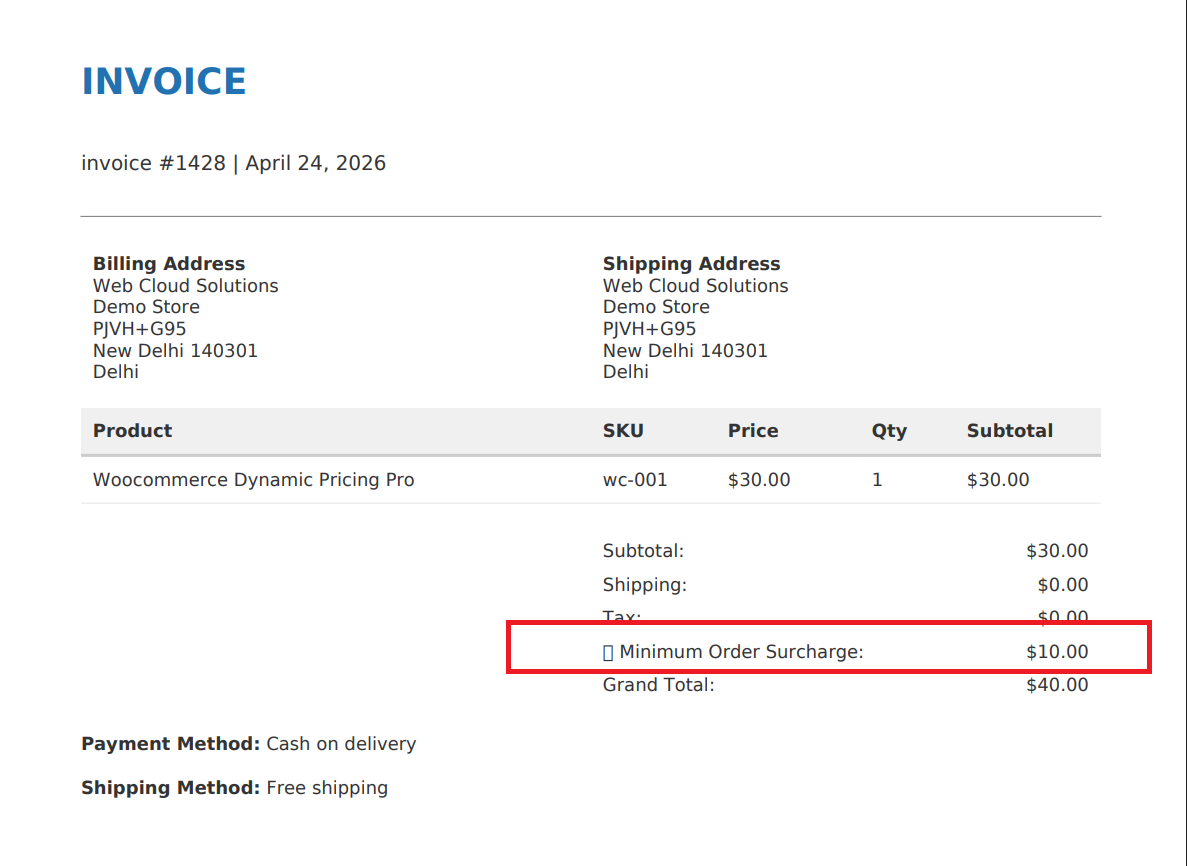
Invoice PDF: Surcharge Included
What this shows: A PDF invoice layout showing product details, billing and shipping addresses, and a highlighted minimum order surcharge line.
This PDF serves as the official invoice for the customer, detailing the surcharges and payment breakdown. The 'Minimum Order Surcharge' appears as a distinct line item, ensuring customers have a clear record of charges beyond product costs. This transparency aids in customer trust and financial reconciliation.
Order PDF: Detailed Surcharge Report
What this shows: A comprehensive order PDF showing product, shipping details, and surcharges, with emphasis on the minimum order surcharge.
This document provides both customers and store managers with an overview of the order, including precise surcharge details. The inclusion of 'Minimum Order Surcharge' shows how store rules affect pricing, vital for audit trails and customer service inquiries.

Reviews
There are no reviews yet.