
1 Overview
Seamless integration of international phone country codes into WooCommerce checkout.
Checkout Phone Country Code for WooCommerce revolutionizes the checkout experience by adding a user-friendly international phone country code selector with flag icons. Designed by Webcloud Solutions, this plugin streamlines phone number entries, enhances UI quality, and minimizes customer checkout friction.
With support for over 195 countries, this plugin offers exceptional localization by detecting the store's geographical location to auto-set default country codes. Fully compatible with WooCommerce, it boasts high responsiveness and is optimized for mobile shopping experiences.
At a Glance
- 195+ Country Flags with SVGs
- Searchable Country Dropdown
- Auto-Detects Store Country
- Smart Phone Validation
- Responsive Mobile Design
- Full Accessibility Support
- Integrated Fraud Detection
- CDN-Hosted Flag Optimization
| Plugin | Checkout Phone Country Code for WooCommerce |
|---|---|
| Version | 1.0.0 |
| Author | Webcloud Solutions |
| License | GPLv2 or later |
| WooCommerce | Compatible |
| Files | 38 total (9 PHP) |
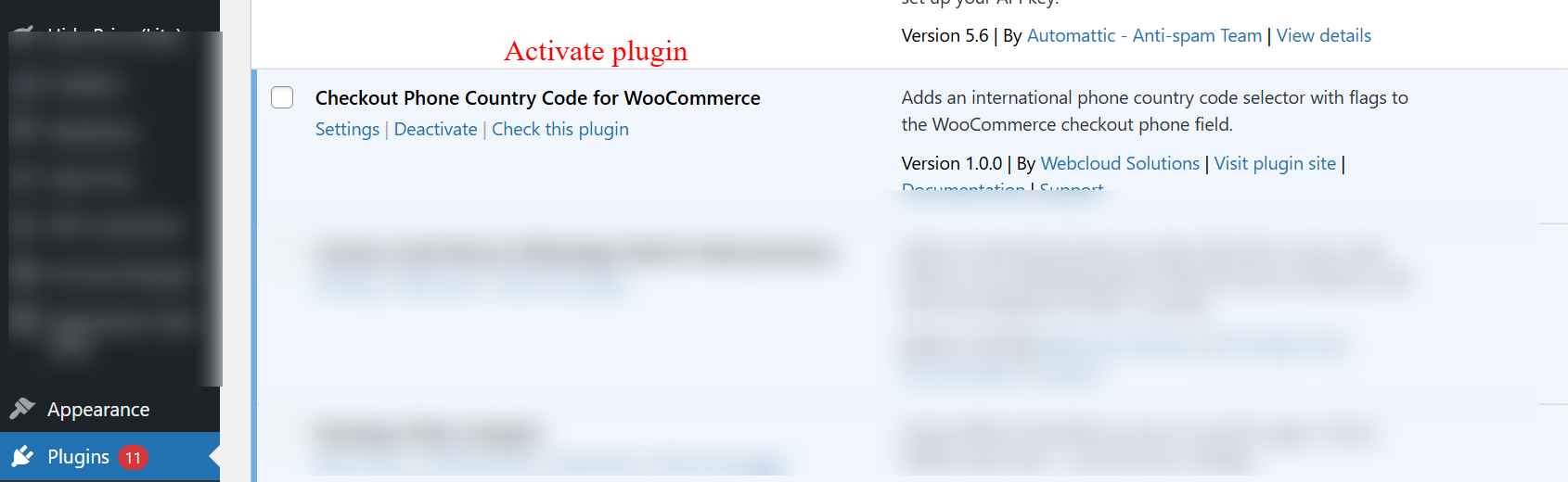
On this screen, the admin can manage installed plugins within WordPress. To enable the features of the Checkout Phone Country Code for WooCommerce plugin, the admin must activate it here. Activating the plugin is essential to display international phone country code selectors at checkout.
2 Features
Flag Dropdown for visual selection
Smart Search for quick country finding
Auto-Formatting for phone numbers
Real-time phone validation
Touch-friendly mobile design
Set Default Country
Enable Auto-Detection
Configure Validation Standards
Custom Fraud Detection Rules
Full Admin Menu Integration
Rapid loading with CDN-hosted resources
Mobile and touchscreen optimization
Efficient AJAX use for dynamic updates
Standards-compliant clean code
Complete browser compatibility
User Experience Enhancements
Enhance customer satisfaction with intuitive interface improvements.
- Flag Dropdown for visual selection
- Smart Search for quick country finding
- Auto-Formatting for phone numbers
- Real-time phone validation
- Touch-friendly mobile design

On this WooCommerce checkout screen, customers can select a phone country code by choosing from a dropdown menu featuring country flags, ensuring they input their number with the correct international prefix. This functionality simplifies the checkout process for international customers, reducing phone number entry errors. After making their selection, customers can continue by clicking 'Save address' to proceed with their purchase.
Admin Configuration and Control
Comprehensive admin tools for configuring phone code settings.
- Set Default Country
- Enable Auto-Detection
- Configure Validation Standards
- Custom Fraud Detection Rules
- Full Admin Menu Integration
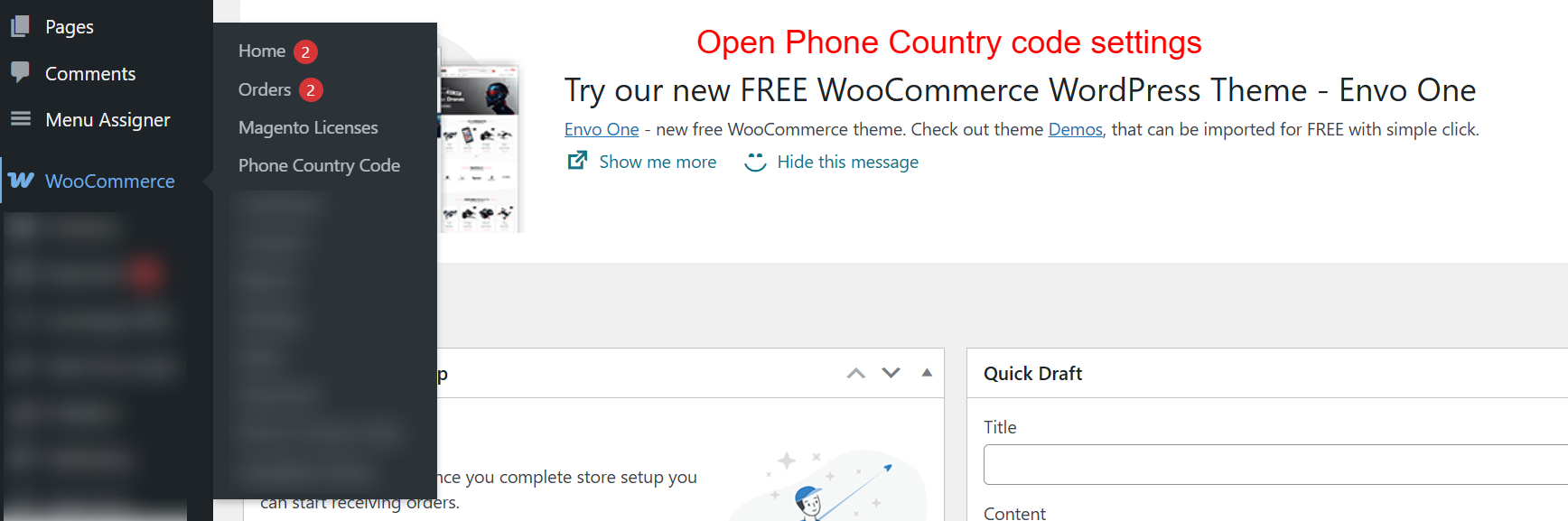
This screen allows the admin to access the Phone Country Code settings within the WooCommerce menu. Navigating here is the next step after activating the plugin, enabling the admin to configure how country codes appear during the checkout process.
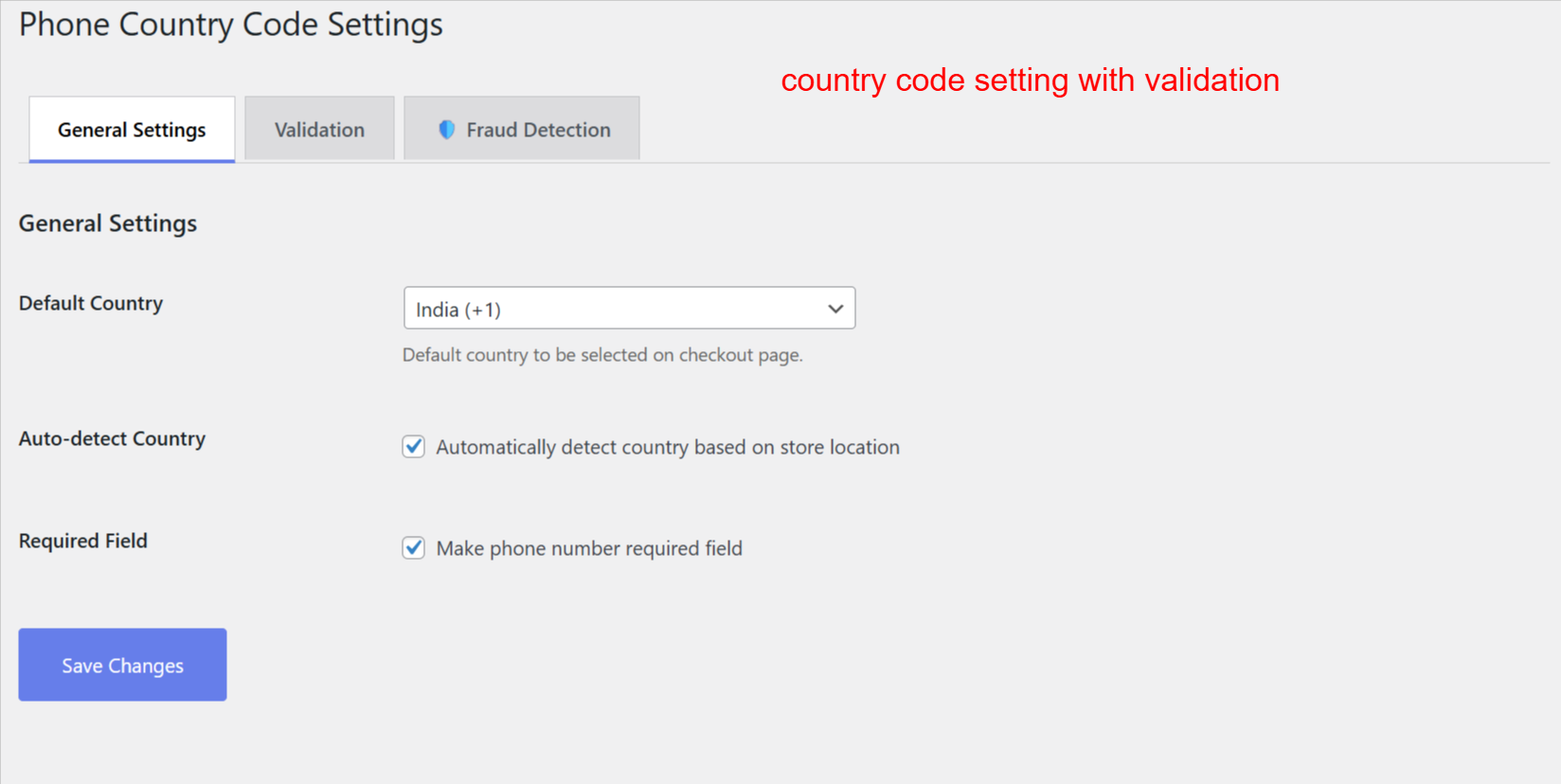
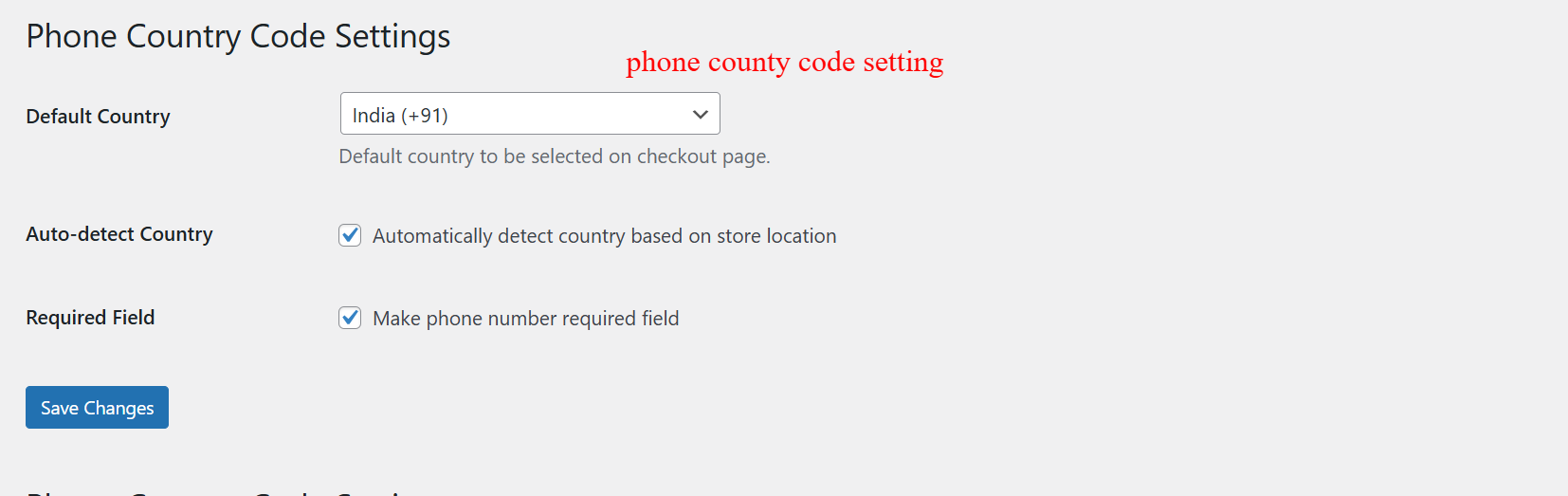
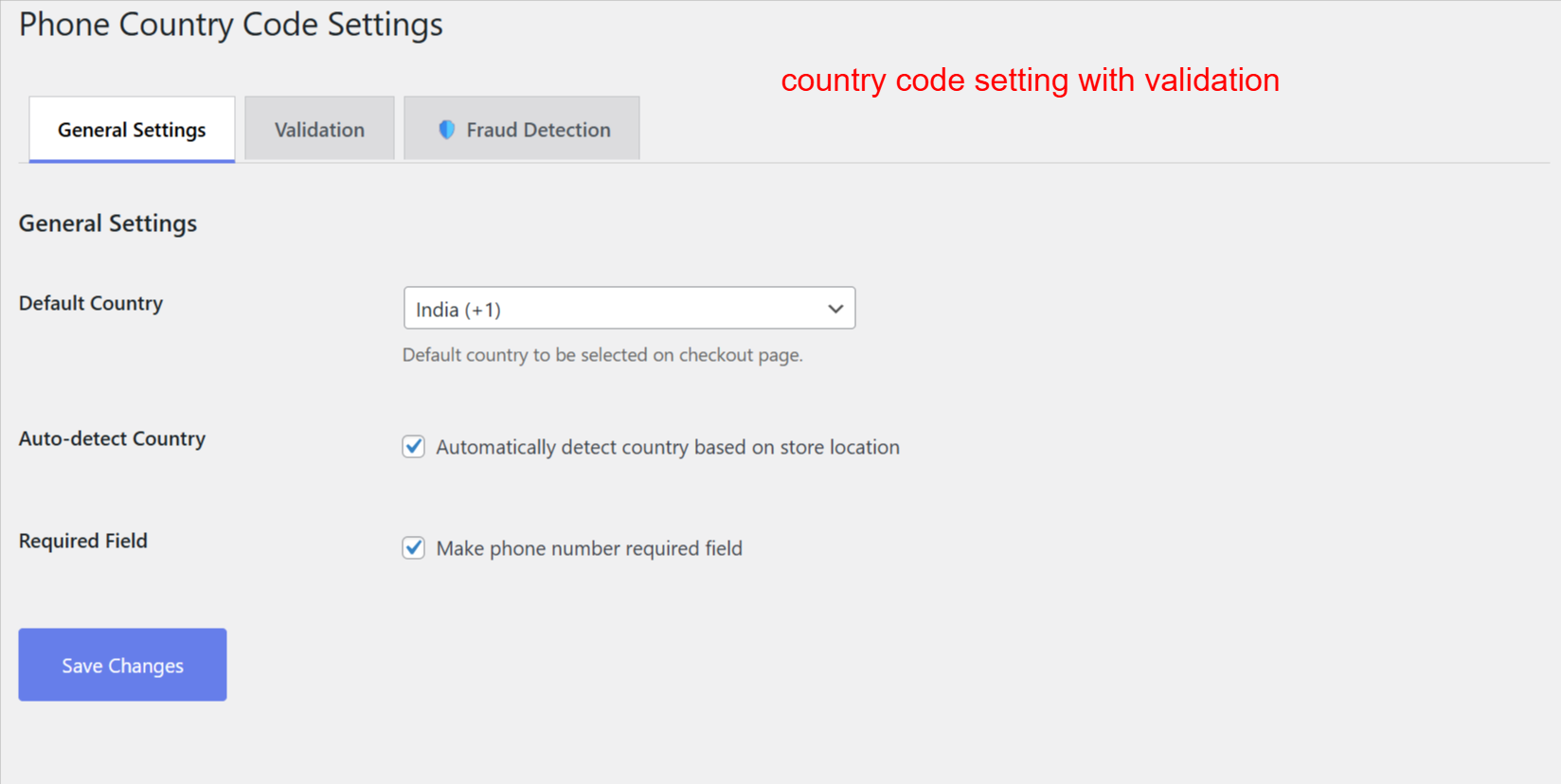
Admins set the default country for phone numbers and can allow automatic detection based on store location. These settings refine the customer’s checkout experience, ensuring the correct country code is readily available, enhancing the order process efficiency.
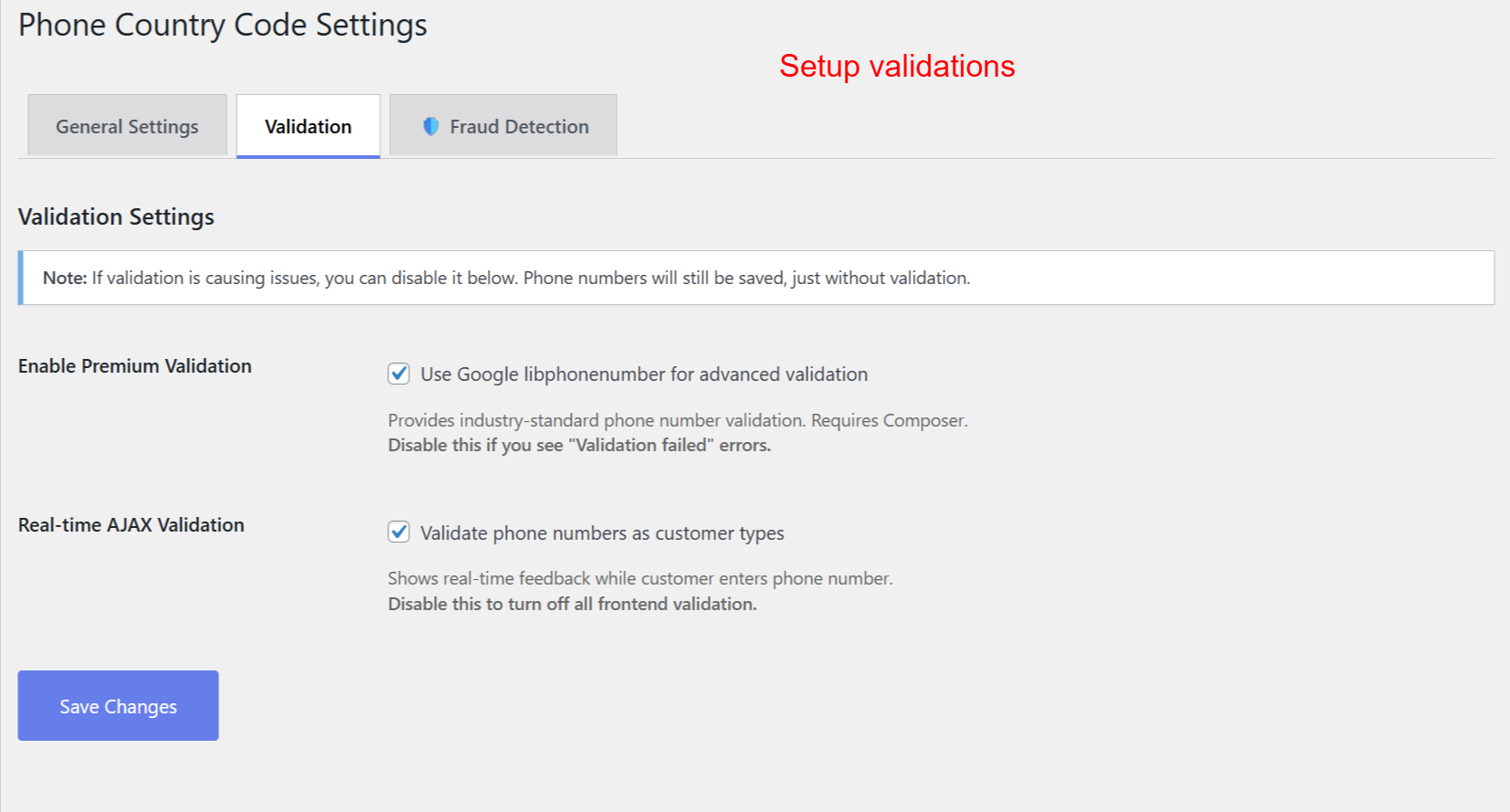
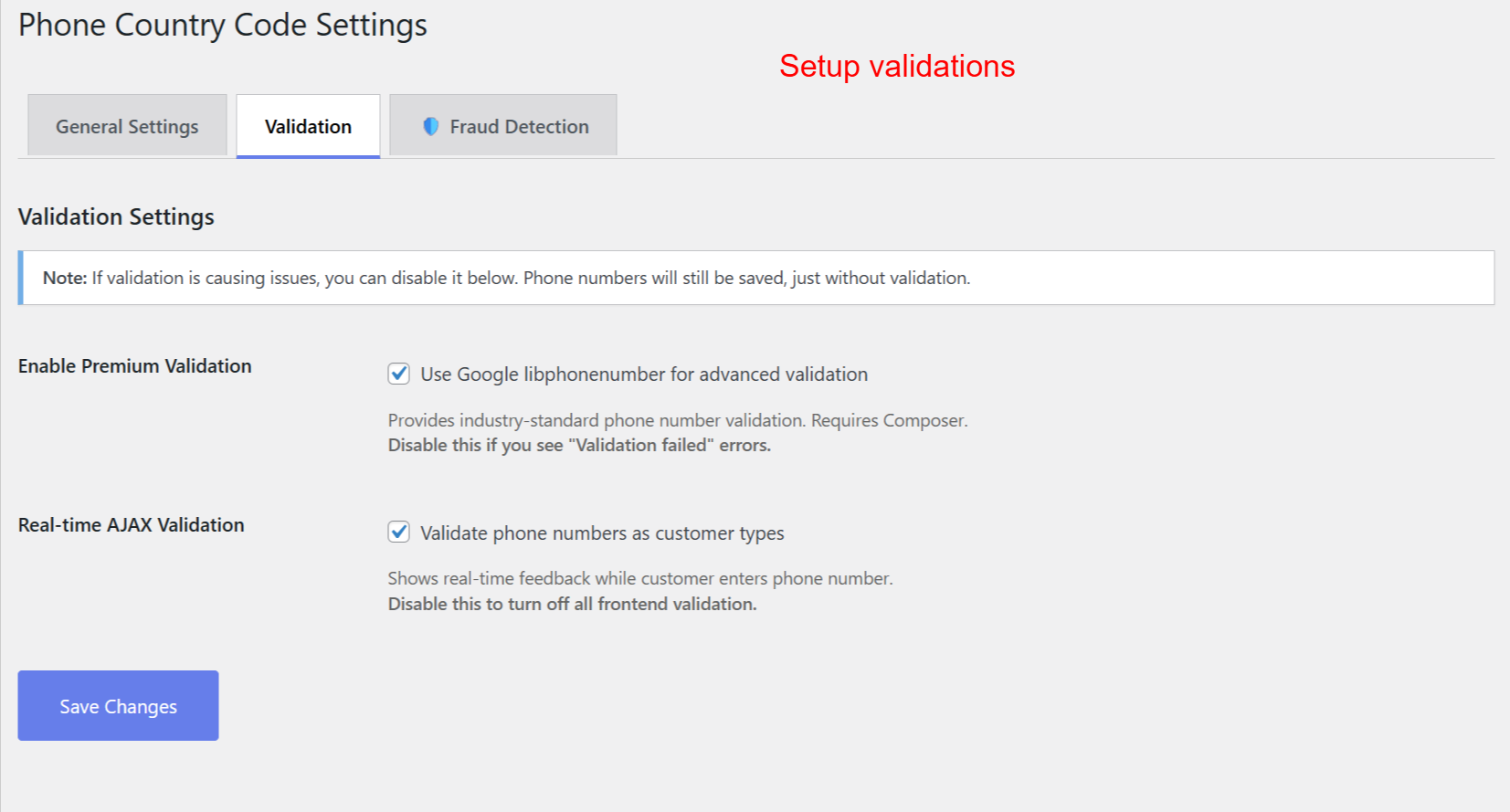
Admins enhance phone number accuracy by enabling advanced validation tools. This ensures phone numbers are formatted and validated in real-time, reducing errors and increasing the quality of customer data collected at checkout.
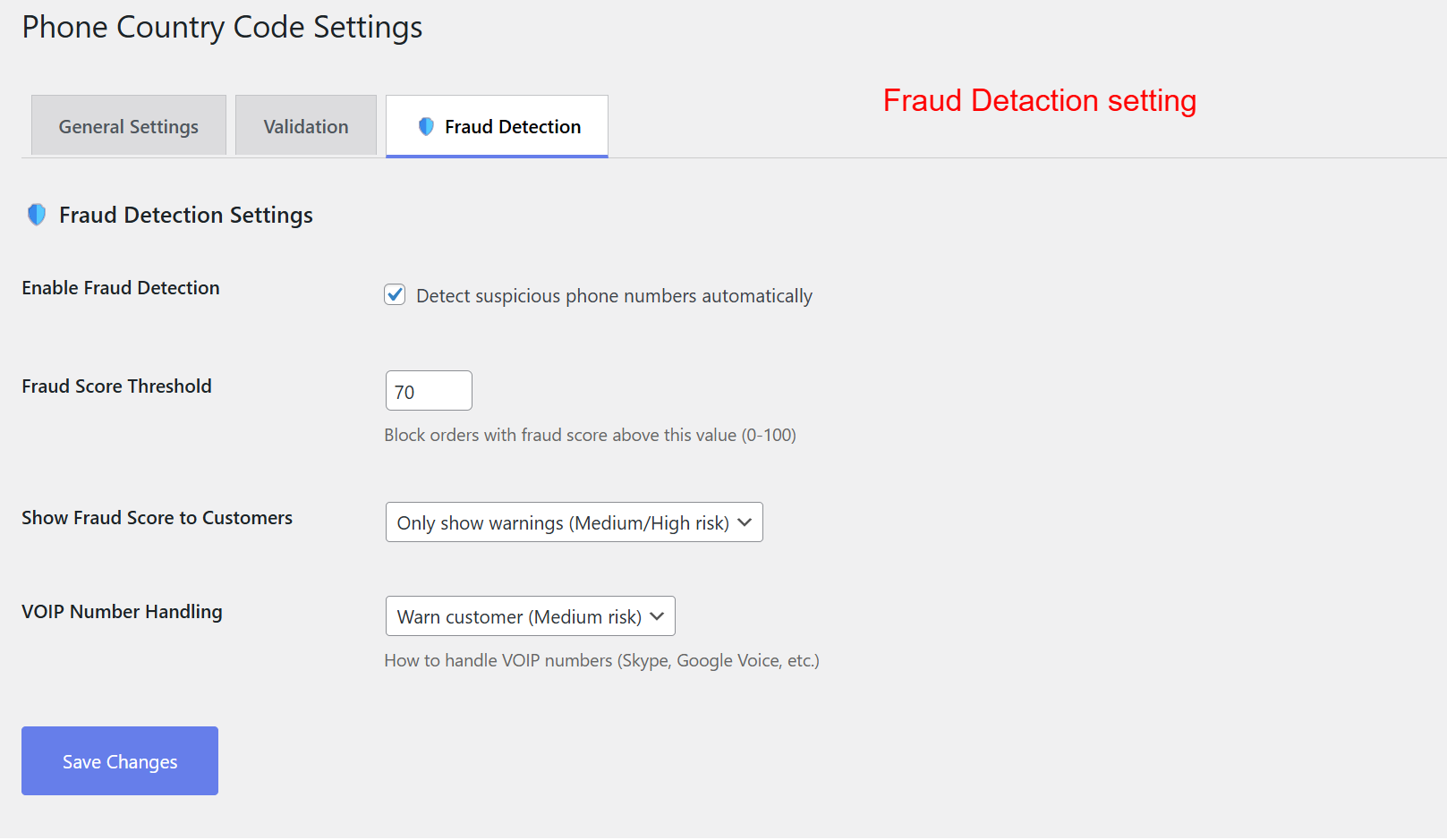
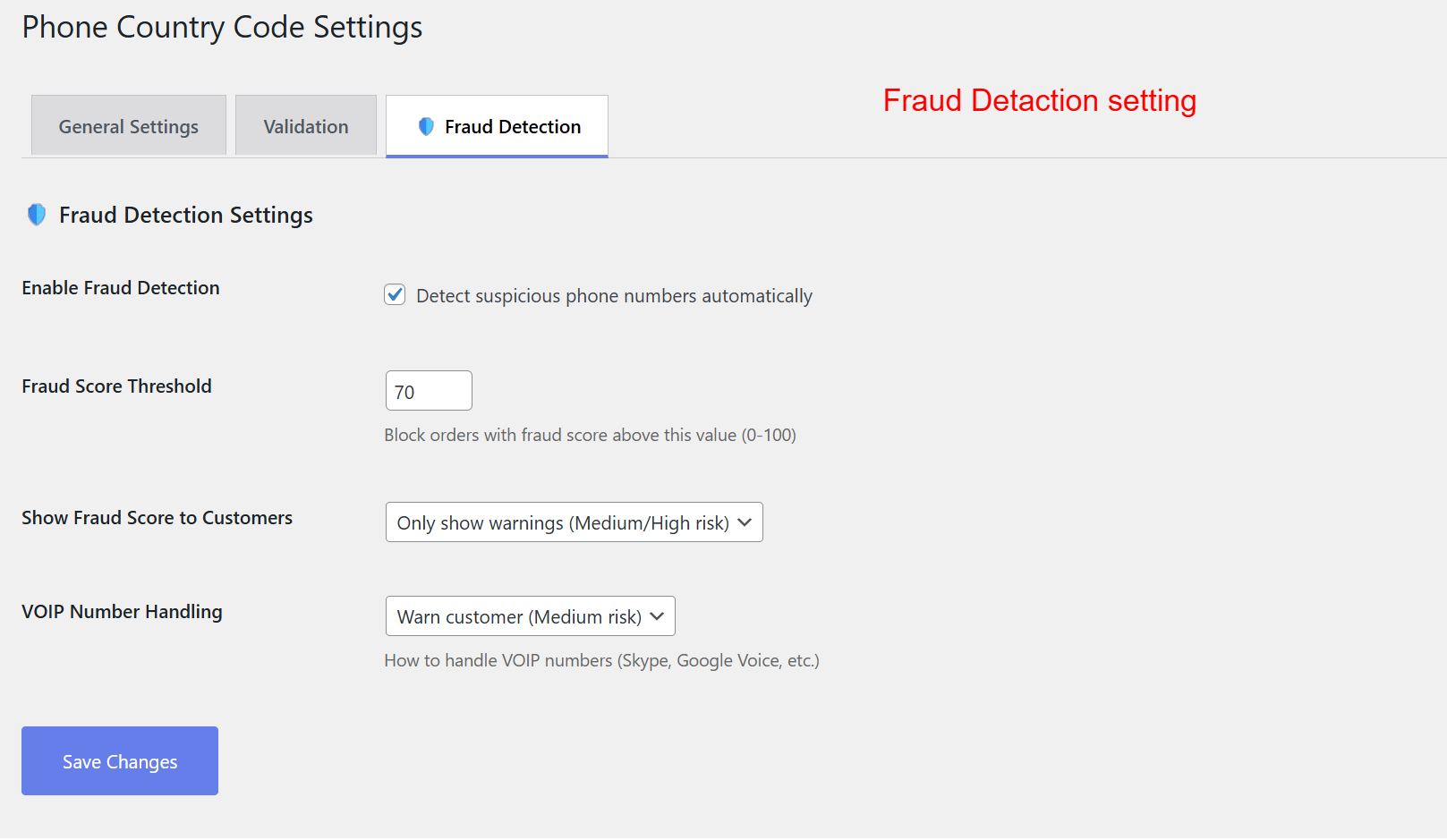
This page allows admins to configure settings that help identify and prevent fraudulent orders. By setting a fraud score threshold, they can control when the system flags suspicious phone numbers, thus safeguarding against potential fraud without inconveniencing genuine customers.
Performance and Optimization
Optimized performance ensures fast and reliable operation.
- Rapid loading with CDN-hosted resources
- Mobile and touchscreen optimization
- Efficient AJAX use for dynamic updates
- Standards-compliant clean code
- Complete browser compatibility
3 Configuration Walkthrough
Activate the Plugin
To begin using the plugin, navigate to Plugins > Installed Plugins within your WordPress admin panel. Locate Checkout Phone Country Code for WooCommerce and click Activate. This step will enable the plugin's features on your shop's checkout page.
On this screen, the admin can manage installed plugins within WordPress. To enable the features of the Checkout Phone Country Code for WooCommerce plugin, the admin must activate it here. Activating the plugin is essential to display international phone country code selectors at checkout.
Access Phone Country Code Settings
After activation, head to WooCommerce > Phone Country Code from the sidebar to begin configuring the plugin settings. This menu provides all customization options.
This screen allows the admin to access the Phone Country Code settings within the WooCommerce menu. Navigating here is the next step after activating the plugin, enabling the admin to configure how country codes appear during the checkout process.
Configure General Settings
Within the settings, configure the necessary general settings: set a default country and enable the auto-detect feature for ease of use based on visitor location.
Admins set the default country for phone numbers and can allow automatic detection based on store location. These settings refine the customer’s checkout experience, ensuring the correct country code is readily available, enhancing the order process efficiency.
Enable Advanced Validation
Go to the Validation tab to activate advanced validation options. Utilize the Google libphonenumber library for precise validation and enable AJAX real-time checks for accuracy.
Admins enhance phone number accuracy by enabling advanced validation tools. This ensures phone numbers are formatted and validated in real-time, reducing errors and increasing the quality of customer data collected at checkout.
Set Up Fraud Detection
Access the Fraud Detection settings to protect your store from fraudulent activities. Configure detection sensitivity using fraud score thresholds and manage how VOIP numbers are handled.
This page allows admins to configure settings that help identify and prevent fraudulent orders. By setting a fraud score threshold, they can control when the system flags suspicious phone numbers, thus safeguarding against potential fraud without inconveniencing genuine customers.
4 User Journey
Select Country Code and Enter Phone Number
Customers selecting a country code will find a user-friendly dropdown with flags, making it simple to find and select the correct country code. This ensures accuracy in phone number entry.
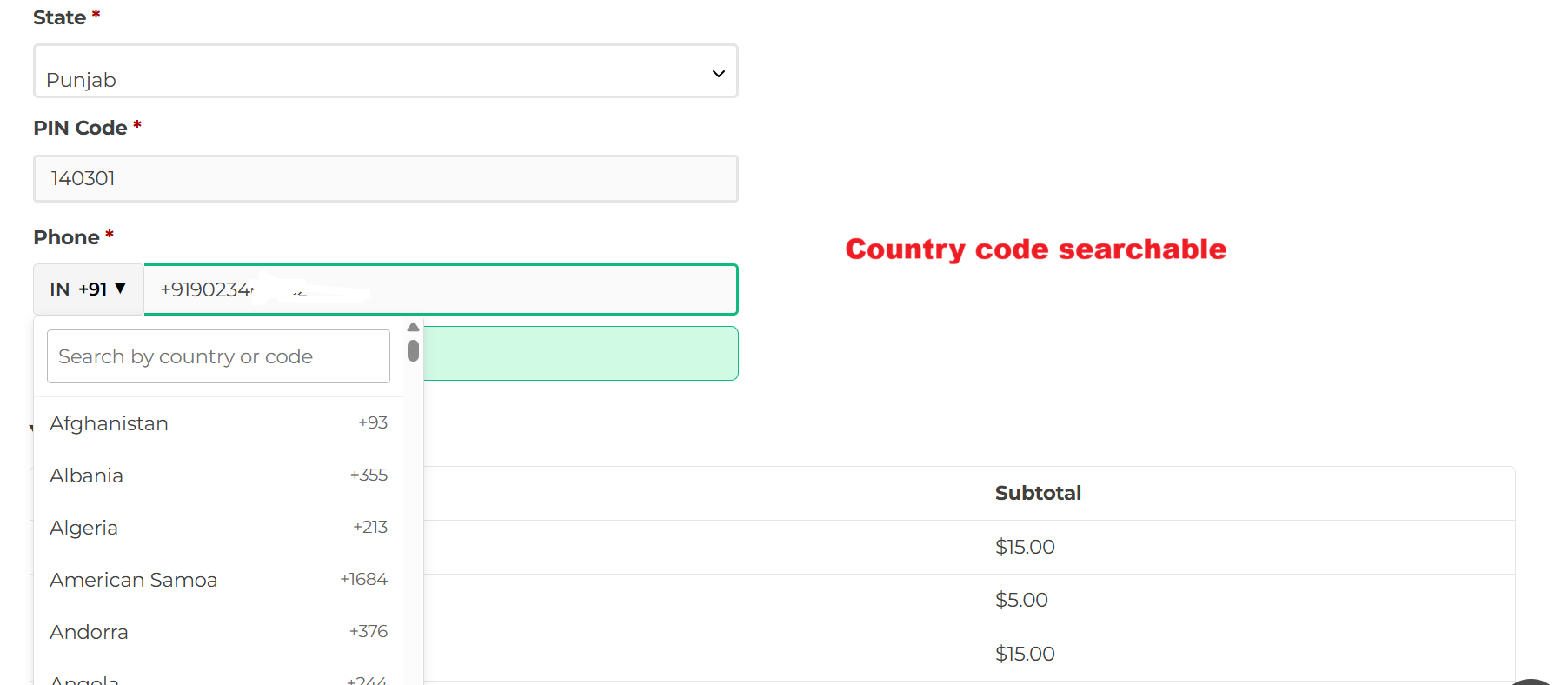
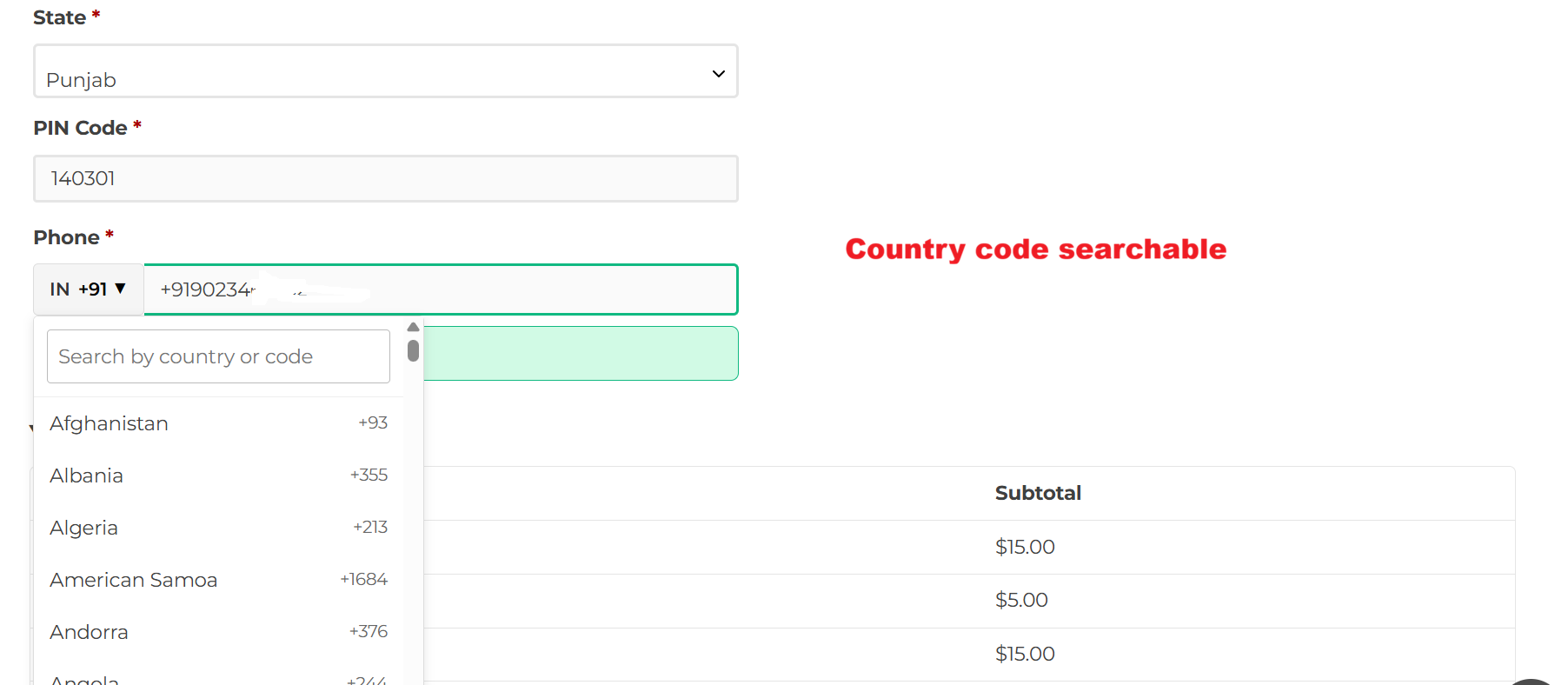
Customers enter their phone number during checkout, utilizing a searchable drop-down list of country codes. This functionality enhances user experience by making it easier to select the correct country code, ensuring accurate data entry.
Phone Number Validation
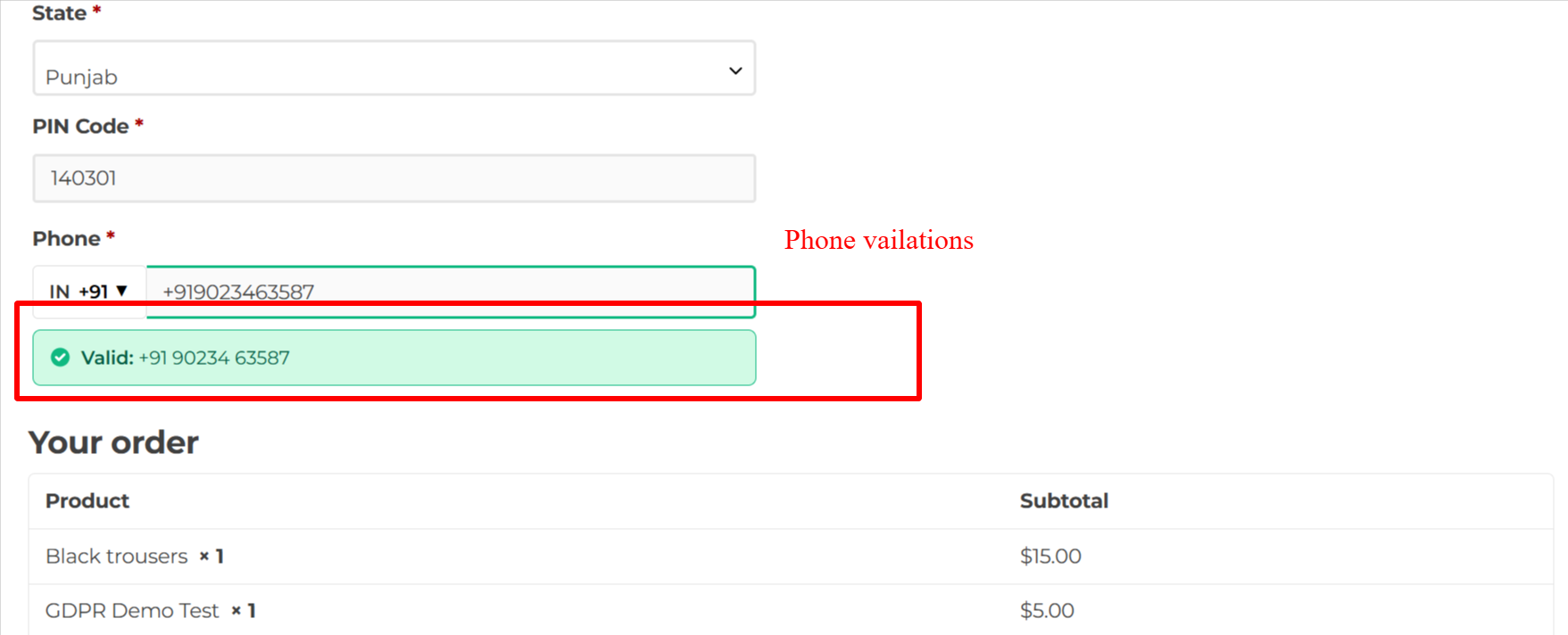
Upon entering their phone number, customers receive instant validation feedback. A success message confirms that the number is valid, ensuring the format aligns with country-specific standards.
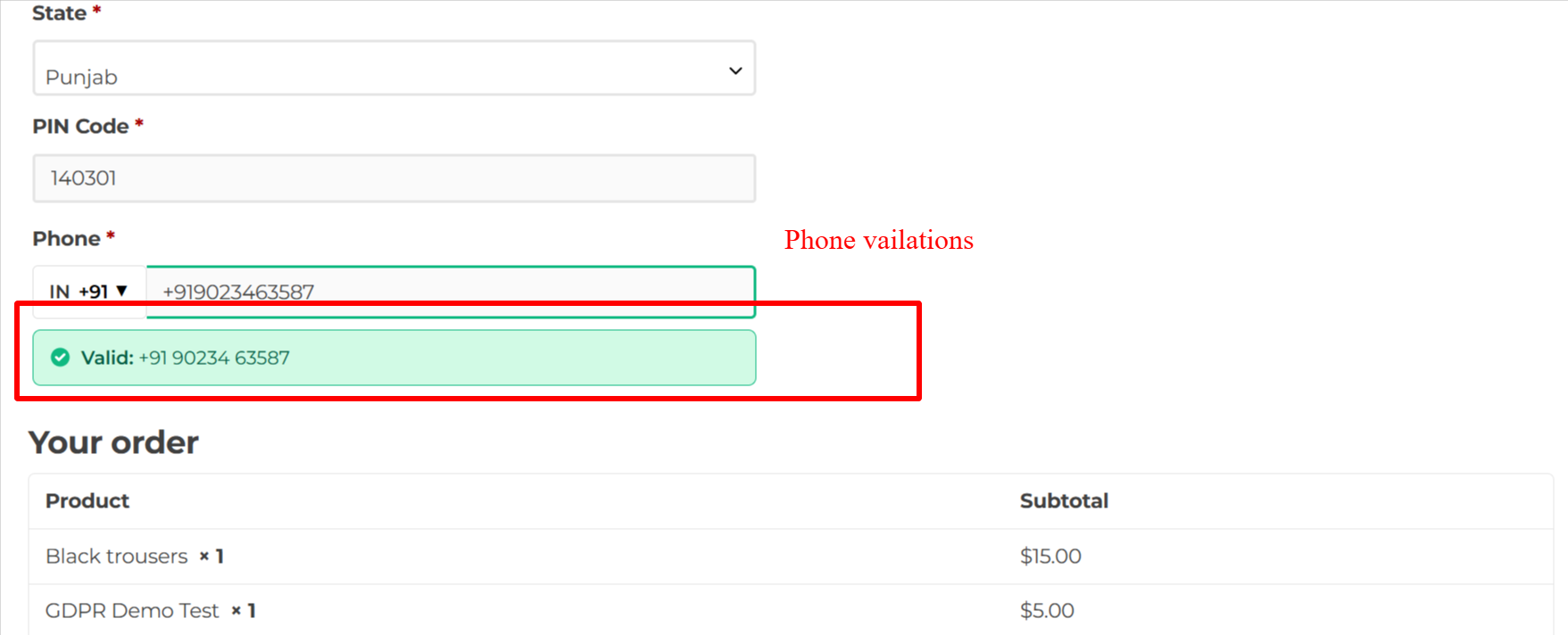
When a customer enters a valid phone number, the system provides immediate feedback confirming the entry. This reassures the customer that their contact details are correctly formatted, improving accuracy and satisfaction.
Correct Invalid Phone Numbers
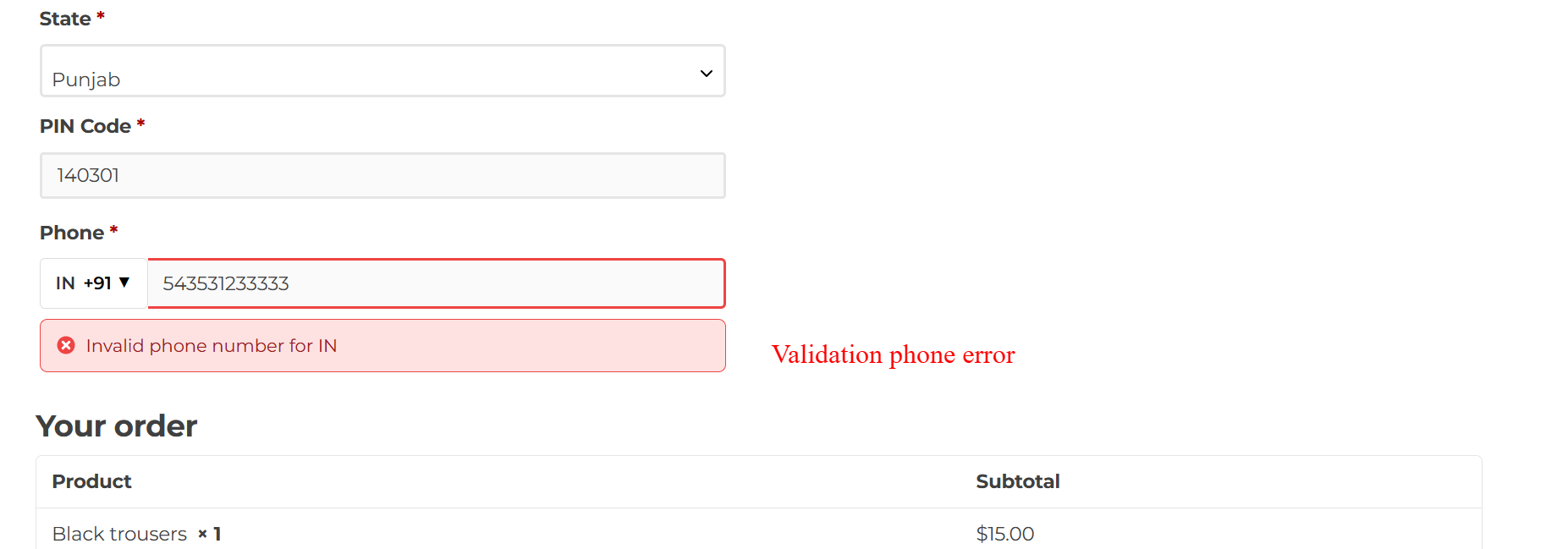
If a phone number is deemed incorrect, an error message proposes corrections, helping the customer enter valid data before completing their purchase.
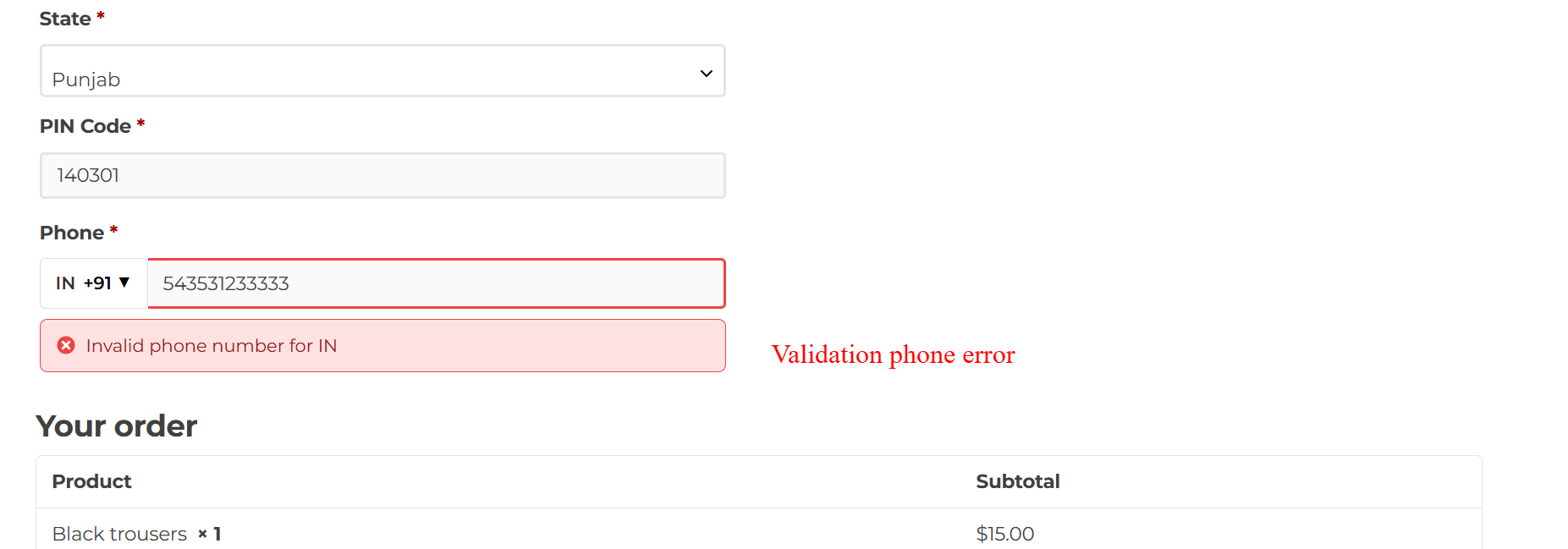
If the phone number entered by a customer is incorrect, an error message prompts immediate correction. This helps ensure data integrity by preventing the submission of inaccurate contact information at checkout.
5 Use Cases
Global E-commerce Expansion
A company looking to expand internationally uses this plugin to ensure seamless phone validation and country code selection, accommodating global customers with ease.
Enhanced Customer Experience
A store aiming to reduce cart abandonment integrates this solution for a smoother checkout process, helping customers get the country codes right the first time.
Fraud Prevention
E-commerce platforms wanting extra security leverage this plugin's fraud detection to minimize suspicious transactions and maintain a secure checkout environment.
Mobile-Optimized Checkout
Businesses focusing on mobile commerce implement this plugin for its responsive design, providing a superior experience for customers on smartphones and tablets.
6 Installation Guide
-
Login to your WordPress admin panel
-
Navigate to Plugins > Add New
-
Search for "WooCommerce Checkout Phone Country Code"
-
Click "Install Now" and then "Activate"
-
Go to WooCommerce > Phone Country Code to configure settings
8 Tips & Tricks
- Ensure the default country matches your target market.
- Regularly update the plugin for optimal performance.
- Test mobile checkout to verify touch-friendly design.
- Use specific CSS classes for tailored styling.
- Make sure validation settings align with business needs.
- Enable auto-detection to streamline customer selection.
- Verify fraud detection configuration for maximum security.
- Review customer support FAQs to guide user questions.
10 Step-by-Step Screenshot Reference
Every captured screen in setup order. Click any image to open the full-size version in a new tab.
wp-admin: Plugins > Activate Plugin
What this shows: A list of installed plugins in WordPress with the option to activate, deactivate, or access settings for each. The 'Checkout Phone Country Code for WooCommerce' plugin is featured.
On this screen, the admin can manage installed plugins within WordPress. To enable the features of the Checkout Phone Country Code for WooCommerce plugin, the admin must activate it here. Activating the plugin is essential to display international phone country code selectors at checkout.
wp-admin: WooCommerce Menu > Phone Country Code
What this shows: The WooCommerce admin menu is expanded, showcasing the option to navigate to 'Phone Country Code' settings.
This screen allows the admin to access the Phone Country Code settings within the WooCommerce menu. Navigating here is the next step after activating the plugin, enabling the admin to configure how country codes appear during the checkout process.
wp-admin: Phone Country Code Settings > General
What this shows: The General Settings tab for Phone Country Code Settings, featuring options like Default Country, Auto-detect Country, and Required Field.
Admins set the default country for phone numbers and can allow automatic detection based on store location. These settings refine the customer’s checkout experience, ensuring the correct country code is readily available, enhancing the order process efficiency.
wp-admin: Phone Country Code Settings > Validation
What this shows: The Validation Settings tab with options for enabling Google libphonenumber for advanced validation and real-time AJAX validation.
Admins enhance phone number accuracy by enabling advanced validation tools. This ensures phone numbers are formatted and validated in real-time, reducing errors and increasing the quality of customer data collected at checkout.
wp-admin: Phone Country Code Settings > Fraud Detection
What this shows: Fraud Detection Settings tab, including options to enable fraud detection, set fraud score thresholds, and handle VOIP numbers.
This page allows admins to configure settings that help identify and prevent fraudulent orders. By setting a fraud score threshold, they can control when the system flags suspicious phone numbers, thus safeguarding against potential fraud without inconveniencing genuine customers.
Checkout Frontend: Country Code Search
What this shows: The phone field on the checkout page showcasing a country code drop-down list with a search function for ease of selection.
Customers enter their phone number during checkout, utilizing a searchable drop-down list of country codes. This functionality enhances user experience by making it easier to select the correct country code, ensuring accurate data entry.
Checkout Frontend: Phone Validation Success
What this shows: Checkout phone field with a validation success message displayed below, confirming the phone number is valid.
When a customer enters a valid phone number, the system provides immediate feedback confirming the entry. This reassures the customer that their contact details are correctly formatted, improving accuracy and satisfaction.
Checkout Frontend: Phone Validation Error
What this shows: Checkout phone field showing a validation error message indicating an invalid phone number entry.
If the phone number entered by a customer is incorrect, an error message prompts immediate correction. This helps ensure data integrity by preventing the submission of inaccurate contact information at checkout.
WooCommerce Frontend: Phone Country Code Display
What this shows: This screenshot shows the WooCommerce checkout form with a phone field. The field includes a country flag icon and a dropdown for selecting the phone country code, displaying '+91'. There is a 'Save address' button below the field.
On this WooCommerce checkout screen, customers can select a phone country code by choosing from a dropdown menu featuring country flags, ensuring they input their number with the correct international prefix. This functionality simplifies the checkout process for international customers, reducing phone number entry errors. After making their selection, customers can continue by clicking 'Save address' to proceed with their purchase.


Reviews
There are no reviews yet.