

1 Overview
Enhance WooCommerce checkout with international phone validation and WhatsApp integration.
The Country Code Phone & WhatsApp Field for WooCommerce plugin adds essential functionality to enhance your checkout process. By integrating a comprehensive international phone number field selector with real-time validation for 200+ countries, it ensures seamless customer experiences. Users can benefit from both phone and WhatsApp fields to provide contact details easily and accurately, helping you maintain effective communication and streamline order processing.
Backed by Google's libphonenumber library, the plugin offers reliable phone validation trusted by industry giants like WhatsApp, Uber, and Google. Featuring support for 200+ countries, users receive instant validation feedback while entering phone numbers. Adding a WhatsApp field with auto-copy feature from phone numbers for added convenience, the plugin is designed for international businesses looking to optimize their WooCommerce operations.
At a Glance
- 200+ country phone validation
- Real-time input validation
- WhatsApp field with auto-copy
- Intuitive dropdown with flags
- Mobile-responsive design
- Secure input handling
- Ideal for global businesses
- No external API calls
| Plugin | Country Code Phone & WhatsApp Field for WooCommerce |
|---|---|
| Version | 1.0.0 |
| Author | Webcloud Solutions |
| License | GPLv2 or later |
| WooCommerce | Compatible |
| Files | 304 total (12 PHP) |
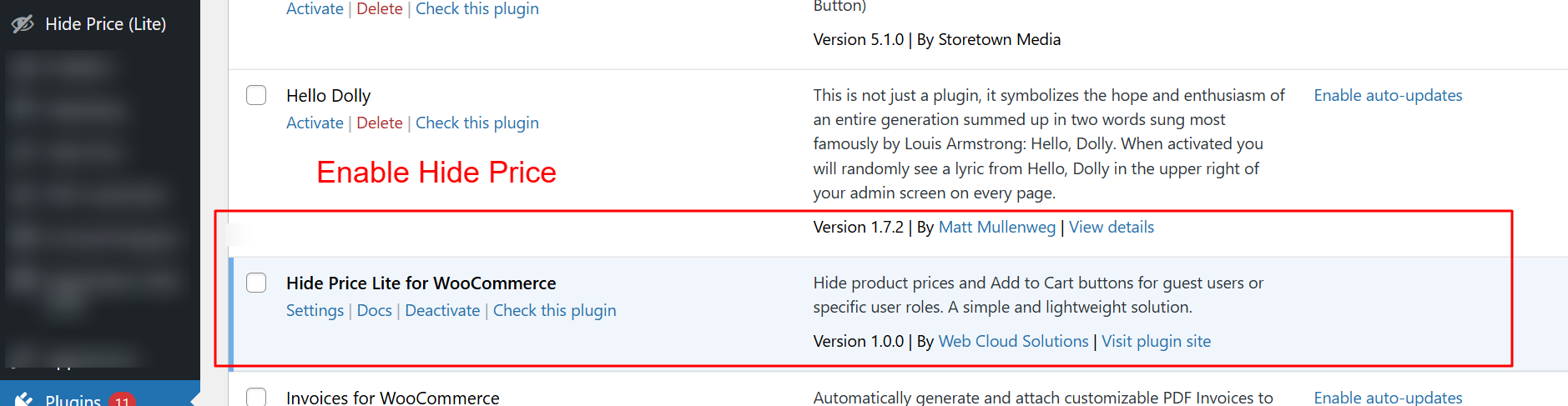
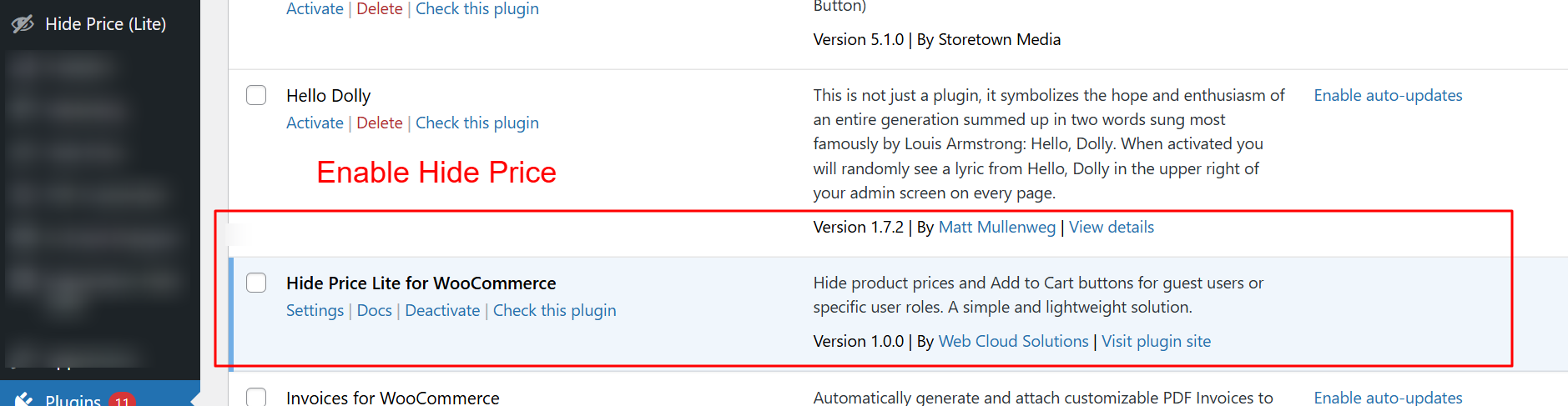
To use the Country Code Phone & WhatsApp Field for WooCommerce plugin, you must first activate it. Navigate to the plugins page in the WordPress dashboard and locate the plugin. Click 'Activate' to enable its functionality. Activation is the first step to configure phone number fields with country codes on your WooCommerce checkout page.
2 Features
Supports 200+ countries
Real-time validation as typing occurs
International format compliance
Country code auto-detection
Accurate formatting including spaces and dashes
Error tracking for invalid inputs
Beautiful dropdown with flags
Easy search functionality
Mobile-responsive
Auto-detect from WooCommerce billing address
Customizable default country
Optional WhatsApp field
Auto-copy from phone number
Optimized for WhatsApp Business
Separate or same number options
Customizable field label and placeholder
Global Phone Validation
Accurate validation for phone numbers in 200+ countries.
- Supports 200+ countries
- Real-time validation as typing occurs
- International format compliance
- Country code auto-detection
- Accurate formatting including spaces and dashes
- Error tracking for invalid inputs
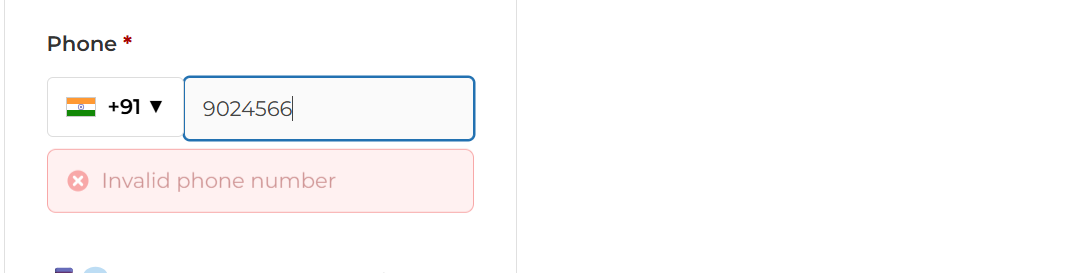
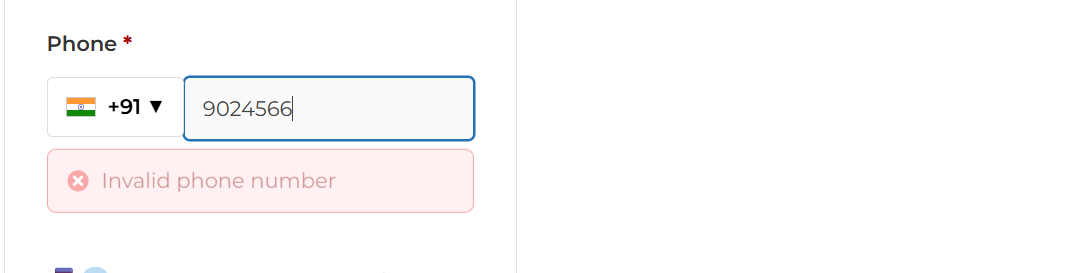
This screen provides immediate feedback when an invalid phone number is entered, prompting users to correct mistakes before proceeding. Such real-time validation prevents future communication errors and guarantees that customer contact data is accurate and reliable.
Country Code Selector
Dynamic dropdown with flag representation ensures intuitive access.
- Beautiful dropdown with flags
- Easy search functionality
- Mobile-responsive
- Auto-detect from WooCommerce billing address
- Customizable default country
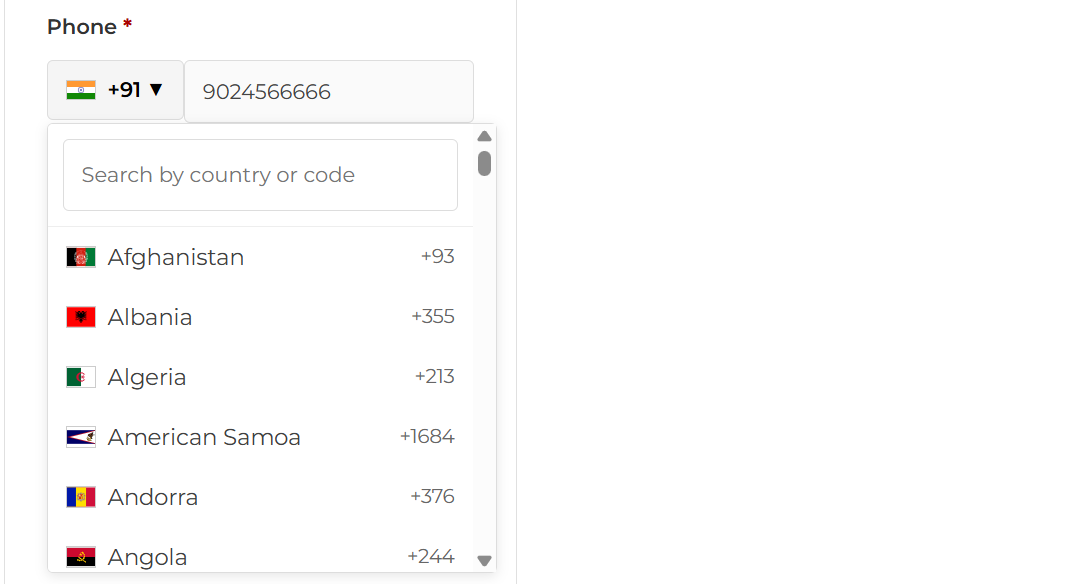
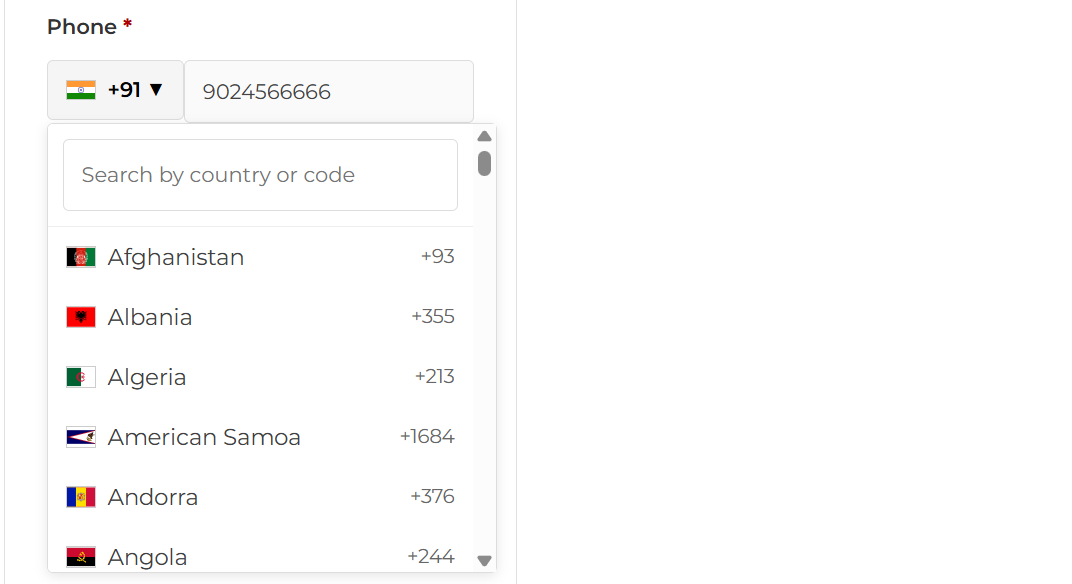
On the checkout page, customers can easily input their phone number with the help of a dropdown menu displaying country codes and flags for over 200 countries. This makes it simple for users from anywhere in the world to provide their contact information, enhancing the global accessibility of your WooCommerce store.
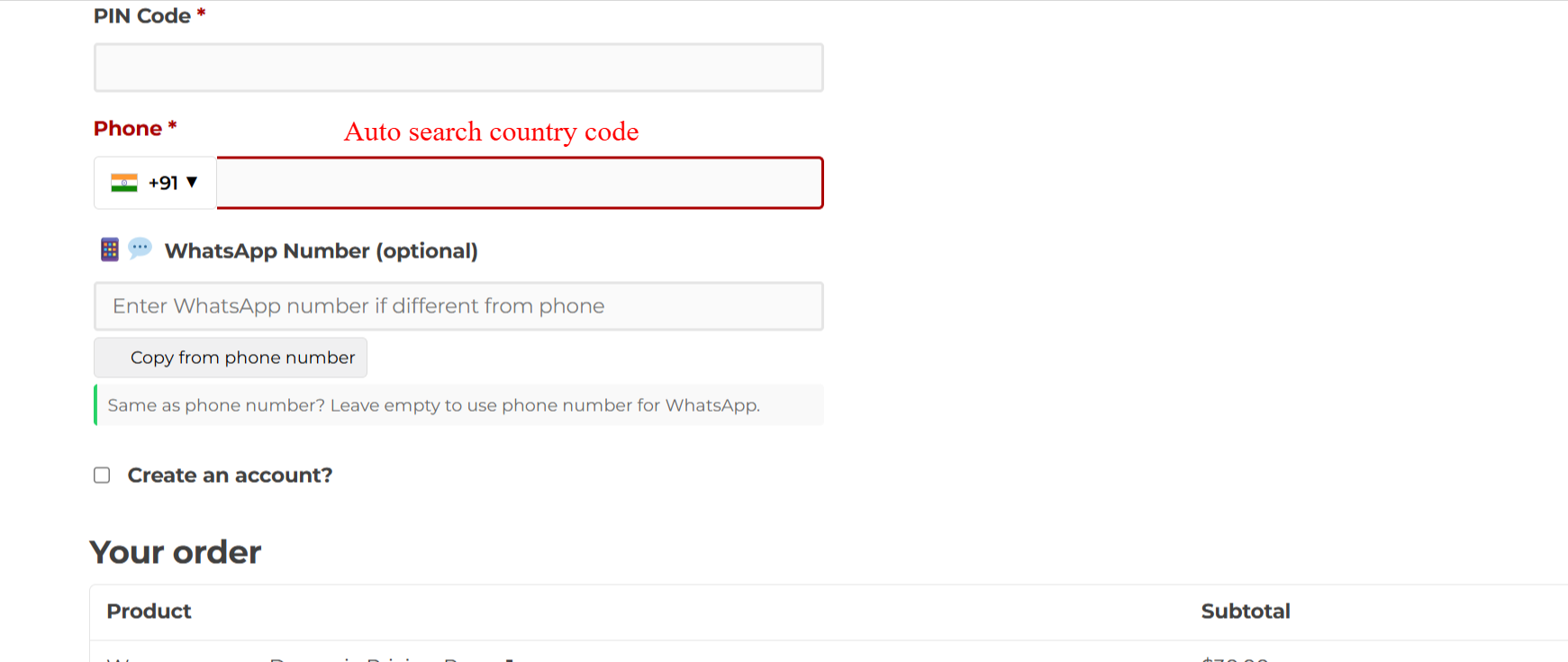
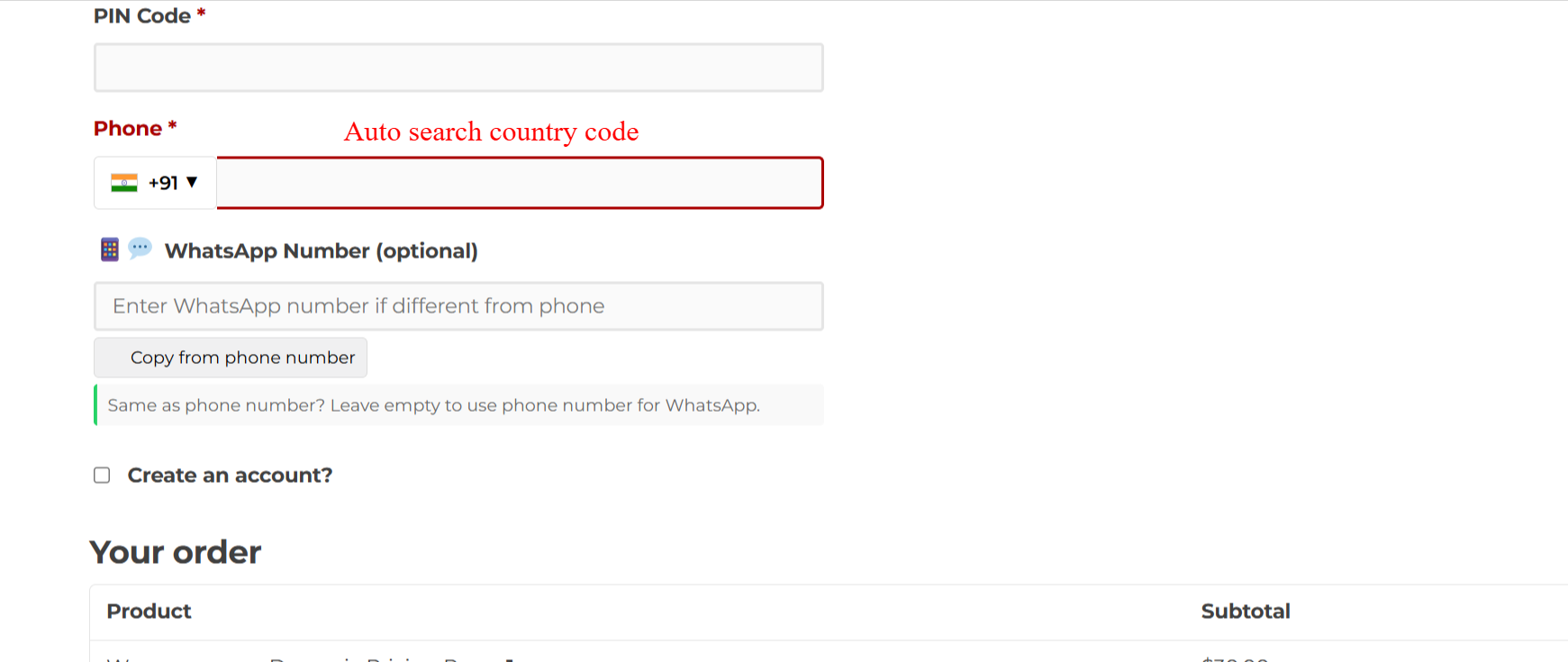
On this screen, users can enter their phone number with an international country code using the autocomplete feature. This ensures that customers provide accurate contact information necessary for order processing.
WhatsApp Integration & Flexibility
Facilitates communication via preferred channels.
- Optional WhatsApp field
- Auto-copy from phone number
- Optimized for WhatsApp Business
- Separate or same number options
- Customizable field label and placeholder
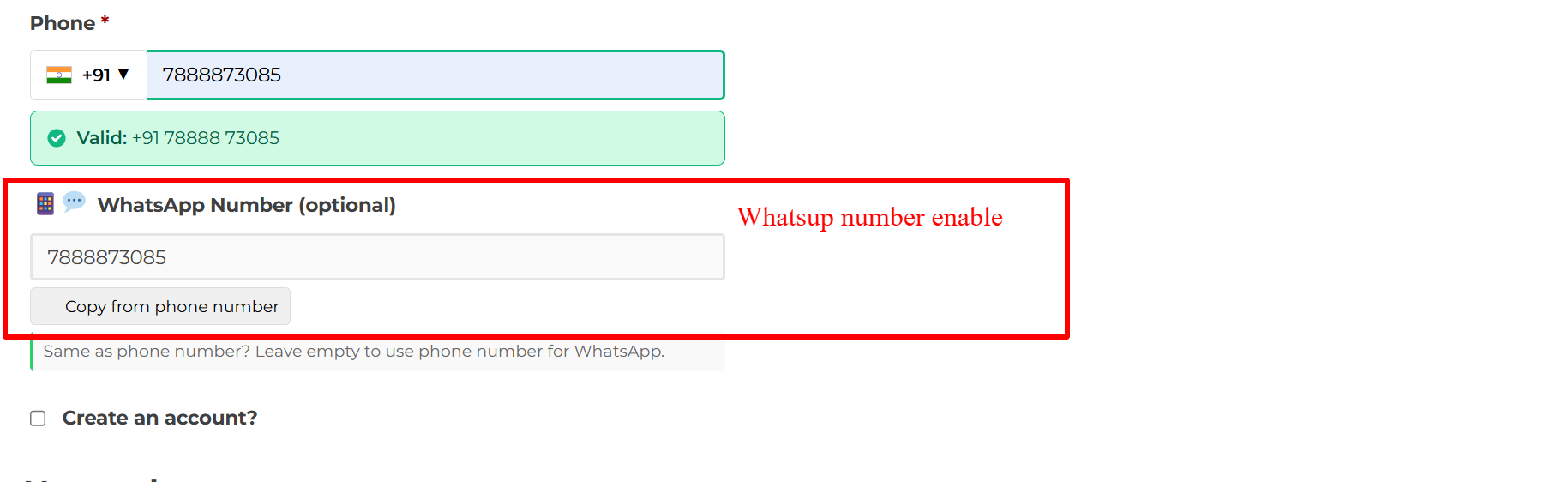
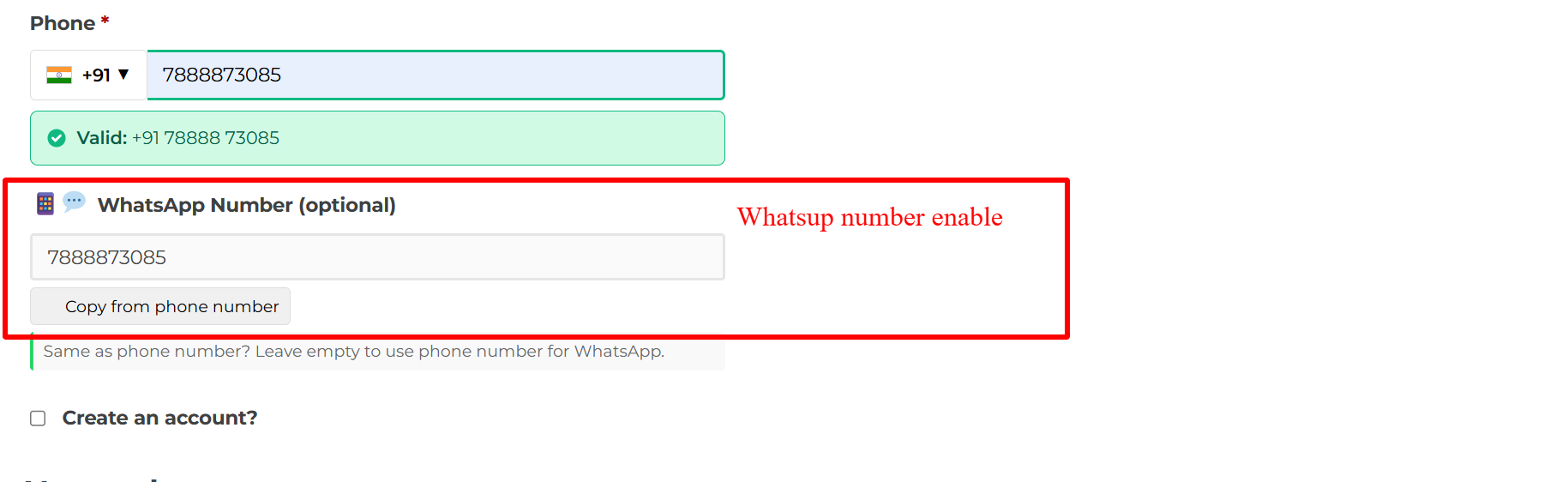
Here, customers can input a WhatsApp number distinct from their contact number, enhancing communication flexibility. The 'Copy from phone number' button speeds up this process for those who prefer using the same number, streamlining checkout efficiency.
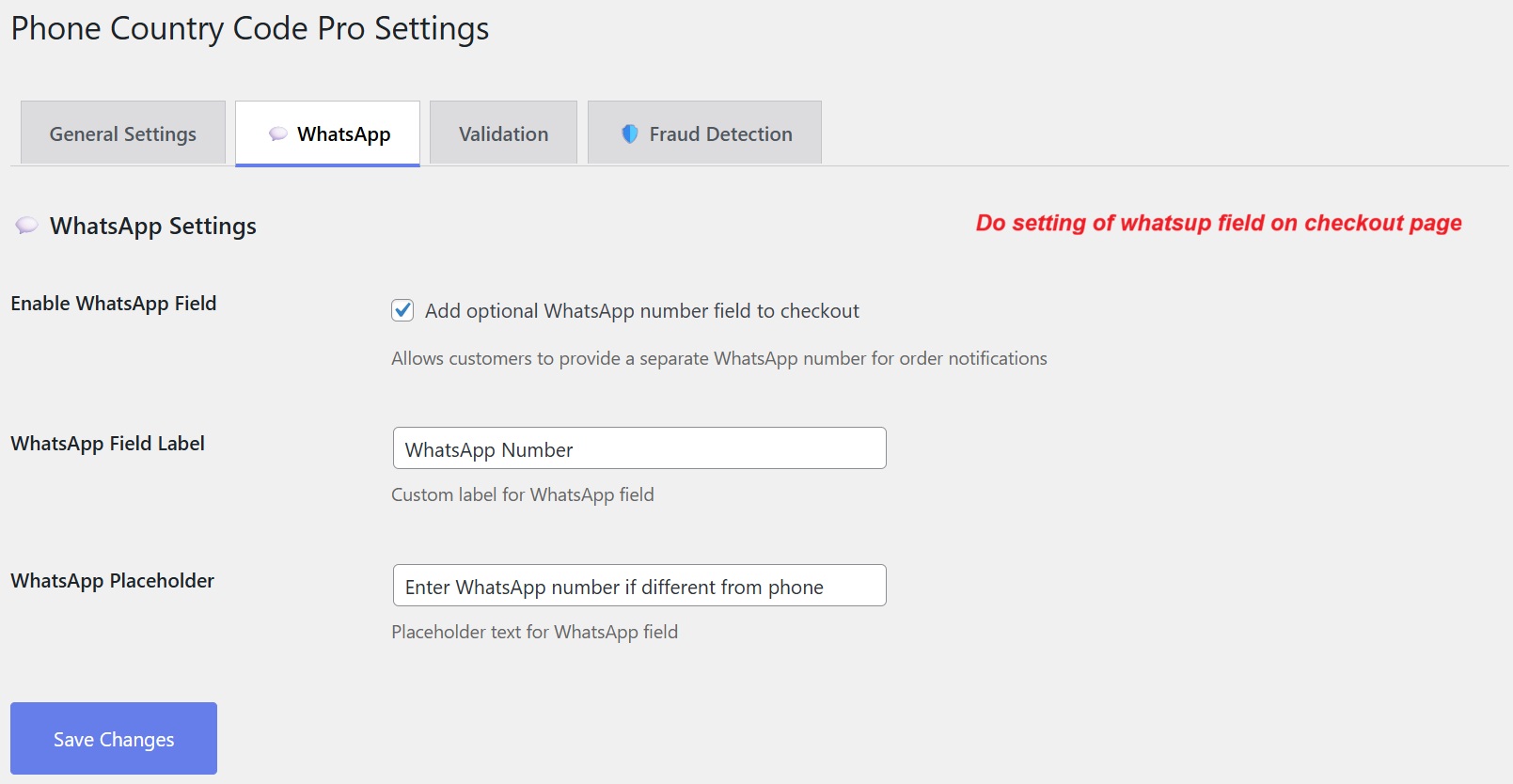
Add a WhatsApp number field to your WooCommerce checkout to facilitate direct communication with customers via their preferred messaging app. Customize the field's label and placeholder to fit your store's branding. This feature can enhance customer engagement and streamline notifications.
3 Configuration Walkthrough
Activate the Plugin
Navigate to WordPress Admin → Plugins and locate 'Country Code Phone & WhatsApp Field for WooCommerce'. Click Activate to enable its features.
Visit WooCommerce → Settings → Phone Country Code to configure.
The WordPress plugin page showing 'Country Code Phone & WhatsApp Field for WooCommerce' ready for activation, along with options for settings and deactivation.
Access Phone Country Code Settings
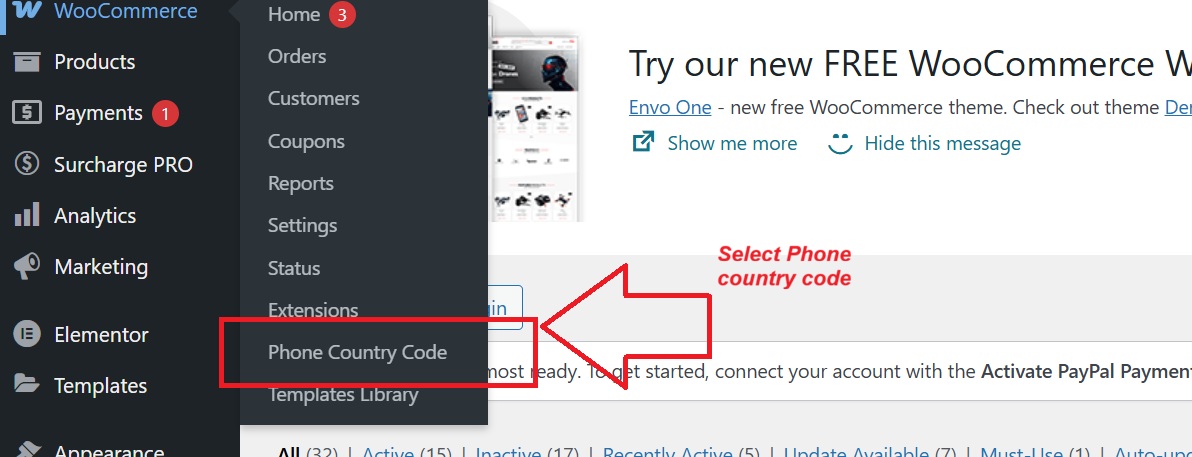
Find the plugin settings under WooCommerce → Phone Country Code. This section allows fine-tuning your contact number fields to suit specific store requirements.
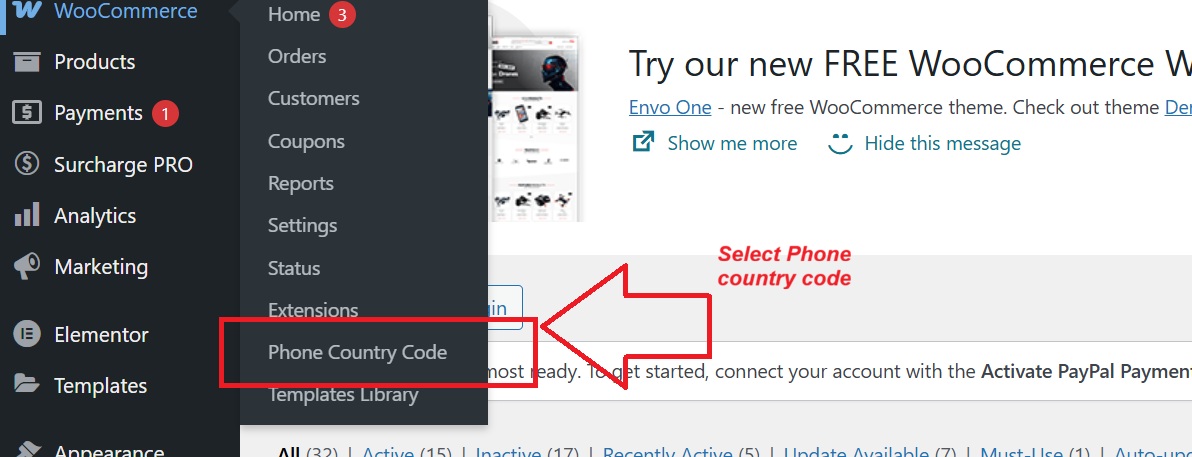
WooCommerce menu with the 'Phone Country Code' submenu highlighted, indicating where settings for the Country Code plugin can be accessed.
Set General Country Code Preferences
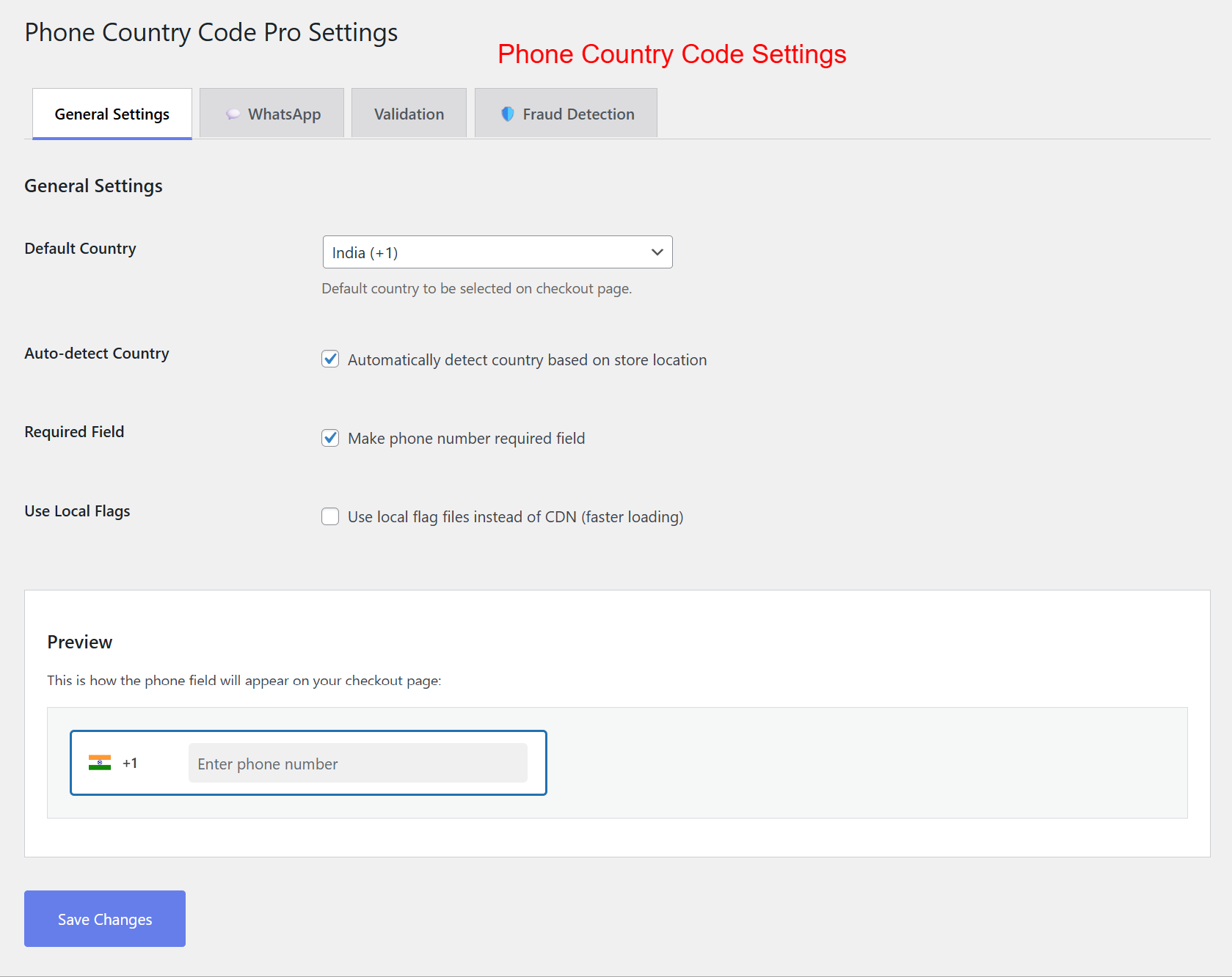
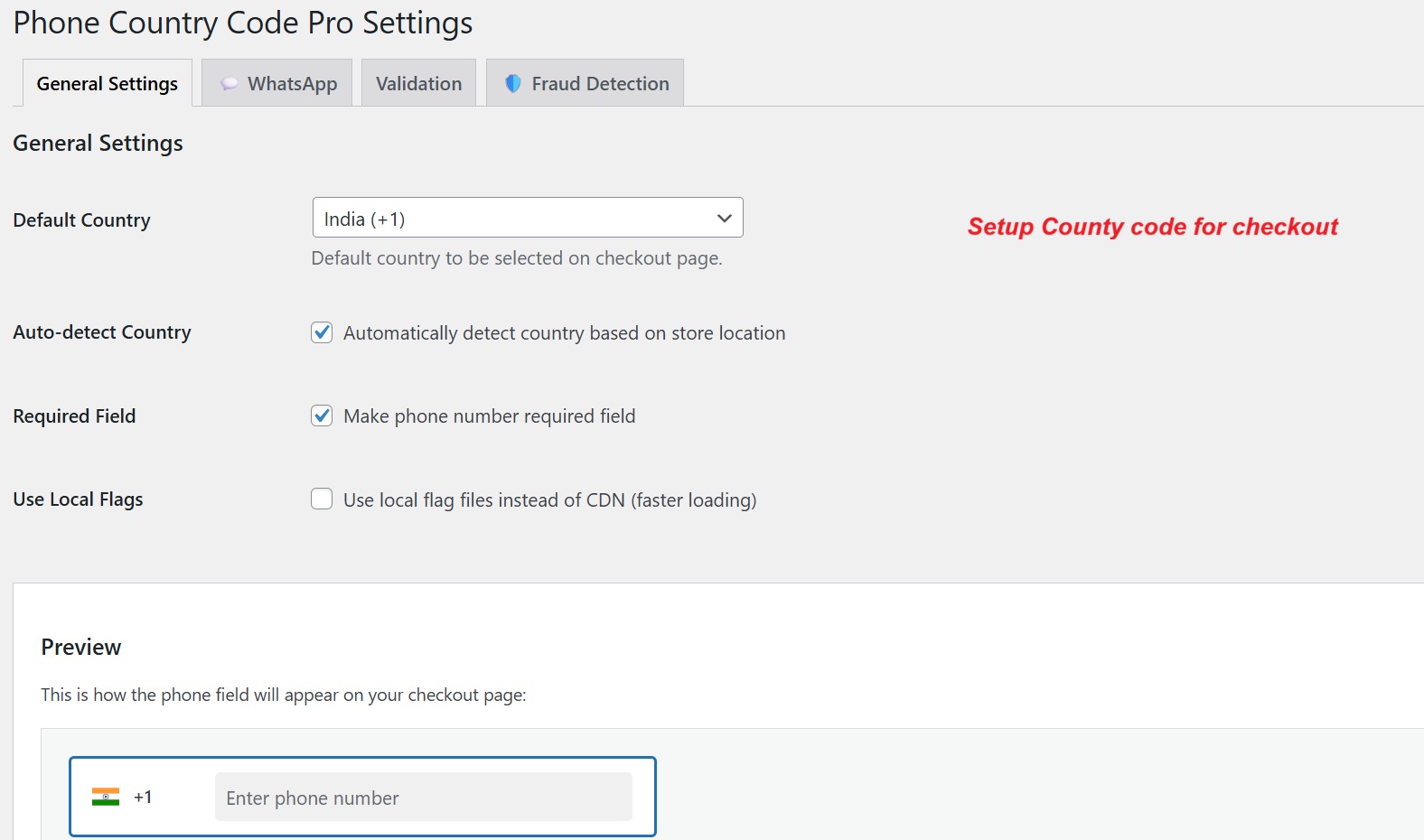
Within General Settings, select a default country and enable auto-detect to adjust based on the user's location. Mark phone fields as required for comprehensive data collection.
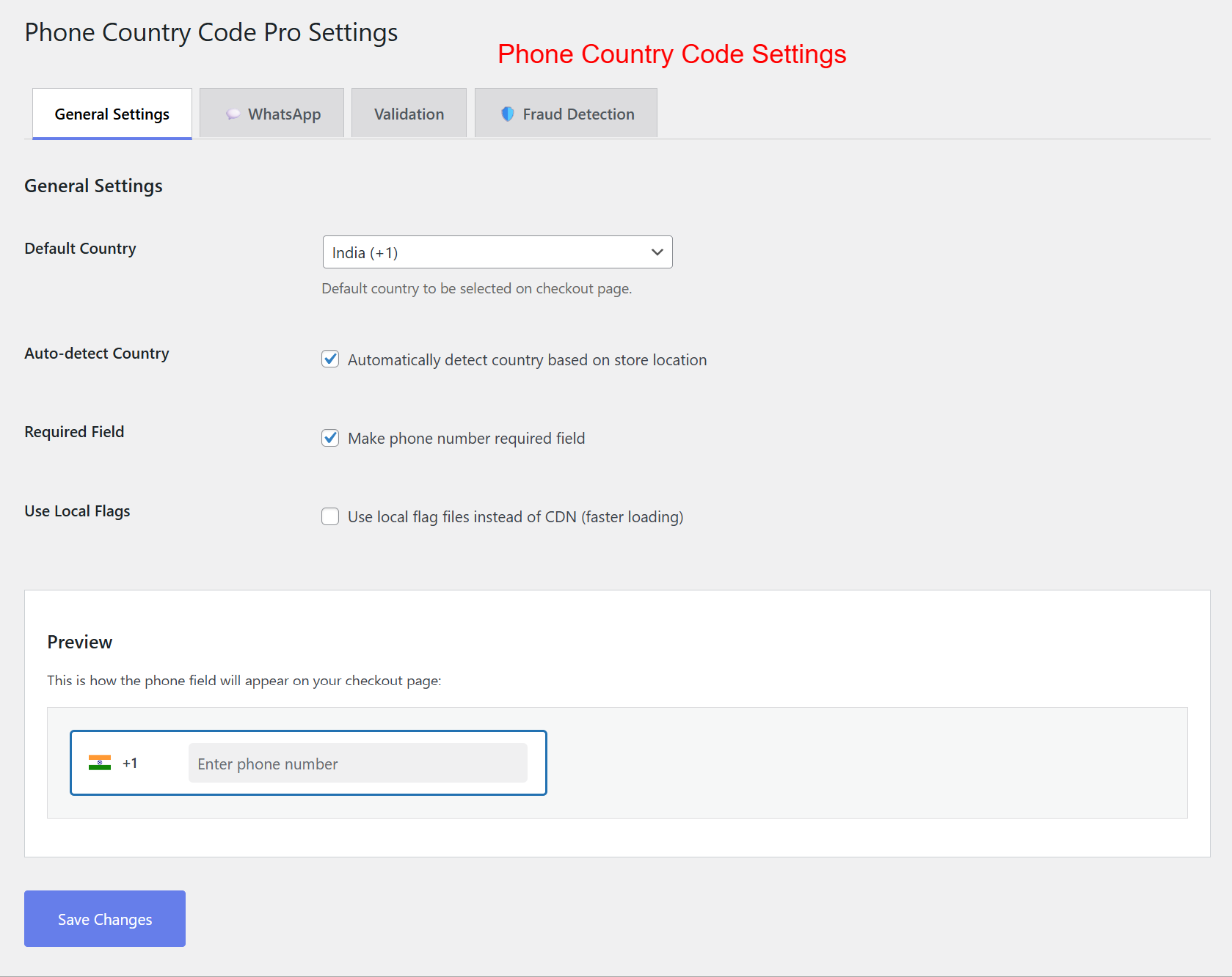
The 'General Settings' tab of the Phone Country Code Pro Settings, showing default country selection and auto-detect country features.
Configure Phone Field Requirements
Ensure complete customer information by mandating a phone number entry and opt for using local files to quicken load speeds.
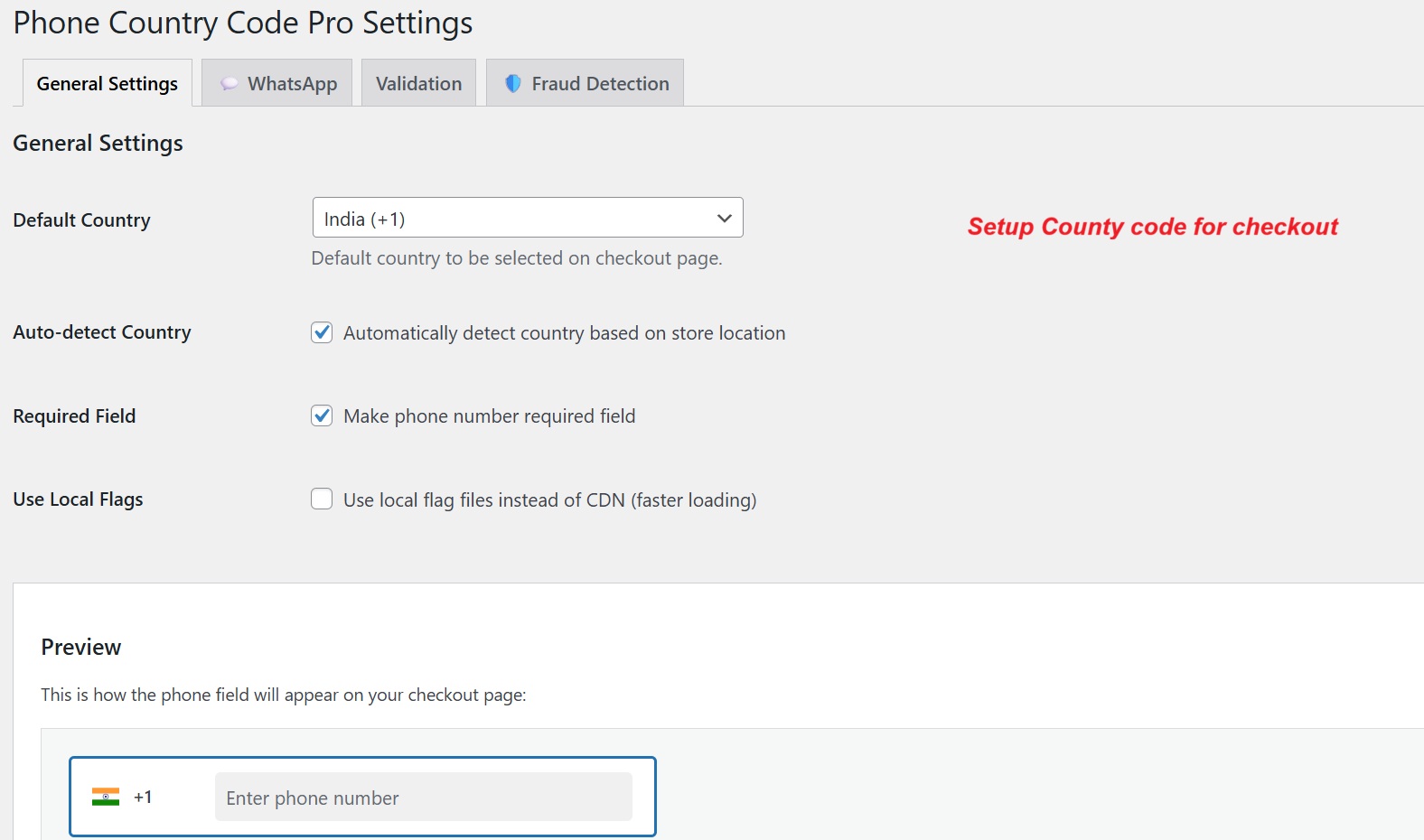
The same 'General Settings' tab as before, with options for requiring phone numbers and using local flag files.
Enable & Customize WhatsApp Field
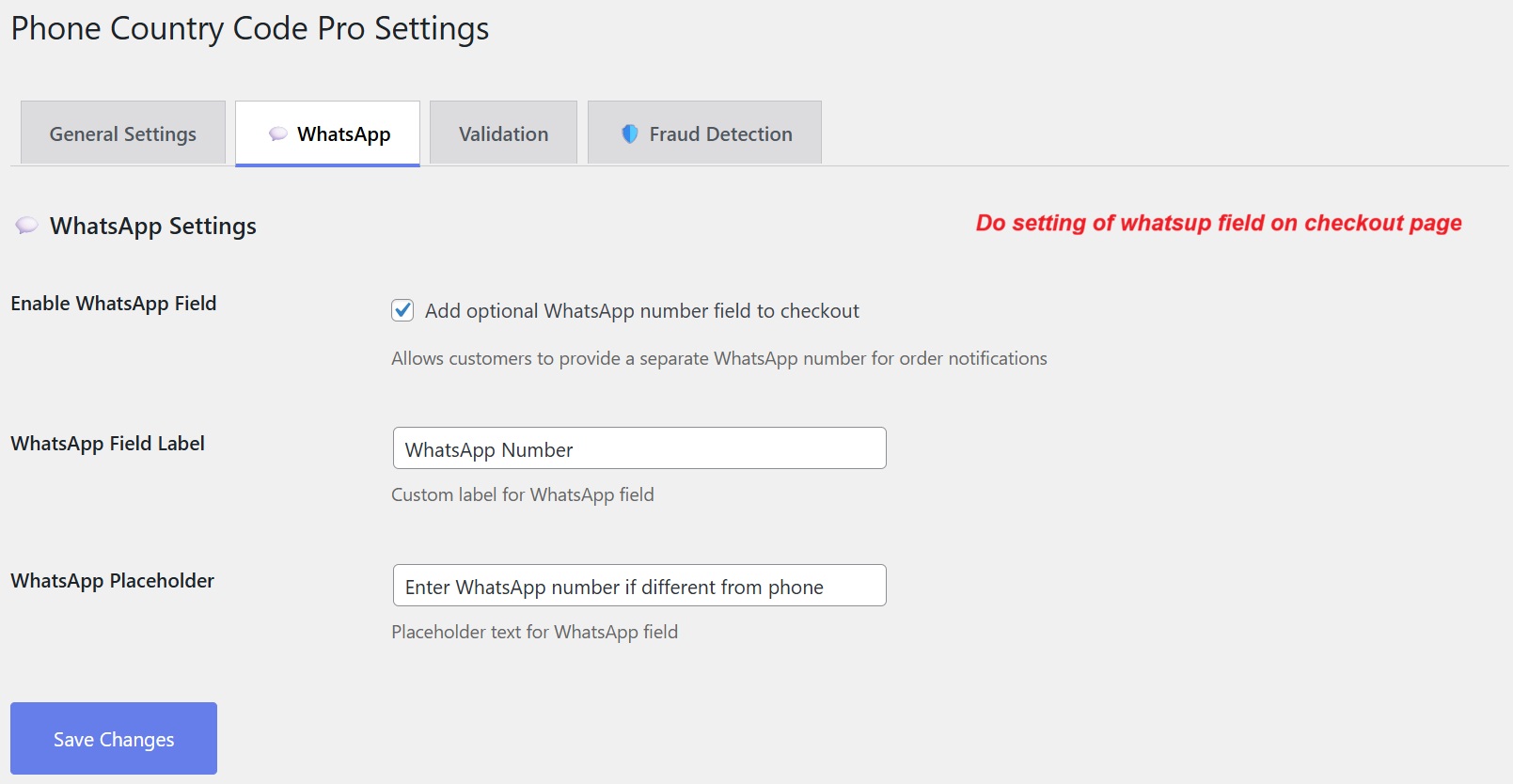
Add a customizable WhatsApp field on checkout. Enable or disable by navigating to the 'WhatsApp' settings tab.
The 'WhatsApp' tab in the Phone Country Code Pro Settings, enabling the addition of a WhatsApp field and customizing its label and placeholder.
Set Up Validation
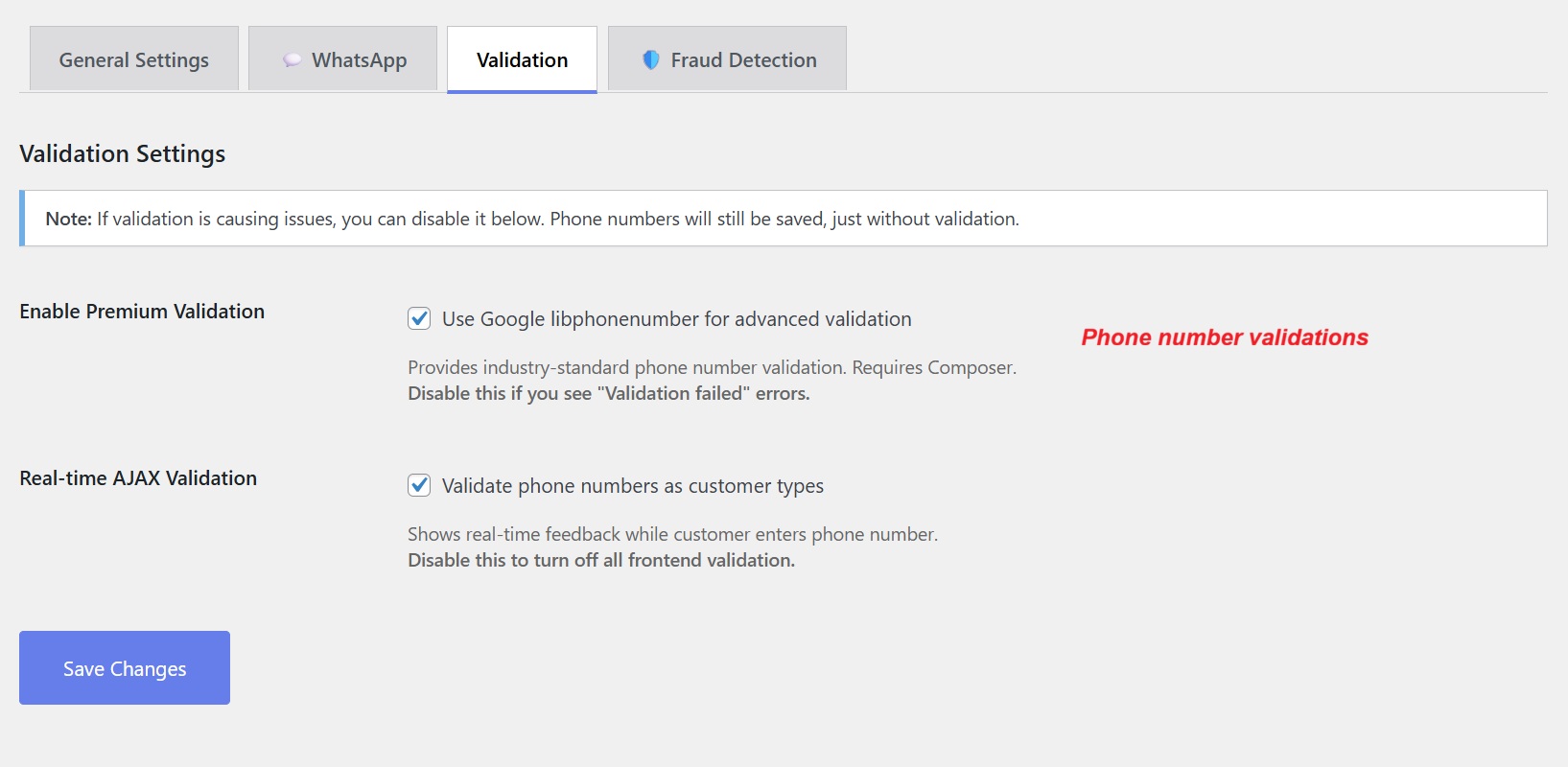
Within the 'Validation' tab, activate real-time AJAX and premium validation via libphonenumber-js for accurate phone input entries.
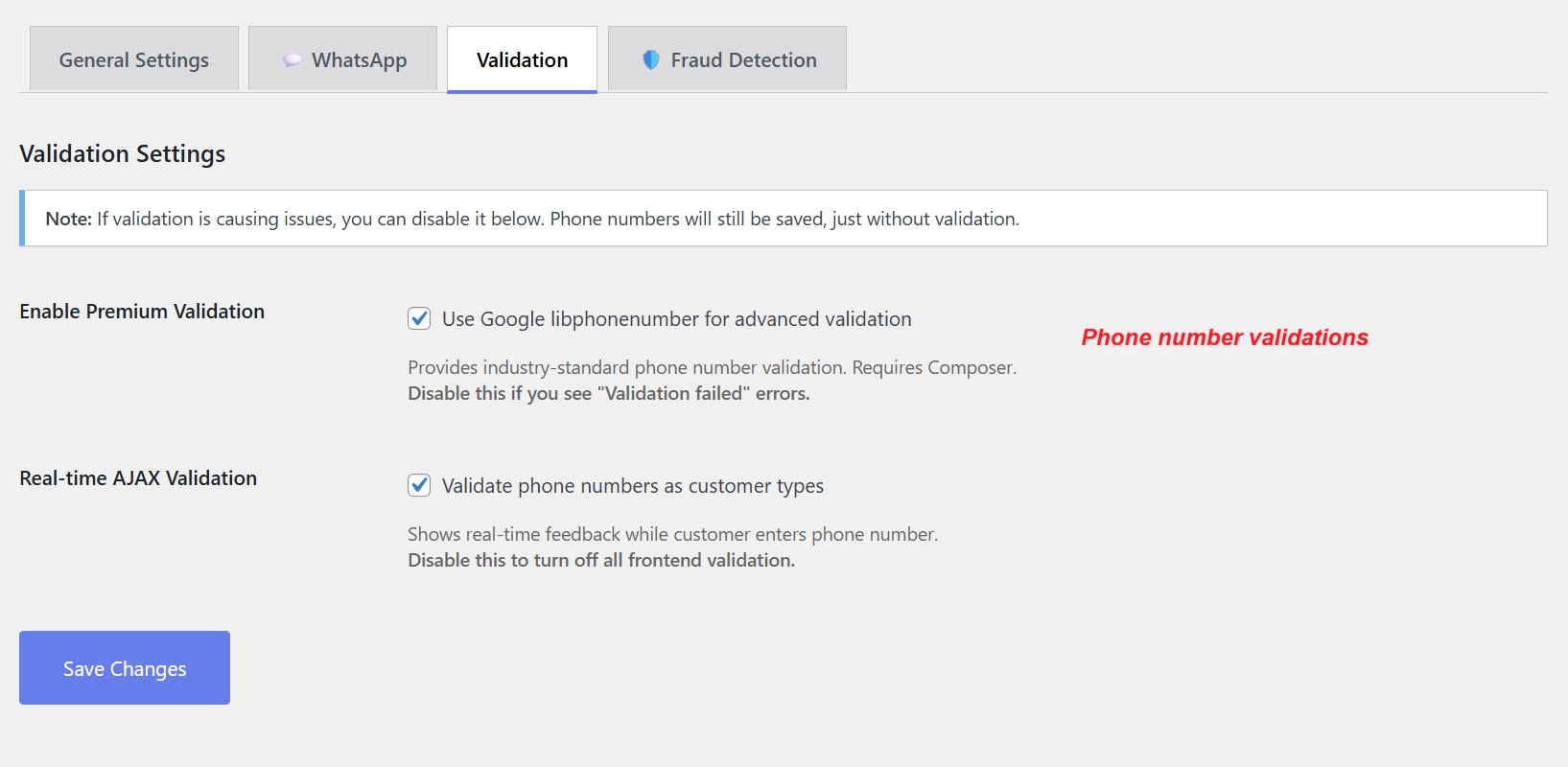
The 'Validation' settings tab, offering options for enabling premium validation and real-time AJAX validation for phone numbers.
Integrate Fraud Detection Measures
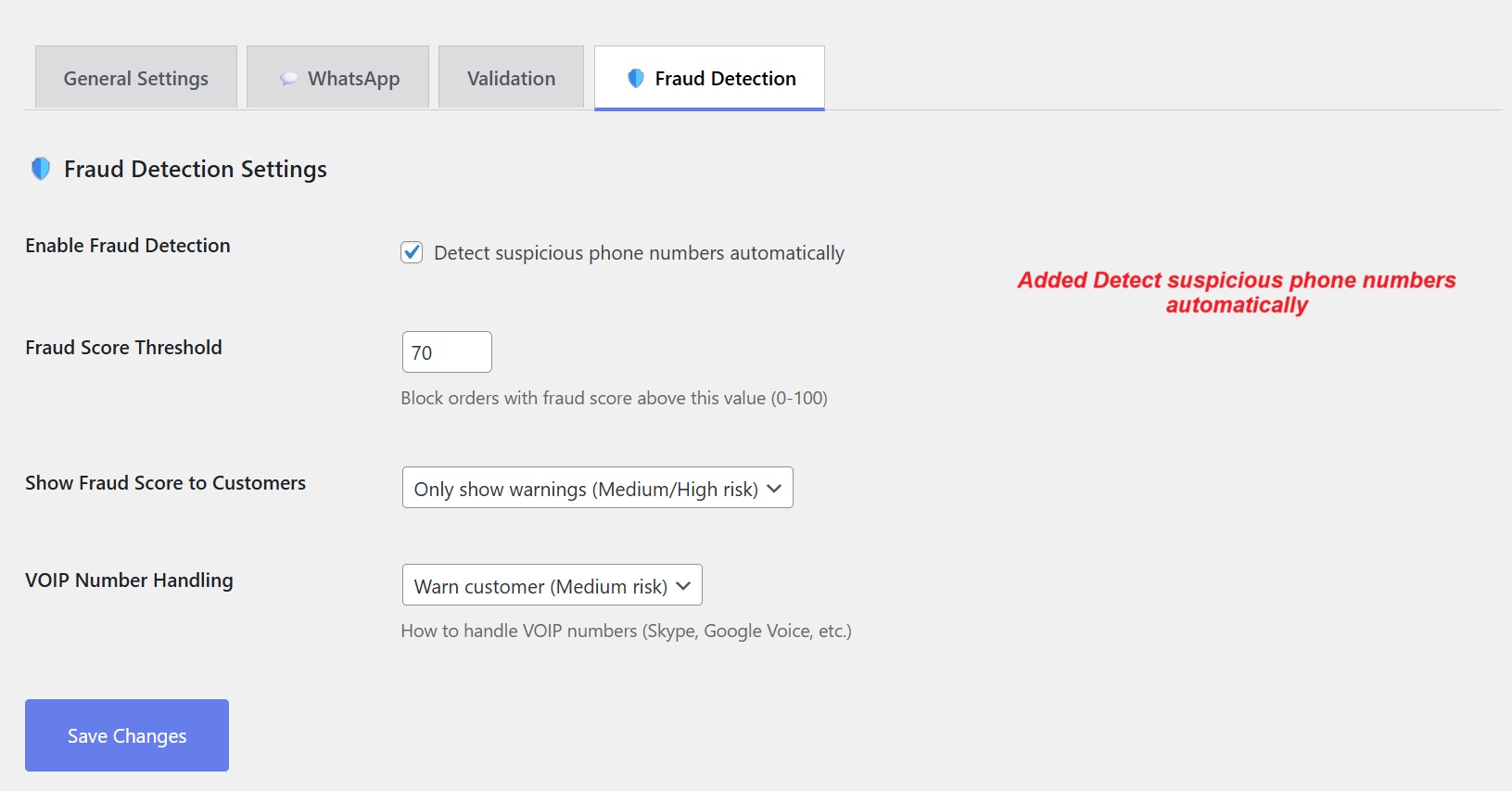
From the 'Fraud Detection' tab, toggle fraud identification and input your desired fraud score threshold. Adjust settings for VOIP numbers as needed.
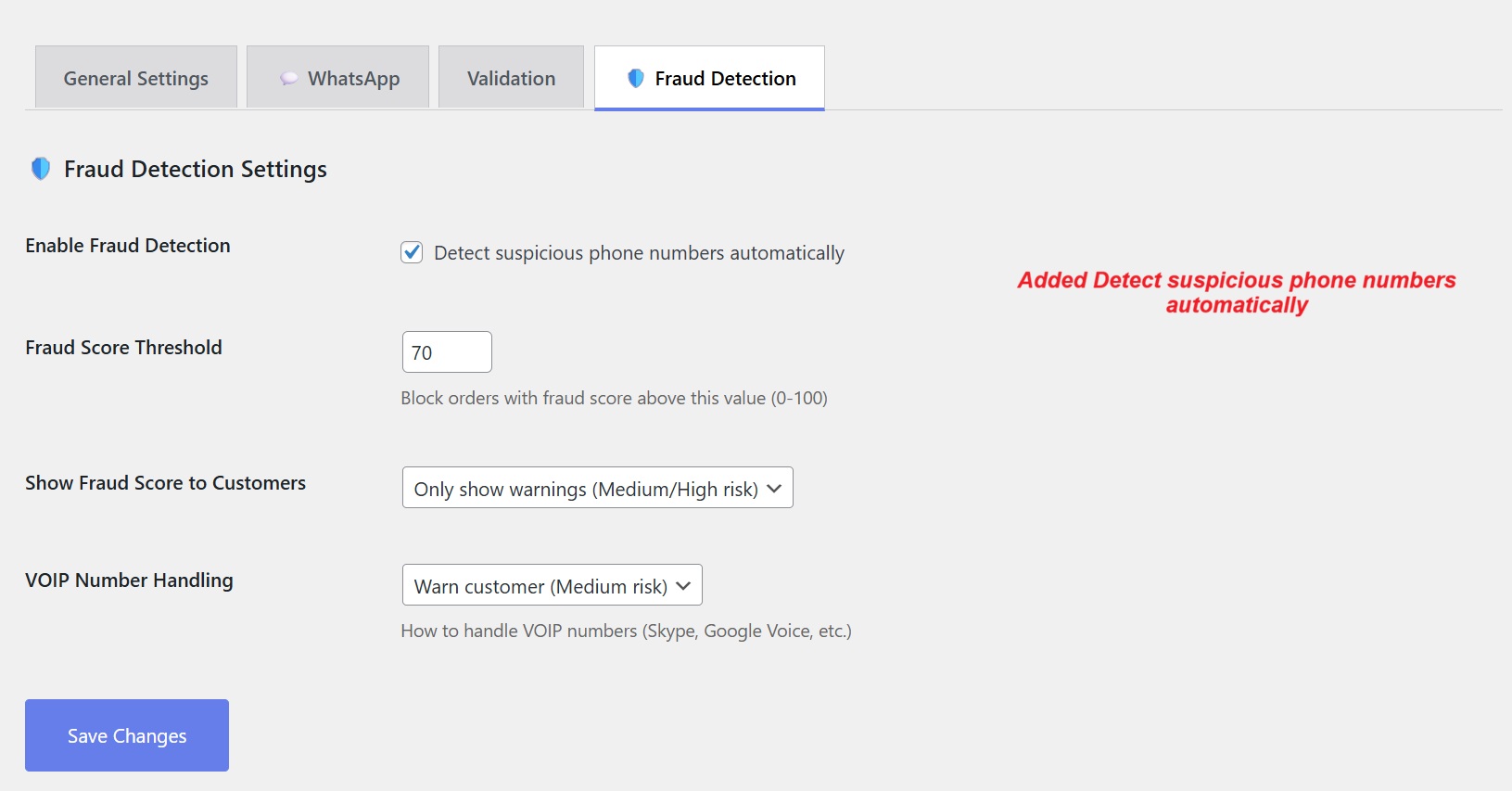
The 'Fraud Detection' tab shows options for enabling fraud detection, setting fraud score thresholds, and configuring VOIP number handling.
4 User Journey
Selecting Country Code on Checkout
Customers encounter an easy-to-use phone input field enhanced by country code and flag display, simplifying the submission of global contact details.
The checkout page displaying a phone number field with a dropdown list of country codes and flags, enabling users to select their country code.
Autocomplete Search for Country Codes
Users easily find and select their country code through efficient autocomplete search. This feature minimizes entry errors and improves data accuracy.
The checkout page displays a phone number field with an autocomplete country code selector and an optional WhatsApp number field.
Visualizing Valid Contact Inputs
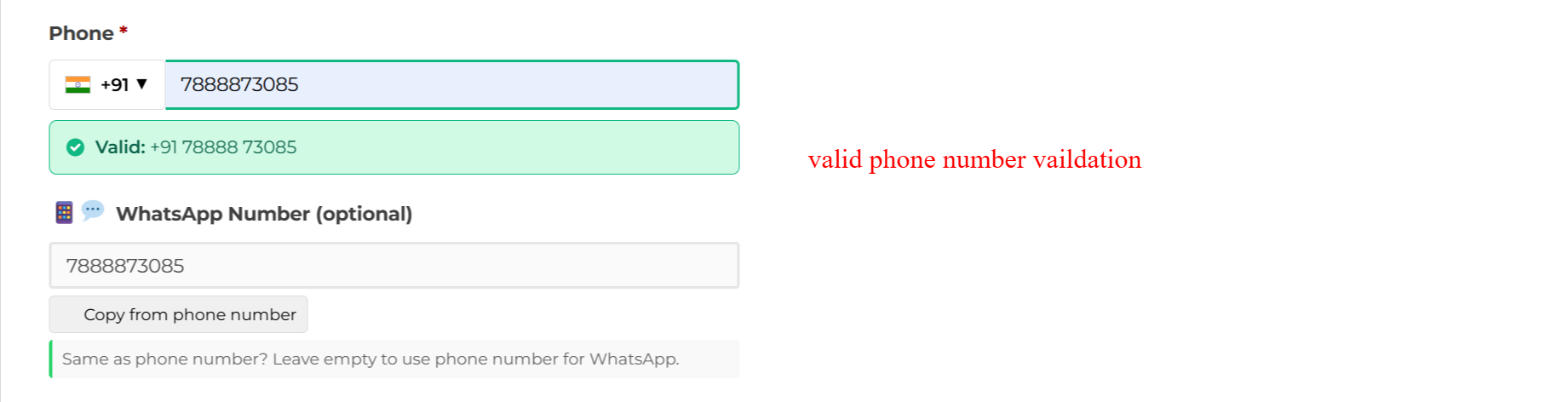
Real-time validation confirms accuracy with immediate feedback on phone number legitimacy. Errors are promptly corrected for effective post-order communication.
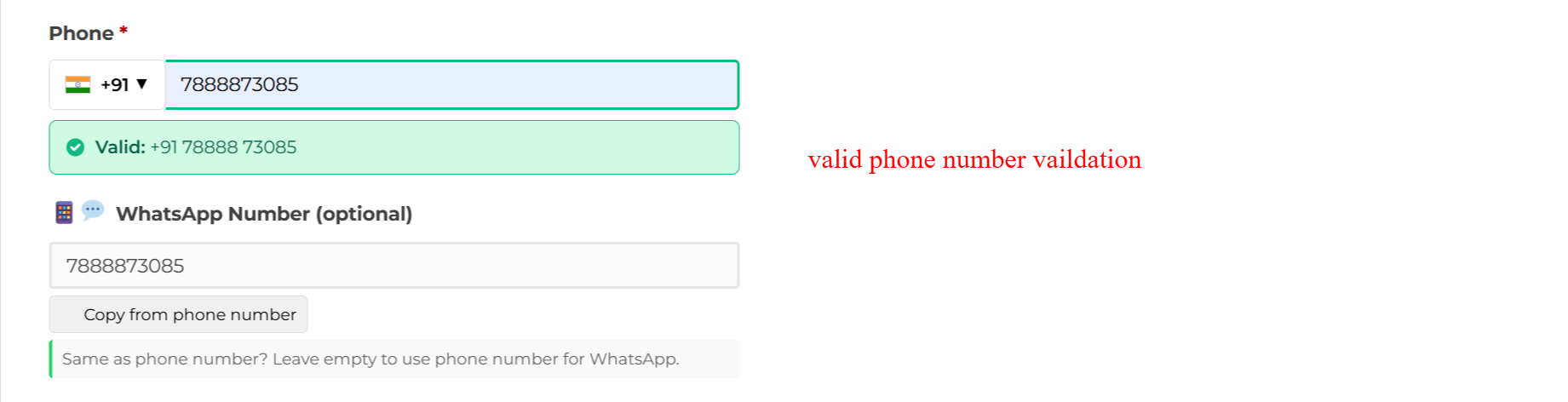
The checkout form shows a validated phone number and an optional WhatsApp number field, featuring a 'Valid' confirmation for phone input.
Entering WhatsApp Contact Information
Provide a dedicated field for WhatsApp numbers, facilitating enhanced communication paths, including a 'Copy from phone number' functionality to streamline input.
The checkout page allows users to enter a separate WhatsApp number with a 'Copy from phone number' button.
Managing Contact Details in Dashboard
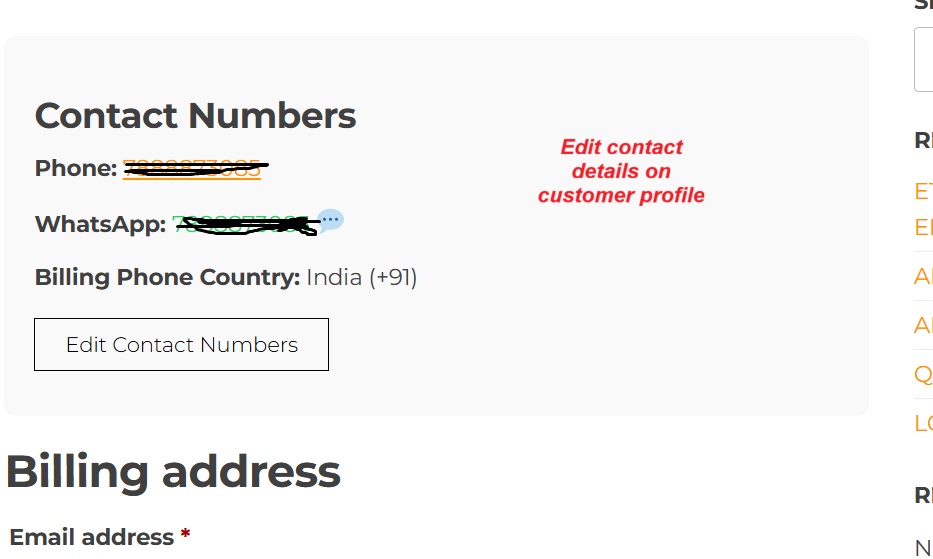
Customers view and manage their contact numbers, including phone and WhatsApp, ensuring up-to-date details for seamless transaction interactions.
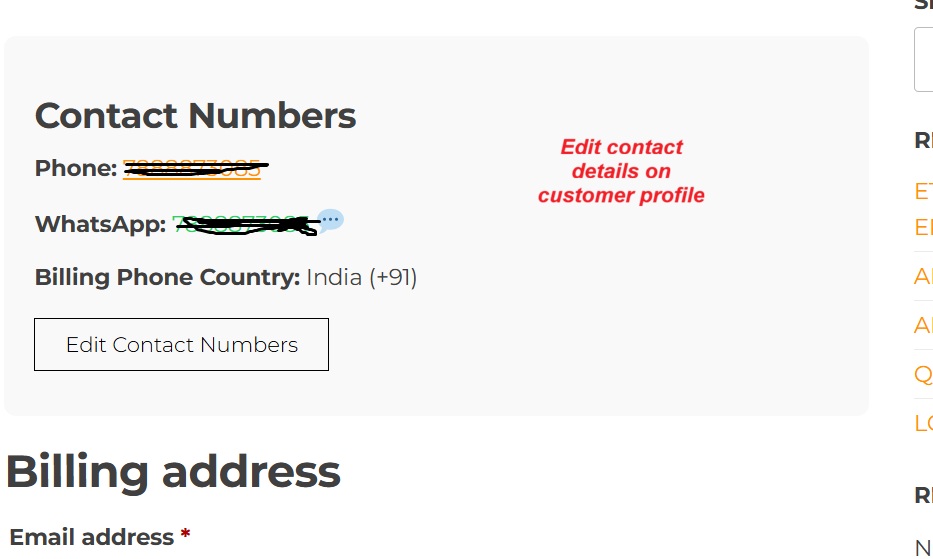
The account dashboard displays the user's phone and WhatsApp numbers with an option to edit them.
5 Use Cases
International E-commerce Sites
Easily collect phone numbers globally, ensuring effective communication and smooth transaction processes across borders.
Service Providers with Global Clientele
Maintain contact precision across numerous territories with validation supporting 200+ countries, suitable for diverse client bases.
Subscription or Membership Platforms
Enhance user profiles with verified phone data, aiding in communication continuity and verification procedures, reducing drop-offs.
Businesses Utilizing WhatsApp for Customer Care
Seamlessly integrate WhatsApp numbers at checkout to strengthen customer engagement via their preferred messaging application.
8 Tips & Tricks
- Enable auto-detect country for improved user experience.
- Use local flag files to enhance load times.
- Mark phone fields as required for complete data collection.
- Easily translate with provided .pot file.
- Adjust fraud settings to suit risk levels.
- Auto-copy WhatsApp numbers increases convenience.
- Implement with high-volume stores for greater contact accuracy.
- Monitor validation feedback to prevent errors.
10 Step-by-Step Screenshot Reference
Every captured screen in setup order. Click any image to open the full-size version in a new tab.
wp-admin: Activate Country Code Plugin
What this shows: The WordPress plugin page showing 'Country Code Phone & WhatsApp Field for WooCommerce' ready for activation, along with options for settings and deactivation.
To use the Country Code Phone & WhatsApp Field for WooCommerce plugin, you must first activate it. Navigate to the plugins page in the WordPress dashboard and locate the plugin. Click 'Activate' to enable its functionality. Activation is the first step to configure phone number fields with country codes on your WooCommerce checkout page.
wp-admin: Phone Country Code Menu Access
What this shows: WooCommerce menu with the 'Phone Country Code' submenu highlighted, indicating where settings for the Country Code plugin can be accessed.
After activating the plugin, the 'Phone Country Code' menu becomes available under WooCommerce settings. Selecting this option allows you to access and modify how country codes and phone number fields are managed on your checkout page, ensuring a tailored experience based on your store's needs.
wp-admin: General Settings for Country Code
What this shows: The 'General Settings' tab of the Phone Country Code Pro Settings, showing default country selection and auto-detect country features.
Begin setting up your international phone number fields by configuring the general settings. Here, you can choose the default country for the phone field and enable the auto-detect feature to dynamically adjust based on the user's location. Making the phone number a required field ensures that you collect the necessary contact details for order processing.
wp-admin: Configure Phone Settings
What this shows: The same 'General Settings' tab as before, with options for requiring phone numbers and using local flag files.
Ensure your customers provide complete information by marking the phone number as a required field. Decide whether to use local flag files for faster loading, which can enhance the checkout experience. Adjusting these settings allows for a smoother, more efficient checkout process, particularly for stores with a global customer base.
wp-admin: WhatsApp Field Settings
What this shows: The 'WhatsApp' tab in the Phone Country Code Pro Settings, enabling the addition of a WhatsApp field and customizing its label and placeholder.
Add a WhatsApp number field to your WooCommerce checkout to facilitate direct communication with customers via their preferred messaging app. Customize the field's label and placeholder to fit your store's branding. This feature can enhance customer engagement and streamline notifications.
wp-admin: Phone Number Validation Settings
What this shows: The 'Validation' settings tab, offering options for enabling premium validation and real-time AJAX validation for phone numbers.
Improve data accuracy by enabling validation settings for phone numbers. Utilize Google libphonenumber for standard validation and real-time AJAX to provide instant feedback as customers enter their details. These features help ensure you collect valid and correctly formatted phone numbers, minimizing potential errors.
wp-admin: Fraud Detection Setup
What this shows: The 'Fraud Detection' tab shows options for enabling fraud detection, setting fraud score thresholds, and configuring VOIP number handling.
Enhance security by enabling fraud detection, which identifies suspicious phone numbers. Adjust the fraud score threshold to determine when an order is considered high risk. You can also customize how VOIP numbers are handled, adding an extra layer of protection against fraudulent activities.
Frontend: Checkout Phone Field with Country Codes
What this shows: The checkout page displaying a phone number field with a dropdown list of country codes and flags, enabling users to select their country code.
On the checkout page, customers can easily input their phone number with the help of a dropdown menu displaying country codes and flags for over 200 countries. This makes it simple for users from anywhere in the world to provide their contact information, enhancing the global accessibility of your WooCommerce store.
Checkout: Country Code Autocomplete Search
What this shows: The checkout page displays a phone number field with an autocomplete country code selector and an optional WhatsApp number field.
On this screen, users can enter their phone number with an international country code using the autocomplete feature. This ensures that customers provide accurate contact information necessary for order processing. The optional WhatsApp number field allows users to provide a contact method for communication through WhatsApp if preferred.
Checkout: Phone Number Validations
What this shows: The checkout form shows a validated phone number and an optional WhatsApp number field, featuring a 'Valid' confirmation for phone input.
This step verifies the phone number input in real-time, immediately notifying users of its validity. Accurate phone entries ensure seamless communication and support post-order processing. Users can also enter or copy the same number for WhatsApp, facilitating flexible contact options.
Checkout: WhatsApp Number Entry
What this shows: The checkout page allows users to enter a separate WhatsApp number with a 'Copy from phone number' button.
Here, customers can input a WhatsApp number distinct from their contact number, enhancing communication flexibility. The 'Copy from phone number' button speeds up this process for those who prefer using the same number, streamlining checkout efficiency.
Checkout: Invalid Phone Number Error
What this shows: The checkout form displays an error message 'Invalid phone number' beneath an incorrectly formatted phone entry.
This screen provides immediate feedback when an invalid phone number is entered, prompting users to correct mistakes before proceeding. Such real-time validation prevents future communication errors and guarantees that customer contact data is accurate and reliable.
Account Dashboard: Display Contact Numbers
What this shows: The account dashboard displays the user's phone and WhatsApp numbers with an option to edit them.
In the account dashboard, users can view and update their contact numbers, including both phone and WhatsApp details. This functionality allows for ongoing management of personal information, ensuring it remains current, which is crucial for order updates and communication.
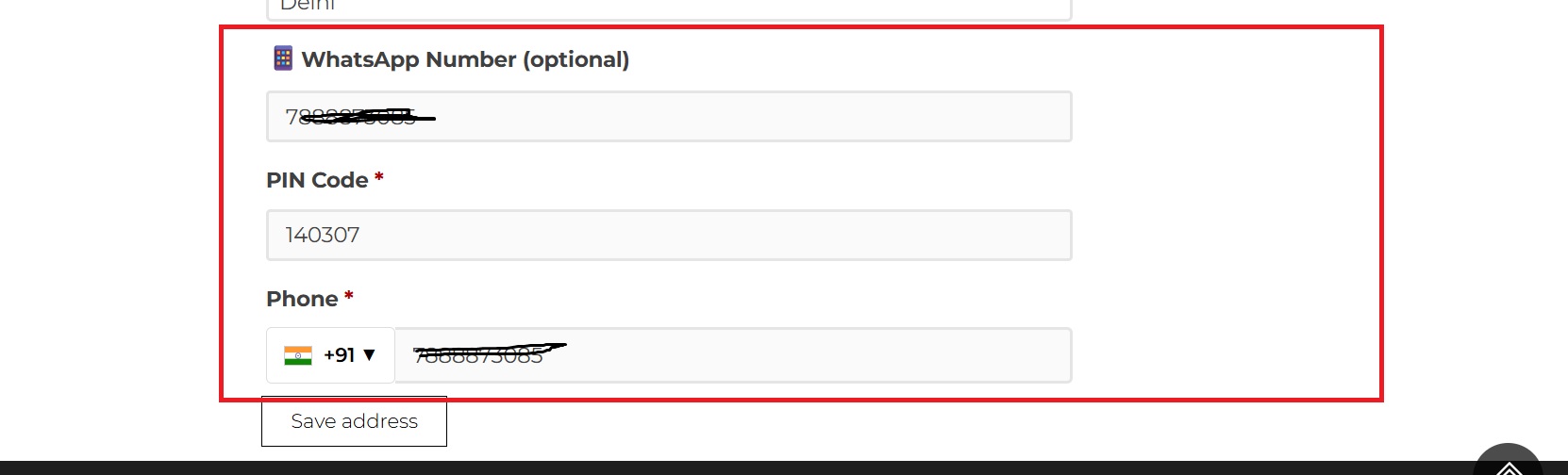
Account Details: Edit Contact Numbers
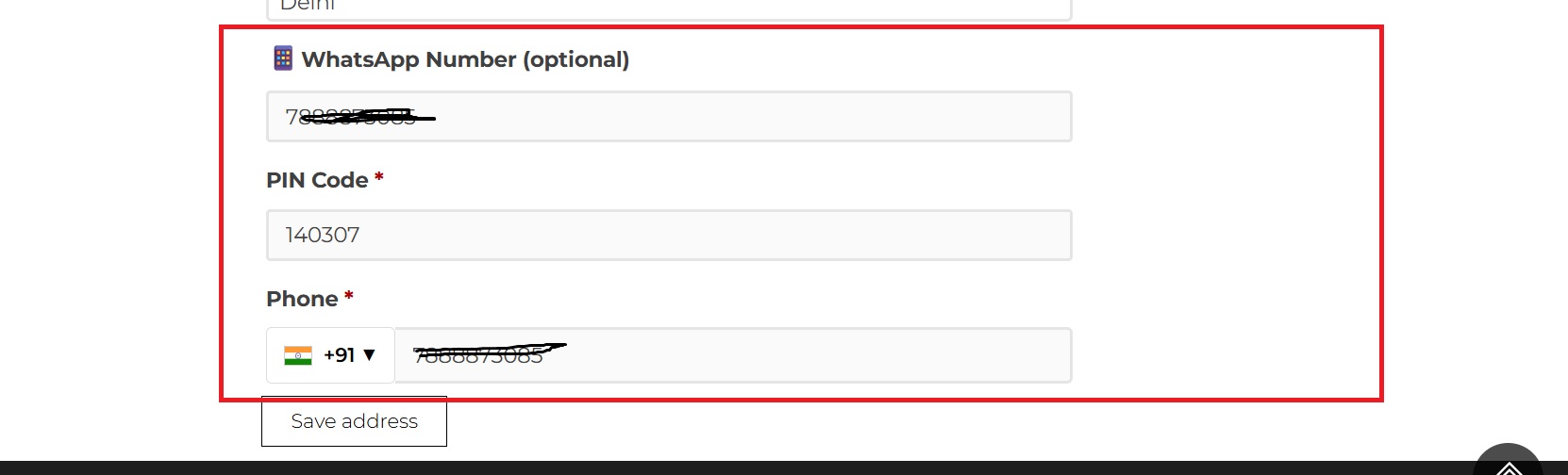
What this shows: The account details section presents editable fields for the WhatsApp number, PIN code, and phone number, along with a 'Save address' button.
Customers can modify their phone and WhatsApp numbers within the account details to keep contact information updated. This screen is vital for users who need to adjust their details due to changes in communication preferences or correcting previous entries.
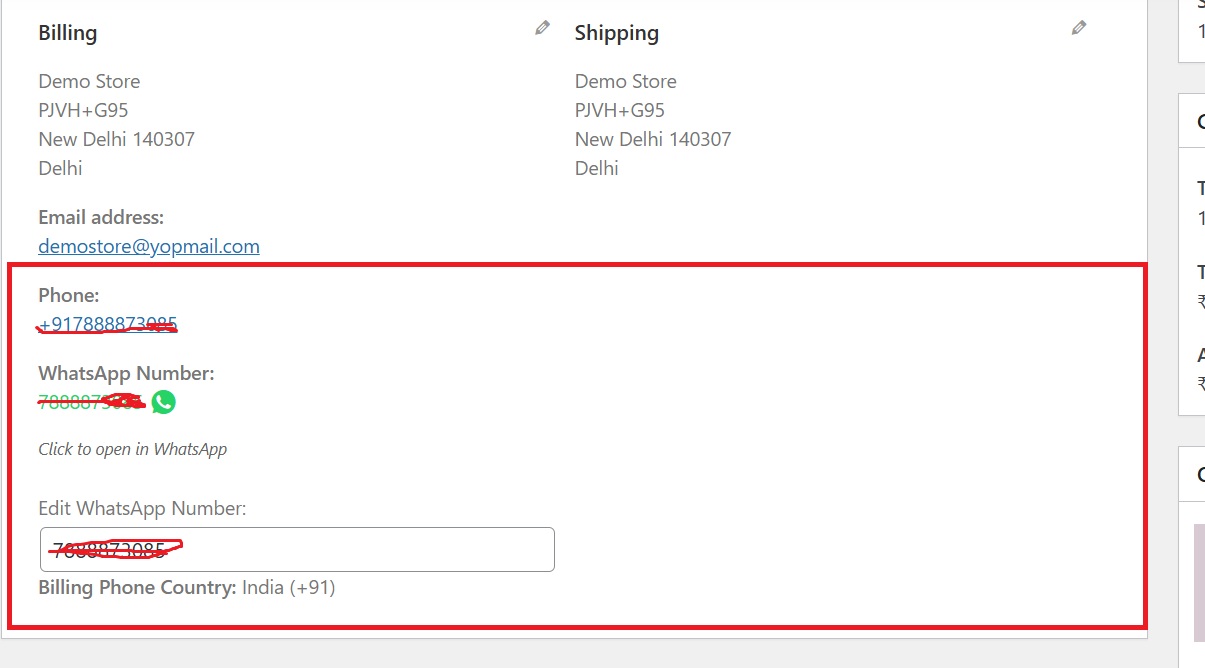
Order Details: Contact Information for Shipping
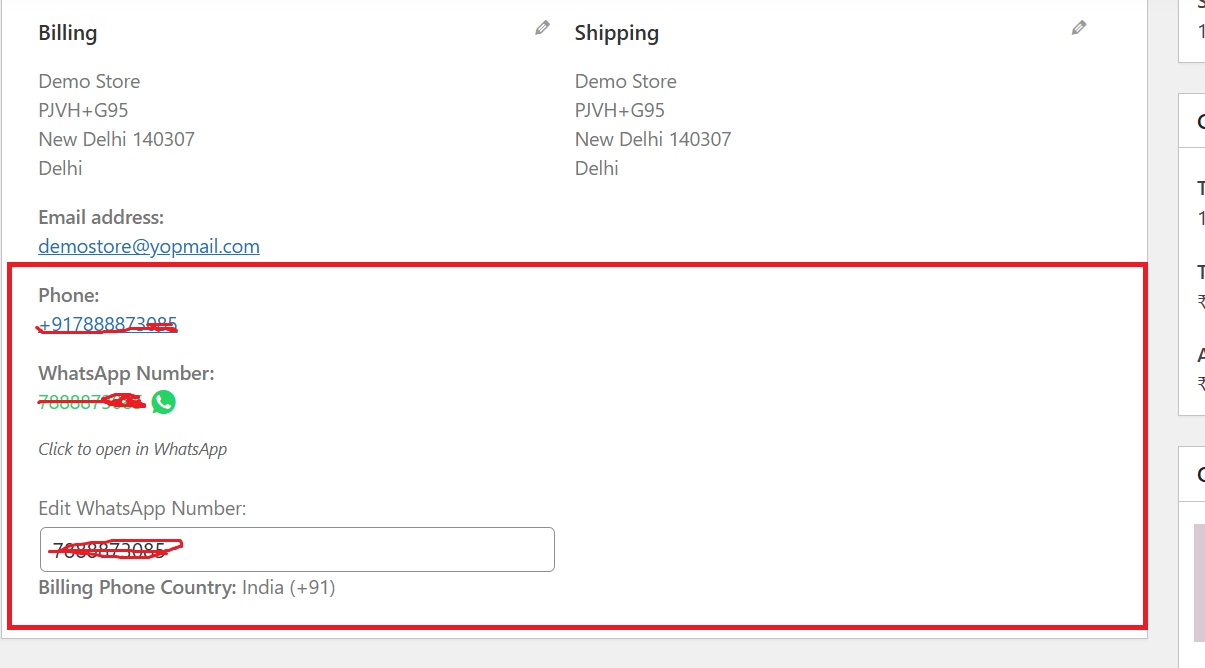
What this shows: Displays the billing and shipping contact information, including phone and WhatsApp numbers, with an option to edit the WhatsApp number.
This screen ensures that complete and accurate contact details are associated with each order. Users can review and edit their phone and WhatsApp numbers directly from the order details, facilitating any last-minute corrections before shipping. This step is crucial in maintaining efficient delivery processes and customer communication.

Reviews
There are no reviews yet.